Annoying ghost task


Jordan CYW

New member
Local time
12:03 AM
Posts
6
OS
Windows 11
I had created a task in the task scheduler for the purpose of shutting down my laptop every night just in case if I forget to do it myself. I deleted the task recently but it still continue to run every night. I am confirmed that the task is removed from existence, how should I get rid of this annoying corrupted file?
 
Windows Build/Version
Windows 11

My Computer My Computer

At a glance

Windows 11
OS
Windows 11
Computer type
Laptop
Manufacturer/Model
Asus
In this video, i will show you how to use a powerful application like Autoruns to manage your Windows start up programs, processes and other entries.


My Computer My Computer

At a glance

Windows 11AMD Ryzen 7 5700GMicron Technology DDR4-3200 16GBNVIDIA GeForce RTX 3060
OS
Windows 11
Computer type
PC/Desktop
Manufacturer/Model
HP Pavilion
CPU
AMD Ryzen 7 5700G
Motherboard
Erica6
Memory
Micron Technology DDR4-3200 16GB
Graphics Card(s)
NVIDIA GeForce RTX 3060
Sound Card
Realtek ALC671
Monitor(s) Displays
Samsung SyncMaster U28E590
Screen Resolution
3840 x 2160
Hard Drives
SAMSUNG MZVLQ1T0HALB-000H1

Attachments

  • Screenshot_1.jpg
    Screenshot_1.jpg
    8.1 KB · Views: 2

My Computer My Computer

At a glance

Windows 11
OS
Windows 11
Computer type
PC/Desktop
I suggest that you check which task the Task scheduler, Task status reports that it is running at the relevant time.
Task scheduler (Local), Task status section.png


Best of luck,
Denis
 

My Computer My Computer

At a glance

Windows 11 Home x64 Version 25H2 Build 26200....
OS
Windows 11 Home x64 Version 25H2 Build 26200.8037

My Computer My Computer

At a glance

Windows 11
OS
Windows 11
Computer type
Laptop
Manufacturer/Model
Asus
My apologies, I don't understand what you mean.
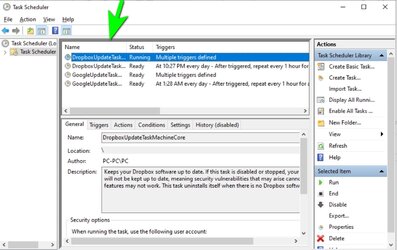
Denis (Try3) simply asked you to check whether the task you created appears on the Task Scheduler list (marked with a green arrow)
 

Attachments

  • task scheduler.jpg
    task scheduler.jpg
    120.4 KB · Views: 2

My Computer My Computer

At a glance

Windows 11
OS
Windows 11
Computer type
PC/Desktop
I don't understand what you mean
1 Run Task scheduler
2 On the left-hand side, select Task scheduler (local) [circled in purple]
3 Look in the middle of the middle pane and you'll see the sub-heading Task status [circled in purple]
4 In the Task status pane there is a dropdown selector for the time period. Select Last 24 hours.
5 In the Task status pane there is a big table area with headings Task name, Run result, Run start, Run end, Triggered by
6 If the Task status table is empty then look on the right-hand side of the Task scheduler window and click on Enable all tasks history [circled in green]. Then try this procedure again tomorrow.
TS, TS [local], Task status - Copy.png

7 If the Task status table is not empty then click on the + sign next to each entry to expand that entry and look in each one for the time that you reported the corrupt task ran.
task-scheduler-local-task-status-section-png.61499


8 Armed with your list of which tasks ran at the relevant time, select Task scheduler library on the left-hand side of the Task scheduler window and browse through it for the task name concerned. It will be there.


Denis
 

Attachments

  • TS, TS [local], Task status.png
    TS, TS [local], Task status.png
    22.8 KB · Views: 2
Last edited:

My Computer My Computer

At a glance

Windows 11 Home x64 Version 25H2 Build 26200....
OS
Windows 11 Home x64 Version 25H2 Build 26200.8037
Jordan,

Caramba was trying to help but is wrong.

My last post expanded on the instructions to help you look in the right place.
The additional diagram shows the right place in purple.
TS, TS [local], Task status - Copy.png


I imagine that, like most people, Caramba has never noticed what is shown in Task status.


Denis
 

My Computer My Computer

At a glance

Windows 11 Home x64 Version 25H2 Build 26200....
OS
Windows 11 Home x64 Version 25H2 Build 26200.8037
Denis (Try3) simply asked you to check whether the task you created appears on the Task Scheduler list (marked with a green arrow)
It doesn't exist, so I call it a "ghost task".
 

My Computer My Computer

At a glance

Windows 11
OS
Windows 11
Computer type
Laptop
Manufacturer/Model
Asus
1 Run Task scheduler
2 On the left-hand side, select Task scheduler (local) [circled in purple]
3 Look in the middle of the middle pane and you'll see the sub-heading Task status [circled in purple]
4 In the Task status pane there is a dropdown selector for the time period. Select Last 24 hours.
5 In the Task status pane there is a big table area with headings Task name, Run result, Run start, Run end, Triggered by
6 If the Task status table is empty then look on the right-hand side of the Task scheduler window and click on Enable all tasks history [circled in green]. Then try this procedure again tomorrow.
View attachment 61560

7 If the Task status table is not empty then click on the + sign next to each entry to expand that entry and look in each one for the time that you reported the corrupt task ran.
task-scheduler-local-task-status-section-png.61499


8 Armed with your list of which tasks ran at the relevant time, select Task scheduler library on the left-hand side of the Task scheduler window and browse through it for the task name concerned. It will be there.


Denis
Now i stuck at step 6, I will update the info asap. Much appreciate for your instructions.
 

My Computer My Computer

At a glance

Windows 11
OS
Windows 11
Computer type
Laptop
Manufacturer/Model
Asus
Case solved. A big thanks for all of you.

Special thanks for Denis, who have tried his best to provide an effective solution. Thank you.

Jordan
 

My Computer My Computer

At a glance

Windows 11
OS
Windows 11
Computer type
Laptop
Manufacturer/Model
Asus
Jordan,

I'm glad it has been resolved.
What was the explanation?

Denis
 

My Computer My Computer

At a glance

Windows 11 Home x64 Version 25H2 Build 26200....
OS
Windows 11 Home x64 Version 25H2 Build 26200.8037
Back
Top Bottom