Thank youAll of those suggested software‘s are good, I have used them. I also use one that is quite complex. But the ones posted do the right job
My Computer
At a glance
Windows 11
- OS
- Windows 11
- Computer type
- PC/Desktop
- Manufacturer/Model
- MSI

Follow along with the video below to see how to install our site as a web app on your home screen.
Note: This feature may not be available in some browsers.
Thank youAll of those suggested software‘s are good, I have used them. I also use one that is quite complex. But the ones posted do the right job

It's actually this one above ^ It's free for personal use or they sell a commercial license. They also take donationsthis is my choice:
Bulk Rename Utility - Free File Renaming Software
Bulk Rename Utility: Free File Rename Utility for Windows. Bulk Rename Utility allows you to easily batch rename files and folders based upon many flexible criteria. Free Download.www.bulkrenameutility.co.uk

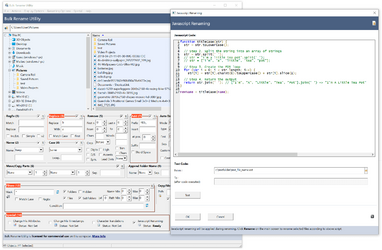


All I wanted was that. I even don't need PoweToys.

Yes! I've been using it for years. Lots of options and versatility.this is my choice:
Bulk Rename Utility - Free File Renaming Software
Bulk Rename Utility: Free File Rename Utility for Windows. Bulk Rename Utility allows you to easily batch rename files and folders based upon many flexible criteria. Free Download.

I'm glad you've solved your problem, but I want you to know that the method I've suggested does work. Watch the video:No That wont work
Here is a quick demo of the solution that I suggested. I like it because you don't have to install any additional software on your machine. Everything you need is already built in.

Thank you so much I will Give it a try@Firas,
Here is a quick demo of the solution that I suggested. I like it because you don't have to install any additional software on your machine. Everything you need is already built in.
I have a folder called C:\backgroundtest and it has a handful of jpegs with long names.
View attachment 73636
Now, I 'll paste in my powershell command and change a few things to fit my scenario, my desired filenames and extension.
View attachment 73638
And the end result.
View attachment 73639
Thank youI'm glad you've solved your problem, but I want you to know that the method I've suggested does work. Watch the video:
Regards

Have a backup of the data somewhere, that's always the best solution. Personally, I would have copied a handful of files to a testing directory, and would run the poweshell against that first to make sure it's working. Only then would I run it against the real directory.Is there a preview? Undo?
Maybe/Maybe not. In this particular case, there wasn't a whole lot in terms of semantics, and only general stuff that had to be changed in the command. It's a simple one-liner.Do you think the OP would be able to easily adapt it to his needs or generalize it to other situations, especially given how unlikely he is to be well-versed in nuances of PowerShell syntax and semantics?
No problem. You don't have to use this method. We all have different requirements. I work as a Systems Engineer and have a need to script and automate as much as possible in my line of work. So, I always choose to do it that way whenever possible. Plus, you can easily give the line to somebody else who can achieve the same results by just copying and pasting. It's hard to document a process for somebody who is using an app and then you have to say, click this, go here, check this box, click on the top to sort the column, click on rename, put this into this box, etc. To many possibilities for human error here.I would never use this method given that free apps exist that greatly simplify the process and offer many different ways to perform changes including serializing, regexps, and on and on, plus, they allow breaking the procedure down into multiple simpler steps, all with preview.
Have a backup of the data somewhere, that's always the best solution. Personally, I would have copied a handful of files to a testing directory, and would run the poweshell against that first to make sure it's working. Only then would I run it against the real directory.
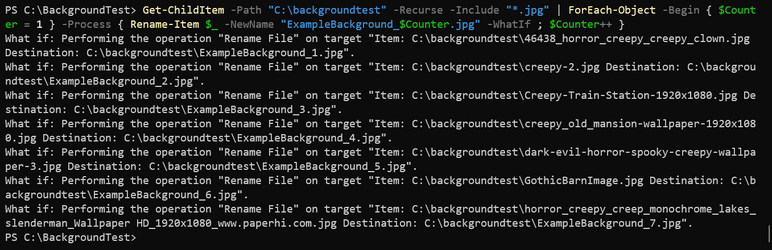
There is an optional parameter called -WhatIf that you can use, that would tell you what the command would have done, IF you would have run it. Here's an example for this case. I've supplied the -WhatIf parameter to the Rename-Item cmdlet.
Maybe/Maybe not. In this particular case, there wasn't a whole lot in terms of semantics, and only general stuff that had to be changed in the command. It's a simple one-liner.
However, I think it's great to get an example of what you can do with something like Powershell, then if you find it useful or you want to adapt it to other tasks, it's another tool in your toolbelt.
No problem. You don't have to use this method. We all have different requirements. I work as a Systems Engineer and have a need to script and automate as much as possible in my line of work. So, I always choose to do it that way whenever possible. Plus, you can easily give the line to somebody else who can achieve the same results by just copying and pasting. It's hard to document a process for somebody who is using an app and then you have to say, click this, go here, check this box, click on the top to sort the column, click on rename, put this into this box, etc. To many possibilities for human error here.
I chose to do this one in a one-liner, but you could have had a handful of powershell commands that would have broken this down into smaller steps.
I never said Powershell was the best way to do it. I said that "powershell can easily do this for you". I gave them the example of how to use it as they said they weren't sure what they would have to cut and paste or do.Nothing about using PowerShell here is simpler for the OP or appropriate to the task other than to say "This is yet another way it can be done". See, by questioning you about this in my last message, you've had to explain how you would go about testing and previewing the results, and after this message, you need to explain how to deal with filenames containing characters PowerShell treats specially. It's a rabbit hole, and these things simply don't come up when using a program like ReNamer. Note particularly that it hasn't been the OP asking about these important considerations... Indeed, I see OP replied to you, "What do i copy? Im not that good with commands," which tells me unequivocally PowerShell is not suitable for them.
Everyone has their own methods, everyone likes to share them with others. I don’t think criticising someones method is the point. I think the point is @Firas finds the method he likes best. We all gave suggestions, he’s all fixed


 www.techrepublic.com
Everyone has their own methods, everyone likes to share them with others. I don’t think criticising someones method is the point. I think the point is @Firas finds the method he likes best. We all gave suggestions, he’s all fixed
The point is…