Hello
@zabermon and welcome to ElevenForum.

It would help us help you, if you filled out your computer specs.
A free program: SPECCY, can help.
You can get the free version here...
Speccy - find the details of your computer's specs. Great for spotting issues or finding compatible upgrades. Download the latest version today.

www.ccleaner.com
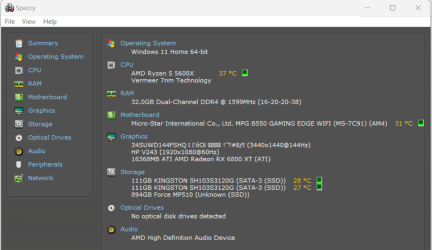
Install it, and then just post a screen shot of the first page of the program.
This is what mine looks like...

You should then add the following info to your computer specs, on this forum...
CPU, RAM, Motherboard, graphics card, monitor, and any SSDs or hard drives that you have.
You should also include the make/model of your Power Supply.
That information will be written on the side of your power supply.
For the RAM, you need to double the frequency (in Mhz), that is shown in SPECCY.
For example, mine shows 1599Mhz, but the RAM is actually running at 3200Mhz.
_____________________________________________________________________________________________________________________
To post a screenshot on this forum...
1. Take the screenshot, (or camera pic), edit it as desired, save to your desktop as .png or .jpg (max. size = 2MB)
2. Left click in your post, where you want to place the screenshot.
3. Click the
Attach Files button at lower left, browse to your image and select it.
4. Then click
Insert, I usually choose the
Thumbnail (smaller) option, or there is a
Full Image (larger) option.
If the "new"
PrtSc key function is not to your liking... here is how to set it back to it's classic function...
This tutorial will show you how to turn on or off to use the Print Screen key to open screen snipping for your account in Windows 11. The Snipping Tool app includes a built-in screen recorder and allows you to quickly take and annotate screenshots, photos and other images with your pen, touch...

www.elevenforum.com
____________________________________________________________________________________________________________________
Here's some other things that you may find useful...
Quickie Interface tour... Quickie set up... At the top right, click on your name, then choose "Preferences". Then go through everything on the left side. Quickie navigation... Click Forums and choose a subforum, OR... Click Forums, then New Posts or What's New Ranks, Trophies...
www.elevenforum.com
How to use backup software... 1. When everything is working perfectly... make a full Windows backup. 2. Then, if something breaks... restore from the latest backup. 3. Then... try "whatever you were doing" a different way. If it still breaks Windows, then... go to step #2. 4. Repeat...
www.elevenforum.com
These are tweaks I've seen asked for... many times. They are collected here for easy access. All of these and more can be found in the Eleven Forum Tutorials Make sure to read the "notes" in the various tutorials. At the bottom of the first post in all the "tutorials", there are links to...
www.elevenforum.com

 drive.google.com