"Camera" directory appears as "Pictures" in Windows Explorer


cinematic6436

Well-known member
Local time
7:32 PM
Posts
24
OS
Windows 11
I have a directory (DCIM) with two subdirectories -- Pictures and Camera. They are synced with SyncThing and SyncTrayzor to my android phone, which uses Syncthing Fork. Photos taken on the phone are stored in Camera and are duplicated onto my computer as soon as the phone connects to the wifi. Pictures is a directory that has random stuff.

I recently upgraded phones, transferred everything onto the new one, successfully got everything syncing properly again -- and was surprised to see the Camera directory in Windows Explorer is now identified as Pictures. If I go to the DCIM directory, there's now two directories named Pictures (see screenshot). If I view the same location using the command prompt on my computer, the directories appear as Camera and Pictures. Same when viewed in Cx File Explorer on my phone.

Has anyone experienced this before? How can I see that second Pictures directory as Camera in Windows Explorer again?
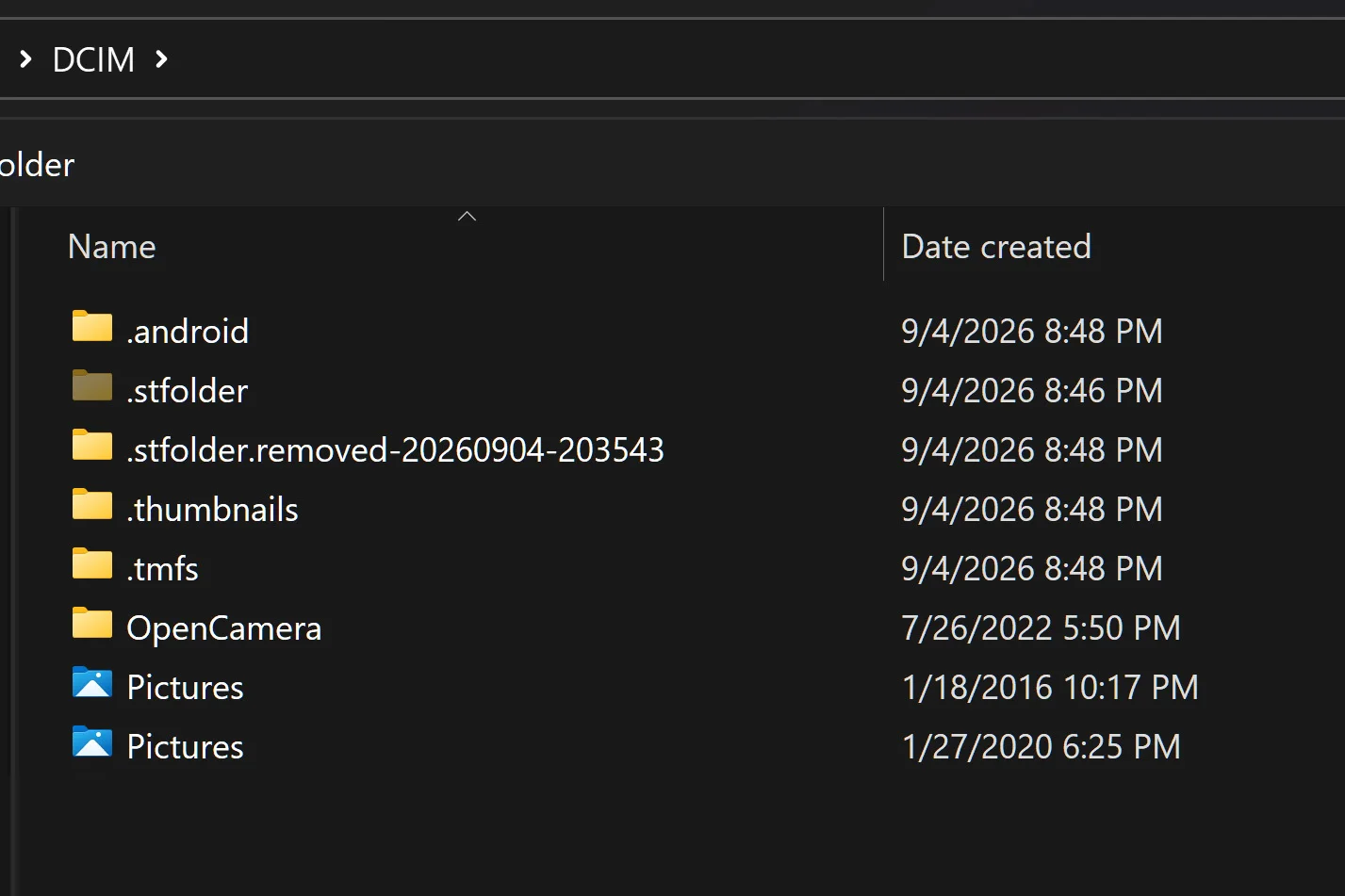
Pictures Pictures.webp
 
Windows Build/Version
Version 25H2 (OS Build 26200.9278)

My Computer My Computer

At a glance

Windows 11
OS
Windows 11
I was going to suggest maybe the phone's data didn't sync fully, but then I saw you wrote that you have already got the correct subdirectory names via command prompt.

If command prompt DIR command shows correct names and file explorer doesn't, then I'd be tempted to check the file properties in file explorer. You can do this by right-mouse clicking on the directory in question.
 

My Computers My Computers

  • At a glance

    Windows 11AMD Ryzen 5 560016 GBSapphire Radeon RX 6500XT (8 GB version)
    OS
    Windows 11
    Computer type
    PC/Desktop
    CPU
    AMD Ryzen 5 5600
    Motherboard
    MSI B550-A Pro
    Memory
    16 GB
    Graphics Card(s)
    Sapphire Radeon RX 6500XT (8 GB version)
    Monitor(s) Displays
    BenQ Mobuiz EX2710Q QHD, Iiyama ProLite X23377HDS
    Hard Drives
    MSI Spatium M461 4TB
  • At a glance

    Windows 11Intel Celeron N4020
    Operating System
    Windows 11
    Computer type
    Laptop
    Manufacturer/Model
    Acer A114
    CPU
    Intel Celeron N4020
I was going to suggest maybe the phone's data didn't sync fully, but then I saw you wrote that you have already got the correct subdirectory names via command prompt.

If command prompt DIR command shows correct names and file explorer doesn't, then I'd be tempted to check the file properties in file explorer. You can do this by right-mouse clicking on the directory in question.
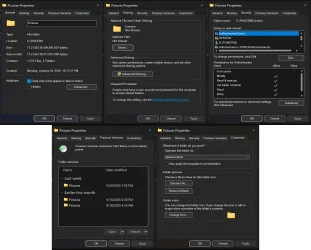
Thanks for the response & sorry for the delayed reply. Cmd > Dir definitely shows proper Camera & Pictures directories. Here are screenshots of the properties for the Camera directory that's appearing as Pictures in Explorer.

Don't know if it matters but I should probably mention that I changed the icon for the Camera directory to the standard yellow file folder so I could tell it apart from the directory that's actually named Pictures (default blue folder icon with the white triangle).

Camera Pictures.webp
 

Attachments

  • Camera Pictures.webp
    Camera Pictures.webp
    336 KB · Views: 6

My Computer My Computer

At a glance

Windows 11
OS
Windows 11
Thanks for the screenshots.

You can see from the Sharing and Security tabs, that the name "Camera" is retained.

However, the General and Previous Versions tabs show the incorrect name.

Can you perform a Clean Boot of your computer, and check the File Properties again?

If you want help in performing a Clean Boot, then you can follow the Forum's Tutorial here:

Only need to complete Part One of the tutorial.

Let me know if the names in File Properties have changed, after the Clean Boot.
 

My Computers My Computers

  • At a glance

    Windows 11AMD Ryzen 5 560016 GBSapphire Radeon RX 6500XT (8 GB version)
    OS
    Windows 11
    Computer type
    PC/Desktop
    CPU
    AMD Ryzen 5 5600
    Motherboard
    MSI B550-A Pro
    Memory
    16 GB
    Graphics Card(s)
    Sapphire Radeon RX 6500XT (8 GB version)
    Monitor(s) Displays
    BenQ Mobuiz EX2710Q QHD, Iiyama ProLite X23377HDS
    Hard Drives
    MSI Spatium M461 4TB
  • At a glance

    Windows 11Intel Celeron N4020
    Operating System
    Windows 11
    Computer type
    Laptop
    Manufacturer/Model
    Acer A114
    CPU
    Intel Celeron N4020
Back
Top Bottom