Changes to inline image representation in Outlook on the web and new Outlook for Windows


 Microsoft Dev Blogs:

We’d like to inform you about an update to how inline images are represented in the HTML body of Outlook emails in Outlook on the web and the new Outlook for Windows. This change may impact how your add-in identifies and processes inline images when using the attachment ID.

What’s changing?​

Previously, inline images in the HTML mail body were represented with a URL containing the attachment ID as a query parameter. The following is an example of an inline image represented in HTML code.

Code:
<img src="https://attachments-sdf.office.net/owa/arpitsangwan%40microsoft.com/service.svc/s/GetAttachmentThumbnail?id=AAkALgAAAAAAHYQDEapmEc2byACqAC%2FEWg0AW4xUByFbp0CroCNphMYEEAADMWhyiwAAARIAEAA3P0Tub6RfQaxOX%2Fjz3FlX &amp;thumbnailType=2&amp;token=XYZ… style="max-width: 1281px;" originalsrc="cid:ee058cc2-ad96-485f-95c7-44b2f40cb987" size="19720" contenttype="image/png >

Developers could parse the HTML and do one of the following.
  • Extract the ID from the URL and match it with the attachment ID they already had.
  • Use the entire URL in the src attribute to get the Base64 value of the inline image.
Going forward, the URL for inline images will no longer contain the attachment ID. Instead, the image will be represented by a content ID (cid) in the src attribute. As a result, your current parsing logic won’t be able to correlate the inline image in the mail body with the attachment ID or Base64 value of the image.

The following sample shows the updated representation of inline images in HTML code.

Code:
<img src="cid:ee058cc2-ad96-485f-95c7-44b2f40cb987" style="max-width: 1281px;" originalsrc="cid:ee058cc2-ad96-485f-95c7-44b2f40cb987" size="19720" contenttype="image/png">

Where is it changing?​

This update applies to Outlook on the web and the new Outlook on Windows. Other Outlook platforms will continue to operate as they do today.

Why is it changing?​

As part of our ongoing security efforts, we’re updating how inline images are loaded. Previously, images were retrieved via a GET request with the token embedded in the URL. We’re transitioning to a fetch call that includes the token in the request header. This change could impact you if you do one of the following to identify where the inline image appears in the message body.
  • Parse the attachment ID from the HTML editor.
  • Get the Base64 value of the image using the URL in the src attribute.

Solution​

To restore inline image correlation, we’re introducing the content ID that represents the image in the src attribute of the corresponding <img> element. Placing the content ID in the src attribute matches how classic Outlook on Windows represents inline images.

Action required​

  1. Update your parsing logic
    Instead of extracting the attachment ID from the URL, parse the HTML message body and retrieve the cid value from the src attribute of the applicable <img> element. Then, call Office.context.mailbox.item.getAttachmentsAsync. The getAttachmentsAsync method returns an AttachmentDetailsCompose object that contains the content ID property to help identify and match images. The following is a sample AttachmentDetailsCompose object.

    Code:
    [{"id":"AAkALgAAAAAAHYQDEapmEc2byACqAC/EWg0AW4xUByFbp0CroCNphMYEEAADMWhyywAAARIAEADghOrwhp8zR7umVQRBkN51","name":"image.png","contentType":"image/png","size":2371,"attachmentType":"file","isInline":true,"contentId":"7957e11a-ce80-438b-87cd-611b3d6a3ec4"}]

    To ensure your add-in continues to correctly correlate inline images during the rollout of these changes, we recommend that your add-in handle both previous and updated implementations. The following code is an example.
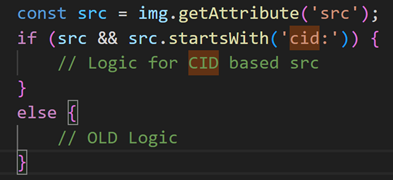
    update parsing logic code sample image
  2. Test your add-in
    Ensure your add-in correctly identifies and processes inline images using the updated src attribute.

Timeline​

Starting November 15, 2025, the updated inline image representation will begin rolling out to production users. Please make the necessary changes before then to avoid regressions to your add-in experience.

Let us know if you have any questions!

Happy coding!

The Office Extensibility team


 Source:
 
Hey @Brink, I ran across this and think it may have something to do with problems I've started to have with my Outlook Classic 2021. When I receive an inline image that I want to save to my computer, I no longer have a right click context entry of "save image as".
The only way I can save an inline image is open email>File>save as>Desktop>save as html. This creates a folder on my desktop with the .jpg image inside it. I have to move the image out of that folder and then delete the rest of the folder.

Does all this gobbly-gook in your article say that what I have to do now will no longer work in Outlook Classic or is that only for Outlook New? It's been like pulling teeth to save my inline images as it is.
 

My Computers

System One System Two

  • OS
    Windows 11 Pro 25H2
    Computer type
    PC/Desktop
    Manufacturer/Model
    Dell Optiplex 7080
    CPU
    i9-10900 10 core 20 threads
    Motherboard
    DELL 0J37VM
    Memory
    32 gb
    Graphics Card(s)
    none-Intel UHD Graphics 630
    Sound Card
    Integrated Realtek
    Monitor(s) Displays
    Benq 27
    Screen Resolution
    2560x1440
    Hard Drives
    2x1tb Solidigm m.2 nvme /External drives 512gb Samsung m.2 sata+2tb Kingston m2.nvme
    PSU
    500w
    Case
    MT
    Cooling
    Dell Premium
    Keyboard
    Logitech wired
    Mouse
    Logitech wireless
    Internet Speed
    so slow I'm too embarrassed to tell
    Browser
    #1 Edge #2 Firefox
    Antivirus
    Defender+MWB Premium
  • Operating System
    Windows 11 Pro 24H2 26200.8457
    Computer type
    PC/Desktop
    Manufacturer/Model
    Beelink Mini PC SER5
    CPU
    AMD Ryzen 7 6800U
    Memory
    32 gb
    Graphics card(s)
    integrated
    Sound Card
    integrated
    Monitor(s) Displays
    Benq 27
    Screen Resolution
    2560x1440
    Hard Drives
    1TB Crucial nvme
    Keyboard
    Logitech wired
    Mouse
    Logitech wireless
    Internet Speed
    still too embarrassed to tell
    Browser
    Firefox
    Antivirus
    Defender
    Other Info
    System 3 is non compliant Dell 9020 i7-4770/24gb ram Win11 PRO 26200.8457
Hey @Brink, I ran across this and think it may have something to do with problems I've started to have with my Outlook Classic 2021. When I receive an inline image that I want to save to my computer, I no longer have a right click context entry of "save image as".
The only way I can save an inline image is open email>File>save as>Desktop>save as html. This creates a folder on my desktop with the .jpg image inside it. I have to move the image out of that folder and then delete the rest of the folder.

Does all this gobbly-gook in your article say that what I have to do now will no longer work in Outlook Classic or is that only for Outlook New? It's been like pulling teeth to save my inline images as it is.

Hey, :alien:

This is only for Outlook on the web and the New Outlook for Windows app. It doesn't apply to the classic Outlook.

I've been able to right click on images in the New Outlook for Windows app, and click on "Save image as" for this.
 

My Computers

System One System Two

  • OS
    Windows 11 Pro for Workstations
    Computer type
    PC/Desktop
    Manufacturer/Model
    Custom self build
    CPU
    Intel i7-8700K 5 GHz
    Motherboard
    ASUS ROG Maximus XI Formula Z390
    Memory
    64 GB (4x16GB) G.SKILL TridentZ RGB DDR4 3600 MHz (F4-3600C18D-32GTZR)
    Graphics Card(s)
    ASUS ROG-STRIX-GTX1080TI-O11G-GAMING (11GB GDDR5X)
    Sound Card
    Integrated Digital Audio (S/PDIF)
    Monitor(s) Displays
    2 x Samsung Odyssey G75 27"
    Screen Resolution
    2560x1440
    Hard Drives
    1TB Samsung 990 PRO M.2,
    4TB Samsung 990 PRO M.2,
    TerraMaster F8 SSD Plus NAS
    PSU
    Seasonic Prime Titanium 850W
    Case
    Thermaltake Core P3 wall mounted
    Cooling
    Corsair Hydro H115i
    Keyboard
    Amazon Basics Wired Full Keyboard MD005
    Mouse
    Logitech MX Master 4
    Internet Speed
    2 Gbps Download and 100 Mbps Upload
    Browser
    Chrome and Edge
    Antivirus
    Microsoft Defender
    Other Info
    Logitech Z625 speaker system,
    Logitech BRIO 4K Pro webcam,
    HP Color LaserJet Pro MFP M477fdn,
    CyberPower CP1500PFCLCD
    Galaxy S23 Plus phone
  • Operating System
    Windows 11 Pro
    Computer type
    Laptop
    Manufacturer/Model
    Surface Laptop 7 Copilot+ PC
    CPU
    Snapdragon X Elite (12 core) 3.42 GHz
    Memory
    16 GB LPDDR5x-7467 MHz
    Monitor(s) Displays
    15" HDR
    Screen Resolution
    2496 x 1664
    Hard Drives
    1 TB SSD
    Internet Speed
    Wi-Fi 7 and Bluetooth 5.4
    Browser
    Chrome and Edge
    Antivirus
    Microsoft Defender

Latest Support Threads

Back
Top Bottom