Installation and Upgrade Clean Install Windows 11

  • Thread starter Thread starter Brink
  • Start date Published: Start date Updated Updated:
  • Featured

Windows_11_banner.png

This tutorial will show you step by step on how to clean install Windows 11 at boot on your PC with or without an Internet connection and setup with a local account or Microsoft account.

Windows 11 has all the power and security of Windows 10 with a redesigned and refreshed look. It also comes with new tools, sounds, and apps. Every detail has been considered. All of it comes together to bring you a refreshing experience on your PC.

A clean install of Windows 11 will wipe out everything on the drive you select to install Windows 11 on giving you a completely new default installation of Windows 11.

Starting with Windows 11 build 25905, Microsoft have adjusted the prerequisites (removal of Modern Standby/HSTI validation and untrusted DMA ports check) for enabling device encryption so that it is automatically enabled when doing clean installs of Windows 11.

References:

If you’d like to see if your current PC meets the minimum requirements, download and run the PC Health Check app.


It is required to be connected to the Internet if you want to set up a Microsoft account during Windows Setup.

It is not required to be connected to the Internet if you want to set up a local account during Windows Setup.


If you set up a Microsoft account during Windows Setup, it will get linked to OneDrive to backup and sync your files by default. You can either set up a local account instead to avoid this, or stop the backup and sync of your files to OneDrive when the installation is complete.

If you set up a Microsoft account during Windows Setup, your user profile folder in the "C:\Users" folder will be named with the first 5 characters of the email address used for your Microsoft account. If you want to specify the name of your user profile folder in the "C:\Users" folder, then you will need to set up a local account during Windows Setup instead of a Microsoft account so your user profile folder will have the same name you enter as the local account name. When Windows 11 has finished installing, you can switch to a Microsoft account from the local account (if wanted) without the user profile folder name getting changed.


You can still use either step below when you get to them in this tutorial to create a local account instead of a Microsoft account during Windows Setup.

step 15 = This step uses the start ms-cxh:localonly or start ms-cxh://setaddlocalonly command to set up a local account with network.

step 17 = The red warning box under this step uses the reg add HKLM\SOFTWARE\Microsoft\Windows\CurrentVersion\OOBE /v BypassNRO /t REG_DWORD /d 1 /f command to bypass network requirements to then be able to set up a local account.

step 22 = The blue tip box under this step has you use the Domain join instead option that allows you to set up a local account with network.


Here's How:

1 If you have not already, you will need to create a bootable Windows 11 installation USB with UEFI support.

2 It is recommended to temporarily disconnect or disable all non OS hard drives until Windows installation has finished for the following reasons:
  • To avoid you mistakenly deleting or formatting the wrong disk or drive.
  • To prevent Windows Setup from installing the boot configuration files (bootloader) to a different connected hard drive instead of on the disk Windows will be installed on.
3 Boot to the UEFI firmware settings for your motherboard, and enable UEFI or disable Legacy BIOS (CSM) mode.

Usually it will already be set to UEFI mode by default unless you have an old system. You may need to read your PC's or motherboard's manual for its specific instructions on how to change this setting.


4 Boot from the Windows 11 installation USB flash drive on your computer.

5 Perform the following steps to select your language and keyboard settings: (see screenshots below)
  1. Select your Language to install.
  2. Select your Time and currency format.
  3. Click/tap on Next.
  4. Select your Keyboard or input method.
  5. Click/tap on Next.
New_select_language.png
New_select_keyboard.png

6 Select (dot) Install Windows 11, check I agree everything will be deleted including files, apps, an settings, and click/tap on Next.

Clean_install_Windows_11-2.png

7 Enter your Windows 11 product key, and click/tap on Next. (see screenshot below)

The product key you enter will determine which edition of Windows 11 gets installed, and is required to activate Windows 11 unless you activate with a digital license instead. If you don't enter a product key and click/tap on I don't have a product key, you will be able to select the Windows 11 edition you want to install at step 8 below, but Windows 11 will not be activated.

You can enter an official Windows 7, Windows 8.1, or Windows 10 retail product key (OEM keys will not work) not currently used to activate Windows on another PC, and click/tap on Next to activate Windows 11.

⚠️ Free Activation from Windows 7/8 key or upgrade to Windows 10/11 Ends

If you do not have a product key available right now, click/tap on the I don't have a product key link, select the Windows 11 edition you want to install at step 8. You will be able to manually activate Windows 11 with your product key when you want later after the Windows 11 installation has finished.

If you want to activate with a digital license linked to your Microsoft account, click/tap on the I don't have a product key link, select the Windows 11 edition you want to install at step 8, and add your linked Microsoft account at step 20 .

You will not be asked to enter a product key if installing Windows 11 Enterprise. You will need to manually activate later after installation has finished.

If this is an OEM PC that has a valid product key embedded in its UEFI firmware chip, then you will not be prompted to enter a product key. Windows 11 will automatically use the embedded product key if its valid for the edition being installed. If needed, you can change the product key after installation has finished.


Clean_install_Windows_11-3.png

8 If you clicked on I don't have a product key in step 7 above, then select the Windows 11 edition you want to install, and click/tap on Next. (see screenshot below)

Clean_install_select_image.webp

9 Click/tap on Accept for applicable notices and license terms. (see screenshot below)

Clean_install_Windows_11-6.png

10 Perform one of the following actions to select a drive or disk to install Windows 11 on: (see screenshots below)

  • Delete all partitions on the Drive # (ex: Drive 0) you want to install Windows 11 until that Drive # shows only as one Unallocated Space, select the unallocated space, and click/tap on Next.

    Starting with Windows 11 build 27774.1000 (Canary), you will now see a confirmation dialog when formatting or deleting partitions.

  • Select a Primary or unallocated partition on a drive you want to install Windows 11, Delete the partition/volume if not already unallocated, click/tap on OK to confirm, and click/tap on Next.

If RAID is enabled in UEFI/BIOS, Windows Setup may not see any drive(s) available to select to install on.

In this situation, you could either disable RAID in BIOS/UEFI or select to "Add driver" to install the RAID driver from your OEM/motherboard manufacturer's chipset.

AMD Quick Start Guide- Chapter 5: Install AMD-RAID Drivers (PDF)

Intel Support - Installing the Operating System onto a RAID Volume—F6 Install Method

If no drives can be found during Windows 11 or Windows 10 installation (Intel 11th Generation processors)


Clean_install_Windows_11-8.png
Clean_install_Windows_11-8B.png

11 Click/tap on Install when ready. (see screenshot below)

Clean_install_Windows_11-7.png

12 The installation of Windows 11 will now begin. (see screenshots below)

During the installation process, your screen may flash and the computer may restart a few times.


Clean_install_Windows_11-9.png
Clean_install_Windows_11-9b.webp

13 When installation has finished, select your country or region (ex: "United States"), and click/tap on Yes. (see screenshot below)

If you would like to set up this PC to have an OOBE (Out-of-box Experience) so another user/owner can pick up at this step to finish setting up Windows on the PC with their own account and preferences the next time the PC it turned on, then:

1. Press the Shift + F10 keys when you see the screenshot below to open a command prompt.
2. Type C:\Windows\System32\shutdown -s -t 0 -f into the command prompt, and press Enter to shut down Windows.


Clean_install_Windows_11-11.jpg

14 Select the keyboard layout (ex: "US") you want, and click/tap on Yes. (see screenshot below)

Clean_install_Windows_11-12.jpg

15 If you are installing a Windows 11 Home or Pro edition and want to set up a local account, then do not click/tap on Skip and follow the steps below: (see screenshot below)

If you want to set up a Microsoft account or Work or School account, then skip this step 15, and go to step 16 instead.


A) Press the Shift + F10 keys to open a command prompt.​

You may need to press the Shift + Fn + F10 keys on some devices instead.


B) Type either command below in the command prompt, and press Enter.​

start ms-cxh:localonly

OR​

start ms-cxh://setaddlocalonly


New_local_account-1.webp

C) Enter a user name you want for this local account. (see screenshots below)​

D) Enter and Re-enter to confirm a password you want for this local account.​

If you do not want this local account to have a password, leave the password field empty, and go to step 15H below.


E) Select a security question (1 of 3) you want from the drop menu, and type your answer.​

F) Select a security question (2 of 3) you want from the drop menu, and type your answer.​

G) Select a security question (3 of 3) you want from the drop menu, and type your answer.​

H) Click/tap on Next, and go to step 21G to finish setting up your local account after a restart.​

New_local_account-2.webp
New_local_account-3.webp

16 Select Add layout or Skip depending on if you want to add a second keyboard layout or not. (see screenshot below)

Clean_install_Windows_11-13.jpg

17 Windows Setup will now check for an Internet connection. If an Internet connection is not detected, it will prompt you to connect and select an Ethernet network and/or setup and connect to a Wi-Fi network (if available), and click/tap on Next. (see screenshots below)

If needed, you can click/tap on the Install Driver button to install any required network drivers you have previously downloaded (ex: on USB) to connect afterwards.


It is required to have an Internet connection if you want to set up a Microsoft account, or work or school account.

If you do not have an Internet connection, you will only be able to set up a local account instead of a Microsoft account during Windows Setup.

If installing a Windows 11 Education edition and you currently do not have an Internet connection available, you can click/tap on I don't have Internet and go to step 21 to set up a local account.


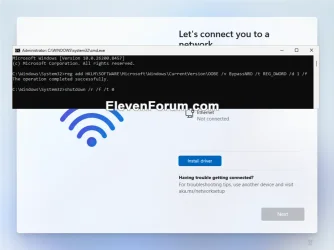
If you are installing a Windows 11 Home or Pro edition and want to bypass the network requirements to set up a local account, you can still do this:

A) Press the Shift + F10 keys to open a command prompt.
B) Type the command below in the command prompt, and press Enter.

reg add HKLM\SOFTWARE\Microsoft\Windows\CurrentVersion\OOBE /v BypassNRO /t REG_DWORD /d 1 /f

C) Type shutdown /r /f /t 0 in the command prompt, and press Enter to Restart the computer.
D) After the computer restarts, you will now go back to step 13. Be sure to skip step 15.
E) When you get back to this step 17, click/tap on I don't have internet, and go to step 21 to set up a local account.
BypassNRO.webp


I_dont_have_internet.webp
No_internet.webp

18 If installing a Windows 11 Home or Pro edition, type a name you want for the PC, and click/tap on Next. (see screenshots below)

You can always rename the PC at anytime if needed.

Your PC name cannot have more then 15 characters.

Your PC name cannot have spaces or any of the following special characters: " /\ [] : | <> + + ; , ?


Starting with Windows 11 build 26100.8524 (24H2), build 26200.8524 (25H2), and build 28000.2340 (26H1), you can now choose a custom name for your user folder on the Device Name page when going through Windows setup. This most recent update now makes it easier to choose a custom name. The naming option is available during setup only. If you skip this step, Windows will use the default folder name and continue setup as usual. User folder names must follow standard Windows naming requirements.


ComputerName.jpg
User_folder_name.webp

19 Perform an action below for which type of account you want to set up: (see screenshot below)

You will not see this step if installing a Windows 11 Home edition. You will see step 20 instead.

You will not see this step if installing a Windows 11 Education edition. You will see step 22 instead.


  • Click/tap on Set up for personal use, click/tap on Next, and go to step 20 to set up a Microsoft account on your personal PC.
  • Click/tap on Set up for work or school, click/tap on Next, and go to step 22 to set up a work or school account on your PC to join a domain.
Clean_install_Windows_11-14.jpg

20 Set Up Windows 11 with a Microsoft Account

For more details about a Microsoft account, see: Microsoft account | Microsoft Docs


A) Click/tap on Sign in. (see screenshot below)​

MSA_required.jpg

B) Type in the email address for your Microsoft account, and click/tap on Next. (see screenshot below)​

If you do not have a Microsoft account and would like to use one, click/tap on the Create one link to create a new Microsoft account.


Clean_install_Windows_11_Microsoft_account-1.jpg

C) Type in the password for your Microsoft account, and click/tap on Sign in. (see screenshot below)​

Clean_install_Windows_11_Microsoft_account-3.jpg

D) If you have two-step verification turned on for your Microsoft account, select how (ex: email or text) you would like to get a code sent to you. (see screenshots below)​

Clean_install_Windows_11_Microsoft_account-4.jpg
Clean_install_Windows_11_Microsoft_account-5.jpg

E) Provide any other required information based on how you selected to get a code, and click/tap on Send code. (see screenshot below)​

Clean_install_Windows_11_Microsoft_account-6.jpg

F) Enter the code you received from Microsoft, and click/tap on Verify. (see screenshot below)​

Clean_install_Windows_11_Microsoft_account-7.jpg

G) Click/tap on Create PIN. (see screenshot below)​

Clean_install_Windows_11_Microsoft_account-8.jpg

H) Enter a PIN you want to use to sign in with, and click/tap on OK. (see screenshot below)​

Clean_install_Windows_11_Microsoft_account-9.jpg

I) Turn On (default) or Off the privacy settings you want, and click/tap on Accept when finished. (see screenshots below)​

You will be able to change these privacy settings at anytime in Windows 11.

Clean_install_Windows_11-_privacy_settings-1.jpg
Clean_install_Windows_11-_privacy_settings-4.jpg
Clean_install_Windows_11-_privacy_settings-2.jpg
Clean_install_Windows_11-_privacy_settings-5.jpg
Clean_install_Windows_11-_privacy_settings-3.jpg
Clean_install_Windows_11-_privacy_settings-6.jpg

J) If you don't want to use Restore from this PC from a selected PC, then click/tap on More options, click/tap on Set up as a new PC, and click/tap on Set up as a new PC again to confirm. (see screenshots below)​

You can select to restore your settings, preferences, Microsoft Store apps, and synced OneDrive files from another device instead of setting up as a new device.


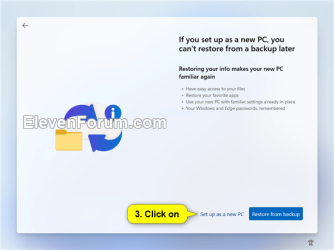
Clean_install_Windows_11_Microsoft_account-10A.png Clean_install_Windows_11_Microsoft_account-10b.png Clean_install_Windows_11_Microsoft_account-10c.png


K) Check all the ways you plan to use this device, and click/tap on Accept. (see screenshot below)​

Click/tap on Skip instead if you do not want to select (check) any device usages.

You can change your device usage options at any time in Windows 11.


Clean_install_Windows_11_Microsoft_account-11.jpg
Clean_install_Windows_11_Microsoft_account-12.jpg

L) Scan the QR code with your Android phone to link it if wanted, and click/tap on Continue. (see screenshot below)​


Click/tap on Skip instead if you do not want to link an Android phone.

This option is only available starting with Windows 11 build 22567.


Clean_install_Windows_11_Microsoft_account-14.jpg

M) If prompted to "Always have access to your recent browsing data" for Microsoft Edge, click/tap on Now now or Accept for what you want. (see screenshot below)​

edge.jpg

N) If prompted to "Join PC Game Pass for only $$ a month", click/tap on Skip for now or Join for what you want. (see screenshot below)​

GamePass.jpg

O) If prompted to "Try premium Office apps for free with Microsoft 365", click/tap on Decline or Continue for what you want. (see screenshot below)​

Microsoft_365.png

P) If prompted to "Get 100 GB more cloud storage" for OneDrive, click/tap on Decline or Continue for what you want. (see screenshot below)​

Cloud_storage.png

Q) Go to step 23.​


21 Set Up Windows 11 with a Local Account

For more details about a local account, see: Local account | Microsoft Docs:


A) Enter a user name you want for this local account, and click/tap on Next. (see screenshot below)​

Clean_install_Windows_11-_local_account-4.jpg

B) Enter a password you want for this local account, and click/tap on Next. (see screenshot below)​

If you do not want this local account to have a password, leave the password field empty, click/tap on Next, and go to step G below.


Clean_install_Windows_11-_local_account-5.jpg

C) Enter the password again to confirm, and click/tap on Next. (see screenshot below)​

Clean_install_Windows_11-_local_account-6.jpg

D) Select a security question (1 of 3) you want from the drop menu, type your answer, and click/tap on Next. (see screenshot below)​

Clean_install_Windows_11-_local_account-7.jpg

E) Select a security question (2 of 3) you want from the drop menu, type your answer, and click/tap on Next. (see screenshot below)​

Clean_install_Windows_11-_local_account-8.jpg

F) Select a security question (3 of 3) you want from the drop menu, type your answer, and click/tap on Next. (see screenshot below)​

Clean_install_Windows_11-_local_account-9.jpg

G) Turn On (default) or Off the privacy settings you want, and click/tap on Accept when finished. (see screenshots below)​

You will be able to change these privacy settings at anytime in Windows 11.

Clean_install_Windows_11-_privacy_settings-1.jpg
Clean_install_Windows_11-_privacy_settings-4.jpg
Clean_install_Windows_11-_privacy_settings-2.jpg
Clean_install_Windows_11-_privacy_settings-5.jpg
Clean_install_Windows_11-_privacy_settings-3.jpg
Clean_install_Windows_11-_privacy_settings-6.jpg

H) Go to step 23.​

22 Set Up Windows 11 with a Work or School Account

A) Type in the email address for your work or school account, and click/tap on Next. (see screenshot below)​

If you wanted to set up a local account, you can click/tap on Sign-in options instead, click/tap on Domain join instead, and go to step 21.


W11_clean_install_work_or_school_account-1.png

B) Type in the password for your work or school account, and click/tap on Sign in. (see screenshot below)​

W11_clean_install_work_or_school_account-2.png

C) Turn On (default) or Off the privacy settings you want, and click/tap on Accept when finished. (see screenshots below)​

You will be able to change these privacy settings at anytime in Windows 11.

Clean_install_Windows_11-_privacy_settings-1.jpg
Clean_install_Windows_11-_privacy_settings-4.jpg
Clean_install_Windows_11-_privacy_settings-2.jpg
Clean_install_Windows_11-_privacy_settings-5.jpg
Clean_install_Windows_11-_privacy_settings-3.jpg
Clean_install_Windows_11-_privacy_settings-6.jpg

D) Windows Setup will check for updates. (see screenshot below)​

W11_clean_install_work_or_school_account-4.png

E) If prompted to use Windows Hello with your account, click/tap on OK. (see screenshot below)​

W11_clean_install_work_or_school_account-5.png

F) If your organization requires additional security information, click/tap on Next, and follow any other given instructions to verify. (see screenshot below)​

W11_clean_install_work_or_school_account-6.png

G) When finished, go to step 23.​

23 When the clean install has finished, you will be on your desktop in Windows 11 with the Start menu open. (see screenshot below)

Desktop.png

24 Make sure the correct time zone, date, and time is set.

25 Most likely, BitLocker or Device Encryption has been automatically turned on for the Windows drive. You can turn this off if wanted, otherwise be sure to back up the BitLocker Recovery Key.

26 If you set up a Microsoft account during Windows Setup, it will get linked to OneDrive to backup and sync your files by default. You can stop the backup and sync of your files to OneDrive if wanted.


27 Check for and install any available Windows Updates.

28 Check for any app and game updates in the Microsoft Store app.

29 Install any needed drivers for your devices.


That's it,
Shawn Brink


Attachments

  • Windows.png
    Windows.png
    3.6 KB · Views: 1,888
Last edited:
Thank you, so that means when removed from the MB the M.2 retains all the data just like any other SSD.
 

My Computers My Computers

  • At a glance

    Windows 11 25H2Intel i7 11700KCrucial 32GB DDR4 3200mhzEVGA RTX 3070 FTW3 Ultra
    OS
    Windows 11 25H2
    Computer type
    PC/Desktop
    Manufacturer/Model
    Intel
    CPU
    Intel i7 11700K
    Motherboard
    Asus Prime Z590-A
    Memory
    Crucial 32GB DDR4 3200mhz
    Graphics Card(s)
    EVGA RTX 3070 FTW3 Ultra
    Sound Card
    Realtek S1220A 7.1 DTS:X Ultra
    Monitor(s) Displays
    Dell 32in 4K Asus 27in 1K
    Screen Resolution
    3840x2160 144Hz 1920x1080 60Hz
    Hard Drives
    10TB 3 Nvme's & 2 SSD's
    PSU
    EVGA 220G3750
    Case
    Antec 1200 w/8 fans
    Cooling
    Noctua NH-U12A
    Keyboard
    EVGA Z12
    Mouse
    Razer Deathadder v2
    Internet Speed
    GFiber 2GIG
    Browser
    MS Edge
    Antivirus
    Windows Security
    Other Info
    SONY WH-XB910N,
    7 Altec Lansing speakers
  • At a glance

    Windows 10 Pro V20H2Intel i7-3540M 3.0GHz 3001Mhz4GB DDR3-1600Nvidia NVS 5200M / Intel HD Graphics 4000
    Operating System
    Windows 10 Pro V20H2
    Computer type
    Laptop
    Manufacturer/Model
    Dell Latitude E6530
    CPU
    Intel i7-3540M 3.0GHz 3001Mhz
    Memory
    4GB DDR3-1600
    Graphics card(s)
    Nvidia NVS 5200M / Intel HD Graphics 4000
    Monitor(s) Displays
    ASUS PA248 / Dell
    Screen Resolution
    1920 x 1200 / 1600 x 900
    Hard Drives
    128GB Samsung SSD SM841

My Computers My Computers

  • At a glance

    Windows 11 Pro for WorkstationsIntel i7-8700K 5 GHz64 GB (4x16GB) G.SKILL TridentZ RGB DDR4 3600...ASUS ROG-STRIX-GTX1080TI-O11G-GAMING (11GB GD...
    OS
    Windows 11 Pro for Workstations
    Computer type
    PC/Desktop
    Manufacturer/Model
    Custom self build
    CPU
    Intel i7-8700K 5 GHz
    Motherboard
    ASUS ROG Maximus XI Formula Z390
    Memory
    64 GB (4x16GB) G.SKILL TridentZ RGB DDR4 3600 MHz (F4-3600C18D-32GTZR)
    Graphics Card(s)
    ASUS ROG-STRIX-GTX1080TI-O11G-GAMING (11GB GDDR5X)
    Sound Card
    Integrated Digital Audio (S/PDIF)
    Monitor(s) Displays
    2 x Samsung Odyssey G75 27"
    Screen Resolution
    2560x1440
    Hard Drives
    1TB Samsung 990 PRO M.2,
    4TB Samsung 990 PRO M.2,
    TerraMaster F8 SSD Plus NAS
    PSU
    Seasonic Prime Titanium 850W
    Case
    Thermaltake Core P3 wall mounted
    Cooling
    Corsair Hydro H115i
    Keyboard
    Amazon Basics Wired Full Keyboard MD005
    Mouse
    Logitech MX Master 4
    Internet Speed
    2 Gbps Download and 100 Mbps Upload
    Browser
    Chrome and Edge
    Antivirus
    Microsoft Defender
    Other Info
    Logitech Z625 speaker system,
    Logitech BRIO 4K Pro webcam,
    HP Color LaserJet Pro MFP M477fdn,
    CyberPower CP1500PFCLCD
    Galaxy S23 Plus phone
  • At a glance

    Windows 11 ProSnapdragon X Elite (12 core) 3.42 GHz16 GB LPDDR5x-7467 MHz
    Operating System
    Windows 11 Pro
    Computer type
    Laptop
    Manufacturer/Model
    Surface Laptop 7 Copilot+ PC
    CPU
    Snapdragon X Elite (12 core) 3.42 GHz
    Memory
    16 GB LPDDR5x-7467 MHz
    Monitor(s) Displays
    15" HDR
    Screen Resolution
    2496 x 1664
    Hard Drives
    1 TB SSD
    Internet Speed
    Wi-Fi 7 and Bluetooth 5.4
    Browser
    Chrome and Edge
    Antivirus
    Microsoft Defender
:cool: Thank you!
 

My Computers My Computers

  • At a glance

    Windows 11 25H2Intel i7 11700KCrucial 32GB DDR4 3200mhzEVGA RTX 3070 FTW3 Ultra
    OS
    Windows 11 25H2
    Computer type
    PC/Desktop
    Manufacturer/Model
    Intel
    CPU
    Intel i7 11700K
    Motherboard
    Asus Prime Z590-A
    Memory
    Crucial 32GB DDR4 3200mhz
    Graphics Card(s)
    EVGA RTX 3070 FTW3 Ultra
    Sound Card
    Realtek S1220A 7.1 DTS:X Ultra
    Monitor(s) Displays
    Dell 32in 4K Asus 27in 1K
    Screen Resolution
    3840x2160 144Hz 1920x1080 60Hz
    Hard Drives
    10TB 3 Nvme's & 2 SSD's
    PSU
    EVGA 220G3750
    Case
    Antec 1200 w/8 fans
    Cooling
    Noctua NH-U12A
    Keyboard
    EVGA Z12
    Mouse
    Razer Deathadder v2
    Internet Speed
    GFiber 2GIG
    Browser
    MS Edge
    Antivirus
    Windows Security
    Other Info
    SONY WH-XB910N,
    7 Altec Lansing speakers
  • At a glance

    Windows 10 Pro V20H2Intel i7-3540M 3.0GHz 3001Mhz4GB DDR3-1600Nvidia NVS 5200M / Intel HD Graphics 4000
    Operating System
    Windows 10 Pro V20H2
    Computer type
    Laptop
    Manufacturer/Model
    Dell Latitude E6530
    CPU
    Intel i7-3540M 3.0GHz 3001Mhz
    Memory
    4GB DDR3-1600
    Graphics card(s)
    Nvidia NVS 5200M / Intel HD Graphics 4000
    Monitor(s) Displays
    ASUS PA248 / Dell
    Screen Resolution
    1920 x 1200 / 1600 x 900
    Hard Drives
    128GB Samsung SSD SM841
:shawn:
 

My Computers My Computers

  • At a glance

    Windows 11 Pro for WorkstationsIntel i7-8700K 5 GHz64 GB (4x16GB) G.SKILL TridentZ RGB DDR4 3600...ASUS ROG-STRIX-GTX1080TI-O11G-GAMING (11GB GD...
    OS
    Windows 11 Pro for Workstations
    Computer type
    PC/Desktop
    Manufacturer/Model
    Custom self build
    CPU
    Intel i7-8700K 5 GHz
    Motherboard
    ASUS ROG Maximus XI Formula Z390
    Memory
    64 GB (4x16GB) G.SKILL TridentZ RGB DDR4 3600 MHz (F4-3600C18D-32GTZR)
    Graphics Card(s)
    ASUS ROG-STRIX-GTX1080TI-O11G-GAMING (11GB GDDR5X)
    Sound Card
    Integrated Digital Audio (S/PDIF)
    Monitor(s) Displays
    2 x Samsung Odyssey G75 27"
    Screen Resolution
    2560x1440
    Hard Drives
    1TB Samsung 990 PRO M.2,
    4TB Samsung 990 PRO M.2,
    TerraMaster F8 SSD Plus NAS
    PSU
    Seasonic Prime Titanium 850W
    Case
    Thermaltake Core P3 wall mounted
    Cooling
    Corsair Hydro H115i
    Keyboard
    Amazon Basics Wired Full Keyboard MD005
    Mouse
    Logitech MX Master 4
    Internet Speed
    2 Gbps Download and 100 Mbps Upload
    Browser
    Chrome and Edge
    Antivirus
    Microsoft Defender
    Other Info
    Logitech Z625 speaker system,
    Logitech BRIO 4K Pro webcam,
    HP Color LaserJet Pro MFP M477fdn,
    CyberPower CP1500PFCLCD
    Galaxy S23 Plus phone
  • At a glance

    Windows 11 ProSnapdragon X Elite (12 core) 3.42 GHz16 GB LPDDR5x-7467 MHz
    Operating System
    Windows 11 Pro
    Computer type
    Laptop
    Manufacturer/Model
    Surface Laptop 7 Copilot+ PC
    CPU
    Snapdragon X Elite (12 core) 3.42 GHz
    Memory
    16 GB LPDDR5x-7467 MHz
    Monitor(s) Displays
    15" HDR
    Screen Resolution
    2496 x 1664
    Hard Drives
    1 TB SSD
    Internet Speed
    Wi-Fi 7 and Bluetooth 5.4
    Browser
    Chrome and Edge
    Antivirus
    Microsoft Defender
Hi Shawn, just wanted to say how much I appreciate your superb tutorial. The OOBE switch made the install flawless!
 

My Computers My Computers

  • At a glance

    Windows 11 25H2Intel i7 11700KCrucial 32GB DDR4 3200mhzEVGA RTX 3070 FTW3 Ultra
    OS
    Windows 11 25H2
    Computer type
    PC/Desktop
    Manufacturer/Model
    Intel
    CPU
    Intel i7 11700K
    Motherboard
    Asus Prime Z590-A
    Memory
    Crucial 32GB DDR4 3200mhz
    Graphics Card(s)
    EVGA RTX 3070 FTW3 Ultra
    Sound Card
    Realtek S1220A 7.1 DTS:X Ultra
    Monitor(s) Displays
    Dell 32in 4K Asus 27in 1K
    Screen Resolution
    3840x2160 144Hz 1920x1080 60Hz
    Hard Drives
    10TB 3 Nvme's & 2 SSD's
    PSU
    EVGA 220G3750
    Case
    Antec 1200 w/8 fans
    Cooling
    Noctua NH-U12A
    Keyboard
    EVGA Z12
    Mouse
    Razer Deathadder v2
    Internet Speed
    GFiber 2GIG
    Browser
    MS Edge
    Antivirus
    Windows Security
    Other Info
    SONY WH-XB910N,
    7 Altec Lansing speakers
  • At a glance

    Windows 10 Pro V20H2Intel i7-3540M 3.0GHz 3001Mhz4GB DDR3-1600Nvidia NVS 5200M / Intel HD Graphics 4000
    Operating System
    Windows 10 Pro V20H2
    Computer type
    Laptop
    Manufacturer/Model
    Dell Latitude E6530
    CPU
    Intel i7-3540M 3.0GHz 3001Mhz
    Memory
    4GB DDR3-1600
    Graphics card(s)
    Nvidia NVS 5200M / Intel HD Graphics 4000
    Monitor(s) Displays
    ASUS PA248 / Dell
    Screen Resolution
    1920 x 1200 / 1600 x 900
    Hard Drives
    128GB Samsung SSD SM841

My Computers My Computers

  • At a glance

    Windows 11 Pro for WorkstationsIntel i7-8700K 5 GHz64 GB (4x16GB) G.SKILL TridentZ RGB DDR4 3600...ASUS ROG-STRIX-GTX1080TI-O11G-GAMING (11GB GD...
    OS
    Windows 11 Pro for Workstations
    Computer type
    PC/Desktop
    Manufacturer/Model
    Custom self build
    CPU
    Intel i7-8700K 5 GHz
    Motherboard
    ASUS ROG Maximus XI Formula Z390
    Memory
    64 GB (4x16GB) G.SKILL TridentZ RGB DDR4 3600 MHz (F4-3600C18D-32GTZR)
    Graphics Card(s)
    ASUS ROG-STRIX-GTX1080TI-O11G-GAMING (11GB GDDR5X)
    Sound Card
    Integrated Digital Audio (S/PDIF)
    Monitor(s) Displays
    2 x Samsung Odyssey G75 27"
    Screen Resolution
    2560x1440
    Hard Drives
    1TB Samsung 990 PRO M.2,
    4TB Samsung 990 PRO M.2,
    TerraMaster F8 SSD Plus NAS
    PSU
    Seasonic Prime Titanium 850W
    Case
    Thermaltake Core P3 wall mounted
    Cooling
    Corsair Hydro H115i
    Keyboard
    Amazon Basics Wired Full Keyboard MD005
    Mouse
    Logitech MX Master 4
    Internet Speed
    2 Gbps Download and 100 Mbps Upload
    Browser
    Chrome and Edge
    Antivirus
    Microsoft Defender
    Other Info
    Logitech Z625 speaker system,
    Logitech BRIO 4K Pro webcam,
    HP Color LaserJet Pro MFP M477fdn,
    CyberPower CP1500PFCLCD
    Galaxy S23 Plus phone
  • At a glance

    Windows 11 ProSnapdragon X Elite (12 core) 3.42 GHz16 GB LPDDR5x-7467 MHz
    Operating System
    Windows 11 Pro
    Computer type
    Laptop
    Manufacturer/Model
    Surface Laptop 7 Copilot+ PC
    CPU
    Snapdragon X Elite (12 core) 3.42 GHz
    Memory
    16 GB LPDDR5x-7467 MHz
    Monitor(s) Displays
    15" HDR
    Screen Resolution
    2496 x 1664
    Hard Drives
    1 TB SSD
    Internet Speed
    Wi-Fi 7 and Bluetooth 5.4
    Browser
    Chrome and Edge
    Antivirus
    Microsoft Defender
On my Lenovo laptop that I bought a year ago with Windows 11 Home pre-installed, I did a 'Reset this PC' with 'Remove everything', 'Fully clean disk', 'Download fresh copy of OS'.

I thought I did a clean install of the OS, but lo and behold, McAfee was installed as was Lenovo Vantage and other Lenovo bloatware.

What am I doing wrong?
 

My Computer My Computer

At a glance

Windows 10 Pro
OS
Windows 10 Pro
'Reset this PC' means reset to how it got out to the stores.
It does not mean a clean slate.
For that, you need a vanilla non-OEM Windows 11 install.

BTW, what is 'fresh copy of OS'? What version from where?
'Fully clean disk' Did you reformat your drive first?

Your laptop might not work with a non-OEM install anyway as each laptop has specifics on how
display, laptop lid, sound ports etc behave - not without unnecessary extra work anyway.
But you can remove some of the bloatware.
 

My Computers My Computers

  • At a glance

    All Branches but ReleaseAMD Ryzen 7 7735HS 3200-4500 Mhz 8 cores x 232 GB DDR5Radeon Graphic / NVIDIA GeForce RTX 4060 8 GB...
    OS
    All Branches but Release
    Computer type
    Laptop
    Manufacturer/Model
    Acer Nitro ANV15-51
    CPU
    AMD Ryzen 7 7735HS 3200-4500 Mhz 8 cores x 2
    Motherboard
    Sportage_RBH
    Memory
    32 GB DDR5
    Graphics Card(s)
    Radeon Graphic / NVIDIA GeForce RTX 4060 8 GB GDDR6
    Sound Card
    AMD/Realtek(R) Audio
    Monitor(s) Displays
    Integrated Monitor (15.3"vis)
    Screen Resolution
    FHD 1920X1080 16:9 144Hz
    Hard Drives
    KINGSTON OM8SEP4512Q-AA 1TB
    Western Digital 256GB
    PSU
    19V DC 6.32 A 120 W
    Cooling
    Dual Fans
    Mouse
    MS Bluetooth
    Internet Speed
    Fiber 1GB Cox -us & 1GB Orange-fr
    Browser
    Edge Canary- Firefox Nightly-Chrome Dev-Chrome Dev
    Antivirus
    Windows Defender
  • At a glance

    Windows 11 BetaAMD A9-94208 GB of DDR4AMD Radeon R5
    Operating System
    Windows 11 Beta
    Computer type
    Laptop
    Manufacturer/Model
    Asus X751BP
    CPU
    AMD A9-9420
    Memory
    8 GB of DDR4
    Graphics card(s)
    AMD Radeon R5
    Screen Resolution
    1600x900
    Hard Drives
    Seagate 1 TB
I just select the options provided when going through the 'Reset this PC' steps.

There was an option 'Use local copy of OS' or 'Download copy of OS'. I selected the latter.

There was an option 'Clean disk' Yes or No. I selected Yes. The info given was that selecting Yes takes much longer than selecting No, but it makes it much more difficult to retrieve any data from the disk (in case the laptop was being prepared for recycling or donation) That was the option provided which may involve wiping of the disk in some way, but there was no option provided to reformat as such.

I removed McAfee immediately, because I want Windows Defender, but I have not yet begun removing bloatware <sigh> I miss the 'Microsoft Signature Edition PCs' :(
 

My Computer My Computer

At a glance

Windows 10 Pro
OS
Windows 10 Pro
  • Like
Reactions: OAT
Sadly, bloatware is now the norm unless you build your own machine, and then you have to deal with OS unnecessary extra(s).
Look at it on the bright side, you got your machine going and that's all that matters.:-)
 

My Computers My Computers

  • At a glance

    All Branches but ReleaseAMD Ryzen 7 7735HS 3200-4500 Mhz 8 cores x 232 GB DDR5Radeon Graphic / NVIDIA GeForce RTX 4060 8 GB...
    OS
    All Branches but Release
    Computer type
    Laptop
    Manufacturer/Model
    Acer Nitro ANV15-51
    CPU
    AMD Ryzen 7 7735HS 3200-4500 Mhz 8 cores x 2
    Motherboard
    Sportage_RBH
    Memory
    32 GB DDR5
    Graphics Card(s)
    Radeon Graphic / NVIDIA GeForce RTX 4060 8 GB GDDR6
    Sound Card
    AMD/Realtek(R) Audio
    Monitor(s) Displays
    Integrated Monitor (15.3"vis)
    Screen Resolution
    FHD 1920X1080 16:9 144Hz
    Hard Drives
    KINGSTON OM8SEP4512Q-AA 1TB
    Western Digital 256GB
    PSU
    19V DC 6.32 A 120 W
    Cooling
    Dual Fans
    Mouse
    MS Bluetooth
    Internet Speed
    Fiber 1GB Cox -us & 1GB Orange-fr
    Browser
    Edge Canary- Firefox Nightly-Chrome Dev-Chrome Dev
    Antivirus
    Windows Defender
  • At a glance

    Windows 11 BetaAMD A9-94208 GB of DDR4AMD Radeon R5
    Operating System
    Windows 11 Beta
    Computer type
    Laptop
    Manufacturer/Model
    Asus X751BP
    CPU
    AMD A9-9420
    Memory
    8 GB of DDR4
    Graphics card(s)
    AMD Radeon R5
    Screen Resolution
    1600x900
    Hard Drives
    Seagate 1 TB
'Reset this PC' means reset to how it got out to the stores.
It does not mean a clean slate.
For that, you need a vanilla non-OEM Windows 11 install.

BTW, what is 'fresh copy of OS'? What version from where?
'Fully clean disk' Did you reformat your drive first?

Your laptop might not work with a non-OEM install anyway as each laptop has specifics on how
display, laptop lid, sound ports etc behave - not without unnecessary extra work anyway.
But you can remove some of the bloatware.
This is not true. Reset My PC just resets it to whatever version you have currently installed either with all apps and data removed, or ability to retain data in user folders. Programs are still removed.

You would only reset to factory state if the pc still had a working oem recovery partition and you still had means to access it.
 

My Computer My Computer

At a glance

Windows 11 Pro + Win11 Canary VM.I9 13th gen i9-13900H 2.60 GHZ16 GB solderedIntegrated Intel Iris XE
OS
Windows 11 Pro + Win11 Canary VM.
Computer type
Laptop
Manufacturer/Model
ASUS Zenbook 14
CPU
I9 13th gen i9-13900H 2.60 GHZ
Motherboard
Yep, Laptop has one.
Memory
16 GB soldered
Graphics Card(s)
Integrated Intel Iris XE
Sound Card
Realtek built in
Monitor(s) Displays
laptop OLED screen
Screen Resolution
2880x1800 touchscreen
Hard Drives
1 TB NVME SSD (only weakness is only one slot)
PSU
Internal + 65W thunderbolt USB4 charger
Case
Yep, got one
Cooling
Stella Artois (UK pint cans - 568 ml) - extra cost.
Keyboard
Built in UK keybd
Mouse
Bluetooth , wireless dongled, wired
Internet Speed
900 mbs (ethernet), wifi 6 typical 350-450 mb/s both up and down
Browser
Edge
Antivirus
Defender
Other Info
TPM 2.0, 2xUSB4 thunderbolt, 1xUsb3 (usb a), 1xUsb-c, hdmi out, 3.5 mm audio out/in combo, ASUS backlit trackpad (inc. switchable number pad)

Macrium Reflect Home V8
Office 365 Family (6 users each 1TB onedrive space)
Hyper-V (a vm runs almost as fast as my older laptop)
Reset My PC just resets it to whatever version you have currently installed.

Yes that is what I meant, thank you for the correction.
 

My Computers My Computers

  • At a glance

    All Branches but ReleaseAMD Ryzen 7 7735HS 3200-4500 Mhz 8 cores x 232 GB DDR5Radeon Graphic / NVIDIA GeForce RTX 4060 8 GB...
    OS
    All Branches but Release
    Computer type
    Laptop
    Manufacturer/Model
    Acer Nitro ANV15-51
    CPU
    AMD Ryzen 7 7735HS 3200-4500 Mhz 8 cores x 2
    Motherboard
    Sportage_RBH
    Memory
    32 GB DDR5
    Graphics Card(s)
    Radeon Graphic / NVIDIA GeForce RTX 4060 8 GB GDDR6
    Sound Card
    AMD/Realtek(R) Audio
    Monitor(s) Displays
    Integrated Monitor (15.3"vis)
    Screen Resolution
    FHD 1920X1080 16:9 144Hz
    Hard Drives
    KINGSTON OM8SEP4512Q-AA 1TB
    Western Digital 256GB
    PSU
    19V DC 6.32 A 120 W
    Cooling
    Dual Fans
    Mouse
    MS Bluetooth
    Internet Speed
    Fiber 1GB Cox -us & 1GB Orange-fr
    Browser
    Edge Canary- Firefox Nightly-Chrome Dev-Chrome Dev
    Antivirus
    Windows Defender
  • At a glance

    Windows 11 BetaAMD A9-94208 GB of DDR4AMD Radeon R5
    Operating System
    Windows 11 Beta
    Computer type
    Laptop
    Manufacturer/Model
    Asus X751BP
    CPU
    AMD A9-9420
    Memory
    8 GB of DDR4
    Graphics card(s)
    AMD Radeon R5
    Screen Resolution
    1600x900
    Hard Drives
    Seagate 1 TB
There used to be a fresh start option in Windows 10 to remove bloatware, even factory installed bloatware. I don't know if that carried over to Windows 11 or not. I'm not at my computer, I will have to look later.
 

My Computers My Computers

  • At a glance

    Windows 11AMD Ryzen 7 3800XT32GBEVGA GeForce GTX 1080 Ti
    OS
    Windows 11
    Computer type
    PC/Desktop
    Manufacturer/Model
    Homebuilt
    CPU
    AMD Ryzen 7 3800XT
    Motherboard
    ASUS ROG Crosshair VII Hero (WiFi)
    Memory
    32GB
    Graphics Card(s)
    EVGA GeForce GTX 1080 Ti
  • At a glance

    Windows 11 EducationIntel i7-8550U32GBNvidia Geforce MX150
    Operating System
    Windows 11 Education
    Computer type
    Laptop
    Manufacturer/Model
    Dell Inspiron 7773
    CPU
    Intel i7-8550U
    Memory
    32GB
    Graphics card(s)
    Nvidia Geforce MX150
    Sound Card
    Realtek
    Monitor(s) Displays
    17"
    Screen Resolution
    1920 x 1080
    Hard Drives
    Toshiba 512GB NVMe SSD
    SK Hynix 512GB SATA SSD
    Internet Speed
    Fast!
Folks, I am puzzled at what I found (after going through the 'Reset this PC' steps as described in the previous posts) I expected 4 partitions, and I did not expect the recovery partition to be empty. What is going on?

Screenshot_20221119_074321.png
 

My Computer My Computer

At a glance

Windows 10 Pro
OS
Windows 10 Pro
Windows shows you what it wants to show you but as you can see, on Disk 1, I also have 3 partitions, no wait PA says 4.

Screenshot 2022-11-19 141929.jpg
 

My Computers My Computers

  • At a glance

    All Branches but ReleaseAMD Ryzen 7 7735HS 3200-4500 Mhz 8 cores x 232 GB DDR5Radeon Graphic / NVIDIA GeForce RTX 4060 8 GB...
    OS
    All Branches but Release
    Computer type
    Laptop
    Manufacturer/Model
    Acer Nitro ANV15-51
    CPU
    AMD Ryzen 7 7735HS 3200-4500 Mhz 8 cores x 2
    Motherboard
    Sportage_RBH
    Memory
    32 GB DDR5
    Graphics Card(s)
    Radeon Graphic / NVIDIA GeForce RTX 4060 8 GB GDDR6
    Sound Card
    AMD/Realtek(R) Audio
    Monitor(s) Displays
    Integrated Monitor (15.3"vis)
    Screen Resolution
    FHD 1920X1080 16:9 144Hz
    Hard Drives
    KINGSTON OM8SEP4512Q-AA 1TB
    Western Digital 256GB
    PSU
    19V DC 6.32 A 120 W
    Cooling
    Dual Fans
    Mouse
    MS Bluetooth
    Internet Speed
    Fiber 1GB Cox -us & 1GB Orange-fr
    Browser
    Edge Canary- Firefox Nightly-Chrome Dev-Chrome Dev
    Antivirus
    Windows Defender
  • At a glance

    Windows 11 BetaAMD A9-94208 GB of DDR4AMD Radeon R5
    Operating System
    Windows 11 Beta
    Computer type
    Laptop
    Manufacturer/Model
    Asus X751BP
    CPU
    AMD A9-9420
    Memory
    8 GB of DDR4
    Graphics card(s)
    AMD Radeon R5
    Screen Resolution
    1600x900
    Hard Drives
    Seagate 1 TB
Folks, I am puzzled at what I found (after going through the 'Reset this PC' steps as described in the previous posts) I expected 4 partitions, and I did not expect the recovery partition to be empty. What is going on?

View attachment 45651
It is not empty. It's contents are just hidden.
 

My Computers My Computers

  • At a glance

    Windows 11AMD Ryzen 7 3800XT32GBEVGA GeForce GTX 1080 Ti
    OS
    Windows 11
    Computer type
    PC/Desktop
    Manufacturer/Model
    Homebuilt
    CPU
    AMD Ryzen 7 3800XT
    Motherboard
    ASUS ROG Crosshair VII Hero (WiFi)
    Memory
    32GB
    Graphics Card(s)
    EVGA GeForce GTX 1080 Ti
  • At a glance

    Windows 11 EducationIntel i7-8550U32GBNvidia Geforce MX150
    Operating System
    Windows 11 Education
    Computer type
    Laptop
    Manufacturer/Model
    Dell Inspiron 7773
    CPU
    Intel i7-8550U
    Memory
    32GB
    Graphics card(s)
    Nvidia Geforce MX150
    Sound Card
    Realtek
    Monitor(s) Displays
    17"
    Screen Resolution
    1920 x 1080
    Hard Drives
    Toshiba 512GB NVMe SSD
    SK Hynix 512GB SATA SSD
    Internet Speed
    Fast!
  • Helpful
Reactions: OAT
My goodness, I now remember falling for this peekaboo trap before (n)
 

My Computer My Computer

At a glance

Windows 10 Pro
OS
Windows 10 Pro
Can the instructions/tutorial include a link (or instructions) on how to get out of the "trap" Microsoft created and have your system remove OneDrive and in particular, move Desktop, My Documents, Pictures, etc. away from OneDrive and back to C: \Users\UserNAME ?
 

My Computer My Computer

At a glance

Windows 11NVIDA 1650 Ti
OS
Windows 11
Computer type
Laptop
Manufacturer/Model
Lenovo
Graphics Card(s)
NVIDA 1650 Ti
Monitor(s) Displays
Lenovo C32q-20
There used to be a fresh start option in Windows 10 to remove bloatware, even factory installed bloatware. I don't know if that carried over to Windows 11 or not. I'm not at my computer, I will have to look later.
I would be very interested in the bloatware removing fresh start option, for both W10 and W11 (y)(y)

Can the instructions/tutorial include a link (or instructions) on how to get out of the "trap" Microsoft created and have your system remove OneDrive and in particular, move Desktop, My Documents, Pictures, etc. away from OneDrive and back to C: \Users\UserNAME ?
Can't you just uninstall OneDrive via Control Panel or with RevoUninstaller?
 

My Computer My Computer

At a glance

Windows 10 Pro
OS
Windows 10 Pro
Can the instructions/tutorial include a link (or instructions) on how to get out of the "trap" Microsoft created and have your system remove OneDrive and in particular, move Desktop, My Documents, Pictures, etc. away from OneDrive and back to C: \Users\UserNAME ?

Hello mate, :-)

It's there at step 20L.
 

My Computers My Computers

  • At a glance

    Windows 11 Pro for WorkstationsIntel i7-8700K 5 GHz64 GB (4x16GB) G.SKILL TridentZ RGB DDR4 3600...ASUS ROG-STRIX-GTX1080TI-O11G-GAMING (11GB GD...
    OS
    Windows 11 Pro for Workstations
    Computer type
    PC/Desktop
    Manufacturer/Model
    Custom self build
    CPU
    Intel i7-8700K 5 GHz
    Motherboard
    ASUS ROG Maximus XI Formula Z390
    Memory
    64 GB (4x16GB) G.SKILL TridentZ RGB DDR4 3600 MHz (F4-3600C18D-32GTZR)
    Graphics Card(s)
    ASUS ROG-STRIX-GTX1080TI-O11G-GAMING (11GB GDDR5X)
    Sound Card
    Integrated Digital Audio (S/PDIF)
    Monitor(s) Displays
    2 x Samsung Odyssey G75 27"
    Screen Resolution
    2560x1440
    Hard Drives
    1TB Samsung 990 PRO M.2,
    4TB Samsung 990 PRO M.2,
    TerraMaster F8 SSD Plus NAS
    PSU
    Seasonic Prime Titanium 850W
    Case
    Thermaltake Core P3 wall mounted
    Cooling
    Corsair Hydro H115i
    Keyboard
    Amazon Basics Wired Full Keyboard MD005
    Mouse
    Logitech MX Master 4
    Internet Speed
    2 Gbps Download and 100 Mbps Upload
    Browser
    Chrome and Edge
    Antivirus
    Microsoft Defender
    Other Info
    Logitech Z625 speaker system,
    Logitech BRIO 4K Pro webcam,
    HP Color LaserJet Pro MFP M477fdn,
    CyberPower CP1500PFCLCD
    Galaxy S23 Plus phone
  • At a glance

    Windows 11 ProSnapdragon X Elite (12 core) 3.42 GHz16 GB LPDDR5x-7467 MHz
    Operating System
    Windows 11 Pro
    Computer type
    Laptop
    Manufacturer/Model
    Surface Laptop 7 Copilot+ PC
    CPU
    Snapdragon X Elite (12 core) 3.42 GHz
    Memory
    16 GB LPDDR5x-7467 MHz
    Monitor(s) Displays
    15" HDR
    Screen Resolution
    2496 x 1664
    Hard Drives
    1 TB SSD
    Internet Speed
    Wi-Fi 7 and Bluetooth 5.4
    Browser
    Chrome and Edge
    Antivirus
    Microsoft Defender
Back
Top Bottom