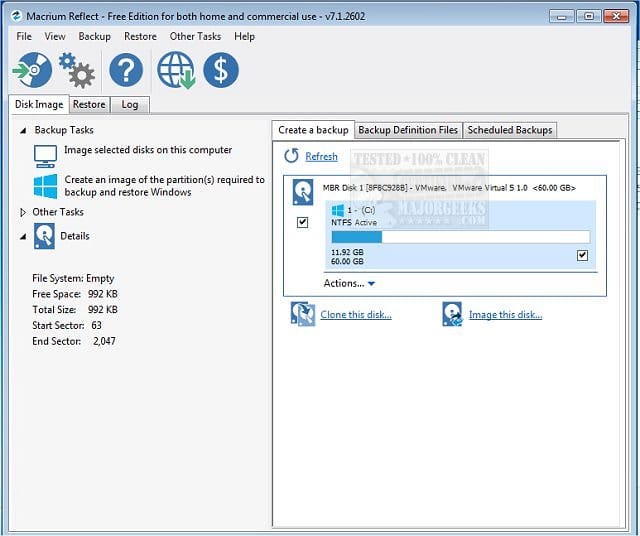
1) Please make free or pay backup images using Macrium.
2) Clean install Windows 11 on the new 4TB drive with BIOS UEFI (without CSM)
3) Use Macrium to restore only the C: partition from the 1TB MBR drive to the new 4TB GPT drive.
Restoring C: does not guarantee the system will boot.
The EFI system partition created by the clean installation will contain boot configuration information for that installation.
After restoring the original C: partition, the boot configuration may need to be rebuilt to reference the restored Windows installation.
Macrium Reflect provides a
Fix Windows Boot Problems utility for precisely this purpose. Its rescue media must be booted in UEFI mode when repairing a UEFI/GPT Windows installation.
- What are MBR and GPT? - Is My Operating System Disk MBR or GPT? - Restoring an MBR System Image to a GPT Disk - Prepare the Destination Disk - Restore the MBR System Image to the GPT Disk - Run 'Fix
kbx.macrium.com
If the laptop supports 4tb disks, it is probabaly easily fixable.
It needs a fat 32 esp partition that contains the boot critical files.
If it already has an esp partition on the 4tb then likely a simple bcdboot command will do the job
diskpart
list volume
exit
bcdboot x:\windows (replace "x" with the Windows partition letter)
You get the error "
Failure when attempting to copy boot files." if:
- The USB flash drive is booted in legacy BIOS mode, or
- The computer has a locked BitLocker-encrypted Windows partition, or
- You enter the wrong Windows partition letter, or
- The EFI system partition is missing or is not formatted as FAT32.
The bcdboot command automatically identifies the FAT32-formatted EFI system partition, copies the required UEFI boot files from the Windows partition to it, and creates a new Boot Configuration Data (BCD) store on that partition. The default bcdboot behavior (without the /s <volume letter> option) also creates a Windows Boot Manager entry in UEFI NVRAM if necessary and can update an existing Windows Boot Manager firmware entry.
We did try to clone the disk from the 1TB to the 4TB with AOMEI Backupper, converting the disk to GPT on the clone, and with SSD alignment. The laptop will not boot from the clone drive.
If it matters, the BIOS on the laptop can support Legacy booting as well as UEFI booting.
As
@SIW2 mentioned, the BIOS settings must be checked after converting a system disk from MBR to GPT.
Depending on the laptop, the firmware may offer boot mode options such as:
- Legacy BIOS only
- Legacy BIOS and UEFI (CSM enabled)
- UEFI only
If UEFI mode is enabled in the firmware but Windows still fails to boot, the MBR-to-GPT conversion performed by AOMEI Backupper may not have correctly configured the disk for UEFI booting.
If you want to check whether the original system disk meets the requirements for conversion from MBR to GPT before cloning, open Command Prompt or PowerShell as administrator and run:
mbr2gpt /validate /allowFullOS
This only checks whether the system disk meets the requirements for conversion from MBR to GPT. It does not change the disk's partition structure.
If validation succeeds, it will display: "
Validation completed successfully."
If validation fails,
C:\Windows\setuperr.log may provide more details on why the validation failed.
Since you do not want to modify the original 1TB SSD, the conversion should be performed on the cloned disk instead.
After cloning, boot the laptop from a Windows installation USB flash drive. At the Windows Setup screen, press
Shift + F10 to open Command Prompt. On some laptops, you may need to press Shift + Fn + F10.
mbr2gpt /validate /disk:0
If validation succeeds, run:
mbr2gpt /convert /disk:0
After a successful conversion, check the BIOS settings.
Edit:
Note that the following MBR2GPT error concerns the Windows Recovery Environment (WinRE) and does not, by itself, prevent Windows from booting:
"
Failed to update ReAgent.xml, please try to manually disable and enable WinRE."
If you encounter this error, boot into Windows, open Command Prompt or PowerShell as administrator, and run the following commands:
reagentc /disable
reagentc /enable
reagentc /info
The final command displays the current WinRE status. Verify that
Windows RE status is shown as
Enabled.