Desktop Icons Breaking After Restart or Reload


Svallux

Member
Local time
1:23 AM
Posts
4
OS
Windows 11
The Problem
I am experiencing an issue with my desktop icons.

Symptoms
Out of approximately 100 desktop icons, about 30-35 appear "broken." When broken, they convert to a low-quality, smaller version of themselves with a thin gray border around them.

If I leave them, they stay in this state. If I manually fix them it all appears fine initially. However, if I restart my PC or reload the desktop in any way, 30-35 other icons break. some are the same as before some new ones

Observations
There doesn't seem to be a consistent pattern to which icons break, but I have noticed that if an icon is already broken, then upon a reset it might have a higher chance of being in the new pool of broken icons. also game icons tend to break more often, though this might just be because I have more of them on my desktop.

I logged onto a new account, and it "SEEMS fine," but I do not want to migrate as that would be an even bigger headache.

Steps Taken So Far
I have tried the following troubleshooting steps:
* Nuking Explorer, clearing the icon cache, and reviving Explorer. This resulted in some icons breaking and some being fixed.
* Installing Shellexview and disabling all non-Microsoft items, then nuking Explorer, clearing the icon cache, and reviving Explorer. The result was the same.
* Restarting my PC multiple times. No change.
* Pulling power from the PC. No change.
* Rebinding shortcuts to their original locations with a CMD input. This seemingly had no reaction.
* Checking for viruses with both Windows Antivirus and Malwarebytes. Zero threats were detected.

Screenshots
As you can see, icons 3, 5, 6, 9, and 12 are broken.

My Skill Level: Know a little
 
Windows Build/Version
windows 11

Attachments

  • Screenshot 2026-04-19 004354.webp
    Screenshot 2026-04-19 004354.webp
    28 KB · Views: 1

My Computer

System One

  • OS
    Windows 11
    Computer type
    PC/Desktop
    Manufacturer/Model
    Micro-star International co. Ltd (MS-7B86)
    CPU
    AMD ryzen 7 3800X 8-core Proscessor
    Motherboard
    B450 GAMING PLUS MAX (MS-7B86)
    Memory
    32 GB
    Graphics Card(s)
    nvidia geforce GTX 1060 6GB
    Sound Card
    no clue
    Monitor(s) Displays
    LG HDR QHD
    Screen Resolution
    2560x1440 / 60Hz
    Hard Drives
    the regular ones
    PSU
    ???
    Case
    black i guess?
    Cooling
    theres a fan
    Keyboard
    razer synapse i think
    Mouse
    doesnt rly matter
    Internet Speed
    decent
    Browser
    opera
    Antivirus
    default windows + malewarebytes
Just out of curiosity, if you view your desktop as a folder in file explorer when the icons as displayed on the desktop appear 'broken', how do those same icons appear in file explorer?


Relevant tutorials: - from the Tutorials section:

With so many shortcuts on your desktop you might consider using Stardock's Fences to organise them... or putting them into folders and using Open Shell (free) as your Start Menu which allows you to readily add folders by drag 'n drop and displays their content properly - unlike Windows' own start menu.

Your build number is more informatively like 26200.8246 (Settings, About or winver), showing update status. Thanks.
 

My Computer

System One

  • OS
    Windows 11 Pro
    Computer type
    Laptop
    Manufacturer/Model
    Lenovo t480s
    CPU
    i7-8650U
    Memory
    16GB
    Graphics Card(s)
    Intel UHD 620
    Screen Resolution
    1920x1080
    Hard Drives
    C SN810 SDCPNRY-512G-1006
    Browser
    Edge, Firefox
    Antivirus
    Defender
I'm curious about the location of your desktop folder. Please open file explorer. In the left pane, right click on your Desktop folder.
Select "Properties" Click on "Location" tab. What is the location of that folder? Is it ONEDRIVE?
If it has ONEDRIVE in the folder path, that indicates that your personal folders (desktop, documents, pictures, and videos) are not located on your system drive, but the default folder location is in Onedrive.

Another question - Are you using any third party app that alters the GUI?
 

My Computers

System One System Two

  • OS
    Windows 11 Pro 25H2
    Computer type
    PC/Desktop
    Manufacturer/Model
    Dell Optiplex 7080
    CPU
    i9-10900 10 core 20 threads
    Motherboard
    DELL 0J37VM
    Memory
    32 gb
    Graphics Card(s)
    none-Intel UHD Graphics 630
    Sound Card
    Integrated Realtek
    Monitor(s) Displays
    Benq 27
    Screen Resolution
    2560x1440
    Hard Drives
    2x1tb Solidigm m.2 nvme /External drives 512gb Samsung m.2 sata+2tb Kingston m2.nvme
    PSU
    500w
    Case
    MT
    Cooling
    Dell Premium
    Keyboard
    Logitech wired
    Mouse
    Logitech wireless
    Internet Speed
    so slow I'm too embarrassed to tell
    Browser
    #1 Edge #2 Firefox
    Antivirus
    Defender+MWB Premium
  • Operating System
    Windows 11 Pro 24H2 26200.8457
    Computer type
    PC/Desktop
    Manufacturer/Model
    Beelink Mini PC SER5
    CPU
    AMD Ryzen 7 6800U
    Memory
    32 gb
    Graphics card(s)
    integrated
    Sound Card
    integrated
    Monitor(s) Displays
    Benq 27
    Screen Resolution
    2560x1440
    Hard Drives
    1TB Crucial nvme
    Keyboard
    Logitech wired
    Mouse
    Logitech wireless
    Internet Speed
    still too embarrassed to tell
    Browser
    Firefox
    Antivirus
    Defender
    Other Info
    System 3 is non compliant Dell 9020 i7-4770/24gb ram Win11 PRO 26200.8457
You mentioned "As you can see, icons 3, 5, 6, 9, and 12 are broken." I looked at the screen-dump and don't call them broken. They are broken if Windows does not know what icon it must show. In nearly all cases it will be replaced by a white rectangle with the top right corner folded. I think you mean it doesn't show the correct icon.

As these icons are all shortcuts; check where they are pointing to; right-click on the icon - property's - Change icon or pictogram. See if it is pointing to the correct executable. In most cases the executabel has 1 icon inside itself where it identity's itself with.
Check if "target" and "start inside" are similar. Target can be "<Drive>\<Path>\<program>.exe" and the start inside should be ""<Drive>\<Path>"

If the icons are still wrong than the shortcut is pointing to the wrong file. Adjust them accordingly.

Or to make things not that complicated; Delete that shortcut on the desktop. Goto the location of the correct executable (with the correct icon) with explorer, right-click on it and drag the correct executable towards the desktop and choose; make a "shortcut here". You can then adjust the name of the shortcut and move the shortcut to the right location on your desktop,

@glasskutter: These are normal shortcuts. If they where OneDrive shortcuts; they should have a green checkmark at it's left bottom to show the shortcut is synchronized to it's cloud copy.
 

My Computer

System One

  • OS
    Win 11 Pro "25H2" Build 26200.8524, Zorin OS Pro
    Computer type
    PC/Desktop
    Manufacturer/Model
    Self built
    CPU
    Intel® Core™ i7-12700KF 12th Gen.
    Motherboard
    ASUS Prime Z690-A, BIOS v4505
    Memory
    32GB DDR5 5600-36 Vengeance
    Graphics Card(s)
    PCIe4.0 Asus NVIDIA RTX3060Ti
    Sound Card
    Onboard; Realtek
    Monitor(s) Displays
    34" LG 34UC79G-B Curved 21:9 144Hz
    Screen Resolution
    2560x1080 (No HDR)
    Hard Drives
    250Gb Samsung 870PRO NVMe (Win 11 Pro)
    1Tb Samsung 980PRO NVMe
    1Tb Samsung 970EVO NVMe
    2Tb Samsung 990PRO NVMe with heatsink.
    4Tb WDC WD40EZRZ Blue SATA (Int.)
    4Tb WDC WD40EZRZ Blue SATA (Int.)
    3Tb WDC WD30EFRZ Red SATA (Int.)
    256Gb Samsung 840PRO SSD (RHEL 9,5)
    256Gb Samsung 850PRO SSD (Zorin OS Pro 18)
    PSU
    Coolermaster 850W V2 Gold with internal 12cm exaust fan
    Case
    Be-Quiet Pure Base 600.
    Cooling
    3x Be-Quiet! 12/14cm "Silent Wings 4" casefans, 1x Arctic Freezer i35 CPU towerblock with fan.
    Keyboard
    Steelseries APEX 7 keyboard.
    Mouse
    Logitech G-502 Hero
    Internet Speed
    1Gb
    Browser
    Brave
    Antivirus
    F-Secure
    Other Info
    No Noise system.
    256Gb Kingston Travler USB 3.0 drive.
    64Gb Sandisk USB 3.2 drive. (Ventoy)
    8Gb Philips USB 3.0 drive. (Win. Inst.)
    8Gb Philips USB 3.0 drive. (Rescue disk)
    2Tb WD USB 3.0 Passport drive.
    USB Ext. 500Gb WD SATA drive.
    External USB 3.0 C.A. CD/DVD* burner.
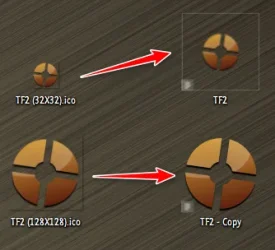
The icon files, (.ico), are probably the wrong scale...

13099.webp

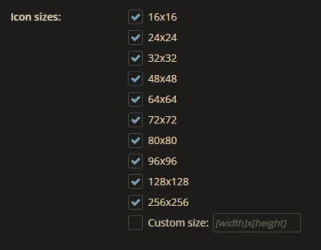
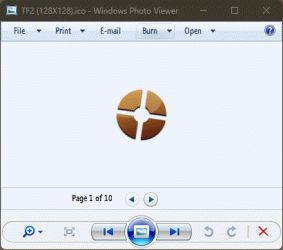
Make sure the shortcut or application is using full scale, multi-layer .ico's, 16X16 to at least 128X128...

13097.webp

... that way, the shortcuts will appear properly anywhere in the Explorer environment, regardless of your chosen icon size...

13101.gif
 

My Computers

System One System Two

  • OS
    Windows 11 Pro
    Computer type
    PC/Desktop
    Manufacturer/Model
    ASUS ROG Strix
  • Operating System
    Windows 11 Pro
    Computer type
    Laptop
    Manufacturer/Model
    ASUS VivoBook
Just out of curiosity, if you view your desktop as a folder in file explorer when the icons as displayed on the desktop appear 'broken', how do those same icons appear in file explorer?


Relevant tutorials: - from the Tutorials section:

With so many shortcuts on your desktop you might consider using Stardock's Fences to organise them... or putting them into folders and using Open Shell (free) as your Start Menu which allows you to readily add folders by drag 'n drop and displays their content properly - unlike Windows' own start menu.

Your build number is more informatively like 26200.8246 (Settings, About or winver), showing update status. Thanks.
yes, in file explorer the ones that are broken have the same broken state as on the desktop. this too reshufles if i fix them.
 

My Computer

System One

  • OS
    Windows 11
    Computer type
    PC/Desktop
    Manufacturer/Model
    Micro-star International co. Ltd (MS-7B86)
    CPU
    AMD ryzen 7 3800X 8-core Proscessor
    Motherboard
    B450 GAMING PLUS MAX (MS-7B86)
    Memory
    32 GB
    Graphics Card(s)
    nvidia geforce GTX 1060 6GB
    Sound Card
    no clue
    Monitor(s) Displays
    LG HDR QHD
    Screen Resolution
    2560x1440 / 60Hz
    Hard Drives
    the regular ones
    PSU
    ???
    Case
    black i guess?
    Cooling
    theres a fan
    Keyboard
    razer synapse i think
    Mouse
    doesnt rly matter
    Internet Speed
    decent
    Browser
    opera
    Antivirus
    default windows + malewarebytes
I'm curious about the location of your desktop folder. Please open file explorer. In the left pane, right click on your Desktop folder.
Select "Properties" Click on "Location" tab. What is the location of that folder? Is it ONEDRIVE?
If it has ONEDRIVE in the folder path, that indicates that your personal folders (desktop, documents, pictures, and videos) are not located on your system drive, but the default folder location is in Onedrive.

Another question - Are you using any third party app that alters the GUI?
the location is C:\Users\User\Desktop
i DO have onedrive installed, but its separate in the files, as far as i can tell at least
 

My Computer

System One

  • OS
    Windows 11
    Computer type
    PC/Desktop
    Manufacturer/Model
    Micro-star International co. Ltd (MS-7B86)
    CPU
    AMD ryzen 7 3800X 8-core Proscessor
    Motherboard
    B450 GAMING PLUS MAX (MS-7B86)
    Memory
    32 GB
    Graphics Card(s)
    nvidia geforce GTX 1060 6GB
    Sound Card
    no clue
    Monitor(s) Displays
    LG HDR QHD
    Screen Resolution
    2560x1440 / 60Hz
    Hard Drives
    the regular ones
    PSU
    ???
    Case
    black i guess?
    Cooling
    theres a fan
    Keyboard
    razer synapse i think
    Mouse
    doesnt rly matter
    Internet Speed
    decent
    Browser
    opera
    Antivirus
    default windows + malewarebytes

My Computer

System One

  • OS
    Windows 11
    Computer type
    PC/Desktop
    Manufacturer/Model
    Micro-star International co. Ltd (MS-7B86)
    CPU
    AMD ryzen 7 3800X 8-core Proscessor
    Motherboard
    B450 GAMING PLUS MAX (MS-7B86)
    Memory
    32 GB
    Graphics Card(s)
    nvidia geforce GTX 1060 6GB
    Sound Card
    no clue
    Monitor(s) Displays
    LG HDR QHD
    Screen Resolution
    2560x1440 / 60Hz
    Hard Drives
    the regular ones
    PSU
    ???
    Case
    black i guess?
    Cooling
    theres a fan
    Keyboard
    razer synapse i think
    Mouse
    doesnt rly matter
    Internet Speed
    decent
    Browser
    opera
    Antivirus
    default windows + malewarebytes

My Computers

System One System Two

  • OS
    Windows 11 Pro
    Computer type
    PC/Desktop
    Manufacturer/Model
    ASUS ROG Strix
  • Operating System
    Windows 11 Pro
    Computer type
    Laptop
    Manufacturer/Model
    ASUS VivoBook
Back
Top Bottom