Details Pane in File Explorer


zelarra821

Active member
Member
Local time
9:26 PM
Posts
102
OS
Windows 11 Home 23H2
Hi guys.

I'm new to this forum.

I wanted to ask for help to fix the problem I have with the Details Pane in Windows 11 File Explorer.

I'll be uploading screenshots to explain in more detail what's going on.

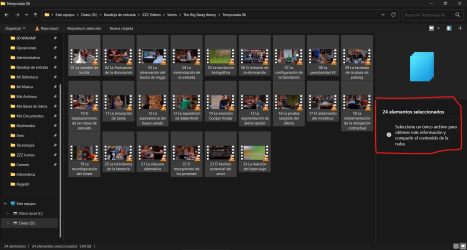
1. When I select all the files in a certain folder in File Explorer, I don't get any information in the Details Pane on the right:
1724579114912.png

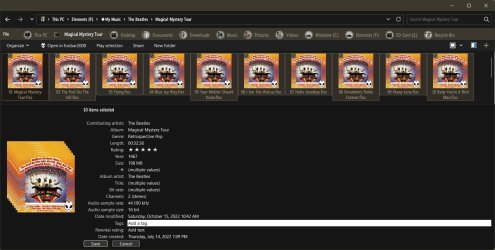
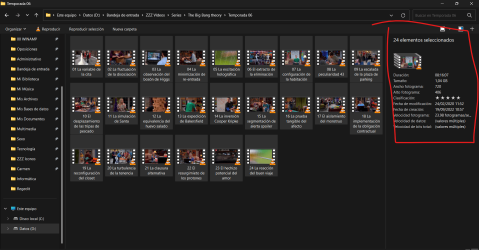
Searching the Internet for a way to solve this, I realized that if I access that same folder (I'm just using this one as an example, but it happens to me with any other folder I might use), this time all the information does appear in the Details Panel on the right:

1724579247495.png

1724579281387.png

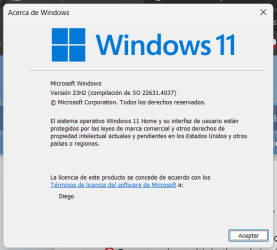
It is also a screenshot of the W11 I am currently using:

1724579326118-png.106042


Also note that I am using StartIsBack - StartAllBack.

Well, I have tried to create a shortcut for the folders I want to have at hand by accessing them through the Control Panel, but this does not work either.

So, does anyone know how I could solve this problem and see the details of the selected files without having to go into the folder each time through the Control Panel?

Thank you very much.
 
Windows Build/Version
23H2

Attachments

  • 1724579326118.png
    1724579326118.png
    11.9 KB · Views: 19

My Computer

System One

  • OS
    Windows 11 Home 23H2
    Computer type
    Laptop
    Manufacturer/Model
    *
    CPU
    *
    Motherboard
    *
    Memory
    *
    Graphics Card(s)
    *
    Sound Card
    *
    Monitor(s) Displays
    *
    Screen Resolution
    *
    Hard Drives
    *
    PSU
    *
    Case
    *
    Cooling
    *
    Keyboard
    *
    Mouse
    *
    Internet Speed
    *
    Browser
    *
    Antivirus
    *
    Other Info
    *
... does anyone know how I could solve this problem and see the details of the selected files without having to go into the folder each time through the Control Panel?
You're right! I never noticed that before! StartAllBack and same Build here.

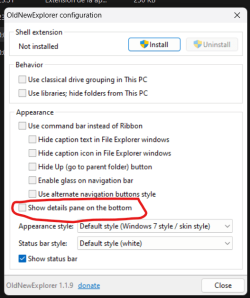
Don't know if it solves your problem, but, I've always used Old-New Explorer to keep the Details Pane on the bottom W7 style,
(the side one seems to be the new version with the share option)...

0007481.jpg
 

My Computers

System One System Two

  • OS
    Windows 11 Pro
    Computer type
    PC/Desktop
    Manufacturer/Model
    ASUS ROG Strix
  • Operating System
    Windows 11 Pro
    Computer type
    Laptop
    Manufacturer/Model
    ASUS VivoBook
Yes, I know Old-New Explorer, but it only allows me to put it below.

1724585396226.png
 

My Computer

System One

  • OS
    Windows 11 Home 23H2
    Computer type
    Laptop
    Manufacturer/Model
    *
    CPU
    *
    Motherboard
    *
    Memory
    *
    Graphics Card(s)
    *
    Sound Card
    *
    Monitor(s) Displays
    *
    Screen Resolution
    *
    Hard Drives
    *
    PSU
    *
    Case
    *
    Cooling
    *
    Keyboard
    *
    Mouse
    *
    Internet Speed
    *
    Browser
    *
    Antivirus
    *
    Other Info
    *

My Computers

System One System Two

  • OS
    Windows 11 Pro
    Computer type
    PC/Desktop
    Manufacturer/Model
    ASUS ROG Strix
  • Operating System
    Windows 11 Pro
    Computer type
    Laptop
    Manufacturer/Model
    ASUS VivoBook
I want that information on the right side.
 

My Computer

System One

  • OS
    Windows 11 Home 23H2
    Computer type
    Laptop
    Manufacturer/Model
    *
    CPU
    *
    Motherboard
    *
    Memory
    *
    Graphics Card(s)
    *
    Sound Card
    *
    Monitor(s) Displays
    *
    Screen Resolution
    *
    Hard Drives
    *
    PSU
    *
    Case
    *
    Cooling
    *
    Keyboard
    *
    Mouse
    *
    Internet Speed
    *
    Browser
    *
    Antivirus
    *
    Other Info
    *
Ok, I have a solution for you, but I need help with it.

I want to create a shortcut that uses the application C:\Windows\System32\control.exe, but to which I have to add a path, for example D:\Inbox.

That is, I want to go to the folder D:\Inbox through the application control.exe.

Thank you very much.
 

My Computer

System One

  • OS
    Windows 11 Home 23H2
    Computer type
    Laptop
    Manufacturer/Model
    *
    CPU
    *
    Motherboard
    *
    Memory
    *
    Graphics Card(s)
    *
    Sound Card
    *
    Monitor(s) Displays
    *
    Screen Resolution
    *
    Hard Drives
    *
    PSU
    *
    Case
    *
    Cooling
    *
    Keyboard
    *
    Mouse
    *
    Internet Speed
    *
    Browser
    *
    Antivirus
    *
    Other Info
    *
Hi guys.

I tried what I said in my last message:

Instead of putting C:\Windows\explorer.exe "D:\"

I wanted to try C:\Windows\System32\control.exe "D:\"

But it doesn't work.

I don't know if there is or you know of any way to find out what the difference is between the explorer in which the control panel opens and the explorer that opens when you open This PC.

Please, if anyone has any ideas that could help, please comment.
 

My Computer

System One

  • OS
    Windows 11 Home 23H2
    Computer type
    Laptop
    Manufacturer/Model
    *
    CPU
    *
    Motherboard
    *
    Memory
    *
    Graphics Card(s)
    *
    Sound Card
    *
    Monitor(s) Displays
    *
    Screen Resolution
    *
    Hard Drives
    *
    PSU
    *
    Case
    *
    Cooling
    *
    Keyboard
    *
    Mouse
    *
    Internet Speed
    *
    Browser
    *
    Antivirus
    *
    Other Info
    *
The only known way to get the old Details pane on the right, that provides direct editing of file properties, is by launching the old Windows 10 Explorer via the Control Panel (as you've already discovered).

My free OldExplorer app makes that process a little tidier, but it's the same method under the hood.
 

My Computer

System One

  • OS
    Windows 10/11
    Computer type
    Laptop
    Manufacturer/Model
    Acer
Yes, but what is the path where the exe is to run the old Windows 10 File Explorer?
 

My Computer

System One

  • OS
    Windows 11 Home 23H2
    Computer type
    Laptop
    Manufacturer/Model
    *
    CPU
    *
    Motherboard
    *
    Memory
    *
    Graphics Card(s)
    *
    Sound Card
    *
    Monitor(s) Displays
    *
    Screen Resolution
    *
    Hard Drives
    *
    PSU
    *
    Case
    *
    Cooling
    *
    Keyboard
    *
    Mouse
    *
    Internet Speed
    *
    Browser
    *
    Antivirus
    *
    Other Info
    *
Hi guys.

I'm new to this forum.

I wanted to ask for help to fix the problem I have with the Details Pane in Windows 11 File Explorer.

I'll be uploading screenshots to explain in more detail what's going on.

1. When I select all the files in a certain folder in File Explorer, I don't get any information in the Details Pane on the right:

View attachment 106039

Searching the Internet for a way to solve this, I realized that if I access that same folder (I'm just using this one as an example, but it happens to me with any other folder I might use), this time all the information does appear in the Details Panel on the right:

View attachment 106040

View attachment 106041

It is also a screenshot of the W11 I am currently using:

1724579326118-png.106042


Also note that I am using StartIsBack - StartAllBack.

Well, I have tried to create a shortcut for the folders I want to have at hand by accessing them through the Control Panel, but this does not work either.

So, does anyone know how I could solve this problem and see the details of the selected files without having to go into the folder each time through the Control Panel?

Thank you very much.

Hey. Also read this.
 

My Computer

System One

  • OS
    Windows 11 Pro
    Computer type
    Laptop
    Manufacturer/Model
    HP Pavilion 17 cd2205nw
    CPU
    Intel 113700H
    Memory
    16GB
    Graphics Card(s)
    NVIDIA RTX 3050 ti
    Screen Resolution
    1980x1020
    Hard Drives
    Micron 512GB
    Mouse
    Logitech
    Internet Speed
    100Mbs
    Browser
    Vivaldi , Edge
    Antivirus
    Windows defender
Yes, but what is the path where the exe is to run the old Windows 10 File Explorer?
There is no path. Old and new Explorer use the same Explorer.exe. The difference is in the DLLs that are loaded. The only known way to get what you want is what I already stated in my previous reply.
 

My Computer

System One

  • OS
    Windows 10/11
    Computer type
    Laptop
    Manufacturer/Model
    Acer
Probably why MS wants to ditch the Control Panel, it's such a screwed up mess..., them and their fancy Explorer SDK.
 

My Computers

System One System Two

  • OS
    Windows 11 Pro
    Computer type
    PC/Desktop
    Manufacturer/Model
    ASUS ROG Strix
  • Operating System
    Windows 11 Pro
    Computer type
    Laptop
    Manufacturer/Model
    ASUS VivoBook
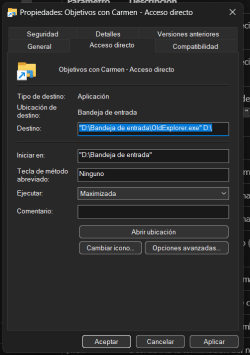
I found this out:


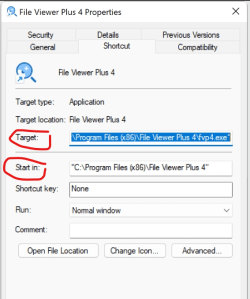
Now I just need to know how to set up the shortcuts:

1724604190181.png

What to put in Target and Startin? Because I have to open a folder but with OldExplorer.exe

Thanks!
 

My Computer

System One

  • OS
    Windows 11 Home 23H2
    Computer type
    Laptop
    Manufacturer/Model
    *
    CPU
    *
    Motherboard
    *
    Memory
    *
    Graphics Card(s)
    *
    Sound Card
    *
    Monitor(s) Displays
    *
    Screen Resolution
    *
    Hard Drives
    *
    PSU
    *
    Case
    *
    Cooling
    *
    Keyboard
    *
    Mouse
    *
    Internet Speed
    *
    Browser
    *
    Antivirus
    *
    Other Info
    *
1724604911800.png

That's what I was saying in my last post. But I want to disable screen updating, if it's possible.
 

My Computer

System One

  • OS
    Windows 11 Home 23H2
    Computer type
    Laptop
    Manufacturer/Model
    *
    CPU
    *
    Motherboard
    *
    Memory
    *
    Graphics Card(s)
    *
    Sound Card
    *
    Monitor(s) Displays
    *
    Screen Resolution
    *
    Hard Drives
    *
    PSU
    *
    Case
    *
    Cooling
    *
    Keyboard
    *
    Mouse
    *
    Internet Speed
    *
    Browser
    *
    Antivirus
    *
    Other Info
    *

My Computer

System One

  • OS
    Windows 11 Home 23H2
    Computer type
    Laptop
    Manufacturer/Model
    *
    CPU
    *
    Motherboard
    *
    Memory
    *
    Graphics Card(s)
    *
    Sound Card
    *
    Monitor(s) Displays
    *
    Screen Resolution
    *
    Hard Drives
    *
    PSU
    *
    Case
    *
    Cooling
    *
    Keyboard
    *
    Mouse
    *
    Internet Speed
    *
    Browser
    *
    Antivirus
    *
    Other Info
    *
How do I get it?
Whatever view and sort options you have set for your target folder in Explorer is what you'll get when you open a new Explorer instance. You're always going to get a view as if you had just pressed F5.
 

My Computer

System One

  • OS
    Windows 10/11
    Computer type
    Laptop
    Manufacturer/Model
    Acer
It engages my PrintScreen, (which I have to Esc from), then opens to Windows Tools! 🤷‍♂️
Interesting.

As noted in the readme, all OldExplorer does is run control admintools and then sends a backslash and Enter to the navigation bar.

Any time sendkeys are involved, strange things can happen, depending on what other software is installed.

The source code is posted, but if you don't do C#, you could try playing around with a VBScript or PowerShell version of the script (ChatGPT can help with that) to try to troubleshoot.
 

My Computer

System One

  • OS
    Windows 10/11
    Computer type
    Laptop
    Manufacturer/Model
    Acer

Latest Support Threads

Back
Top Bottom