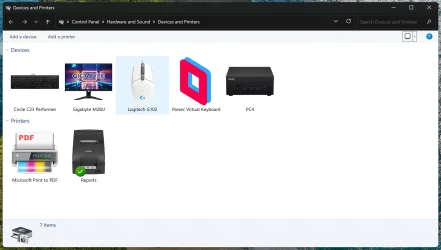
Devices and Printers Metadata Edit (Still works in Windows 11)


d5aqoep

Well-known member
Member
Local time
8:50 PM
Posts
39
OS
Windows 11
You can still use the Microsoft's Devices and Printers Metadata Authoring Wizard even today.
Here is the link and also included inside a folder is computerhardwareids.exe which will be required to change the icon for This PC

Works on Windows 7, 8, 8.1, 10 & 11.
Download:
Metadata for Devices

Requirements:
1. Install the Devices and Printers Metadata Authoring Wizard and
2. Enable .Net 3.5
3. Icon converter with 32-bit, 8-bit and 4-bit sizes Icon Converter - Create ICO from Image Online | RedKetchup
4. Icollator which combines the above 3 types of icons into 1 single file accepted by the Authoring wizard IcollatorForever
5. Image Cropping tool like Fastone Image Viewer portable or even newer Paint in Windows 11 does well with PNG transparency. You can even fill transparency by resizing the image and moving around the device image to better fit a square. Default Paint app is now more competent. But you are always welcome to use any image software of your own choice.

Process:
1. For icons which you don't have, start with the device pic with white background. Then you can go to any AI based Background Removal website and remove the background and make it a transparent .png file. Crop it to your liking. It should be 1:1 square aspect ratio. PNG file should be higher res than 256x256.

2. Once you are satisfied with png file, upload it to Icon Converter - Create ICO from Image Online | RedKetchup and select all icon sizes upto 256 and select BMP (32-bit) and click on Download button. Then again download button. Once it has completed downloading the ico, go back and select BMP (8-bit) and again Download the ico file, repeat the process for BMP (4-bit). Now you should have 3 ico files.

3. Go to IcollatorForever and add the above 3 ico files and click on save to ico button. This downloaded ico file will be accepted by Devices and Printers Metadata Authoring Wizard

4. Go to Settings -> Bluetooth & Devices -> Devices -> More Devices and Printer Settings

5. Right click on the device you want to change it's icon -> Create Metadata Package (Ignore .Net error, it still works)

6. Drag-drop the combined icon you created in step 3. Don't worry if it shows up blurry there.

7. Click next, Enter the device details, hit next

8. Select the correct category of your device.

9. In associations, you need to know the device's HWID. You can find it from device manager.

10. Hit next and before you hit finish, make sure you have ticked "Copy package to your system's local metadata store"

11. The icon should change in few seconds.

Bonus tip:
To change This PC icon, run computerhardwareids.exe in elevated cmd
It will show you a bunch of HWIDs
The most important ones are Required 3 HWIDs

  • Manufacturer + Family + Product Name
  • Manufacturer + SKUNumber
  • Manufacturer

Format:
ComputerMetadata\{HWID}

Enter these 3 HWIDs in above format in the Hardware ID box of Authoring wizard of This PC. So you should have 3 entries there.

This pretty thing is now deprecated but I still had fun figuring out how to change This PC icon.

You can also have some fun too.

You can backup the randomly numbered files from this location: C:\ProgramData\Microsoft\Windows\DeviceMetadataStore\en-US to a safe folder. If you reinstall Windows, copy back the backed up metadata files to get the icons to show up again. The files can also be used on another PC provided it has the same Device ID. Works well for USB drives.

Another Bonus tip: I would recommend renaming the combined ico file to device name before using it in Authoring Wizard. Because the metadata files can be opened up in notepad to see which ico file name it is using. To determine which file is for what device.
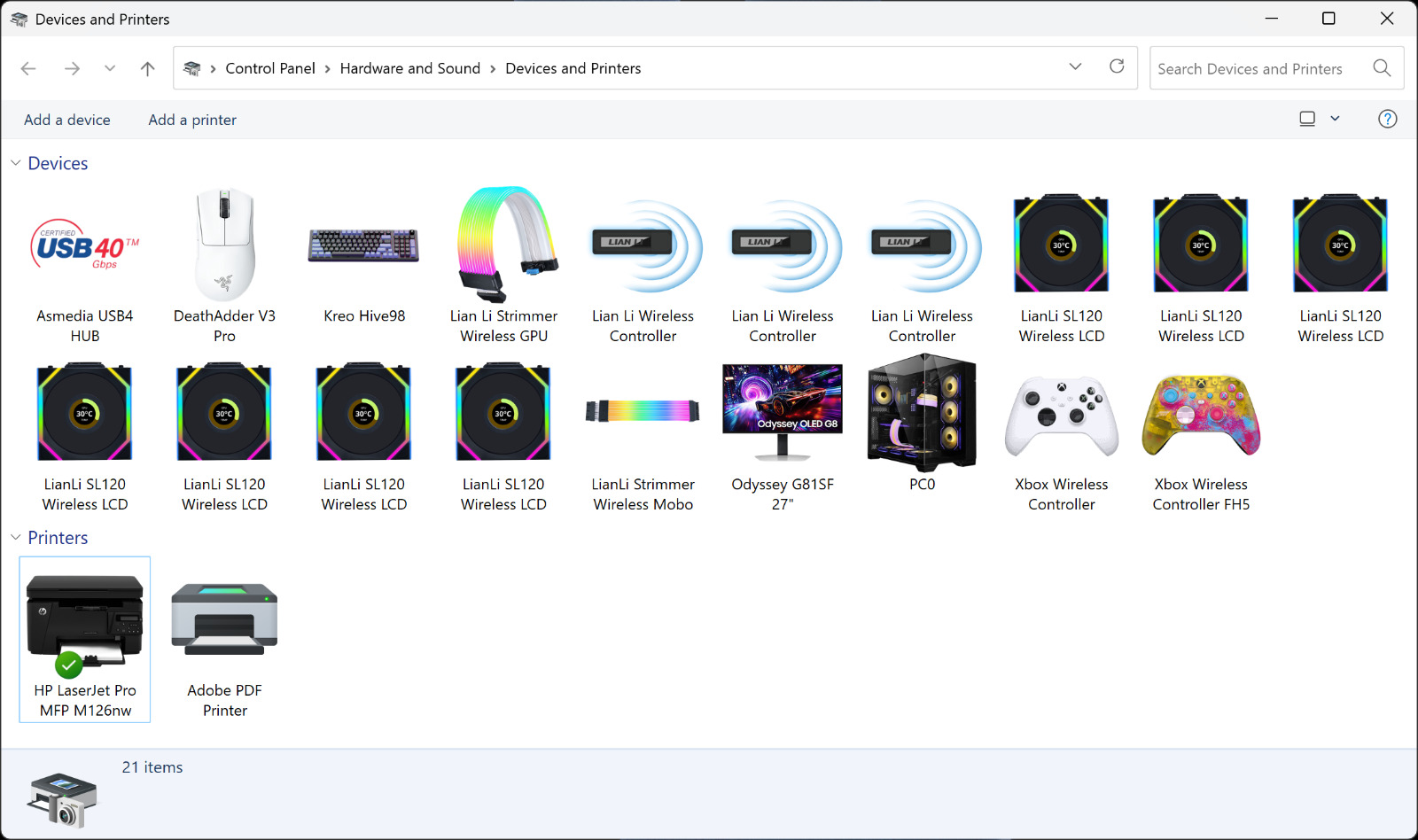
Untitled.jpg


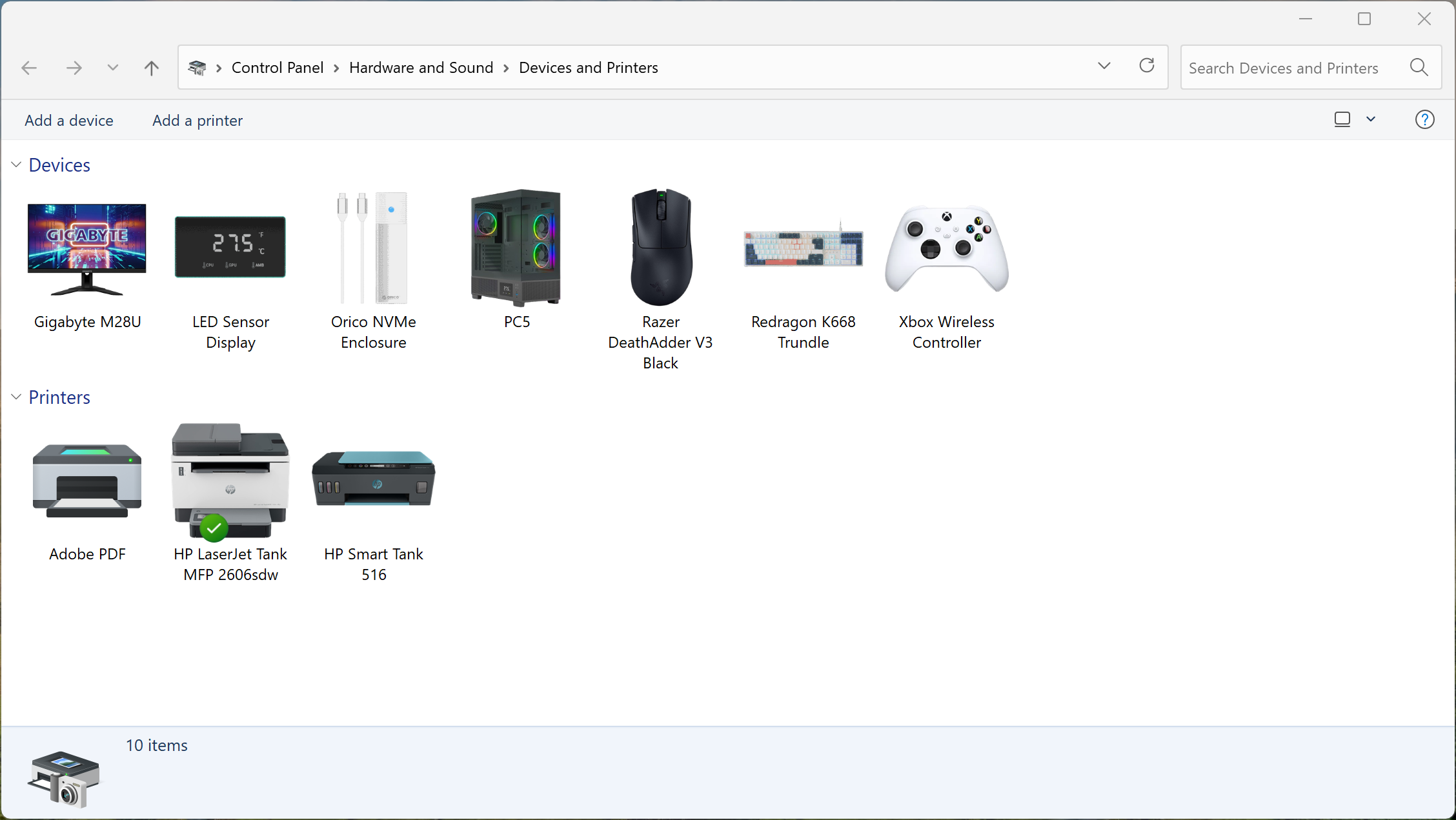
Screenshot-2025-08-17-175408.png
 

My Computer

System One

  • OS
    Windows 11
    Computer type
    PC/Desktop
    Manufacturer/Model
    Asus
    CPU
    9800X3D
    Motherboard
    Asus X870E ProArt
    Memory
    Patriot 8200MTs DDR5 CL38
    Graphics Card(s)
    Galax RTX 4090ST
    PSU
    Asus Strix 1000W
    Case
    Lian Li O11 Vision
Good Post as i have just upgraded from Windows 10 to Windows 11 (Still Prefer Win 10).
I have been changing icons in Devices and Printers since Windows 7.

Something i like to edit on your side which applied to me with Windows 10 as well as Windows 11.

You mentioned in your post for editing the PC icon saying that only 3 HWIDs to do that. It didnt work with me doing it your way but only worked like in Windows 10 and 11 using ALL the HWIDs which are displayed. Then you need to do a Refresh in the device and printers windows to display the new Icon or do a reboot.

Like i said it only worked by using ALL the HWIDS displayed in the CMD prompt.

Maybe your version of windows is different to my own. I am currently on Windows 11 Home and NOT Pro edition.

You picked a awesome time to do this post as i was looking for the new metadata installer thinking do io need to re install Microsoft Visual Studio to get the installer but you did that for me. Thank You
 

My Computer

System One

  • OS
    Windows 11
    Computer type
    PC/Desktop
It seems everything bar the PC icon i cannot get to change. I no that Microsoft is doing away with the metadata stuff maybe its allready in affect since for the life of me i cannot get any of the other icons to change?
 

My Computer

System One

  • OS
    Windows 11
    Computer type
    PC/Desktop
It seems everything bar the PC icon i cannot get to change. I no that Microsoft is doing away with the metadata stuff maybe its allready in affect since for the life of me i cannot get any of the other icons to change?
I got This PC icon to change correctly on all my PCs which were on 24H2 and 25H2 dev builds. So it seems like you are doing something wrong.

Make sure that your format is correct
ComputerMetadata\{HWID}

Only HWID needs to be changed to the 3 given. Keep the curly brackets.
 

My Computer

System One

  • OS
    Windows 11
    Computer type
    PC/Desktop
    Manufacturer/Model
    Asus
    CPU
    9800X3D
    Motherboard
    Asus X870E ProArt
    Memory
    Patriot 8200MTs DDR5 CL38
    Graphics Card(s)
    Galax RTX 4090ST
    PSU
    Asus Strix 1000W
    Case
    Lian Li O11 Vision

Whats more important tbh is the fact that only the PC icon changes now, well at least for me anyway. All other icons do not change no matter what i do. Hopefully another solution comes later on.
Any solution on your side to be able to change all other icons. I have build 24H2.
 

Attachments

  • Printers.webp
    Printers.webp
    29.5 KB · Views: 6

My Computer

System One

  • OS
    Windows 11
    Computer type
    PC/Desktop
Whats more important tbh is the fact that only the PC icon changes now, well at least for me anyway. All other icons do not change no matter what i do. Hopefully another solution comes later on.
Any solution on your side to be able to change all other icons. I have build 24H2.
Either your install is bugged or the metadata files are absent in C:\ProgramData\Microsoft\Windows\DeviceMetadataStore\en-US
They must be in C:\Users\username\Documents

Sometimes it requires one time internet to display all changed icons at the very beginning. No issues here even on 25H2 26200.5074
 

My Computer

System One

  • OS
    Windows 11
    Computer type
    PC/Desktop
    Manufacturer/Model
    Asus
    CPU
    9800X3D
    Motherboard
    Asus X870E ProArt
    Memory
    Patriot 8200MTs DDR5 CL38
    Graphics Card(s)
    Galax RTX 4090ST
    PSU
    Asus Strix 1000W
    Case
    Lian Li O11 Vision
If the metadata files are present in C:\Users\username\Documents simply copy them to C:\ProgramData\Microsoft\Windows\DeviceMetadataStore\en-US
 

My Computer

System One

  • OS
    Windows 11
    Computer type
    PC/Desktop
    Manufacturer/Model
    Asus
    CPU
    9800X3D
    Motherboard
    Asus X870E ProArt
    Memory
    Patriot 8200MTs DDR5 CL38
    Graphics Card(s)
    Galax RTX 4090ST
    PSU
    Asus Strix 1000W
    Case
    Lian Li O11 Vision
My documents folder is emtpy no files there. (C:\Users\username\Documents )

I have both this folder C:\ProgramData\Microsoft\Windows\DeviceMetadataStore\en-US and C:\ProgramData\Microsoft\Windows\DeviceMetadataCache

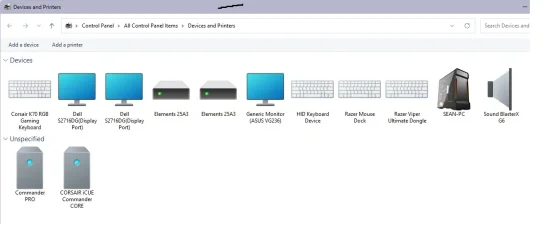
Both have the files for my PC computer icon metadata stuff ONLY but nothing else in them folders. Like i said when i try and do the other icons nothing happens and nothing appears in either of the other folders.? But when i did the PC icon it was fine (as seen on my image i uploaded)

Strange and annoying. Windows must be doing there new metadata package system on my system as where is the files for the rest of my system hardware lol.

Just too note. This is a new install of windows 11 which was installed just over a month ago. And my system is running perfectly fine. And one last thing i used your metadata wizard you uploaded and it installed fine.

I do have a few mods and programs i use. Like for example open shell for my windows 7 start menu look, rainmeter and objectdock as well as the usually stuff like discord in the background running.
 
Last edited:

My Computer

System One

  • OS
    Windows 11
    Computer type
    PC/Desktop
Metadata files should be in this folder
C:\ProgramData\Microsoft\Windows\DeviceMetadataStore\en-US

Assuming Your Windows language is en-US
If metadata files are not getting copied to the above location, the created files should be present in C:\Users\username\Documents. Simply copy them manually to the C:\ProgramData\Microsoft\Windows\DeviceMetadataStore\en-US
 

My Computer

System One

  • OS
    Windows 11
    Computer type
    PC/Desktop
    Manufacturer/Model
    Asus
    CPU
    9800X3D
    Motherboard
    Asus X870E ProArt
    Memory
    Patriot 8200MTs DDR5 CL38
    Graphics Card(s)
    Galax RTX 4090ST
    PSU
    Asus Strix 1000W
    Case
    Lian Li O11 Vision
Like i said in my previous post. No files in C:\Users\username\Documents

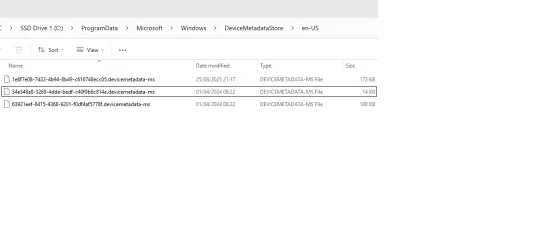
And i have three files in C:\ProgramData\Microsoft\Windows\DeviceMetadataStore\en-US which is one of them my PC icon metadata.

I no this becuase i match up the name of this files to the one which is in my C:\ProgramData\Microsoft\Windows\DeviceMetadataCache and it shows me my custom PC icon.

The other two files must be the new package microsoft or something else, maybe the rest of the hardware icons becuase they will not change at all and they are from 1/4/2024 which is when i was on windows 10 not windows 11. I cannot even delete them and they are not read only. Cannot add anything else to this folder apart from the PC icon which is the top file beginning with 1e6f7e08. Look at screenshot i posted. Even looked at the folder to see if that was read only and it showing read only on the actually files not folder but i cannot uncheck it. Access Denied? on them two files from 2024 changing the folder from read only to not read only. Does this even matter becuase it didnt when i uploaded a new PC icon and it went though normally.?

And strange why do i have two metadata files from 1/4/2024 when i did a full clean install of windows 11 just over a few months ago????. And i did NOT upload ANY new metadata files from my windows 10 days in 2024???

This must be the reason maybe why i cannot change the rest of my hardware icons, its Access Denied on change them two files even when the hardware metadata wizard is clearly doing it job with no errors but nothing change in folder?

Clearly maybe when i installed windows 11 i had a microsoft account and that account uploaded my old metadata files from my windows 10 days and barred me from changing them? when i was installing windows 11??. Which could be the new microsoft metadata driver package which is coming info effect with windows 11?, which clearly if true didnt effect the PC system icon but just the rest of the hardware i have.

Either way its not effecting my PC system its just annoying i cannot change the rest of the icons. I loved doing that in windows 7 and windows 10
 

Attachments

  • Metadata folder.webp
    Metadata folder.webp
    19 KB · Views: 2
Last edited:

My Computer

System One

  • OS
    Windows 11
    Computer type
    PC/Desktop
@Rohi looks like your ntfs is corrupted. Do a chkdsk /f /override of your C:

Then run sfc /scannow

It can also be permissions issue to documents folder and program data folder
 

My Computer

System One

  • OS
    Windows 11
    Computer type
    PC/Desktop
    Manufacturer/Model
    Asus
    CPU
    9800X3D
    Motherboard
    Asus X870E ProArt
    Memory
    Patriot 8200MTs DDR5 CL38
    Graphics Card(s)
    Galax RTX 4090ST
    PSU
    Asus Strix 1000W
    Case
    Lian Li O11 Vision
Yea did both chkdsk /f and sfc/scannow and no errors or anything.

As for the documents folder i have full control on everything. For the programdata folder. Full control as system admin and system but not full control on user account. Which tbh i dont want to change to full control.

Dont the metadata wizard when writing to a folder for example with my PC system icon use system admin premissions instead of a user account permissions. And tbh when i did the custom PC metadata the permission where the same? and the file was created in the C:\ProgramData\Microsoft\Windows\DeviceMetadataStore\en-US folder.

In other words when i created my PC system icon metadata package the metadata wizard installer worked for that. So why not work for the other hardware i have?

Just out of curiosity on pervious versions of windows with the metadata installer for example win 7 and windows 10. When writing a Hardware ID to your PC system you use the line
ComputerMetadata\{HWID} in the metadata installer which is what i did to get my custom Pc System Icon which worked.
On other hardware parts on the installer itself when writing Hardware ID on ALL other hardware parts in your system you use the line (HID//) without the brackets instead of ComputerMetadata\{HWID}. If i remember correct?

Or has that changed now and ALL HARDWARE use the line ComputerMetadata\{HWID} and NOT (HID//) pasted in before the actually Hardware ID inserted.
Just checking with you if i made that silly rookie mistake? or i got it correct?

Might have to check that and re-install the metadata installer and try again sometime as i unistalled it a while back due to it not working as mentioned above in my multiple posts
 
Last edited:

My Computer

System One

  • OS
    Windows 11
    Computer type
    PC/Desktop
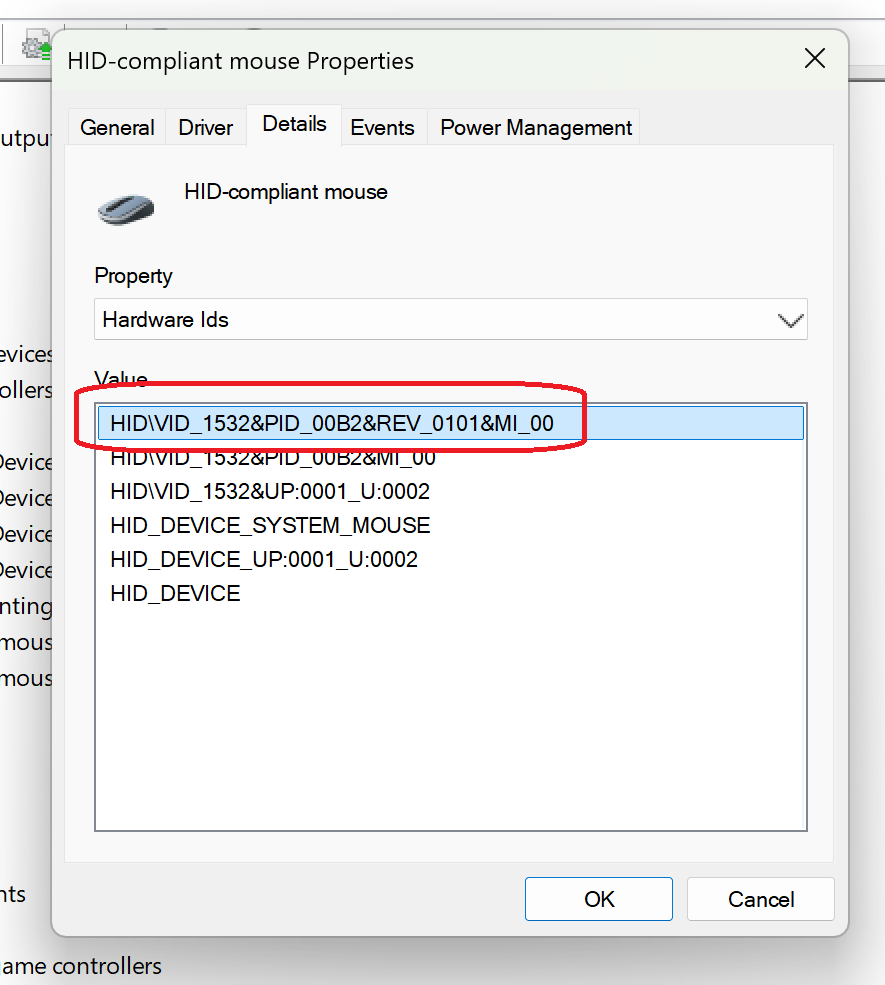
For hardware ID of any device except This PC, Just enter the full HWID string as shown by Device manager

eg.
For my Razer mouse:
HID\VID_1532&PID_00B2&REV_0101&MI_00

Screenshot-2025-09-07-133203.png


Similarly, for Redragon keyboard:
HID\VID_258A&PID_0049&REV_0105&MI_00

ComputerMetadata\{HWID} is only for This PC.

Keep it simple and don't complicate things.
 

My Computer

System One

  • OS
    Windows 11
    Computer type
    PC/Desktop
    Manufacturer/Model
    Asus
    CPU
    9800X3D
    Motherboard
    Asus X870E ProArt
    Memory
    Patriot 8200MTs DDR5 CL38
    Graphics Card(s)
    Galax RTX 4090ST
    PSU
    Asus Strix 1000W
    Case
    Lian Li O11 Vision
That what i thought and did, I was just checking to see if it had changed from windows 7, 10 too windows 11.
 

My Computer

System One

  • OS
    Windows 11
    Computer type
    PC/Desktop
@Rohi
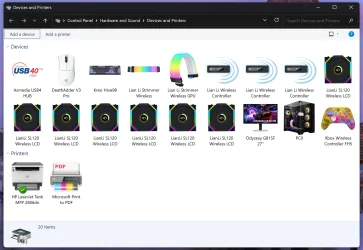
This is still working as expected on 25H2 official builds released by MS.

Screenshot 2025-10-10 091828.webp

Screenshot 2025-10-10 092729.webp
 

My Computer

System One

  • OS
    Windows 11
    Computer type
    PC/Desktop
    Manufacturer/Model
    Asus
    CPU
    9800X3D
    Motherboard
    Asus X870E ProArt
    Memory
    Patriot 8200MTs DDR5 CL38
    Graphics Card(s)
    Galax RTX 4090ST
    PSU
    Asus Strix 1000W
    Case
    Lian Li O11 Vision
When i have some free time. I will take another look at trying to get this too work. Was going to give it another go. But work and other commitments have taken over for now. But glad to see it is still working for you.

Just out of curiosity do you have visual studio installed on your PC. As in the past on windows 7 and windows 10 i had this installed on my PC when i changed my icons. This time around on windows 11 i am ONLY using your metadata wizard to try and change my icons in devices and printers which is not working.
 

My Computer

System One

  • OS
    Windows 11
    Computer type
    PC/Desktop
When i have some free time. I will take another look at trying to get this too work. Was going to give it another go. But work and other commitments have taken over for now. But glad to see it is still working for you.

Just out of curiosity do you have visual studio installed on your PC. As in the past on windows 7 and windows 10 i had this installed on my PC when i changed my icons. This time around on windows 11 i am ONLY using your metadata wizard to try and change my icons in devices and printers which is not working.
No Visual Studio or any other crap installed.
 

My Computer

System One

  • OS
    Windows 11
    Computer type
    PC/Desktop
    Manufacturer/Model
    Asus
    CPU
    9800X3D
    Motherboard
    Asus X870E ProArt
    Memory
    Patriot 8200MTs DDR5 CL38
    Graphics Card(s)
    Galax RTX 4090ST
    PSU
    Asus Strix 1000W
    Case
    Lian Li O11 Vision

Latest Support Threads

Back
Top Bottom