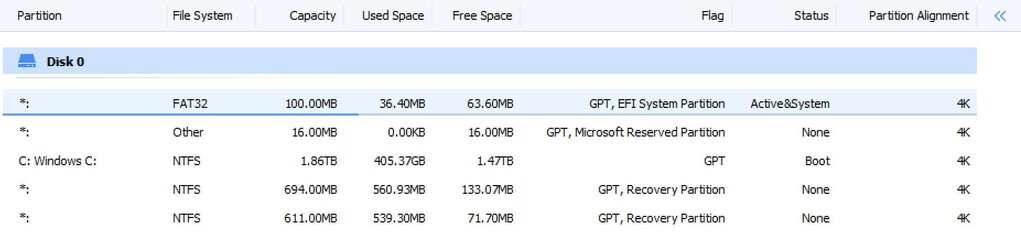
At one time the recovery partition was the first partition displayed in disk management.
The location prevented recovery partition enlargement.
For some upgrades a larger size recovery partition was required.
During the upgrade Windows created a new recovery partition.
When the new recovery partition was created the old recovery partition was disabled.
This created two recovery partitions (one enabled and one disabled).
The one on the far left was typically an orphaned and disabled recovery partition.
Deleting the far left recovery partition accomplished very little as the size was almost always under 1 GB.
If it were deleted it would become unallocated space on the left size of the data partition.
With later versions of Windows Microsoft changed the default architecture for partitions.
The recovery partition was relocated to the immediate right of the data partition.
This created the new automatic failover.
The automatic failover allows dynamic sizing of the recovery partition.
During an upgrade when the recovery partition is located immediately to the right of the data partition the data and recovery partitions can enlarge and contract to allow the recovery partition sizing needed for the upgrade.
For example the recovery partition could enlarge from 750 to 950 or shrink from 950 to 750 during the upgrade.
The data partition or C: will shrink or enlarge to allow the size requirements of the recovery partition needed for the upgrade.
Code:
Recovery tools partition
Create a separate recovery partition to support automatic failover and to support booting Windows BitLocker Drive Encryption-encrypted partitions.

We recommend that you place this partition in a separate partition, immediately after the Windows partition.
This allows Windows to modify and recreate the partition later if future updates require a larger recovery image.
BIOS/MBR-based hard drive partitions
learn.microsoft.com
Code:
The Windows RE tools should be in a partition that's separate from the Windows partition.
This separation supports automatic failover and the startup of partitions that are encrypted by using Windows BitLocker Drive Encryption.
Introduces the disk partition requirement for using Windows RE tools on a UEFI-based computer.
learn.microsoft.com
Code:
The recovery tools should be in a separate partition than the Windows partition to support automatic failover and to support booting partitions encrypted with Windows BitLocker Drive Encryption.
UEFI/GPT-based hard drive partitions
learn.microsoft.com