Installation and Upgrade Download Official Windows 11 ISO file from Microsoft

  • Thread starter Thread starter Brink
  • Start date Published: Start date Updated Updated:
  • Featured
  • Tags Tags
    iso

ISO_banner.png

This tutorial will show you how to download an official Windows Server or Windows 11 64-bit or ARM64 ISO file from Microsoft.

Microsoft provides ISO files for Windows Server and Windows 11 to download. You can use these ISO files to clean install or in-place upgrade Windows 11.


The Flight Hub can also help you keep updated on which Windows 11 builds have an ISO available.


Contents

  • Option One: Download Latest Windows 11 64-bit ISO using Media Creation Tool (MCT)
  • Option Two: Download Windows 11 64-bit or ARM64 ISO from Microsoft
  • Option Three: Download Windows 11 Insider 64-bit ISO from Microsoft
  • Option Four: Download Windows Server Insider ISO from Microsoft
  • Option Five: Download Windows 11 64-bit or ARM64 ISO or Windows Server ISO from UUP Dump


See also:


Option One

Download Latest Windows 11 64-bit ISO using Media Creation Tool (MCT)


This will be for a Windows 11 Version 25H2 build 26200.8875 ISO file with install.esd.


1 Click/tap on the Download button below, and click/tap on the Download Now button at Microsoft's site for Create Windows 11 Installation Media. (see screenshot below)


Windows_11_MCT-1.png

2 Save the mediacreationtool.exe file version 10.0.26100.7019 to your desktop, and run it.

Windows_11_MCT-2.webp

3 If prompted by UAC, click/tap on Yes.

4 Click/tap on Accept for the license terms. (see screenshot below)

Windows_11_MCT-3.png

5 Uncheck the Use the recommended options for this PC box. (see screenshot below)

Leaving the Use the recommended options for this PC box checked will have the Media Creation Tool download an ISO that's the same language, edition, and architecture as the current PC.


Windows_11_MCT-4.png

6 Select the Language and Edition you want for the ISO file, and click/tap on Next. (see screenshot below)

The Windows 11 option includes both the Home and Pro editions. The product key you enter during installation (Windows Setup) is what determines which edition gets installed.

Your digital license or product key determines if Home or Pro gets installed during Windows Setup.

If you skip entering a product key during Windows Setup, then you will be prompted to select to install the Home or Pro edition.


Windows_11_MCT_x.png

7 Select (dot) ISO file, and click/tap on Next. (see screenshot below)

Windows_11_MCT-5.png

8 Select where you would like to save the ISO file to, type in a name you want for the ISO file, and click/tap on Save. (see screenshot below)

Windows_11_MCT-6.png

9 The Windows 11 ISO file will now begin to download. (see screenshot below)

Windows_11_MCT-7.png

10 When the download has finished, click/tap on the link where you selected to save the ISO file at to open that location, and click/tap on Finish. (see screenshot below)

Windows_11_MCT-8.png


Option Two

Download Windows 11 64-bit or ARM64 ISO from Microsoft


This will be for a Windows 11 Version 25H2 build 26200.8037 ISO file with install.wim.


1 Click/tap on the Download button below for the 64-bit or ARM64 ISO you want to download.

64-bit ISO

OR​

ARM64 ISO

2 Perform the appropriate action below for 64-bit or ARM64: (see screenshots below)
  • Select Windows 11 (multi-edition ISO for x64 devices) in the Download Windows 11 Disk Image (ISO) for x64 devices drop menu, and click/tap on Confirm
  • Select Windows 11 (multi-edition ISO for Arm64) in the drop menu, and click/tap on Download Now.
Download_W11_ISO-1.png
Windows11_ARM_ISO.png

3 Select the language (ex: "English") you want, and click/tap on Confirm. (see screenshot below)

Download_W11_ISO-2.png

4 Click/tap on the 64-bit Download or Download Now (ARM64) button. (see screenshots below)

Download_W11_ISO-3.png
Windows11_ARM_ISO-download_now.png

5 Navigate to and select where (ex: "Desktop") you want to save the ISO file, and click/tap on Save. (see screenshot below)

Download_W11_ISO-4.png


Option Three

Download Windows 11 Insider 64-bit ISO from Microsoft


1 Click/tap on the Download button below to go to the Windows Insider Preview Downloads site by Microsoft below,


2 Scroll down to the Select edtion section, and select the Windows 11 Insider Preview Canary, Dev, Beta, or Release Preview Channel ISO for the build number you want, and click/tap on Confirm. (see screenshots below)

ISO_download.webp
confirm.png

3 Select the language (ex: "English") you want, and click/tap on Confirm. (see screenshot below)

language.png

4 Click/tap on the 64-bit Download button. (see screenshot below)

Download.png

5 Navigate to and select where (ex: "Desktop") you want to save the ISO file, and click/tap on Save. (see screenshot below)

Save.png


Option Four

Download Windows Server Insider ISO from Microsoft


1 Click/tap on the Download button below to go to the Windows Insider Preview Downloads site by Microsoft below,


2 Select the Windows Server VNext Preview ISO for the build number you want, and click/tap on Confirm. (see screenshots below)

W11_Server_Insider-1.webp
W11_Server_Insider-2.png

3 Select the language (ex: "English") you want, and click/tap on Confirm. (see screenshot below)

W11_Server_Insider-3.png

4 Click/tap on the Download Now button. (see screenshot below)

W11_Server_Insider-4.png

5 Navigate to and select where (ex: "Desktop") you want to save the ISO file, and click/tap on Save. (see screenshot below)

W11_Server_Insider-5.png


Option Five

Download Windows 11 64-bit or ARM64 ISO or Windows Server ISO from UUP Dump


You can download an ISO for public and Insider builds using this option.


1 Using the tutorial below, search for and select the Windows version and build ISO you want to download.



That's it,
Shawn Brink


Last edited:
7-Zip 25.01
Current version is 26.02

Release notes are sparse, but found a reference online that 26.02 "Fixed parsing errors and memory-safety issues in WIM images and UDF disc files."
 
Last edited:

My Computer My Computer

At a glance

Windows 11 Pro 25H2
OS
Windows 11 Pro 25H2
Computer type
Laptop
Manufacturer/Model
Toshiba
Not fixed in 7-Zip 26.02.
Code:
D:\sources>c:7z.exe l install.swm

7-Zip 26.02 (x64) : Copyright (c) 1999-2026 Igor Pavlov : 2026-06-25

Scanning the drive for archives:
1 file, 3957088176 bytes (3774 MiB)

Listing archive: install.swm

ERROR: install.swm : install.swm
Open ERROR: Cannot open the file as [wim] archive

WARNINGS:
There are data after the end of archive

Errors: 1
 

My Computer My Computer

At a glance

Windows 7
OS
Windows 7
looks like it gets confused because of the expected compression... It can open an install.esd but not an install.swm that was created by splitting the install.esd.

what happens if you rename install.swm to install.esd, rename install2.swm to install2.esd etc.
 

My Computers My Computers

  • At a glance

    Win7,Win11i7-97002x16gb 3600mhz
    OS
    Win7,Win11
    Computer type
    PC/Desktop
    CPU
    i7-9700
    Motherboard
    gigabyte b365m ds3h
    Memory
    2x16gb 3600mhz
    Monitor(s) Displays
    benq gw2480
    PSU
    bequiet pure power 11 400CM
    Cooling
    cryorig m9i
  • At a glance

    win7,win11i5-84002x8gb 3200
    Operating System
    win7,win11
    Computer type
    PC/Desktop
    CPU
    i5-8400
    Motherboard
    gigabyte b365m ds3h
    Memory
    2x8gb 3200
    PSU
    xfx pro 450
update laptop

Screenshot 2026-08-02 0224464444.webp
 

My Computers My Computers

  • At a glance

    Windows 11 Pro Insider OS Build 29617.1000i9-9900 8C/16T Coffee Lake(2 x 8 GB) 16 GB DDR-4 @3000 Mhz Patriot ViperNvidea RTX-2080 Ti 11 GB asus
    OS
    Windows 11 Pro Insider OS Build 29617.1000
    Computer type
    PC/Desktop
    Manufacturer/Model
    Build Aswin😂😂👍
    CPU
    i9-9900 8C/16T Coffee Lake
    Motherboard
    MSI-B360 Gaming Pro Carbon-ATX(update bios 2D2(2021) to 2D0 (2022)
    Memory
    (2 x 8 GB) 16 GB DDR-4 @3000 Mhz Patriot Viper
    Graphics Card(s)
    Nvidea RTX-2080 Ti 11 GB asus
    Sound Card
    Speaker(Realtek audio)(standby) and Lg Speaker build in
    Monitor(s) Displays
    Monitors LG TV 43 inch 43NANO75TPA,(4K,60 Hz,WCG,HLG,HDR10+): Hdmi 2.0b x3
    Screen Resolution
    Desktop mode 4096 x 2160/60 Hz Active Signal Mode 4096 x 2160/60 Hz,HDR Enable: Destop Mode 4096x2160/60Hz Active Signal Mode 4096 x2160/60 Hz
    Hard Drives
    1.M2.Nvme SSD Gen 3 x4,1 TB KYO Utimate K350 (OS) with heat sink 2.M2.Nvme SSD gen 3 x 4-512 GB KYO ULTIMATE K350 with heat Sink 3. SSD SATA 500 GB WD 4.SSD SATA120 GB Kingston....5. HDD 1TB Seagate
    PSU
    850 w full modular 80 gold gamemax
    Case
    Aigo DarkFlash phantom ATX(with 8 RGB Fans(4 Front+ 2 Rear (exhaust)+ 2 bottom side) DR 12) Tempered glass -Full Tower.
    Cooling
    AIO gamemax(CPU liquid cooler) L240 RGB-Top side(exhaust)
    Keyboard
    Logitech
    Mouse
    logitech
    Internet Speed
    Cable LAN CAT 6 E(25 meters) ,TP-link switch adapter 5 ports 1000/1000 Mbps Download 141 Mbps Upload 141 Mbps, Intel® I219-V Gigabit LAN controller
    Browser
    edge stable
    Antivirus
    MS defender A/V
    Other Info
    This PC on second floor, GPON ONT (optic network terminal ISP term) on ist floor
    2021
    add 2 fans 120 mm in bottom side😊👍.oct
    2022
    Replace TP link switch adapter 100/100 to 1000/1000 may
    2023 jan
    detected 1 Ram 3200 Mhz Hyper X kingston problem -> replace both with patriot DDR4 3000 Mhz from ex i7-9700😁
    2023 jan
    update bios 2D2(2021) --->> 2D0 (2022)
    2023 March
    Change storage : SSD SATA ------>>>>M2.NVme SSD (OS)
    2023 April
    Change storage for OS Nvme 512GB ---->>> 1TB
    2024
    PSU 650 w 80 plus bronze -------> 850 w full modular 80 gold
    GTX 1060 6 GB galax-------> RTX 2080 Ti Asrock 2 x 8 pin
    update bios from 2D0------>>> 2E0
    change cable Hdmi 2.0b to hdmi 2.1 and resetting Nvidia control panel
    just testing after new processor come will replace with hdmi2.0b .

    26 March 2026 update bios from 2D0(2022) to 2E0 (2024)
  • At a glance

    Windows 11 Pro Insider OS ver 26 H2 26300.9032Intel core i5-9300H [email protected] GHz 4C/8T Coffee ...DDR4 16 GB 2 x 8 GB, 2666 Mhz Sk Hynix- Jedec...1. Intel graphic UHD 630 2. Nvidea Geforce GT...
    Operating System
    Windows 11 Pro Insider OS ver 26 H2 26300.9032
    Computer type
    Laptop
    Manufacturer/Model
    Acer Nitro AN515-54
    CPU
    Intel core i5-9300H [email protected] GHz 4C/8T Coffee Lake
    Motherboard
    Manufacturer CFL , Model Octavia_CFS , Bios Version V1.33( 11/17/2020)
    Memory
    DDR4 16 GB 2 x 8 GB, 2666 Mhz Sk Hynix- Jedec 11 : CL : 20-19-19-43-61/1.2 V
    Graphics card(s)
    1. Intel graphic UHD 630 2. Nvidea Geforce GTX 1650 , 4 GB
    Sound Card
    1.Realtek Version 6.0.8929.1 2. NVIDIA Version 4.39.0.0 ( Virtual Audio Device ( Wave Extensible) (WDM)
    Monitor(s) Displays
    15.6"
    Screen Resolution
    1920 x 1080
    Hard Drives
    1.M2.Nvme SSD gen 3 x 4-1TB (OS) XPG SX8200 Pro with Heatsink 2. M2. SATA 1 TB 3. HDD 1 TB
    PSU
    Acer
    Case
    Acer
    Cooling
    Double Cooling Fans
    Keyboard
    1.Acer 2.Votre(wired)
    Mouse
    Optical mouse(FO)
    Internet Speed
    1. Cable Lan Cat 6E (25 meters) 2. Intel Wireless-AC 9560 160 Mhz 3. Realtek Gaming GBe Family cont (RJ45). TP-link switch adapter 1000/1000 Mbps Download : 187 Mbps Upload : 87 Mbps
    Browser
    Edge Stable
    Antivirus
    MS A/V
    Other Info
    This Laptop on second Floor , GPON ONT(optic network terminal ISP term ) on 1st Floor
    2022
    1. Upgraded from Windows 11 Home to Pro------May
    2. Replace TP link switch adapter 100/100 to 1000/1000→→→May
    2023
    3.Repale Storage(OS) from SATA to NVME---->> Feb
    4. ugrade ram 12 GB to 16 GB------>>>>April
    2024
    nvme 512GB replace to 1 TB
    M2 sata 240 GB replace to 1 TB
Let's convert MCT's SWM back to a normal WIM...
Code:
DISM /export-image /sourceimagefile:D:\sources\install.swm /swmfile:D:\sources\install*.swm /sourceindex:1 /destinationimagefile:install.wim

1. wimlib can't read the WIM
2. 7z.exe can extract wlanapi.dll

You don't mind creating a 5.28 GB temp file (install.wim) just for this?!

To cap our headache:
  • When MCT saves to a local ISO file, files from the ESD image can be extracted without the expense of mounting the ESD image. But we cannot re-use the same ISO file (within MCT) to create an USB drive. You must use Rufus or other means.

  • When MCT saves to a local USB, files from the SWM image cannot be extracted. You can't mount a set of SWM files, so they must be converted back to WIM or ESD first. This requires having quite a bit of free disk space.

  • If you use DISM to convert the original ESD file (from save to ISO) as SWM, this works. But MCT's conversion process changes the format to break 3rd-party tools. Why would MS decide to have MCT perform the conversion differently from DISM??
 

My Computer My Computer

At a glance

Windows 7
OS
Windows 7
Not fixed in 7-Zip 26.02.
Code:
D:\sources>c:7z.exe l install.swm

7-Zip 26.02 (x64) : Copyright (c) 1999-2026 Igor Pavlov : 2026-06-25

Scanning the drive for archives:
1 file, 3957088176 bytes (3774 MiB)

Listing archive: install.swm

ERROR: install.swm : install.swm
Open ERROR: Cannot open the file as [wim] archive

WARNINGS:
There are data after the end of archive

Errors: 1
Yeah...

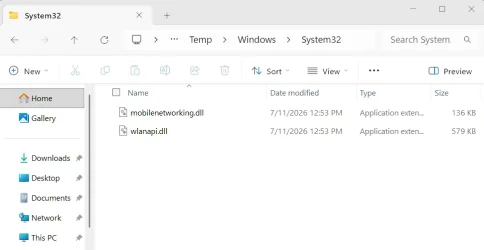
I was able to get the two DLLs in AppData\Local\Temp this way, without mounting anything...

cd C:\Program Files\7-Zip

Dism /Export-Image /SourceImageFile:E:\sources\install.swm /SWMFile:E:\sources\install*.swm /SourceIndex:1 /DestinationImageFile:C:\Users\Jim\AppData\Local\Temp\NewInstall.wim

Then -

7z x "C:\Users\Jim\AppData\Local\Temp\NewInstall.wim" "Windows\System32\wlanapi.dll" "Windows\System32\mobilenetworking.dll" -o"C:\Users\Jim\AppData\Local\Temp"

Note: This extraction approach created Windows\System32 folders in AppData\Local\Temp

Extracted DLLs.webp

I'm sure you'll come up with a cleaner way.
 

My Computer My Computer

At a glance

Windows 11 Pro 25H2
OS
Windows 11 Pro 25H2
Computer type
Laptop
Manufacturer/Model
Toshiba
I also appened the extended path to the DLLs in the script add and remove lines...

add $TEMP_DIR\Windows\System32\wlanapi.dll /Windows/System32/wlanapi.dll
add $TEMP_DIR\Windows\System32\mobilenetworking.dll /Windows/System32/mobilenetworking.dll

Remove-Item "$TEMP_DIR\\Windows\System32\wlanapi.dll","$TEMP_DIR\\Windows\System32\mobilenetworking.dll"

Booted from the MCT USB, and accessed the Repair function with no issues.
 

My Computer My Computer

At a glance

Windows 11 Pro 25H2
OS
Windows 11 Pro 25H2
Computer type
Laptop
Manufacturer/Model
Toshiba

Latest Support Threads

Back
Top Bottom