Dual boot problem: unable to load winload.efi


hispanico

Well-known member
Local time
1:55 PM
Posts
51
OS
Windows 11 Pro - 25H2
I hope you can help me...let me explain.
I have a Windows Pro 24H2 system installed on an NVMe.
I purchased an SSD to install Windows 11 so I could have two identical operating systems.
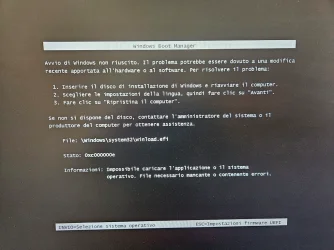
Using the ISO USB drive, I installed Windows 11 on the second SSD drive, and the installation was successful. However, when I rebooted and chose the second drive from the boot manager, I always got the winload.efi error. I tried several times, but it didn't work.
So I disconnected the primary NVMe and installed Windows on the SSD. The installation was successful, and the system boots and works fine.
At this point, I have the NVMe with Windows as the primary drive and the SSD as the secondary drive.
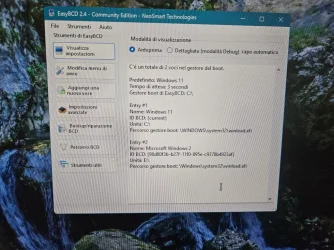
I used EasyBCD to insert the line so it could be inserted into the boot manager. I rebooted the system, but unfortunately, when I select to boot the second SSD, the winload.efi error message still appears.
How can I fix it?

P.S.
If I enter the BIOS and select the second disk (SSD) as the boot disk, Windows boots normally.
 
Windows Build/Version
Windows 11 Pro 24H2

Attachments

  • uno.webp
    uno.webp
    40.3 KB · Views: 4
  • due.webp
    due.webp
    177.5 KB · Views: 5
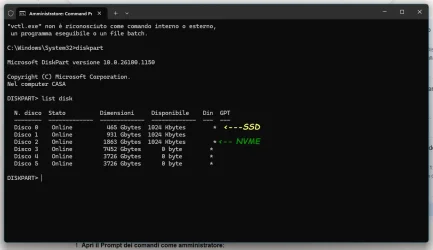
  • tre.webp
    tre.webp
    155.1 KB · Views: 3

My Computer My Computer

At a glance

Windows 11 Pro - 25H2AMD Ryzen 9 9950X3D48gbNvidia
OS
Windows 11 Pro - 25H2
Computer type
PC/Desktop
Manufacturer/Model
Asus
CPU
AMD Ryzen 9 9950X3D
Motherboard
Asus X870E Hero
Memory
48gb
Graphics Card(s)
Nvidia
Sound Card
Integrated
Monitor(s) Displays
ViewSonis 32"
The "winload.efi - 0xc000000e" error can be difficult to resolve, and the following instructions may not work in all cases.

Boot from the Windows USB flash drive. If the USB flash drive appears twice in the boot menu — once with the UEFI prefix and once without — you must choose the one with the UEFI prefix. The bcdboot command will automatically identify the FAT32-formatted EFI system partition when the USB flash drive is booted in UEFI mode.

Run the following commands at the Windows Recovery Environment (WinRE) command prompt.

For example, run both of the bcdboot commands below.

diskpart
list volume (check the volume letters of both Windows partitions)
exit

bcdboot d:\windows
bcdboot c:\windows

With both commands, bcdboot copies the boot files to the same EFI system partition, and creates or updates the Boot Configuration Data (BCD) store.

By default, BCDBoot moves the boot entry for the selected Windows partition to the top of the Windows Boot Manager boot order.

How to use the BCDBOOT command on a UEFI/GPT system
Post #17.
 

My Computers My Computers

  • At a glance

    Windows 11 ProAMD Ryzen 9 9950X3DKingston FURY Beast 64GB (2x32GB) DDR5 6000MT/sASUS TUF Gaming Radeon RX 9070 OC Edition 16G...
    OS
    Windows 11 Pro
    Computer type
    PC/Desktop
    CPU
    AMD Ryzen 9 9950X3D
    Motherboard
    ASRock B650E Taichi Lite
    Memory
    Kingston FURY Beast 64GB (2x32GB) DDR5 6000MT/s
    Graphics Card(s)
    ASUS TUF Gaming Radeon RX 9070 OC Edition 16GB GDDR6
    Hard Drives
    Solidigm P44 Pro 2TB M.2 NVMe SSD
  • At a glance

    Windows 11 HomeIntel Core Ultra 9 275HX64GB (2x 32GB) DDR5-6400NVIDIA GeForce RTX 5080 16GB GDDR7 Laptop GPU
    Operating System
    Windows 11 Home
    Computer type
    Laptop
    Manufacturer/Model
    Lenovo Legion Pro 7i Gen 10 16"
    CPU
    Intel Core Ultra 9 275HX
    Memory
    64GB (2x 32GB) DDR5-6400
    Graphics card(s)
    NVIDIA GeForce RTX 5080 16GB GDDR7 Laptop GPU
    Hard Drives
    2x 1TB M.2 NVMe SSD (SK Hynix)
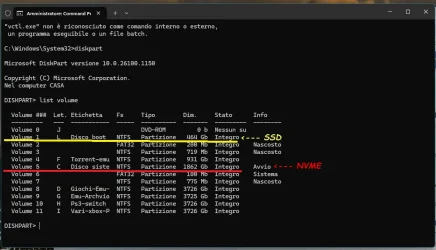
Thank you, but since I'm not very experienced, I don't want to cause any damage... in my case, having the NVMe as the primary disk and the SSD as the secondary disk, as you can see from the image, what commands should I use?
Thank you.
 

Attachments

  • Senza titolo2.webp
    Senza titolo2.webp
    37.5 KB · Views: 3

My Computer My Computer

At a glance

Windows 11 Pro - 25H2AMD Ryzen 9 9950X3D48gbNvidia
OS
Windows 11 Pro - 25H2
Computer type
PC/Desktop
Manufacturer/Model
Asus
CPU
AMD Ryzen 9 9950X3D
Motherboard
Asus X870E Hero
Memory
48gb
Graphics Card(s)
Nvidia
Sound Card
Integrated
Monitor(s) Displays
ViewSonis 32"
I had to turn OFF Fastboot in my BIOS to get mine to dual boot Win 11 and Win 10.
 

My Computer My Computer

At a glance

Windows 11 Pro 23H2Intel(R) Core(TM) i9-12900HK32gbIntel(R) Iris(R) Xe Graphics
OS
Windows 11 Pro 23H2
Computer type
PC/Desktop
Manufacturer/Model
MinisForum
CPU
Intel(R) Core(TM) i9-12900HK
Memory
32gb
Graphics Card(s)
Intel(R) Iris(R) Xe Graphics
Sound Card
Realtek 888
Monitor(s) Displays
Acer
Screen Resolution
1920x1080
Hard Drives
1TB SSD
Keyboard
Logitech
Mouse
Logitech MX Master 2X
Internet Speed
1GB
Browser
Firefox
Antivirus
Windows Defender
In this video, i will guide on how to Fix Winload.efi is Missing or Contains Errors Message.


My Computer My Computer

At a glance

Windows 11AMD Ryzen 7 5700GMicron Technology DDR4-3200 16GBNVIDIA GeForce RTX 3060
OS
Windows 11
Computer type
PC/Desktop
Manufacturer/Model
HP Pavilion
CPU
AMD Ryzen 7 5700G
Motherboard
Erica6
Memory
Micron Technology DDR4-3200 16GB
Graphics Card(s)
NVIDIA GeForce RTX 3060
Sound Card
Realtek ALC671
Monitor(s) Displays
Samsung SyncMaster U28E590
Screen Resolution
3840 x 2160
Hard Drives
SAMSUNG MZVLQ1T0HALB-000H1
Thank you, but since I'm not very experienced, I don't want to cause any damage... in my case, having the NVMe as the primary disk and the SSD as the secondary disk, as you can see from the image, what commands should I use?

If you enter the wrong volume letter for the Windows partition, you’ll see this error:

"Failure when attempting to copy boot files."

This means you cannot do any damage with the bcdboot command.

You will also get the same error:
- if the USB flash drive was booted in BIOS mode, or
- if the EFI system partition is missing or not formatted as FAT32.

Commands:

diskpart
list volume
(check the volume letters of both Windows partitions)
exit

Then run:

bcdboot X:\Windows (Windows partition on SSD)
bcdboot X:\Windows (Windows partition on NVMe)

(Replace X: with the correct volume letter.)

It does not matter which Windows partition you select first; you can change the order later in the dual-boot menu.

edit:

Typically, in a dual-boot installation of Windows, the computer has only one EFI system partition.

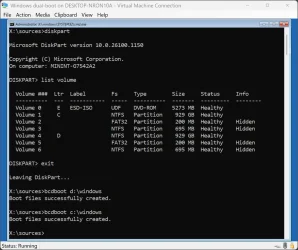
As shown in the image below, the bcdboot command works without the /s <volume letter> option, even if the computer has two EFI system partitions. In this case, both Windows installations still use the same EFI system partition, allowing you to choose which operating system to boot from the dual-boot menu.

Windows dual-boot 1.webp
 
Last edited:

My Computers My Computers

  • At a glance

    Windows 11 ProAMD Ryzen 9 9950X3DKingston FURY Beast 64GB (2x32GB) DDR5 6000MT/sASUS TUF Gaming Radeon RX 9070 OC Edition 16G...
    OS
    Windows 11 Pro
    Computer type
    PC/Desktop
    CPU
    AMD Ryzen 9 9950X3D
    Motherboard
    ASRock B650E Taichi Lite
    Memory
    Kingston FURY Beast 64GB (2x32GB) DDR5 6000MT/s
    Graphics Card(s)
    ASUS TUF Gaming Radeon RX 9070 OC Edition 16GB GDDR6
    Hard Drives
    Solidigm P44 Pro 2TB M.2 NVMe SSD
  • At a glance

    Windows 11 HomeIntel Core Ultra 9 275HX64GB (2x 32GB) DDR5-6400NVIDIA GeForce RTX 5080 16GB GDDR7 Laptop GPU
    Operating System
    Windows 11 Home
    Computer type
    Laptop
    Manufacturer/Model
    Lenovo Legion Pro 7i Gen 10 16"
    CPU
    Intel Core Ultra 9 275HX
    Memory
    64GB (2x 32GB) DDR5-6400
    Graphics card(s)
    NVIDIA GeForce RTX 5080 16GB GDDR7 Laptop GPU
    Hard Drives
    2x 1TB M.2 NVMe SSD (SK Hynix)
I had to turn OFF Fastboot in my BIOS to get mine to dual boot Win 11 and Win 10.
I disable FastBoot on my Aus Hero 870x and using boot manager now the windows on ssd load without any problem... THANK!!!!!!!!
So i dont know now if left Fastboot disable or follow the istructions of Celery.... whom I thank very much

Kira
 

My Computer My Computer

At a glance

Windows 11 Pro - 25H2AMD Ryzen 9 9950X3D48gbNvidia
OS
Windows 11 Pro - 25H2
Computer type
PC/Desktop
Manufacturer/Model
Asus
CPU
AMD Ryzen 9 9950X3D
Motherboard
Asus X870E Hero
Memory
48gb
Graphics Card(s)
Nvidia
Sound Card
Integrated
Monitor(s) Displays
ViewSonis 32"
If possible, temporarily modify the default language to English and post share links for scanning.


Run the V2 log collector > post a share link


My Computer My Computer

At a glance

Windows 10Intel(R) Core(TM) i7-4800MQ CPU @ 2.70GHz16 GB Total: Manufacturer : Samsung MemoryTyp...NVIDIA Quadro K3100M; Intel(R) HD Graphics 4600
OS
Windows 10
Computer type
Laptop
Manufacturer/Model
HP
CPU
Intel(R) Core(TM) i7-4800MQ CPU @ 2.70GHz
Motherboard
Product : 190A Version : KBC Version 94.56
Memory
16 GB Total: Manufacturer : Samsung MemoryType : DDR3 FormFactor : SODIMM Capacity : 8GB Speed : 1600
Graphics Card(s)
NVIDIA Quadro K3100M; Intel(R) HD Graphics 4600
Sound Card
IDT High Definition Audio CODEC; PNP Device ID HDAUDIO\FUNC_01&VEN_111D&DEV_76E0
Hard Drives
Model Hitachi HTS727575A9E364
Antivirus
Microsoft Defender
Other Info
Mobile Workstation
If possible, temporarily modify the default language to English and post share links for scanning.


Run the V2 log collector > post a share link

Here is


Thank
Kira
 

My Computer My Computer

At a glance

Windows 11 Pro - 25H2AMD Ryzen 9 9950X3D48gbNvidia
OS
Windows 11 Pro - 25H2
Computer type
PC/Desktop
Manufacturer/Model
Asus
CPU
AMD Ryzen 9 9950X3D
Motherboard
Asus X870E Hero
Memory
48gb
Graphics Card(s)
Nvidia
Sound Card
Integrated
Monitor(s) Displays
ViewSonis 32"
The log files were in a foreign language and could not be scanned or read.

When possible please use English as the default language.


Code:
Event[36816]
  Log Name: System
  Source: EventLog
  Date: 2025-11-10T22:44:01.3880000Z
  Event ID: 6008
  Task: Nessuno
  Level: Errore
  Opcode: N/A
  Keyword: Classico,
  User: N/A
  User Name: N/A
  Computer: Casa
  Description:
LÆultimo arresto imprevisto del sistema si Þ verificato in data 22:42:08 alle ?10/?11/?2025.


Code:
Event[36842]
  Log Name: System
  Source: Microsoft-Windows-Kernel-Power
  Date: 2025-11-10T22:43:46.5640000Z
  Event ID: 41
  Task: N/A
  Level: Critico
  Opcode: Informazioni 
  Keyword: N/A
  User: S-1-5-18
  User Name: NT AUTHORITY\SYSTEM
  Computer: Casa
  Description:
Riavvio del sistema senza un regolare arresto. Questo errore pu‗ essere causato da un'interruzione, un arresto anomalo o un'interruzione dell'alimentazione imprevista del sistema.
 

My Computer My Computer

At a glance

Windows 10Intel(R) Core(TM) i7-4800MQ CPU @ 2.70GHz16 GB Total: Manufacturer : Samsung MemoryTyp...NVIDIA Quadro K3100M; Intel(R) HD Graphics 4600
OS
Windows 10
Computer type
Laptop
Manufacturer/Model
HP
CPU
Intel(R) Core(TM) i7-4800MQ CPU @ 2.70GHz
Motherboard
Product : 190A Version : KBC Version 94.56
Memory
16 GB Total: Manufacturer : Samsung MemoryType : DDR3 FormFactor : SODIMM Capacity : 8GB Speed : 1600
Graphics Card(s)
NVIDIA Quadro K3100M; Intel(R) HD Graphics 4600
Sound Card
IDT High Definition Audio CODEC; PNP Device ID HDAUDIO\FUNC_01&VEN_111D&DEV_76E0
Hard Drives
Model Hitachi HTS727575A9E364
Antivirus
Microsoft Defender
Other Info
Mobile Workstation
Event[36816]
Log Name: System
Source: EventLog
Date: 2025-11-10T22:44:01.3880000Z
Event ID: 6008
Task: None
Level: Error
Opcode: N/A
Keyword: Classic
User: N/A
User Name: N/A
Computer: Home
Description:
The last unexpected system shutdown occurred at 22:42:08 at ?10/?11/?2025.

Event[36842]
Log Name: System
Source: Microsoft-Windows-Kernel-Power
Date: 2025-11-10T22:43:46.5640000Z
Event ID: 41
Task: N/A
Level: Critical
Opcode: Information
Keyword: N/A
User: S-1-5-18
User Name: NT AUTHORITY\SYSTEM
Computer: Home
Description:
System restart without a graceful shutdown. This error can be caused by a system hang, crash, or unexpected power failure.

kIRA
 

My Computer My Computer

At a glance

Windows 11 Pro - 25H2AMD Ryzen 9 9950X3D48gbNvidia
OS
Windows 11 Pro - 25H2
Computer type
PC/Desktop
Manufacturer/Model
Asus
CPU
AMD Ryzen 9 9950X3D
Motherboard
Asus X870E Hero
Memory
48gb
Graphics Card(s)
Nvidia
Sound Card
Integrated
Monitor(s) Displays
ViewSonis 32"
See if you can modify the default language so that log files can be scanned and read.
 

My Computer My Computer

At a glance

Windows 10Intel(R) Core(TM) i7-4800MQ CPU @ 2.70GHz16 GB Total: Manufacturer : Samsung MemoryTyp...NVIDIA Quadro K3100M; Intel(R) HD Graphics 4600
OS
Windows 10
Computer type
Laptop
Manufacturer/Model
HP
CPU
Intel(R) Core(TM) i7-4800MQ CPU @ 2.70GHz
Motherboard
Product : 190A Version : KBC Version 94.56
Memory
16 GB Total: Manufacturer : Samsung MemoryType : DDR3 FormFactor : SODIMM Capacity : 8GB Speed : 1600
Graphics Card(s)
NVIDIA Quadro K3100M; Intel(R) HD Graphics 4600
Sound Card
IDT High Definition Audio CODEC; PNP Device ID HDAUDIO\FUNC_01&VEN_111D&DEV_76E0
Hard Drives
Model Hitachi HTS727575A9E364
Antivirus
Microsoft Defender
Other Info
Mobile Workstation
ChatGPT:

Short answer: Yes — on some systems, disabling Fast Boot in the BIOS can fix the “winload.efi – 0xc000000e” error, but only when Fast Boot is the cause of the boot-loader failure.

✅ Why disabling Fast Boot sometimes helps

Fast Boot (or Fast Startup) reduces initialization steps during boot. On some PCs, it also caches hardware/boot information.
This can cause problems when:
  • Hardware configuration changes
  • The boot drive order changes
  • The EFI/BCD boot entries become inconsistent
  • Windows updates modify bootloader files
  • The system wakes from a pseudo-hibernation state with invalid boot info
When Fast Boot is on, the system may continue trying to boot using outdated/incorrect EFI paths, leading to:
Error: winload.efi – 0xc000000e (Required device is inaccessible)
Disabling Fast Boot forces the BIOS to perform a full hardware re-initialization and load the bootloader cleanly.

🖥️ When this fix is likely to work

Disabling Fast Boot may solve the issue if:
ScenarioDisabling Fast Boot helps?
You recently moved the boot driveOften yes
You cloned the SSDSometimes yes
You changed SATA/PCIe settingsYes
Hibernate/Fast Startup caused a corrupted sessionYes
Boot entries became staleSometimes

❌ When it won’t help

If the error is caused by:
  • Corrupted BCD store
  • Missing EFI partition
  • Damaged winload.efi file
  • Dead SSD
  • Wrong UEFI/Legacy boot mode
  • Secure Boot conflicts
…then disabling Fast Boot won’t fix it.
 

My Computers My Computers

  • At a glance

    Windows 11 ProAMD Ryzen 9 9950X3DKingston FURY Beast 64GB (2x32GB) DDR5 6000MT/sASUS TUF Gaming Radeon RX 9070 OC Edition 16G...
    OS
    Windows 11 Pro
    Computer type
    PC/Desktop
    CPU
    AMD Ryzen 9 9950X3D
    Motherboard
    ASRock B650E Taichi Lite
    Memory
    Kingston FURY Beast 64GB (2x32GB) DDR5 6000MT/s
    Graphics Card(s)
    ASUS TUF Gaming Radeon RX 9070 OC Edition 16GB GDDR6
    Hard Drives
    Solidigm P44 Pro 2TB M.2 NVMe SSD
  • At a glance

    Windows 11 HomeIntel Core Ultra 9 275HX64GB (2x 32GB) DDR5-6400NVIDIA GeForce RTX 5080 16GB GDDR7 Laptop GPU
    Operating System
    Windows 11 Home
    Computer type
    Laptop
    Manufacturer/Model
    Lenovo Legion Pro 7i Gen 10 16"
    CPU
    Intel Core Ultra 9 275HX
    Memory
    64GB (2x 32GB) DDR5-6400
    Graphics card(s)
    NVIDIA GeForce RTX 5080 16GB GDDR7 Laptop GPU
    Hard Drives
    2x 1TB M.2 NVMe SSD (SK Hynix)
Please run Tuneup plus > post a share link into the newest post


My Computer My Computer

At a glance

Windows 10Intel(R) Core(TM) i7-4800MQ CPU @ 2.70GHz16 GB Total: Manufacturer : Samsung MemoryTyp...NVIDIA Quadro K3100M; Intel(R) HD Graphics 4600
OS
Windows 10
Computer type
Laptop
Manufacturer/Model
HP
CPU
Intel(R) Core(TM) i7-4800MQ CPU @ 2.70GHz
Motherboard
Product : 190A Version : KBC Version 94.56
Memory
16 GB Total: Manufacturer : Samsung MemoryType : DDR3 FormFactor : SODIMM Capacity : 8GB Speed : 1600
Graphics Card(s)
NVIDIA Quadro K3100M; Intel(R) HD Graphics 4600
Sound Card
IDT High Definition Audio CODEC; PNP Device ID HDAUDIO\FUNC_01&VEN_111D&DEV_76E0
Hard Drives
Model Hitachi HTS727575A9E364
Antivirus
Microsoft Defender
Other Info
Mobile Workstation
I'll try to follow Celery's advice.

So I'll try to describe how to proceed, if that works. I don't need to repair the boot, if I understand correctly, but I need to insert the correct instructions to use the boot manager... right?

The boot to repair is that of my main NVME disk (see my image posted above).
I start the computer with the USB stick with Windows.
I select repair computer and then Command.
I type the command diskpart and then list volume to see the disks present.

exit.

P.S. Do I need to assign a letter to the drives first, since in my case the EFI partition is hidden, or is it not necessary?

Then I type
bcdboot 0:\windows
bcdboot 2:\windows
This way, I should have the correct boot in the boot manager of the main NVME disk, to boot the system from either the NVME disk or the SSD.

Is it okay if I proceed this way?

Thanks again.
 

My Computer My Computer

At a glance

Windows 11 Pro - 25H2AMD Ryzen 9 9950X3D48gbNvidia
OS
Windows 11 Pro - 25H2
Computer type
PC/Desktop
Manufacturer/Model
Asus
CPU
AMD Ryzen 9 9950X3D
Motherboard
Asus X870E Hero
Memory
48gb
Graphics Card(s)
Nvidia
Sound Card
Integrated
Monitor(s) Displays
ViewSonis 32"

My Computer My Computer

At a glance

Windows 11 Pro - 25H2AMD Ryzen 9 9950X3D48gbNvidia
OS
Windows 11 Pro - 25H2
Computer type
PC/Desktop
Manufacturer/Model
Asus
CPU
AMD Ryzen 9 9950X3D
Motherboard
Asus X870E Hero
Memory
48gb
Graphics Card(s)
Nvidia
Sound Card
Integrated
Monitor(s) Displays
ViewSonis 32"
Do I need to assign a letter to the drives first, since in my case the EFI partition is hidden, or is it not necessary?

You can use the bcdboot command without the /s and /f options.

Microsoft: "UEFI: BCDBoot copies the boot files to either the EFI system partition, or the partition specified by the /s option."

BCDBOOT <source> [/s <volume letter> [/f <firmware type>]]

<source>
- Required.
- Specifies the location of the Windows directory to use as the source for copying boot-environment files.
- Check the volume letter of the Windows partition with diskpart's "list volume" command.

/s <volume letter>
- Optional volume letter for the target system partition where the boot files will be copied.

/f <firmware type>
- Optional firmware type for the target system partition. Determines whether to copy UEFI or BIOS boot files. Used with the /s option.

If the /s option is not used, the system partition is automatically identified. Use /s only when targeting a non-default system partition.

bcdboot 0:\windows
bcdboot 2:\windows
You’re not following my instructions. Please don’t use the “list disk” command; use the “list volume” command instead. You must enter the volume letter (drive letter), not the volume number.

Boot from a Windows 11 installation USB flash drive. If the USB flash drive appears twice in the boot menu — once with the UEFI prefix and once without — you must choose the one with the UEFI prefix. The bcdboot command will automatically identify the FAT32-formatted EFI system partition when the USB flash drive is booted in UEFI mode. Automatic system partition detection depends on whether the system is booted in UEFI or BIOS mode.

- Press Shift+F10 to open command prompt or select "Repair my PC" > "Next" > "Troubleshoot" > "Command Prompt".
- Run the following commands:

diskpart
list volume
(check the volume letters of both Windows partitions)
exit

bcdboot X:\Windows
bcdboot X:\Windows


Replace "X" with the correct volume letter (drive letter).

For example:

bcdboot c:\windows
bcdboot d:\windows

It does not matter which Windows partition you select first; you can change the order later in the dual-boot menu.

With both commands, bcdboot copies the boot files to the same EFI system partition, and creates or updates the Boot Configuration Data (BCD) store. It also updates a Windows Boot Manager entry in the NVRAM — if the /s <volume letter> option is used, then this entry is not created.
 
Last edited:

My Computers My Computers

  • At a glance

    Windows 11 ProAMD Ryzen 9 9950X3DKingston FURY Beast 64GB (2x32GB) DDR5 6000MT/sASUS TUF Gaming Radeon RX 9070 OC Edition 16G...
    OS
    Windows 11 Pro
    Computer type
    PC/Desktop
    CPU
    AMD Ryzen 9 9950X3D
    Motherboard
    ASRock B650E Taichi Lite
    Memory
    Kingston FURY Beast 64GB (2x32GB) DDR5 6000MT/s
    Graphics Card(s)
    ASUS TUF Gaming Radeon RX 9070 OC Edition 16GB GDDR6
    Hard Drives
    Solidigm P44 Pro 2TB M.2 NVMe SSD
  • At a glance

    Windows 11 HomeIntel Core Ultra 9 275HX64GB (2x 32GB) DDR5-6400NVIDIA GeForce RTX 5080 16GB GDDR7 Laptop GPU
    Operating System
    Windows 11 Home
    Computer type
    Laptop
    Manufacturer/Model
    Lenovo Legion Pro 7i Gen 10 16"
    CPU
    Intel Core Ultra 9 275HX
    Memory
    64GB (2x 32GB) DDR5-6400
    Graphics card(s)
    NVIDIA GeForce RTX 5080 16GB GDDR7 Laptop GPU
    Hard Drives
    2x 1TB M.2 NVMe SSD (SK Hynix)
You can use the bcdboot command without the /s and /f options.

Microsoft: "UEFI: BCDBoot copies the boot files to either the EFI system partition, or the partition specified by the /s option."

BCDBOOT <source> [/s <volume letter> [/f <firmware type>]]

<source>
- Required.
- Specifies the location of the Windows directory to use as the source for copying boot-environment files.
- Check the volume letter of the Windows partition with diskpart's "list volume" command.

/s <volume letter>
- Optional volume letter for the target system partition where the boot files will be copied.

/f <firmware type>
- Optional firmware type for the target system partition. Determines whether to copy UEFI or BIOS boot files. Used with the /s option.

If the /s option is not used, the system partition is automatically identified. Use /s only when targeting a non-default system partition.

Boot from the Windows USB flash drive. If the USB flash drive appears twice in the boot menu — once with the UEFI prefix and once without — you must choose the one with the UEFI prefix. The bcdboot command will automatically identify the FAT32-formatted EFI system partition when the USB flash drive is booted in UEFI mode. Automatic system partition detection depends on whether the system is booted in UEFI or BIOS mode.


You’re not following my instructions. Please don’t use the “list disk” command; use the “list volume” command instead. You must enter the volume letter (drive letter), not the volume number.

diskpart
list volume
(check the volume letters of both Windows partitions)
exit

bcdboot X:\Windows
bcdboot X:\Windows


Replace "X" with the correct volume letter (drive letter).

For example:

bcdboot c:\windows
bcdboot d:\windows

It does not matter which Windows partition you select first; you can change the order later in the dual-boot menu.

With both commands, bcdboot copies the boot files to the same EFI system partition, and creates or updates the Boot Configuration Data (BCD) store. It also updates a Windows Boot Manager entry in the NVRAM — if the /s <volume letter> option is used, then this entry is not created.
Ok sure...so i repeat the procedure in this way

I start the computer with the USB stick with Windows.
I select repair computer and then Command.
I type the command diskpart and then list volume to see the volume letter present.

exit.

Then I type
bcdboot 1:\windows
bcdboot 5:\windows

This way, I should have the correct boot in the boot manager of the main NVME disk, to boot the system from either the NVME disk or the SSD.

So now is correct ??

Thank
Kira
 

Attachments

  • Senza titolo.webp
    Senza titolo.webp
    54.9 KB · Views: 3

My Computer My Computer

At a glance

Windows 11 Pro - 25H2AMD Ryzen 9 9950X3D48gbNvidia
OS
Windows 11 Pro - 25H2
Computer type
PC/Desktop
Manufacturer/Model
Asus
CPU
AMD Ryzen 9 9950X3D
Motherboard
Asus X870E Hero
Memory
48gb
Graphics Card(s)
Nvidia
Sound Card
Integrated
Monitor(s) Displays
ViewSonis 32"
So now is correct ??

Yes.

It looks better now!

edit:

If bcdboot displays an error message, replace the "volume number" with the "volume letter":

bcdboot L:\Windows
bcdboot C:\Windows

You can change the order later in the dual-boot menu.
 
Last edited:

My Computers My Computers

  • At a glance

    Windows 11 ProAMD Ryzen 9 9950X3DKingston FURY Beast 64GB (2x32GB) DDR5 6000MT/sASUS TUF Gaming Radeon RX 9070 OC Edition 16G...
    OS
    Windows 11 Pro
    Computer type
    PC/Desktop
    CPU
    AMD Ryzen 9 9950X3D
    Motherboard
    ASRock B650E Taichi Lite
    Memory
    Kingston FURY Beast 64GB (2x32GB) DDR5 6000MT/s
    Graphics Card(s)
    ASUS TUF Gaming Radeon RX 9070 OC Edition 16GB GDDR6
    Hard Drives
    Solidigm P44 Pro 2TB M.2 NVMe SSD
  • At a glance

    Windows 11 HomeIntel Core Ultra 9 275HX64GB (2x 32GB) DDR5-6400NVIDIA GeForce RTX 5080 16GB GDDR7 Laptop GPU
    Operating System
    Windows 11 Home
    Computer type
    Laptop
    Manufacturer/Model
    Lenovo Legion Pro 7i Gen 10 16"
    CPU
    Intel Core Ultra 9 275HX
    Memory
    64GB (2x 32GB) DDR5-6400
    Graphics card(s)
    NVIDIA GeForce RTX 5080 16GB GDDR7 Laptop GPU
    Hard Drives
    2x 1TB M.2 NVMe SSD (SK Hynix)
Yes.

It looks better now!

edit: If bcdboot displays an error message, replace the "volume number" with the "volume letter".

You can change the order later in the dual-boot menu.
Okay, I'll try this evening.
For the boot order, I'm referring to the Windows Boot Manager (not in the BIOS of motherboard), Do I use EasyBCD?

Kira
 

My Computer My Computer

At a glance

Windows 11 Pro - 25H2AMD Ryzen 9 9950X3D48gbNvidia
OS
Windows 11 Pro - 25H2
Computer type
PC/Desktop
Manufacturer/Model
Asus
CPU
AMD Ryzen 9 9950X3D
Motherboard
Asus X870E Hero
Memory
48gb
Graphics Card(s)
Nvidia
Sound Card
Integrated
Monitor(s) Displays
ViewSonis 32"

Latest Support Threads

Back
Top Bottom