Dual boot problem: unable to load winload.efi


Do I use EasyBCD?

No, just use the bcdboot command.

Set up or repair the boot menu on a dual-boot PC. If you've installed more than one copy of Windows on a PC, you can use BCDBoot to add or repair the boot menu.

When setting up a PC to boot more than one operating system, you may sometimes lose the ability to boot into one of the operating systems. The BCDBoot option allows you to quickly add boot options for a Windows-based operating system.
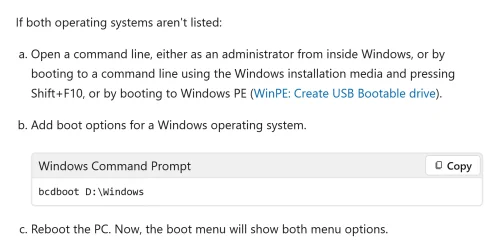

bcdboot.webp


My Computers

System One System Two

  • OS
    Windows 11 Pro
    Computer type
    PC/Desktop
    CPU
    AMD Ryzen 9 9950X3D
    Motherboard
    ASRock B650E Taichi Lite
    Memory
    Kingston FURY Beast 64GB (2x32GB) DDR5 6000MT/s
    Graphics Card(s)
    ASUS TUF Gaming Radeon RX 9070 OC Edition 16GB GDDR6
    Hard Drives
    Solidigm P44 Pro 2TB M.2 NVMe SSD
  • Operating System
    Windows 11 Home
    Computer type
    Laptop
    Manufacturer/Model
    Lenovo Legion Pro 7i Gen 10 16"
    CPU
    Intel Core Ultra 9 275HX
    Memory
    64GB (2x 32GB) DDR5-6400
    Graphics card(s)
    NVIDIA GeForce RTX 5080 16GB GDDR7 Laptop GPU
    Hard Drives
    2x 1TB M.2 NVMe SSD (SK Hynix)
No, just use the bcdboot command.


View attachment 152727

Ok thank again...in prefer from windows and in my case i can use this command:

bcdboot C:\Windows ...right ?

P.S.
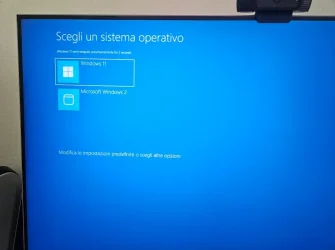
But sorry I don't think it's necessary do this, because, as you can see from the image, it already appears at startup, even if the second boot doesn't work but as per your explanations, I'll fix it, or am I wrong?


So I should eventually change the order between the two boot

Kira
 

Attachments

  • Immagine.webp
    Immagine.webp
    34.4 KB · Views: 3

My Computer

System One

  • OS
    Windows 11 Pro - 25H2
    Computer type
    PC/Desktop
    Manufacturer/Model
    Asus
    CPU
    AMD Ryzen 9 9950X3D
    Motherboard
    Asus X870E Hero
    Memory
    48gb
    Graphics Card(s)
    Nvidia
    Sound Card
    Integrated
    Monitor(s) Displays
    ViewSonis 32"

My Computer

System One

  • OS
    Windows 10
    Computer type
    Laptop
    Manufacturer/Model
    HP
    CPU
    Intel(R) Core(TM) i7-4800MQ CPU @ 2.70GHz
    Motherboard
    Product : 190A Version : KBC Version 94.56
    Memory
    16 GB Total: Manufacturer : Samsung MemoryType : DDR3 FormFactor : SODIMM Capacity : 8GB Speed : 1600
    Graphics Card(s)
    NVIDIA Quadro K3100M; Intel(R) HD Graphics 4600
    Sound Card
    IDT High Definition Audio CODEC; PNP Device ID HDAUDIO\FUNC_01&VEN_111D&DEV_76E0
    Hard Drives
    Model Hitachi HTS727575A9E364
    Antivirus
    Microsoft Defender
    Other Info
    Mobile Workstation
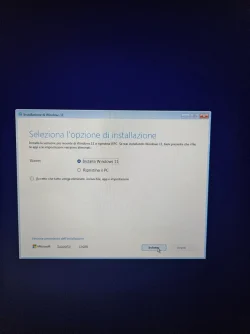
Hi Celery i am trying now the procedure but when statup from USB with windows for this

"Boot from the Windows USB flash drive. If the USB flash drive appears twice in the boot menu — once with the UEFI prefix and once without — you must choose the one with the UEFI prefix. The bcdboot command will automatically identify the FAT32-formatted EFI system partition when the USB flash drive is booted in UEFI mode.
Run the following commands at the Windows Recovery Environment (WinRE) command prompt."

I dont see Windows Recovery Environment for command prompt, i have only install windows or restore pc...

Thank
Kira
 

Attachments

  • 20251113_174244.webp
    20251113_174244.webp
    52.4 KB · Views: 2

My Computer

System One

  • OS
    Windows 11 Pro - 25H2
    Computer type
    PC/Desktop
    Manufacturer/Model
    Asus
    CPU
    AMD Ryzen 9 9950X3D
    Motherboard
    Asus X870E Hero
    Memory
    48gb
    Graphics Card(s)
    Nvidia
    Sound Card
    Integrated
    Monitor(s) Displays
    ViewSonis 32"

My Computers

System One System Two

  • OS
    Win 11 Pro 25H2 26200.8524
    Computer type
    PC/Desktop
    Manufacturer/Model
    Self Built
    CPU
    Intel® Core™ i7-14700K
    Motherboard
    ASUS TUF Z690-PLUS WIFI BIOS 4505 11/29/25
    Memory
    G.SKILL Ripjaws S5 Series 64GB (2 x 32GB) DDR5
    Graphics Card(s)
    ASUS GeForce RTX 4070 Super 12GB
    Sound Card
    Sound Blaster AE-5 Plus
    Monitor(s) Displays
    ASUS TUF Gaming 27" 2K HDR Gaming
    Screen Resolution
    2560 x 1440
    Hard Drives
    Samsung 990 Pro 1TB NVMe (Win 11 25H2)
    SK hynix P41 500GB NVMe 25H2 DEV/Games
    SK hynix P41 2TB NVMe (x3)
    Crucial P3 Plus 4TB
    PSU
    Corsair RM850x Shift
    Case
    Antec Dark Phantom DP502 FLUX
    Cooling
    Corsair Nautilus 360 RS AIO
    Keyboard
    Logitech MK 320
    Mouse
    Razer Basilisk V3
    Internet Speed
    350Mbs
    Browser
    Firefox
    Antivirus
    Winows Security
    Other Info
    MR 8.1 Home

    System 3 Specs
    Win 11 Pro 25H2 26200.8524
    ASUS PRIME Z370-P II BIOS 3004 7/12/21
    Intel Core i7-8700 CPU @ 3.20GHz
    32GB DDR4 RAM (4x8)
    iGPU Intel UHD Graphics 630
  • Operating System
    Win 11 Pro 25H2 26200.8524
    Computer type
    PC/Desktop
    Manufacturer/Model
    Self Built
    CPU
    Intel Core i7-11700F
    Motherboard
    Asus TUF Gaming Z590 Plus WiFi (BIOS 2803)
    Memory
    64 GB DDR4
    Graphics card(s)
    MSI GeForce RTX 3060 Ventus 2X 12GB
    Sound Card
    SoundBlaster Audigy Fx V2
    Monitor(s) Displays
    Samsung F27T350
    Screen Resolution
    1920x1080
    Hard Drives
    Samsung 980 Pro 1TB
    Samsung 970 EVO Plus 2TB
    Samsung 870 EVO 500GB SSD
    PSU
    Corsair HX750
    Case
    Cougar MX330-G Window
    Cooling
    Thermalright Frozen Edge 240 Black AIO
    Internet Speed
    350Mbps
    Browser
    Firefox
    Antivirus
    Windows Security
I disable FastBoot on my Aus Hero 870x and using boot manager now the windows on ssd load without any problem... THANK!!!!!!!!
So you have both versions of Windows booting now, and you no longer see the "winload.efi - 0xc000000e" error? If so, then you don’t need to run the bcdboot command. Do not enable Fast Boot in the BIOS.

If you still have the "winload.efi - 0xc000000e" error, then follow the instructions in my previous post: "Boot from a Windows 11 installation USB flash drive." Then run both bcdboot commands.

Do you now just want to change the boot order in the dual-boot menu? If so, go to: "Change defaults or choose other options" > "Choose a default operating system" > select the operating system you want as the default.

I dont see Windows Recovery Environment for command prompt, i have only install windows or restore pc...
Press Shift+F10 to open command prompt or select "Repair my PC" > "Next" > "Troubleshoot" > "Command Prompt".

edit: Not all text displayed in Windows Setup is a literal translation from English.
 
Last edited:

My Computers

System One System Two

  • OS
    Windows 11 Pro
    Computer type
    PC/Desktop
    CPU
    AMD Ryzen 9 9950X3D
    Motherboard
    ASRock B650E Taichi Lite
    Memory
    Kingston FURY Beast 64GB (2x32GB) DDR5 6000MT/s
    Graphics Card(s)
    ASUS TUF Gaming Radeon RX 9070 OC Edition 16GB GDDR6
    Hard Drives
    Solidigm P44 Pro 2TB M.2 NVMe SSD
  • Operating System
    Windows 11 Home
    Computer type
    Laptop
    Manufacturer/Model
    Lenovo Legion Pro 7i Gen 10 16"
    CPU
    Intel Core Ultra 9 275HX
    Memory
    64GB (2x 32GB) DDR5-6400
    Graphics card(s)
    NVIDIA GeForce RTX 5080 16GB GDDR7 Laptop GPU
    Hard Drives
    2x 1TB M.2 NVMe SSD (SK Hynix)
So you have both versions of Windows booting now, and you no longer see the "winload.efi - 0xc000000e" error? If so, then you don’t need to run the bcdboot command. Do not enable Fast Boot in the BIOS.

If you still have the "winload.efi - 0xc000000e" error, then follow the instructions in my previous post: "Boot from a Windows 11 installation USB flash drive." Then run both bcdboot commands.

Do you now just want to change the boot order in the dual-boot menu? If so, go to: "Change defaults or choose other options" > "Choose a default operating system" > select the operating system you want as the default.


Press Shift+F10 to open command prompt or select "Repair my PC" > "Next" > "Troubleshoot" > "Command Prompt".

edit: Not all text displayed in Windows Setup is a literal translation from English.
Hi mate and again thank you
Yes without Fastboot i have not problem to launch from boot manager windows located in SSD
But in any way i searh to solve this, using your procedure, so i can set fastboot in my motherboard

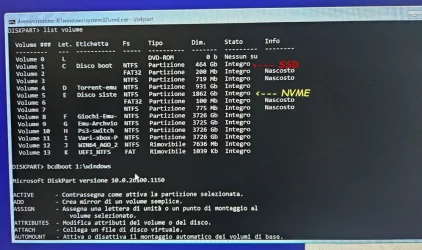
So I finally with Shift+f10 enter in command prompt, but when execute this commands
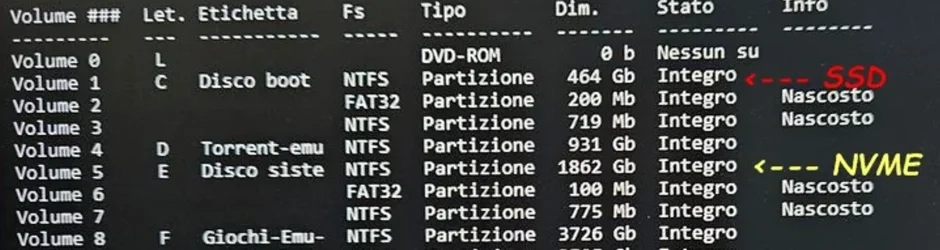
NVME is primary disk with windows
SSD is second disk with windows


bcdboot 1:\Windows
bcdboot 5:\Windows
or
bcdboot L:\Windows
bcdboot C:\Windows

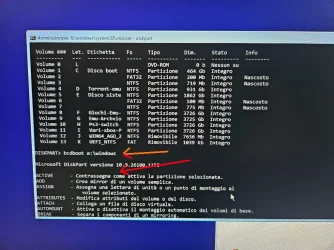
not execute but appear as screenshot annexed

Where i wrong ?

Thank
Kira
 

Attachments

  • 20251113_192721.webp
    20251113_192721.webp
    101.7 KB · Views: 1

My Computer

System One

  • OS
    Windows 11 Pro - 25H2
    Computer type
    PC/Desktop
    Manufacturer/Model
    Asus
    CPU
    AMD Ryzen 9 9950X3D
    Motherboard
    Asus X870E Hero
    Memory
    48gb
    Graphics Card(s)
    Nvidia
    Sound Card
    Integrated
    Monitor(s) Displays
    ViewSonis 32"
If disabling Fast Boot resolves the “winload.efi – 0xc000000e” error, then the issue was not related to the BCD, and bcdboot would not have helped. In that case, you should leave Fast Boot disabled.

However, if you still want to run the bcdboot command, you can use:

bcdboot C:\Windows
bcdboot E:\Windows

-or-

bcdboot E:\Windows
bcdboot C:\Windows

You can always change the default operating system in the dual-boot menu afterward, so the order in which you run the commands does not matter.

bcdboot.webp
 

My Computers

System One System Two

  • OS
    Windows 11 Pro
    Computer type
    PC/Desktop
    CPU
    AMD Ryzen 9 9950X3D
    Motherboard
    ASRock B650E Taichi Lite
    Memory
    Kingston FURY Beast 64GB (2x32GB) DDR5 6000MT/s
    Graphics Card(s)
    ASUS TUF Gaming Radeon RX 9070 OC Edition 16GB GDDR6
    Hard Drives
    Solidigm P44 Pro 2TB M.2 NVMe SSD
  • Operating System
    Windows 11 Home
    Computer type
    Laptop
    Manufacturer/Model
    Lenovo Legion Pro 7i Gen 10 16"
    CPU
    Intel Core Ultra 9 275HX
    Memory
    64GB (2x 32GB) DDR5-6400
    Graphics card(s)
    NVIDIA GeForce RTX 5080 16GB GDDR7 Laptop GPU
    Hard Drives
    2x 1TB M.2 NVMe SSD (SK Hynix)
If disabling Fast Boot resolves the “winload.efi – 0xc000000e” error, then the issue was not related to the BCD, and bcdboot would not have helped. In that case, you should leave Fast Boot disabled.

However, if you still want to run the bcdboot command, you can use:

bcdboot C:\Windows
bcdboot E:\Windows

-or-

bcdboot E:\Windows
bcdboot C:\Windows

You can always change the default operating system in the dual-boot menu afterward, so the order in which you run the commands does not matter.

View attachment 152778
Ok i follow you...thank

But when i give command

bcdboot C:\Windows
bcdboot E:\Windows

-or-

bcdboot E:\Windows
bcdboot C:\Windows

nothing happened, as if it was not receiving the correct command... see image

Kira
 

Attachments

  • 20251113_222224.webp
    20251113_222224.webp
    111.6 KB · Views: 1

My Computer

System One

  • OS
    Windows 11 Pro - 25H2
    Computer type
    PC/Desktop
    Manufacturer/Model
    Asus
    CPU
    AMD Ryzen 9 9950X3D
    Motherboard
    Asus X870E Hero
    Memory
    48gb
    Graphics Card(s)
    Nvidia
    Sound Card
    Integrated
    Monitor(s) Displays
    ViewSonis 32"
nothing happened, as if it was not receiving the correct command... see image

diskpart
list volume (check the volume letters of both Windows partitions)
exit
 

My Computers

System One System Two

  • OS
    Windows 11 Pro
    Computer type
    PC/Desktop
    CPU
    AMD Ryzen 9 9950X3D
    Motherboard
    ASRock B650E Taichi Lite
    Memory
    Kingston FURY Beast 64GB (2x32GB) DDR5 6000MT/s
    Graphics Card(s)
    ASUS TUF Gaming Radeon RX 9070 OC Edition 16GB GDDR6
    Hard Drives
    Solidigm P44 Pro 2TB M.2 NVMe SSD
  • Operating System
    Windows 11 Home
    Computer type
    Laptop
    Manufacturer/Model
    Lenovo Legion Pro 7i Gen 10 16"
    CPU
    Intel Core Ultra 9 275HX
    Memory
    64GB (2x 32GB) DDR5-6400
    Graphics card(s)
    NVIDIA GeForce RTX 5080 16GB GDDR7 Laptop GPU
    Hard Drives
    2x 1TB M.2 NVMe SSD (SK Hynix)
diskpart
list volume (check the volume letters of both Windows partitions)
exit
I write

diskpart
list volume
...and after

bcdboot C:\Windows
bcdboot E:\Windows

-or-

bcdboot E:\Windows
bcdboot C:\Windows


so i must use letter volume ? i try also this but it seems to me the same result does not do or write anything

Thank
Kira
 

My Computer

System One

  • OS
    Windows 11 Pro - 25H2
    Computer type
    PC/Desktop
    Manufacturer/Model
    Asus
    CPU
    AMD Ryzen 9 9950X3D
    Motherboard
    Asus X870E Hero
    Memory
    48gb
    Graphics Card(s)
    Nvidia
    Sound Card
    Integrated
    Monitor(s) Displays
    ViewSonis 32"
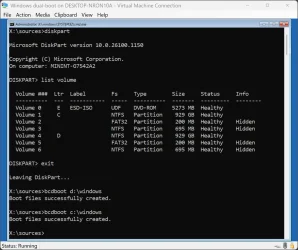
In one of my earlier posts, the screenshot shows an example.

Windows dual-boot 1.webp

So, run the following commands:

Code:
diskpart      – opens the DiskPart tool

list volume   – shows the volume numbers/letters of all partitions

exit          – closes DiskPart

bcdboot c:\windows

bcdboot e:\windows

And then restart your computer.
 

My Computers

System One System Two

  • OS
    Windows 11 Pro
    Computer type
    PC/Desktop
    CPU
    AMD Ryzen 9 9950X3D
    Motherboard
    ASRock B650E Taichi Lite
    Memory
    Kingston FURY Beast 64GB (2x32GB) DDR5 6000MT/s
    Graphics Card(s)
    ASUS TUF Gaming Radeon RX 9070 OC Edition 16GB GDDR6
    Hard Drives
    Solidigm P44 Pro 2TB M.2 NVMe SSD
  • Operating System
    Windows 11 Home
    Computer type
    Laptop
    Manufacturer/Model
    Lenovo Legion Pro 7i Gen 10 16"
    CPU
    Intel Core Ultra 9 275HX
    Memory
    64GB (2x 32GB) DDR5-6400
    Graphics card(s)
    NVIDIA GeForce RTX 5080 16GB GDDR7 Laptop GPU
    Hard Drives
    2x 1TB M.2 NVMe SSD (SK Hynix)

Latest Support Threads

Back
Top Bottom