Dual Windows Boot winload.efi error on every restart


🛠️ Step-by-Step Guide to Dual Boot Windows on Separate Drives​

1.​

  • Ensure both SSDs/HDDs are installed and recognized in BIOS.
  • Decide which OS goes on which drive (e.g., Windows 11 on Drive 0, Windows 10 on Drive 1).
  • Disconnect the second drive while installing the first OS to avoid bootloader entanglement.

2.​

  • Use the Windows Media Creation Tool or Rufus to create a bootable USB.
  • Boot from the USB and install Windows on the first drive.
  • Once installed, shut down and reconnect the second drive.

3.​

  • Repeat the bootable USB creation for the second Windows version.
  • Boot from USB and install on the second drive.
  • Each OS will have its own EFI partition, keeping them independent.
🔹 Dual Boot Windows 11 and 10 on Two Physical Disks➡️ ... shows how to install Windows 10 and 11 on separate SSDs and switch between them using BIOS boot options.

🔹 Dual Boot Windows from TWO Physical SSD drives➡️One ... walks through preparing the second drive, downloading ISO files, and completing installation.

4.​

  • Use your BIOS/UEFI boot menu (usually F12, F10, or Esc during startup) to choose which OS to boot.
  • Alternatively, install EasyBCD on one OS to create a boot menu that includes both installations.
🔹 Windows & Linux: Dual Drive Dual Boot explains how to use BIOS boot selection to keep OSes isolated and avoid bootloader conflicts.


💡 Bonus: Dual Booting with Linux​

If you're mixing Windows with Linux, the process is similar but requires attention to GRUB and EFI partitions.

🔹 Dual Boot - Windows 11 and Ubuntu LTS | Separate Drive ... shows how to install Ubuntu on a separate drive with its own EFI partition.

🔹 Dual Boot Windows & Linux from TWO Separate SSD's (One ... demonstrates keeping Windows and Linux fully independent while still dual booting.


⚠️ Tips and Considerations​

  • Always back up your data before starting.
  • Use GPT partitioning and UEFI boot mode for modern systems.
  • Keep drives physically separate during installation to avoid bootloader overwrites.
  • If you're using BitLocker, disable it before installing another OS.

If you're curious about doing this with just one drive, Dual Boot With Only One Drive!! explores that route—but separate drives are cleaner and safer, especially for someone like you who values control and transparency.

Want help scripting a boot menu or automating drive prep with PowerShell? I’d be glad to dive deeper.

I got the above from CoPilot . Maybe it will help.
 

My Computers

System One System Two

  • OS
    Windows11 Pro 26200.8524
    Computer type
    PC/Desktop
    Manufacturer/Model
    Dell Alienware Aurora R16
    CPU
    Intel Core i9 14900F (24 -Core, 68 MB Total Cache)
    Motherboard
    Dell Alienware
    Memory
    32GB DDR5
    Graphics Card(s)
    RTX 4080 Super w/581.95
    Sound Card
    Realtec
    Monitor(s) Displays
    Corsair XENEON 32QHD165
    Screen Resolution
    2560 X 1440
    Hard Drives
    1-2TB Samsung 990 Pro PCIe NVMe M2 SSD
    1-4TB Samsung 990 Pro PCIe NVMe M2 SSD
    PSU
    1000 Watt Platinum Dell
    Case
    Alienware
    Cooling
    Liquid Closed Loop
    Keyboard
    Logitech MK270 Wireless Keyboard
    Mouse
    Logitech MK270 Wireless
    Internet Speed
    100Gb's Down-20 Up
    Browser
    Firefox 151.0.2
    Antivirus
    Defender
    Other Info
    Very Quiet And Fast
    CyberPower UPS CP1500PFCLCD
  • Operating System
    PClinuxOS Mate (2025.7)
    Computer type
    PC/Desktop
    Manufacturer/Model
    Intel
    CPU
    13th Gen Inter(R) Core(TM) i3-1315U
    Motherboard
    Intel
    Memory
    64 GB DDR4 @3200 MHz.
    Graphics card(s)
    Internal
    Sound Card
    None
    Monitor(s) Displays
    Dell 2419HGCF
    Screen Resolution
    1920 X 1080
    Hard Drives
    SAMSUNG 980 PRO SSD 2TB, PCIe 4.0 M.2 2280
    PSU
    Chicony 30 Watt
    Case
    Small
    Keyboard
    Dell
    Mouse
    Razor
    Internet Speed
    1GB
    Browser
    Slimjet
the part you still do not get is - only one drive should have an EFI partition.... so until you clean up the second drive - good luck..
As it could of been fixed in a few minutes... as I can see in your images you are not following advice...
No sorry i dont get it. Should i delete the EFI partition on the broken windows? But now that i formatd the other partition as i showed you in the picture the thing that worked before dont work so i dont get into the broken windows at all now
 

My Computer

System One

  • OS
    Windows 11
    Computer type
    PC/Desktop

🛠️ Step-by-Step Guide to Dual Boot Windows on Separate Drives​

1.​

  • Ensure both SSDs/HDDs are installed and recognized in BIOS.
  • Decide which OS goes on which drive (e.g., Windows 11 on Drive 0, Windows 10 on Drive 1).
  • Disconnect the second drive while installing the first OS to avoid bootloader entanglement.

2.​

  • Use the Windows Media Creation Tool or Rufus to create a bootable USB.
  • Boot from the USB and install Windows on the first drive.
  • Once installed, shut down and reconnect the second drive.

3.​

  • Repeat the bootable USB creation for the second Windows version.
  • Boot from USB and install on the second drive.
  • Each OS will have its own EFI partition, keeping them independent.
🔹 Dual Boot Windows 11 and 10 on Two Physical Disks➡️ ... shows how to install Windows 10 and 11 on separate SSDs and switch between them using BIOS boot options.

🔹 Dual Boot Windows from TWO Physical SSD drives➡️One ... walks through preparing the second drive, downloading ISO files, and completing installation.

4.​

  • Use your BIOS/UEFI boot menu (usually F12, F10, or Esc during startup) to choose which OS to boot.
  • Alternatively, install EasyBCD on one OS to create a boot menu that includes both installations.
🔹 Windows & Linux: Dual Drive Dual Boot explains how to use BIOS boot selection to keep OSes isolated and avoid bootloader conflicts.


💡 Bonus: Dual Booting with Linux​

If you're mixing Windows with Linux, the process is similar but requires attention to GRUB and EFI partitions.

🔹 Dual Boot - Windows 11 and Ubuntu LTS | Separate Drive ... shows how to install Ubuntu on a separate drive with its own EFI partition.

🔹 Dual Boot Windows & Linux from TWO Separate SSD's (One ... demonstrates keeping Windows and Linux fully independent while still dual booting.


⚠️ Tips and Considerations​

  • Always back up your data before starting.
  • Use GPT partitioning and UEFI boot mode for modern systems.
  • Keep drives physically separate during installation to avoid bootloader overwrites.
  • If you're using BitLocker, disable it before installing another OS.

If you're curious about doing this with just one drive, Dual Boot With Only One Drive!! explores that route—but separate drives are cleaner and safer, especially for someone like you who values control and transparency.

Want help scripting a boot menu or automating drive prep with PowerShell? I’d be glad to dive deeper.

I got the above from CoPilot . Maybe it will help.
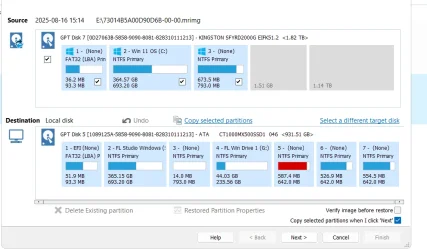
i have seperate drives. one is on a m2 drive the other one the broken one on a ssd. but it was the other way around before i changed them. i wanted my working os on my m2 drive it was on the ssd before, so i did a full image of the 2 windows and then installed windows in reverse order. so now the broken one is on ssd and working on m2.
 

My Computer

System One

  • OS
    Windows 11
    Computer type
    PC/Desktop
im about to redo it. should i uncheck the EFI? if yes on which one?
 

Attachments

  • image_2025-08-19_154124460.webp
    image_2025-08-19_154124460.webp
    57.7 KB · Views: 1

My Computer

System One

  • OS
    Windows 11
    Computer type
    PC/Desktop
Wow. All these error corrections and multiple recovery partitions. Why does it need to be so complicated? I used to struggle with dual boot constantly like this too. Then I got lazy and downloaded Easy BCD It works well for me except for when Windows tries to take out my Linux. Seems like no matter what you do Windows will try to take out Linux sooner or later.
 

My Computer

System One

  • OS
    WIN 11, WIN 10, WIN 8.1, WIN 7 U, WIN 7 PRO, WIN 7 HOME (32 Bit), LINUX MINT
    Computer type
    PC/Desktop
    Manufacturer/Model
    DIY, ASUS, and DELL
    CPU
    Intel i7 6900K and i9-7960X / AMD 3800X (8 core)
    Motherboard
    ASUS X99E-WS USB 3.1 and ASUS X299 SAGE
    Memory
    128 GB CORSAIR DOMINATOR PLATINUM (B DIE)
    Graphics Card(s)
    NVIDIA 1070 and RTX 3070
    Sound Card
    Crystal Sound (onboard)
    Monitor(s) Displays
    single Samsung 30" 4K and 8" aux monitor
    Screen Resolution
    4K and something equally attrocious. I'll be working on this.
    Hard Drives
    A, B, C, D, E, F, G, H, I, J, K, L, M, N, O, P, Q, R, S, T, U, V, W

    Ports X, Y, and Z are reserved for USB access and removable drives.

    Drive types consist of the following: Various mechanical hard drives bearing the brand names, Seagate, Toshiba, and Western Digital. Various NVMe drives bearing the brand names Kingston, Intel, Silicon Power, Crucial, Western Digital, and Team Group. Various SATA SSDs bearing various different brand names.

    RAID arrays included:

    LSI RAID 10 (WD Velociraptors) 1115.72 GB
    LSI RAID 10 (WD SSDS) 463.80 GB

    INTEL RAID 0 (KINGSTON HYPER X) System 447.14 GB
    INTEL RAID 1 TOSHIBA ENTERPRIZE class Data 2794.52 GB
    INTEL RAID 1 SEAGATE HYBRID 931.51 GB
    PSU
    SEVERAL. I prefer my Corsair Platinum HX1000i but I also like EVGA power supplies
    Case
    ThermalTake Level 10 GT (among others)
    Cooling
    Noctua is my favorite and I use it in my main. I also own various other coolers.
    Keyboard
    all kinds.
    Mouse
    all kinds
    Internet Speed
    360 mbps - 1 gbps (depending)
    Browser
    FIREFOX
    Antivirus
    KASPERSKY (no apologies)
    Other Info
    Gave Dell touch screen with Windows 11 to daughter and got me an OTVOC. Being a PC builder I own many desktop PCs as well. I am a father of five providing PCs, laptops, and tablets for all my family, most of which I have modified, rebuilt, or simply built from scratch. I do not own a cell phone, never have, never will.
i formated the drive this time before installing windows on it with backup. so now i dont have those partitions that was there before. but i still have the winload issue
 

Attachments

  • image_2025-08-19_165555187.webp
    image_2025-08-19_165555187.webp
    7.8 KB · Views: 2

My Computer

System One

  • OS
    Windows 11
    Computer type
    PC/Desktop
now scanos does not find any windows installations. my working windows works i can get into it, but still in recovery it shows 0 installed windows os
 

My Computer

System One

  • OS
    Windows 11
    Computer type
    PC/Desktop
in your first attachment both disks 5&7 have Fat32 EFI partitions and missing the MSR partition..
the second attachment is disk 4...

please show Marcium (i assume) full screen & all disks

and then which disk# is your Primary
 

My Computer

System One

  • OS
    Windows
What error message are you getting?

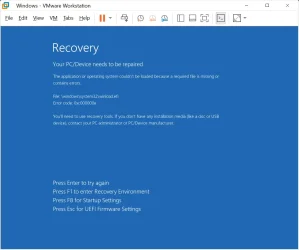
The application or operating system couldn't be loaded because a required file is missing or contains errors.
File: \Windows\system32\winload.efi
Error code: 0xc0000225

-or-

The application or operating system couldn't be loaded because a required file is missing or contains errors.
File: \Windows\system32\winload.efi
Error code: 0xc000000e

Are there any other error messages?

now scanos does not find any windows installations. my working windows works i can get into it, but still in recovery it shows 0 installed windows os

Do not use the following commands.

bootrec /scanos
bootrec /rebuildbcd

That's all outdated stuff not used on UEFI/GPT based system.
 

My Computers

System One System Two

  • OS
    Windows 11 Pro
    Computer type
    PC/Desktop
    CPU
    AMD Ryzen 9 9950X3D
    Motherboard
    ASRock B650E Taichi Lite
    Memory
    Kingston FURY Beast 64GB (2x32GB) DDR5 6000MT/s
    Graphics Card(s)
    ASUS TUF Gaming Radeon RX 9070 OC Edition 16GB GDDR6
    Hard Drives
    Solidigm P44 Pro 2TB M.2 NVMe SSD
  • Operating System
    Windows 11 Home
    Computer type
    Laptop
    Manufacturer/Model
    Lenovo Legion Pro 7i Gen 10 16"
    CPU
    Intel Core Ultra 9 275HX
    Memory
    64GB (2x 32GB) DDR5-6400
    Graphics card(s)
    NVIDIA GeForce RTX 5080 16GB GDDR7 Laptop GPU
    Hard Drives
    2x 1TB M.2 NVMe SSD (SK Hynix)
in your first attachment both disks 5&7 have Fat32 EFI partitions and missing the MSR partition..
the second attachment is disk 4...

please show Marcium (i assume) full screen & all disks

and then which disk# is your Primary
i formated the drive thats why it has changed. disk 4 is broken windows disk 6 is working windows
 

Attachments

  • image_2025-08-19_182842982.webp
    image_2025-08-19_182842982.webp
    19.9 KB · Views: 2

My Computer

System One

  • OS
    Windows 11
    Computer type
    PC/Desktop
What error message are you getting?

The application or operating system couldn't be loaded because a required file is missing or contains errors.
File: \Windows\system32\winload.efi
Error code: 0xc0000225

-or-

The application or operating system couldn't be loaded because a required file is missing or contains errors.
File: \Windows\system32\winload.efi
Error code: 0xc000000e

Are there any other error messages?


Do not use the following commands.

bootrec /scanos
bootrec /rebuildbcd

That's all outdated stuff not used on UEFI/GPT based system.
this one
The application or operating system couldn't be loaded because a required file is missing or contains errors.
File: \Windows\system32\winload.efi
Error code: 0xc000000e
 

My Computer

System One

  • OS
    Windows 11
    Computer type
    PC/Desktop
See this and see if you can find anything.
Firmware Boot Manager
---------------------
identifier {fwbootmgr}
displayorder {bootmgr}
{085744c4-7a2c-11f0-813a-806e6f6e6963}
{085744c5-7a2c-11f0-813a-806e6f6e6963}
{af83c56b-7cf9-11f0-9e7b-806e6f6e6963}
{079bdd7e-7d1a-11f0-9e83-806e6f6e6963}
{079bdd7f-7d1a-11f0-9e83-806e6f6e6963}
{079bdd80-7d1a-11f0-9e83-806e6f6e6963}
timeout 1

Windows Boot Manager
--------------------
identifier {bootmgr}
device partition=\Device\HarddiskVolume1
path \EFI\Microsoft\Boot\bootmgfw.efi
description Windows Boot Manager
locale en-us
inherit {globalsettings}
default {current}
resumeobject {5aa463b4-7d62-11f0-8be8-a8a60f80744e}
displayorder {current}
{085744c4-7a2c-11f0-813a-806e6f6e6963}
{085744c5-7a2c-11f0-813a-806e6f6e6963}
{8d8bd708-7bf0-11f0-9e5c-806e6f6e6963}
{69ad63bf-7c53-11f0-9e67-806e6f6e6963}
{69ad63c0-7c53-11f0-9e67-806e6f6e6963}
{69ad63c1-7c53-11f0-9e67-806e6f6e6963}
{ec9f3646-7cfc-11f0-9e7c-580205bd26e5}
toolsdisplayorder {memdiag}
timeout 10
displaybootmenu Yes

Firmware Application (101fffff)
-------------------------------
identifier {079bdd7e-7d1a-11f0-9e83-806e6f6e6963}
description UEFI:CD/DVD Drive

Firmware Application (101fffff)
-------------------------------
identifier {079bdd7f-7d1a-11f0-9e83-806e6f6e6963}
description UEFI:Removable Device

Firmware Application (101fffff)
-------------------------------
identifier {079bdd80-7d1a-11f0-9e83-806e6f6e6963}
description UEFI:Network Device

Firmware Application (101fffff)
-------------------------------
identifier {085744c4-7a2c-11f0-813a-806e6f6e6963}
device partition=P:
description UEFI: SanDisk, Partition 1

Firmware Application (101fffff)
-------------------------------
identifier {085744c5-7a2c-11f0-813a-806e6f6e6963}
device partition=L:
description UEFI: SanDisk, Partition 2

Firmware Application (101fffff)
-------------------------------
identifier {af83c56b-7cf9-11f0-9e7b-806e6f6e6963}
device partition=M:
description UEFI: KingstonDataTraveler G2 PMAP, Partition 1

Firmware Application (101fffff)
-------------------------------
identifier {e569c198-7a93-11f0-b7cc-f1fe0e6b6131}
device partition=P:
description UEFI: SanDisk, Partition 1

Firmware Application (101fffff)
-------------------------------
identifier {e569c19a-7a93-11f0-b7cc-f1fe0e6b6131}
device partition=P:
description UEFI: SanDisk, Partition 1

Windows Boot Loader
-------------------
identifier {00c29570-7e6c-4687-b701-7b9bc7155894}
device ramdisk=[C:]\Aomei\AomeiBoot.wim,{08ec6eaa-5623-4431-8452-abaea83c7675}
description Aomei PE
osdevice ramdisk=[C:]\Aomei\AomeiBoot.wim,{08ec6eaa-5623-4431-8452-abaea83c7675}
systemroot \Windows
nx OptIn
detecthal Yes
winpe Yes

Windows Boot Loader
-------------------
identifier {1b6da1dc-500b-11f0-80f6-ebc98864acf4}
device ramdisk=[unknown]\Recovery\WindowsRE\Winre.wim,{1b6da1dd-500b-11f0-80f6-ebc98864acf4}
path \windows\system32\winload.efi
description Windows Recovery Environment
locale en-US
inherit {bootloadersettings}
displaymessage Recovery
osdevice ramdisk=[unknown]\Recovery\WindowsRE\Winre.wim,{1b6da1dd-500b-11f0-80f6-ebc98864acf4}
systemroot \windows
nx OptIn
bootmenupolicy Standard
winpe Yes

Windows Boot Loader
-------------------
identifier {current}
device partition=C:
path \windows\system32\winload.efi
description Windows 11
locale en-us
inherit {bootloadersettings}
isolatedcontext Yes
allowedinmemorysettings 0x15000075
osdevice partition=C:
systemroot \windows
resumeobject {5aa463b4-7d62-11f0-8be8-a8a60f80744e}
nx OptIn
bootmenupolicy Standard

Windows Boot Loader
-------------------
identifier {94723ecd-a6d1-11ef-bfdc-d6c3724ce2ea}
device ramdisk=[unknown]\Recovery\WindowsRE\Winre.wim,{94723ece-a6d1-11ef-bfdc-d6c3724ce2ea}
path \windows\system32\winload.efi
description Windows Recovery Environment
locale en-US
inherit {bootloadersettings}
displaymessage Recovery
osdevice ramdisk=[unknown]\Recovery\WindowsRE\Winre.wim,{94723ece-a6d1-11ef-bfdc-d6c3724ce2ea}
systemroot \windows
nx OptIn
bootmenupolicy Standard
winpe Yes

Windows Boot Loader
-------------------
identifier {e569c196-7a93-11f0-b7cc-f1fe0e6b6131}
device ramdisk=[\Device\HarddiskVolume4]\Recovery\WindowsRE\Winre.wim,{e569c197-7a93-11f0-b7cc-f1fe0e6b6131}
path \windows\system32\winload.efi
description Windows Recovery Environment
locale en-US
inherit {bootloadersettings}
displaymessage Recovery
osdevice ramdisk=[\Device\HarddiskVolume4]\Recovery\WindowsRE\Winre.wim,{e569c197-7a93-11f0-b7cc-f1fe0e6b6131}
systemroot \windows
nx OptIn
bootmenupolicy Standard
winpe Yes

Windows Boot Loader
-------------------
identifier {ec9f3646-7cfc-11f0-9e7c-580205bd26e5}
device partition=D:
path \Windows\system32\winload.efi
description FL
locale en-US
osdevice partition=D:
systemroot \Windows
nx OptIn

Resume from Hibernate
---------------------
identifier {5aa463b4-7d62-11f0-8be8-a8a60f80744e}
device partition=C:
path \windows\system32\winresume.efi
description Windows Resume Application
locale en-us
inherit {resumeloadersettings}
isolatedcontext Yes
allowedinmemorysettings 0x15000075
filedevice partition=C:
custom:21000026 partition=C:
filepath \hiberfil.sys
bootmenupolicy Standard
debugoptionenabled No

Resume from Hibernate
---------------------
identifier {e569c194-7a93-11f0-b7cc-f1fe0e6b6131}
device partition=C:
path \WINDOWS\system32\winresume.efi
description Windows Resume Application
locale en-US
inherit {resumeloadersettings}
recoverysequence {e569c196-7a93-11f0-b7cc-f1fe0e6b6131}
recoveryenabled Yes
isolatedcontext Yes
allowedinmemorysettings 0x15000075
filedevice partition=C:
custom:21000026 partition=C:
filepath \hiberfil.sys
bootmenupolicy Standard
debugoptionenabled No

Resume from Hibernate
---------------------
identifier {fbe69249-7c87-11f0-814e-806e6f6e6963}
device partition=D:
path \Windows\system32\winresume.efi
description FL
locale en-US
inherit {resumeloadersettings}
filedevice partition=D:
custom:21000026 partition=D:
filepath \hiberfil.sys
debugoptionenabled No

Windows Memory Tester
---------------------
identifier {memdiag}
device partition=\Device\HarddiskVolume1
path \EFI\Microsoft\Boot\memtest.efi
description Windows Memory Diagnostic
locale en-us
inherit {globalsettings}
badmemoryaccess Yes

EMS Settings
------------
identifier {emssettings}
bootems No

Debugger Settings
-----------------
identifier {dbgsettings}
debugtype Local

RAM Defects
-----------
identifier {badmemory}

Global Settings
---------------
identifier {globalsettings}
inherit {dbgsettings}
{emssettings}
{badmemory}

Boot Loader Settings
--------------------
identifier {bootloadersettings}
inherit {globalsettings}
{hypervisorsettings}

Hypervisor Settings
-------------------
identifier {hypervisorsettings}
hypervisordebugtype Serial
hypervisordebugport 1
hypervisorbaudrate 115200

Resume Loader Settings
----------------------
identifier {resumeloadersettings}
inherit {globalsettings}

Device options
--------------
identifier {04a7f7d9-1dd2-4dc8-8388-3c1f528d3afa}
ramdisksdidevice unknown
ramdisksdipath \Aomei\AomeiBoot.sdi

Device options
--------------
identifier {08ec6eaa-5623-4431-8452-abaea83c7675}
ramdisksdidevice partition=C:
ramdisksdipath \Aomei\AomeiBoot.sdi

Device options
--------------
identifier {1b6da1dd-500b-11f0-80f6-ebc98864acf4}
description Windows Recovery
ramdisksdidevice unknown
ramdisksdipath \Recovery\WindowsRE\boot.sdi

Device options
--------------
identifier {5d5f0a9e-7b5b-11f0-9e51-ca5fb35d7e19}
description Windows Setup
ramdisksdidevice partition=C:
ramdisksdipath \$WINDOWS.~BT\Sources\SafeOS\boot.sdi

Device options
--------------
identifier {94723ece-a6d1-11ef-bfdc-d6c3724ce2ea}
description Windows Recovery
ramdisksdidevice unknown
ramdisksdipath \Recovery\WindowsRE\boot.sdi

Device options
--------------
identifier {cee0c180-c0dc-464b-8990-7c099a0bfc8e}
ramdisksdidevice partition=C:
ramdisksdipath \Aomei\AomeiBoot.sdi

Device options
--------------
identifier {e569c197-7a93-11f0-b7cc-f1fe0e6b6131}
description Windows Recovery
ramdisksdidevice partition=\Device\HarddiskVolume4
ramdisksdipath \Recovery\WindowsRE\boot.sdi
 

My Computer

System One

  • OS
    Windows 11
    Computer type
    PC/Desktop
this one
The application or operating system couldn't be loaded because a required file is missing or contains errors.
File: \Windows\system32\winload.efi
Error code: 0xc000000e

I have had the same error message in a virtual machine (image below). I failed to fix the 0xc000000e error in the virtual machine. Dual boot installation (one is cloned), one worked the other didn't.

0xc000000e.webp

This seems to be the most difficult error code because the error code can be caused by many things.

If you get a 0xc000000e error, even though you format the EFI system partition before the BCDBOOT command, then the problem is somewhere other than the EFI system partition.

If you get a 0xc000000e error, but Windows starts by selecting "Windows Boot Manager" from the boot menu, then there is a incorrect "Windows Boot Manager" entry in the BIOS settings.

For some users, the 0xc000000e error has been resolved by disabling the Fast Boot feature in the BIOS settings.
 

My Computers

System One System Two

  • OS
    Windows 11 Pro
    Computer type
    PC/Desktop
    CPU
    AMD Ryzen 9 9950X3D
    Motherboard
    ASRock B650E Taichi Lite
    Memory
    Kingston FURY Beast 64GB (2x32GB) DDR5 6000MT/s
    Graphics Card(s)
    ASUS TUF Gaming Radeon RX 9070 OC Edition 16GB GDDR6
    Hard Drives
    Solidigm P44 Pro 2TB M.2 NVMe SSD
  • Operating System
    Windows 11 Home
    Computer type
    Laptop
    Manufacturer/Model
    Lenovo Legion Pro 7i Gen 10 16"
    CPU
    Intel Core Ultra 9 275HX
    Memory
    64GB (2x 32GB) DDR5-6400
    Graphics card(s)
    NVIDIA GeForce RTX 5080 16GB GDDR7 Laptop GPU
    Hard Drives
    2x 1TB M.2 NVMe SSD (SK Hynix)
I have had the same error message in a virtual machine (image below). I failed to fix the 0xc000000e error in the virtual machine. Dual boot installation (one is cloned), one worked the other didn't.

View attachment 142827

This seems to be the most difficult error code because the error code can be caused by many things.

If you get a 0xc000000e error, even though you format the EFI system partition before the BCDBOOT command, then the problem is somewhere other than the EFI system partition.

If you get a 0xc000000e error, but Windows starts by selecting "Windows Boot Manager" from the boot menu, then there is a incorrect "Windows Boot Manager" entry in the BIOS settings.

For some users, the 0xc000000e error has been resolved by disabling the Fast Boot feature in the BIOS settings.
Fast boot is already disabled. I get that error from windows boot manager where you can choose which windows you want to start. i can choose my broken windows but i get that error if i do, my other windows boots no problem
 

My Computer

System One

  • OS
    Windows 11
    Computer type
    PC/Desktop
device partition=\Device\HarddiskVolume1
Which Harddisk... Use Bootice and picture... We know it is the First Volume ( First Partition ) of whatever disk ??

Cloning an OS make a Duplicate of that OS Partition, thus most likely same Volume GUID...
Cloning is for adding a New Disk and Removing the Other...

Also when copying the OS - you only want to copy just the OS Partition, not the whole disk unless you intend to remove the old disk...
 

My Computer

System One

  • OS
    Windows
also why are you duplicating the existing OS - instead of Installing a Fresh New OS ( Clean Install ) to the second drive?
 

My Computer

System One

  • OS
    Windows
also why are you duplicating the existing OS - instead of Installing a Fresh New OS ( Clean Install ) to the second drive?
its 2 diffrent kind of windows, its 11 but its not the same one. one is fresh install (my working windows) the other is an older windows 11 that i need with everything installed in it.
 

My Computer

System One

  • OS
    Windows 11
    Computer type
    PC/Desktop
Use EasyBCD to manage your Boot loader

You can copy your X:\Users\UserName folders (ie) Desktop,. Downloads, Documents etc from your older Windows 11 drive to your fresh install of Windows 11 in the same folders and install any of your 3rd party apps. (Change X: to the proper drive letter if booted into the newer Windows)
 

My Computer

System One

  • OS
    Windows 11 Pro Insider 64 bit 25H2 26200.5742
    Computer type
    PC/Desktop
    Manufacturer/Model
    Gigabyte Z390 UD
    CPU
    Intel Core i7 9700K 3.60
    Motherboard
    Gigabyte Z390 UD
    Memory
    16 GB
    Graphics Card(s)
    nVidia GEForce RTX 2060 Super
    Sound Card
    onboard
    Monitor(s) Displays
    Two 27" Dell 4K monitors
    Screen Resolution
    3840 x 2160
    Hard Drives
    M.2 NVME SSD, 500 GB; Two 2TB Mechanical HDD's
    PSU
    850w PSU
    Case
    Cyberpower PC
    Cooling
    Water cooled
    Keyboard
    Backlit Cyberpower gaming keyboard
    Mouse
    Backlit Cyberpower gaming mouse
    Internet Speed
    1 GB mbps
    Browser
    Brave
    Antivirus
    Windows Security
Im in no need for the old windows anymore, ill just use this new one and remove the other one once i have backed up everything
 

My Computer

System One

  • OS
    Windows 11
    Computer type
    PC/Desktop
OK, if you have everything you need from the old Windows.
Press the Windows key +X choose Disk Management
Select all the partitions and Delete them.
You can also do this with the free partitioning app like Minitool Partition Wizard
Making the drive all Unallocated Space
right click that and choose to create a New Simple Volume.
Format NTFS and assign it a drive letter, use it for storage.
 

My Computer

System One

  • OS
    Windows 11 Pro Insider 64 bit 25H2 26200.5742
    Computer type
    PC/Desktop
    Manufacturer/Model
    Gigabyte Z390 UD
    CPU
    Intel Core i7 9700K 3.60
    Motherboard
    Gigabyte Z390 UD
    Memory
    16 GB
    Graphics Card(s)
    nVidia GEForce RTX 2060 Super
    Sound Card
    onboard
    Monitor(s) Displays
    Two 27" Dell 4K monitors
    Screen Resolution
    3840 x 2160
    Hard Drives
    M.2 NVME SSD, 500 GB; Two 2TB Mechanical HDD's
    PSU
    850w PSU
    Case
    Cyberpower PC
    Cooling
    Water cooled
    Keyboard
    Backlit Cyberpower gaming keyboard
    Mouse
    Backlit Cyberpower gaming mouse
    Internet Speed
    1 GB mbps
    Browser
    Brave
    Antivirus
    Windows Security
Back
Top Bottom