Dual Windows Boot winload.efi error on every restart


did not work

Then the problem is somewhere other than the EFI system partition if your computer only has one EFI system partition.
 

My Computers

System One System Two

  • OS
    Windows 11 Pro
    Computer type
    PC/Desktop
    CPU
    AMD Ryzen 9 9950X3D
    Motherboard
    ASRock B650E Taichi Lite
    Memory
    Kingston FURY Beast 64GB (2x32GB) DDR5 6000MT/s
    Graphics Card(s)
    ASUS TUF Gaming Radeon RX 9070 OC Edition 16GB GDDR6
    Hard Drives
    Solidigm P44 Pro 2TB M.2 NVMe SSD
  • Operating System
    Windows 11 Home
    Computer type
    Laptop
    Manufacturer/Model
    Lenovo Legion Pro 7i Gen 10 16"
    CPU
    Intel Core Ultra 9 275HX
    Memory
    64GB (2x 32GB) DDR5-6400
    Graphics card(s)
    NVIDIA GeForce RTX 5080 16GB GDDR7 Laptop GPU
    Hard Drives
    2x 1TB M.2 NVMe SSD (SK Hynix)
diskpart
list volume (check your EFI system partition number)
select volume # (replace # with your EFI system partition number)
format quick fs=fat32 (optional: format your EFI system partition)
assign letter=z
list volume (check the volume letters of both your Windows partitions)
exit

bcdboot x:\windows /s z: /f uefi
- replace "x" with the volume letter of your first Windows partition

bcdboot x:\windows /s z: /f uefi /addlast
- replace "x" with the volume letter of your second Windows partition

- /s z: is your EFI system partition you assigned above
- firmware type /f uefi is not needed if you have booted USB flash drive in UEFI mode

Here is an easier way if you don't want to format the EFI system partition and if your computer has only one EFI system partition.

- the /s option is not needed
"Specifies an optional volume letter parameter to designate the target system partition where boot environment files are copied. The default is the system partition identified by the firmware."

- firmware type "/f uefi" is not needed if you have booted USB flash drive in UEFI mode

How to fix dual boot issue?

diskpart
list volume (check the volume letters of both your Windows partitions)
exit

bcdboot x:\windows
- replace "x" with the volume letter of your first Windows partition

bcdboot x:\windows
- replace "x" with the volume letter of your second Windows partition

How to fix dual boot issue.webp

On a GPT disk, you will receive the error message "Failure when attempting to copy boot files" if the USB flash drive is booted in BIOS mode or if you enter the wrong volume letter for the Windows partition.
 
Last edited:

My Computers

System One System Two

  • OS
    Windows 11 Pro
    Computer type
    PC/Desktop
    CPU
    AMD Ryzen 9 9950X3D
    Motherboard
    ASRock B650E Taichi Lite
    Memory
    Kingston FURY Beast 64GB (2x32GB) DDR5 6000MT/s
    Graphics Card(s)
    ASUS TUF Gaming Radeon RX 9070 OC Edition 16GB GDDR6
    Hard Drives
    Solidigm P44 Pro 2TB M.2 NVMe SSD
  • Operating System
    Windows 11 Home
    Computer type
    Laptop
    Manufacturer/Model
    Lenovo Legion Pro 7i Gen 10 16"
    CPU
    Intel Core Ultra 9 275HX
    Memory
    64GB (2x 32GB) DDR5-6400
    Graphics card(s)
    NVIDIA GeForce RTX 5080 16GB GDDR7 Laptop GPU
    Hard Drives
    2x 1TB M.2 NVMe SSD (SK Hynix)
His problem is between the two disks - he has (made known to me) 3 EFI Partitions (System Partitions).................
the only Partitions that should be on the second disk is the Second OS and Data..........
Wouldn't that make the second OS dependent on having the first OS drive always installed and working? I think that's what got me into trouble the first time I setup a dual boot system. I needed the drive I had removed to get the second OS to boot.
 

My Computers

System One System Two

  • OS
    Windows 11 Pro 25H2
    Computer type
    PC/Desktop
    Manufacturer/Model
    PowerSpec B746
    CPU
    Intel Core i7-10700K
    Motherboard
    ASRock Z490 Phantom Gaming 4/ax
    Memory
    16GB (8GB PC4-19200 DDR4 SDRAM x2)
    Graphics Card(s)
    NVIDIA GeForce GTX 1050 TI
    Sound Card
    Realtek Audio
    Monitor(s) Displays
    #1. LG ULTRAWIDE 34" #2. AOC Q32G2WG3 32"
    Screen Resolution
    #1. 3440 X 1440 #2. 1920 x 1080
    Hard Drives
    NVMe WDC WDS100T2B0C-00PXH0 1TB
    Samsung SSD 860 EVO 1TB
    PSU
    750 Watts (62.5A)
    Case
    PowerSpec/Lian Li ATX 205
    Keyboard
    Logitech K270
    Mouse
    Logitech M185
    Browser
    Microsoft Edge and Firefox
    Antivirus
    Webroot SecureAnywhere CE 26.1
  • Operating System
    Windows 11 Canary Channel
    Computer type
    PC/Desktop
    Manufacturer/Model
    PowerSpec G156
    CPU
    Intel Core i5-8400 CPU @ 2.80GHz
    Motherboard
    AsusTeK Prime B360M-A
    Memory
    16 MB DDR 4-2666
    Monitor(s) Displays
    23" Speptre HDMI 75Hz
    Screen Resolution
    1920x1080
    Hard Drives
    Samsung 970 EVO 500GB NVMe
    Keyboard
    Logitek K270
    Mouse
    Logitek M185
    Browser
    Firefox, Edge and Edge Canary
    Antivirus
    Windows Defender
Yes, Booting the secondary drive would be dependent on the Primary drive w/System Partition...
Thus even better if second OS also on Primary Drive (different partition) and second disk used just for Data..
 

My Computer

System One

  • OS
    Windows
Wouldn't that make the second OS dependent on having the first OS drive always installed and working? I think that's what got me into trouble the first time I setup a dual boot system. I needed the drive I had removed to get the second OS to boot.
THIS is my problem. it depends on my m2 working windows drive
 

My Computer

System One

  • OS
    Windows 11
    Computer type
    PC/Desktop
Next time i want to install a second windows on a separate drive, do i need to unplug my working windows first before install to not get this issue again?
 

My Computer

System One

  • OS
    Windows 11
    Computer type
    PC/Desktop
Next time i want to install a second windows on a separate drive, do i need to unplug my working windows first before install to not get this issue again?

No. Then the computer has two EFI system partitions and dual booting does not work.

Do not remove the Windows boot disk. The new Windows installation recognizes the existing EFI system partition, so both Windows use the same EFI system partition.


Set up or repair the boot menu on a dual-boot PC​

  1. Install a separate hard drive or prepare a separate partition for each operating system.
  2. Install the operating systems. For example, if your PC has Windows 7, install Windows 10 onto the other hard drive or partition.
  3. Reboot the PC. The boot menus should appear with both operating systems listed.
 
Last edited:

My Computers

System One System Two

  • OS
    Windows 11 Pro
    Computer type
    PC/Desktop
    CPU
    AMD Ryzen 9 9950X3D
    Motherboard
    ASRock B650E Taichi Lite
    Memory
    Kingston FURY Beast 64GB (2x32GB) DDR5 6000MT/s
    Graphics Card(s)
    ASUS TUF Gaming Radeon RX 9070 OC Edition 16GB GDDR6
    Hard Drives
    Solidigm P44 Pro 2TB M.2 NVMe SSD
  • Operating System
    Windows 11 Home
    Computer type
    Laptop
    Manufacturer/Model
    Lenovo Legion Pro 7i Gen 10 16"
    CPU
    Intel Core Ultra 9 275HX
    Memory
    64GB (2x 32GB) DDR5-6400
    Graphics card(s)
    NVIDIA GeForce RTX 5080 16GB GDDR7 Laptop GPU
    Hard Drives
    2x 1TB M.2 NVMe SSD (SK Hynix)
No. Then the computer has two EFI system partitions and dual booting does not work.

Do not remove the Windows boot disk. The new Windows installation recognizes the existing EFI system partition, so both Windows use the same EFI system partition.

what i did was i had my broken windows (then working) on my m2 drive and a new install of windows on my ssd, so i cloned both windows i mean i took an image of them and swapped them. so now my new installed windows is on m2 drive and the broken one on the ssd. the fresh installed windows started with no issue that i swapped to the m2 drive but the one i put on my ssd does not, i get a boot menu in bios were i can choose between fresh installed windows and the broken one
 

My Computer

System One

  • OS
    Windows 11
    Computer type
    PC/Desktop
Next time i want to install a second windows on a separate drive, do i need to unplug my working windows first before install to not get this issue again?
That's how I do my dual boot systems and it works for me. Once finished I use EasyBCD to add the second OS to the boot menu.
 

My Computers

System One System Two

  • OS
    Windows 11 Pro 25H2
    Computer type
    PC/Desktop
    Manufacturer/Model
    PowerSpec B746
    CPU
    Intel Core i7-10700K
    Motherboard
    ASRock Z490 Phantom Gaming 4/ax
    Memory
    16GB (8GB PC4-19200 DDR4 SDRAM x2)
    Graphics Card(s)
    NVIDIA GeForce GTX 1050 TI
    Sound Card
    Realtek Audio
    Monitor(s) Displays
    #1. LG ULTRAWIDE 34" #2. AOC Q32G2WG3 32"
    Screen Resolution
    #1. 3440 X 1440 #2. 1920 x 1080
    Hard Drives
    NVMe WDC WDS100T2B0C-00PXH0 1TB
    Samsung SSD 860 EVO 1TB
    PSU
    750 Watts (62.5A)
    Case
    PowerSpec/Lian Li ATX 205
    Keyboard
    Logitech K270
    Mouse
    Logitech M185
    Browser
    Microsoft Edge and Firefox
    Antivirus
    Webroot SecureAnywhere CE 26.1
  • Operating System
    Windows 11 Canary Channel
    Computer type
    PC/Desktop
    Manufacturer/Model
    PowerSpec G156
    CPU
    Intel Core i5-8400 CPU @ 2.80GHz
    Motherboard
    AsusTeK Prime B360M-A
    Memory
    16 MB DDR 4-2666
    Monitor(s) Displays
    23" Speptre HDMI 75Hz
    Screen Resolution
    1920x1080
    Hard Drives
    Samsung 970 EVO 500GB NVMe
    Keyboard
    Logitek K270
    Mouse
    Logitek M185
    Browser
    Firefox, Edge and Edge Canary
    Antivirus
    Windows Defender

Set up or repair the boot menu on a dual-boot PC​


  1. Install a separate hard drive or prepare a separate partition for each operating system.
  2. Install the operating systems. For example, if your PC has Windows 7, install Windows 10 onto the other hard drive or partition.
  3. Reboot the PC. The boot menus should appear with both operating systems listed.

I tested in a Hyper-V virtual machine (image below).

Windows 11 dual boot.webp

Google AI: The EFI System Partition (ESP) does not have to be on the primary disk, nor does it have to be the first partition on a disk; it just needs to be on a disk accessible by the UEFI firmware at boot time. While it is often located on the primary drive where the operating system is installed, the ESP can reside on any GPT-formatted drive.
 

My Computers

System One System Two

  • OS
    Windows 11 Pro
    Computer type
    PC/Desktop
    CPU
    AMD Ryzen 9 9950X3D
    Motherboard
    ASRock B650E Taichi Lite
    Memory
    Kingston FURY Beast 64GB (2x32GB) DDR5 6000MT/s
    Graphics Card(s)
    ASUS TUF Gaming Radeon RX 9070 OC Edition 16GB GDDR6
    Hard Drives
    Solidigm P44 Pro 2TB M.2 NVMe SSD
  • Operating System
    Windows 11 Home
    Computer type
    Laptop
    Manufacturer/Model
    Lenovo Legion Pro 7i Gen 10 16"
    CPU
    Intel Core Ultra 9 275HX
    Memory
    64GB (2x 32GB) DDR5-6400
    Graphics card(s)
    NVIDIA GeForce RTX 5080 16GB GDDR7 Laptop GPU
    Hard Drives
    2x 1TB M.2 NVMe SSD (SK Hynix)
Google AI: The EFI System Partition (ESP) does not have to be on the primary disk, nor does it have to be the first partition on a disk; it just needs to be on a disk accessible by the UEFI firmware at boot time. While it is often located on the primary drive where the operating system is installed, the ESP can reside on any GPT-formatted drive.
Correct - but you are only test a system with 1 EFI partition, he has 3 that I am aware of.............
 

My Computer

System One

  • OS
    Windows
Correct - but you are only test a system with 1 EFI partition, he has 3 that I am aware of.............
in recovery in cmd, with diskpart i only saw 2, one for the working windows and one on the broken one. 2 fat32 partitions at almost 100 mb
 

My Computer

System One

  • OS
    Windows 11
    Computer type
    PC/Desktop
It seems that there is no harm in having several unused EFI system partitions.

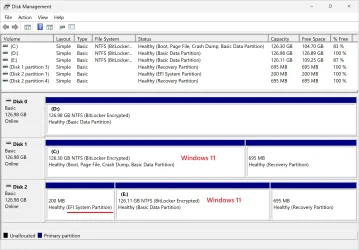
I created a new virtual machine to which I added the four previously installed Windows disks. I booted the virtual machine, and the virtual machine's UEFI firmware booted Windows.

"When no NVRAM boot entry is found for an OS, the UEFI firmware will scan all connected disks for an EFI system partition, which is a FAT32 partition containing bootloader files. If the \EFI\Microsoft\Boot\bootmgfw.efi file is found on any of the EFI system partitions, the firmware can load it and initiate the OS boot process, even without a corresponding NVRAM entry."
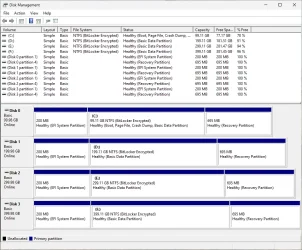
1.webp

I ran the following commands as administrator.

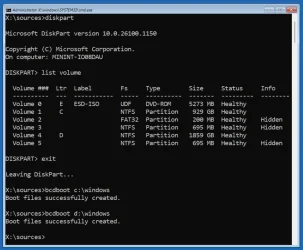
PS C:\Users\admin> bcdboot f:\windows
Boot files successfully created.
PS C:\Users\admin> bcdboot e:\windows
Boot files successfully created.
PS C:\Users\admin> bcdboot d:\windows
Boot files successfully created.
PS C:\Users\admin> bcdboot c:\windows
Boot files successfully created.
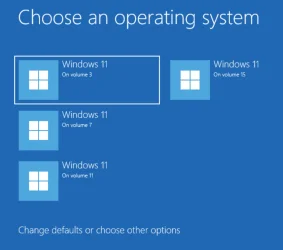
2.webp

- All Windows installations use the same EFI system partition.
- All Windows installations started without problems.

Code:
PS C:\Users\admin> bcdedit

Windows Boot Manager
--------------------
identifier              {bootmgr}
device                  partition=\Device\HarddiskVolume1
path                    \EFI\Microsoft\Boot\bootmgfw.efi
description             Windows Boot Manager
locale                  en-us
inherit                 {globalsettings}
default                 {current}
resumeobject            {1989d619-8033-11f0-881e-00155d010404}
displayorder            {current}
                        {1989d618-8033-11f0-881e-00155d010404}
                        {1989d616-8033-11f0-881e-00155d010404}
                        {1989d614-8033-11f0-881e-00155d010404}
toolsdisplayorder       {memdiag}
timeout                 30

Windows Boot Loader
-------------------
identifier              {current}
device                  partition=C:
path                    \windows\system32\winload.efi
description             Windows 11
locale                  en-us
inherit                 {bootloadersettings}
isolatedcontext         Yes
allowedinmemorysettings 0x15000075
osdevice                partition=C:
systemroot              \windows
resumeobject            {1989d619-8033-11f0-881e-00155d010404}
nx                      OptIn
bootmenupolicy          Standard

Windows Boot Loader
-------------------
identifier              {1989d618-8033-11f0-881e-00155d010404}
device                  partition=D:
path                    \windows\system32\winload.efi
description             Windows 11
locale                  en-us
inherit                 {bootloadersettings}
isolatedcontext         Yes
allowedinmemorysettings 0x15000075
osdevice                partition=D:
systemroot              \windows
resumeobject            {1989d617-8033-11f0-881e-00155d010404}
nx                      OptIn
bootmenupolicy          Standard

Windows Boot Loader
-------------------
identifier              {1989d616-8033-11f0-881e-00155d010404}
device                  partition=E:
path                    \windows\system32\winload.efi
description             Windows 11
locale                  en-us
inherit                 {bootloadersettings}
isolatedcontext         Yes
allowedinmemorysettings 0x15000075
osdevice                partition=E:
systemroot              \windows
resumeobject            {1989d615-8033-11f0-881e-00155d010404}
nx                      OptIn
bootmenupolicy          Standard

Windows Boot Loader
-------------------
identifier              {1989d614-8033-11f0-881e-00155d010404}
device                  partition=F:
path                    \windows\system32\winload.efi
description             Windows 11
locale                  en-us
inherit                 {bootloadersettings}
isolatedcontext         Yes
allowedinmemorysettings 0x15000075
osdevice                partition=F:
systemroot              \windows
resumeobject            {1989d613-8033-11f0-881e-00155d010404}
nx                      OptIn
bootmenupolicy          Standard

 
Last edited:

My Computers

System One System Two

  • OS
    Windows 11 Pro
    Computer type
    PC/Desktop
    CPU
    AMD Ryzen 9 9950X3D
    Motherboard
    ASRock B650E Taichi Lite
    Memory
    Kingston FURY Beast 64GB (2x32GB) DDR5 6000MT/s
    Graphics Card(s)
    ASUS TUF Gaming Radeon RX 9070 OC Edition 16GB GDDR6
    Hard Drives
    Solidigm P44 Pro 2TB M.2 NVMe SSD
  • Operating System
    Windows 11 Home
    Computer type
    Laptop
    Manufacturer/Model
    Lenovo Legion Pro 7i Gen 10 16"
    CPU
    Intel Core Ultra 9 275HX
    Memory
    64GB (2x 32GB) DDR5-6400
    Graphics card(s)
    NVIDIA GeForce RTX 5080 16GB GDDR7 Laptop GPU
    Hard Drives
    2x 1TB M.2 NVMe SSD (SK Hynix)
try this from command prompt (admin)

Code:
Dism /Image:S:\offline /Cleanup-Image /RestoreHealth /Source:S:\windows

once again assuming S is the offline OS - that command will use DISM to try and repair the OS
Then maybe the Offline OS needs to be Repaired
 

My Computer

System One

  • OS
    Windows
i reformated the broken one and use the disk as storage instead. but ill come back to this if i install it again and have issues, thanks for the help
 

My Computer

System One

  • OS
    Windows 11
    Computer type
    PC/Desktop
@aubergine

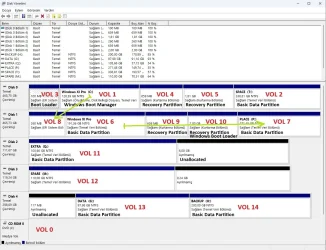
I had a crooked dual-boot system, both Windows 11 25H2 installations.

Disk 0 had Windows Boot Manager on Vol 1. This is a PCIe drive.

All partitions were as written on the picture.

VOLUMES2.webp

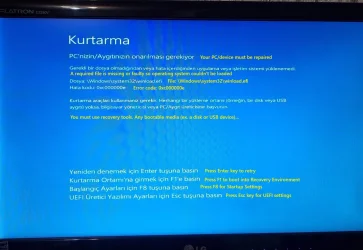
Then I wanted to separate Windows installation. I disabled disk 0. Then Windows on disk 1 couldn't boot. It lost Boot Manager on disk 0 (volume 1).

I got error message message:

boot_error.webp

After hard work, I was able to repair - by chance, I must add - the crippled Windows. Now they boot independently. But still one Windows depend on the other.

Previously, Windows on disk 1 (SATA drive) depended on Windows on disk 0 (PCIe drive).

Now Windows on disk 0 depends on disk 1. (disk 1 has become disk 4 after separation). Yellow arrows.

Now I have lost Recovery capability on Windows installation on SATA drive (formerly disk 1).

Now I am studying if I can re-enable Recovery tools on SATA drive. I have Recovery Tools on USB recovery disk, which I used when Windows couldn't boot.
 

My Computers

System One System Two

  • OS
    Windows 11 Pro build 26200.8524
    Computer type
    PC/Desktop
    Manufacturer/Model
    Home Built
    CPU
    Intel i7-4790
    Motherboard
    Asus H97 Pro Gamer with add-on TPM1.2 module
    Memory
    Teams DDR3-1600 4x4 GB
    Graphics Card(s)
    MSI Nvidia GeForce GTX 1050Ti
    Sound Card
    Realtek ALC1150
    Monitor(s) Displays
    Dell P2425D
    Screen Resolution
    2560 by 1440 pixels
    Hard Drives
    Corsair NVMe M.2 Core XT 1000 GB (Windows 11 v.25H2); Samsung SATA Evo 870 500 GB (Windows 11 v.25H2);
    PSU
    Corsair HX850
    Case
    Gigabyte Solo 210
    Cooling
    Zalman CNPS7X Tower
    Keyboard
    Microsoft AIO Wireless (includes touchpad)
    Mouse
    HP S1000 Plus Wireless
    Internet Speed
    500 Mb fiber optic
    Browser
    Chrome; MS Edge
    Antivirus
    Windows Defender
  • Operating System
    MacOS 12 Monterey
    Computer type
    Laptop
    Manufacturer/Model
    Apple Macbook Air
    CPU
    Intel Core i5
    Memory
    8 GB
    Graphics card(s)
    Intel integrated
    Screen Resolution
    1440 by 900 pixels
    Hard Drives
    128 GB
    Keyboard
    Built-in
    Mouse
    Microsoft Wireless
    Internet Speed
    802.11 ac
    Browser
    Chrome; Safari
    Antivirus
    N/A
@suatcini54

If you remove the Windows boot disk from your computer, you can create a new EFI system partition using a Windows USB stick, for example:

Use the command "shrink desired=300" when you need free space for the EFI system partition from the Windows partition or data partition. Using the data partition is more recommended because then the location of the recovery partition will not change.

diskpart
list volume
select volume # (select the volume you want to shrink)
shrink desired=300
create partition efi size=300
format quick fs=fat32
assign letter=z
exit

bcdboot x:\windows /s z: /f uefi

- replace "x" with the volume letter of your Windows partition
- /s z: is your EFI system partition you assigned above
- firmware type /f uefi is not needed if you have booted Windows USB stick in UEFI mode

Restart your computer. The UEFI firmware should identifies the new EFI system partition and Windows should start normally.

Now I am studying if I can re-enable Recovery tools on SATA drive.

"If you need to repair or create a new recovery partition or having problems with the Windows 11 operating system on your PC, and the usual solutions will not fix it, you can do a repair install of Windows 11 by performing an in-place upgrade without losing anything."

 
Last edited:

My Computers

System One System Two

  • OS
    Windows 11 Pro
    Computer type
    PC/Desktop
    CPU
    AMD Ryzen 9 9950X3D
    Motherboard
    ASRock B650E Taichi Lite
    Memory
    Kingston FURY Beast 64GB (2x32GB) DDR5 6000MT/s
    Graphics Card(s)
    ASUS TUF Gaming Radeon RX 9070 OC Edition 16GB GDDR6
    Hard Drives
    Solidigm P44 Pro 2TB M.2 NVMe SSD
  • Operating System
    Windows 11 Home
    Computer type
    Laptop
    Manufacturer/Model
    Lenovo Legion Pro 7i Gen 10 16"
    CPU
    Intel Core Ultra 9 275HX
    Memory
    64GB (2x 32GB) DDR5-6400
    Graphics card(s)
    NVIDIA GeForce RTX 5080 16GB GDDR7 Laptop GPU
    Hard Drives
    2x 1TB M.2 NVMe SSD (SK Hynix)
@aubergine Thank you for your valuable advice. It's very much appreciated.

I reformatted the EFI partititon and repopulated it by the command

bcdboot X:\Windows /bootex /l tr-TR /S S: /f UEFI (X: being the Windows volume drive letter and S: being EFI system volume drive letter)

My two installations work quite happily now, it seems. When I did one crippled Windows installation (M.2 NVMe drive), I disabled all other drives in BIOS but still Windows created Boot Manager on a DATA partition on the same drive other than on Windows partition. Therefore, maybe I must have deleted the data partition and made it unallocated before trying to repair Windows. I did the other crippled Windows installation, this time disabling the SATA drive.

Then I attempted to re-install Windows over the current installation to restore recovery tools capability as you suggested. But unfortunately I couldn't do it. I got error 0xC1900101 - 0x20017 The installation failed in the SAFE_OS phase with an error during BOOT operation. I have done very many such Windows installations over current installations. This is the first time in a very long time interval, maybe more than ten years, that I had this error.

I will ignore this error as I do not need Recovery Tools partition to work. I had already created a bootable Recovery drive, which I used when performing the above operations. Windows has its quirks and peculiarities which I am not very capable of handling. Example: While trying to repair EFI partition before, Windows Boot Manager was placed on "HardDiskVolume16" when the total number of volumes was 14. Where volume 16 came from, I have no idea.

Have a nice weekend.
 

My Computers

System One System Two

  • OS
    Windows 11 Pro build 26200.8524
    Computer type
    PC/Desktop
    Manufacturer/Model
    Home Built
    CPU
    Intel i7-4790
    Motherboard
    Asus H97 Pro Gamer with add-on TPM1.2 module
    Memory
    Teams DDR3-1600 4x4 GB
    Graphics Card(s)
    MSI Nvidia GeForce GTX 1050Ti
    Sound Card
    Realtek ALC1150
    Monitor(s) Displays
    Dell P2425D
    Screen Resolution
    2560 by 1440 pixels
    Hard Drives
    Corsair NVMe M.2 Core XT 1000 GB (Windows 11 v.25H2); Samsung SATA Evo 870 500 GB (Windows 11 v.25H2);
    PSU
    Corsair HX850
    Case
    Gigabyte Solo 210
    Cooling
    Zalman CNPS7X Tower
    Keyboard
    Microsoft AIO Wireless (includes touchpad)
    Mouse
    HP S1000 Plus Wireless
    Internet Speed
    500 Mb fiber optic
    Browser
    Chrome; MS Edge
    Antivirus
    Windows Defender
  • Operating System
    MacOS 12 Monterey
    Computer type
    Laptop
    Manufacturer/Model
    Apple Macbook Air
    CPU
    Intel Core i5
    Memory
    8 GB
    Graphics card(s)
    Intel integrated
    Screen Resolution
    1440 by 900 pixels
    Hard Drives
    128 GB
    Keyboard
    Built-in
    Mouse
    Microsoft Wireless
    Internet Speed
    802.11 ac
    Browser
    Chrome; Safari
    Antivirus
    N/A
I got error 0xC1900101 - 0x20017 The installation failed in the SAFE_OS phase with an error during BOOT operation
You have to be logged in Normal Mode, not Safe Mode (Boot) for this command to work.
But other than that, Good Job!
 

My Computer

System One

  • OS
    Windows 11 Pro Insider 64 bit 25H2 26200.5742
    Computer type
    PC/Desktop
    Manufacturer/Model
    Gigabyte Z390 UD
    CPU
    Intel Core i7 9700K 3.60
    Motherboard
    Gigabyte Z390 UD
    Memory
    16 GB
    Graphics Card(s)
    nVidia GEForce RTX 2060 Super
    Sound Card
    onboard
    Monitor(s) Displays
    Two 27" Dell 4K monitors
    Screen Resolution
    3840 x 2160
    Hard Drives
    M.2 NVME SSD, 500 GB; Two 2TB Mechanical HDD's
    PSU
    850w PSU
    Case
    Cyberpower PC
    Cooling
    Water cooled
    Keyboard
    Backlit Cyberpower gaming keyboard
    Mouse
    Backlit Cyberpower gaming mouse
    Internet Speed
    1 GB mbps
    Browser
    Brave
    Antivirus
    Windows Security
You have to be logged in Normal Mode, not Safe Mode (Boot) for this command to work.
But other than that, Good Job!
I am sorry I couldn't understand what you meant with your above sentence. I mounted Windows image (same version and edition) and ran setup.exe. Windows started to install. Installer came up to 100% and restarted. Then I got this error message: Error: 0xC1900101 - 0x20017 The installation failed in the SAFE_OS phase with an error during BOOT operation

SAFE_OS phase is Windows installation routine at early stages, I believe. I was logged in to my admin account as usual, not in Safe Mode, and ran Setup.exe from the mounted Windows image.
 

My Computers

System One System Two

  • OS
    Windows 11 Pro build 26200.8524
    Computer type
    PC/Desktop
    Manufacturer/Model
    Home Built
    CPU
    Intel i7-4790
    Motherboard
    Asus H97 Pro Gamer with add-on TPM1.2 module
    Memory
    Teams DDR3-1600 4x4 GB
    Graphics Card(s)
    MSI Nvidia GeForce GTX 1050Ti
    Sound Card
    Realtek ALC1150
    Monitor(s) Displays
    Dell P2425D
    Screen Resolution
    2560 by 1440 pixels
    Hard Drives
    Corsair NVMe M.2 Core XT 1000 GB (Windows 11 v.25H2); Samsung SATA Evo 870 500 GB (Windows 11 v.25H2);
    PSU
    Corsair HX850
    Case
    Gigabyte Solo 210
    Cooling
    Zalman CNPS7X Tower
    Keyboard
    Microsoft AIO Wireless (includes touchpad)
    Mouse
    HP S1000 Plus Wireless
    Internet Speed
    500 Mb fiber optic
    Browser
    Chrome; MS Edge
    Antivirus
    Windows Defender
  • Operating System
    MacOS 12 Monterey
    Computer type
    Laptop
    Manufacturer/Model
    Apple Macbook Air
    CPU
    Intel Core i5
    Memory
    8 GB
    Graphics card(s)
    Intel integrated
    Screen Resolution
    1440 by 900 pixels
    Hard Drives
    128 GB
    Keyboard
    Built-in
    Mouse
    Microsoft Wireless
    Internet Speed
    802.11 ac
    Browser
    Chrome; Safari
    Antivirus
    N/A
Back
Top Bottom