Phone Enable or Disable Android Phone Access in File Explorer in Windows 11


Cross_Device_banner.png

This tutorial will show you how to turn on or off access to your Android phone mobile device in File Explorer for your account in Windows 11.

If you turn on Allow this PC to access your mobile devices, you will be able to link and manage your mobile devices directly from your PC. This link between your Android device and PC provides instant access to your mobile device.

It is required to sign in to Manage Mobile Devices with your Microsoft account before you are able to link (add) and manage your mobile devices from your PC.

Microsoft is beginning to gradually roll out the ability to see your Android phone in File Explorer in Windows 11 to Windows Insiders with Android phones across all Insider Channels.

With this new experience, you will be able to wirelessly browse through all your folders and files, including media that is on your Android phone. You can open them, copy them to your PC, copy PC files to your phone, rename files, move them, and delete them.

To use this feature, you’ll need to meet the following requirements:
  • Your Android phone has at least Android 11 or higher.
  • You are running the Link to Windows app on your Android phone (version 1.24071 and higher).
  • Your PC is running Windows 11 version 24H2.
Starting with Windows 11 build 26100.7309 (24H2) and build 26200.7309 (25H2), you can now directly add and manage your mobile devices from Settings on your Windows PC by navigating to “Mobile Devices” under the Bluetooth & Devices section.

References:

Show mobile device in File Explorer requires the Windows Search (WSearch) service to be enabled, running, and set to Automatic.

Your phone's local folder (ex: "Brink s23+") is located in your account's C:\Users\<username>\CrossDevice profile folder.


Contents

  • Option One: Turn On or Off Android Phone Access in File Explorer in Settings
  • Option Two: Turn On or Off Android Phone Access in File Explorer in Registry Editor


EXAMPLE: File Explorer showing the new entry point for accessing your Android phone

File_Explorer_Android_mobile_device.png


Option One

Turn On or Off Android Phone Access in File Explorer in Settings


1 Open Settings (Win+I).

2 Click/tap on Bluetooth & devices on the left side, and click/tap on Mobile devices on the right side. (see screenshot below)


Android_access_in_File_Explorer-1.png

3 Perform an available action below: (see screenshots below)

The Manage devices button will be disabled and grayed out if Allow this PC to access your mobile devices is not turned on.


  • Click/tap on the Manage devices button.
  • Under Mobile devices, click/tap on the linked phone (ex: "Brink S23+") you want to manage.
Android_access_in_File_Explorer-2.png
New_Manage_Devices-1.webp

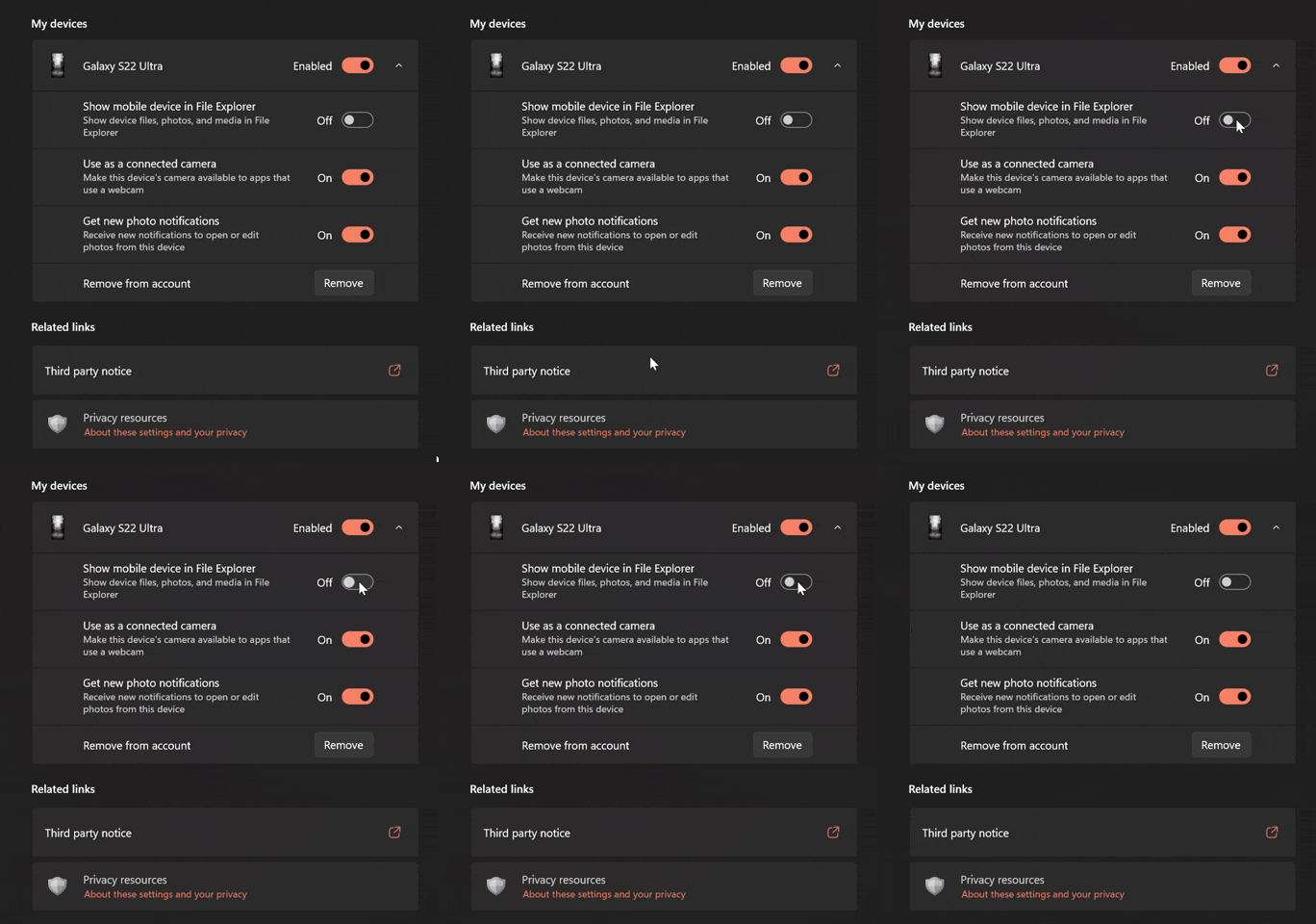
4 Turn On (default) or Off Show mobile device in File Explorer for what you want. (see screenshots below)

If you have more than one added mobile device in the "Manage mobile devices" window, expand open the mobile device (ex: "Brink S23+") you want to manage.


Android_access_in_File_Explorer-4.webp
New_Manage_Devices-2.webp

5 If you turned off Show mobile device in File Explorer, you can click/tap on View Local Files or Close for what you want. (see screenshot below)

off.webp

6 You can now close Settings if you like.


Option Two

Turn On or Off Android Phone Access in File Explorer in Registry Editor


Thank you to our member Rubic for this option.


This option will only work while Show mobile device in File Explorer is turned on in Option One.


1 Open Registry Editor (regedit.exe).

2 Navigate to the registry key below in the left pane of Registry Editor. (see screenshot below step 3).

HKEY_CURRENT_USER\Software\Microsoft\Windows\CurrentVersion\Explorer\Desktop\NameSpace

3 Click/tap on each GUID under NameSpace until you find the GUID (ex: "{CC1603C6-2409-415E-9109-A466D05B35C3}") for CrossDevice. Make note of this GUID. (see screenshot below)

This is a unique GUID that will only stay the same GUID while Show mobile device in File Explorer is turned on in Option One.

If you turn off Show mobile device in File Explorer in Option One, this GUID will get deleted.

When you turn on Show mobile device in File Explorer again in Option One, a new unique GUID will be created for this here.


Phone_in_File_Explorer_regedit-1.webp

4 Navigate to the registry key below in the left pane of Registry Editor. (see screenshot below step 5).

HKEY_CURRENT_USER\Software\Classes\CLSID\<GUID>

Substitute <GUID> in the key path above for the actual GUID (ex: "{CC1603C6-2409-415E-9109-A466D05B35C3}") from step 3.

For example: HKEY_CURRENT_USER\Software\Classes\CLSID\{CC1603C6-2409-415E-9109-A466D05B35C3}


5 In the right pane of the <GUID> key (ex: "{CC1603C6-2409-415E-9109-A466D05B35C3}"), double click/tap on the System.IsPinnedToNamespaceTree DWORD to modify it. (see screenshot below)

You will notice your phone's name (ex: "Brink 23+") as the (Default) data value to help confirm the GUID.


Phone_in_File_Explorer_regedit-2.webp

6 Type 0 (off) or 1 (on) for what you want, and click/tap on OK. (see screenshot below)

Phone_in_File_Explorer_regedit-3.webp

7 If File Explorer is currently open, close and reopen File Explorer to apply.

8 You can now close Registry Editor if you like.


That's it,
Shawn Brink


Last edited:
The losers didn't think about adding a way to remove old phones. Don't use it or you will get stuck with a record in file explorer which will show all the files from the phone. It will take gigabytes of space, you won't be able to view any file.

Ok, you can disable the old device like shown here, but remove button doesn't work, it will keep showing in the mobile devices forever. And also in the phone link app. Remove Android Phone from Phone Link app on Windows 11 PC

 
Last edited:

My Computer

System One

  • OS
    11
The losers didn't think about adding a way to remove old phones. Don't use it or you will get stuck with a record in file explorer which will show all the files from the phone. It will take gigabytes of space, you won't be able to view any file.

Ok, you can disable the old device like shown here, but remove button doesn't work, it will keep showing in the mobile devices forever. And also in the phone link app. Remove Android Phone from Phone Link app on Windows 11 PC

Hello, :alien:

It's slowly in the pipe works. Hopefully it below will all be working soon.


My Computers

System One System Two

  • OS
    Windows 11 Pro for Workstations
    Computer type
    PC/Desktop
    Manufacturer/Model
    Custom self build
    CPU
    Intel i7-8700K 5 GHz
    Motherboard
    ASUS ROG Maximus XI Formula Z390
    Memory
    64 GB (4x16GB) G.SKILL TridentZ RGB DDR4 3600 MHz (F4-3600C18D-32GTZR)
    Graphics Card(s)
    ASUS ROG-STRIX-GTX1080TI-O11G-GAMING (11GB GDDR5X)
    Sound Card
    Integrated Digital Audio (S/PDIF)
    Monitor(s) Displays
    2 x Samsung Odyssey G75 27"
    Screen Resolution
    2560x1440
    Hard Drives
    1TB Samsung 990 PRO M.2,
    4TB Samsung 990 PRO M.2,
    TerraMaster F8 SSD Plus NAS
    PSU
    Seasonic Prime Titanium 850W
    Case
    Thermaltake Core P3 wall mounted
    Cooling
    Corsair Hydro H115i
    Keyboard
    Amazon Basics Wired Full Keyboard MD005
    Mouse
    Logitech MX Master 4
    Internet Speed
    2 Gbps Download and 100 Mbps Upload
    Browser
    Chrome and Edge
    Antivirus
    Microsoft Defender
    Other Info
    Logitech Z625 speaker system,
    Logitech BRIO 4K Pro webcam,
    HP Color LaserJet Pro MFP M477fdn,
    CyberPower CP1500PFCLCD
    Galaxy S23 Plus phone
  • Operating System
    Windows 11 Pro

    Computer type
    Laptop
    Manufacturer/Model
    Surface Laptop 7 Copilot+ PC
    CPU
    Snapdragon X Elite (12 core) 3.42 GHz
    Memory
    16 GB LPDDR5x-7467 MHz
    Monitor(s) Displays
    15" HDR
    Screen Resolution
    2496 x 1664
    Hard Drives
    1 TB SSD
    Internet Speed
    Wi-Fi 7 and Bluetooth 5.4
    Browser
    Chrome and Edge
    Antivirus
    Microsoft Defender
Hello, what if the toggle is there but it can't be turned ON ?
anybody got this issue?

giphy.gif

Did you manage to solve this?

I have the same problem from a while.
Will be grateful for any ideas on how to fix this.
I was facing the same issue, despite it working flawlessly before, so I decided to undo some modifications I thought could be the cause for this, and found out that this feature requires the Windows Search service (WSearch) to be enabled in order to work.
 

My Computer

System One

  • OS
    Windows 11

    Computer type
    PC/Desktop
    CPU
    i5-10400F
    Motherboard
    Gigabyte H510M H
    Memory
    16GB DDR4
    Graphics Card(s)
    GTX 1660 Super
    Hard Drives
    WD Green SN350 1TB
    KINGSTON SA400S37120G 120GB
    SAMSUNG HD502HJ 500GB
    ST2000DM008-2UB102 2TB
    Browser
    Firefox Developer Edition
    Antivirus
    Windows Defender
I was facing the same issue, despite it working flawlessly before, so I decided to undo some modifications I thought could be the cause for this, and found out that this feature requires the Windows Search service (WSearch) to be enabled in order to work.
You're a legend!
 

My Computer

System One

  • OS
    Windows 11
    Computer type
    PC/Desktop
    Manufacturer/Model
    HP OMEN
Hello, what if the toggle is there but it can't be turned ON ?
anybody got this issue?

giphy.gif
Bonzo solved it here:
 

My Computer

System One

  • OS
    Windows 11
    Computer type
    PC/Desktop
    Manufacturer/Model
    HP OMEN
I have the same problem from a while.
Will be grateful for any ideas on how to fix this.
Bonzo solved it here:
 

My Computer

System One

  • OS
    Windows 11
    Computer type
    PC/Desktop
    Manufacturer/Model
    HP OMEN
I just do not bother with using the above overcomplicated methods. I just connect my Phone to pc using a usb cable.

The phone pops up as a drive in File Explorer, and I can copy data either way.
 

My Computer

System One

  • OS
    Windows 11 Pro + Win11 Canary VM.
    Computer type
    Laptop
    Manufacturer/Model
    ASUS Zenbook 14
    CPU
    I9 13th gen i9-13900H 2.60 GHZ
    Motherboard
    Yep, Laptop has one.
    Memory
    16 GB soldered
    Graphics Card(s)
    Integrated Intel Iris XE
    Sound Card
    Realtek built in
    Monitor(s) Displays
    laptop OLED screen
    Screen Resolution
    2880x1800 touchscreen
    Hard Drives
    1 TB NVME SSD (only weakness is only one slot)
    PSU
    Internal + 65W thunderbolt USB4 charger
    Case
    Yep, got one
    Cooling
    Stella Artois (UK pint cans - 568 ml) - extra cost.
    Keyboard
    Built in UK keybd
    Mouse
    Bluetooth , wireless dongled, wired
    Internet Speed
    900 mbs (ethernet), wifi 6 typical 350-450 mb/s both up and down
    Browser
    Edge
    Antivirus
    Defender
    Other Info
    TPM 2.0, 2xUSB4 thunderbolt, 1xUsb3 (usb a), 1xUsb-c, hdmi out, 3.5 mm audio out/in combo, ASUS backlit trackpad (inc. switchable number pad)

    Macrium Reflect Home V8
    Office 365 Family (6 users each 1TB onedrive space)
    Hyper-V (a vm runs almost as fast as my older laptop)
Working perfectly for me on with a Samsung S21 - Windows system -- 25H2 latest DEV build.

I'll probably have to eventually get an S25 or whatever the new one is as UI rel 8 rolls out and some of the older apps on UI 7 stop working :

BUT PLEASE SAMSUNG -- bring back the disable record calls button -- even if the phone is connected to an ISP in a jurisdiction where recording calls is subject to a load of legislation -- I assume many people do actually travel with their phones to places who have quite different local laws to where they normally live.

I;ve been doing a gig in the UK currently and AFAIK there's no inherent ban on recording calls -- but the whole option has gone. I could only get it back by swapping the simcard with a Belgian one and then selecting EE as the provider for roaming access !! -- The option came up without any issues and I disabled it.

Cheers
jimbo
 

My Computer

System One

  • OS
    Windows XP,11 Linux Fedora Rawhide pre-release 45
    Computer type
    PC/Desktop
    CPU
    2 X Intel i7
    Screen Resolution
    4KUHD X 2
Have my Android phone connected to laptop with USB cable. It is detecting the phone but is not detecting any of the files on it. Add and manage mobile devices and turn on phone link are both greyed out in settings. Using Windows 11 Home 24H2, all updates and Phone Link are installed.
 

My Computer

System One

  • OS
    Windows 11 24H2
    Computer type
    Laptop
    Manufacturer/Model
    HP
Have my Android phone connected to laptop with USB cable. It is detecting the phone but is not detecting any of the files on it. Add and manage mobile devices and turn on phone link are both greyed out in settings. Using Windows 11 Home 24H2, all updates and Phone Link are installed.

Hello William, and welcome to the forum. :alien:

Show mobile device in File Explorer requires the Windows Search (WSearch) service to be enabled, running, and set to Automatic.

In addition, double check to see if you may have disabled Phone Link using option 4 or 5 in the tutorial below.


My Computers

System One System Two

  • OS
    Windows 11 Pro for Workstations
    Computer type
    PC/Desktop
    Manufacturer/Model
    Custom self build
    CPU
    Intel i7-8700K 5 GHz
    Motherboard
    ASUS ROG Maximus XI Formula Z390
    Memory
    64 GB (4x16GB) G.SKILL TridentZ RGB DDR4 3600 MHz (F4-3600C18D-32GTZR)
    Graphics Card(s)
    ASUS ROG-STRIX-GTX1080TI-O11G-GAMING (11GB GDDR5X)
    Sound Card
    Integrated Digital Audio (S/PDIF)
    Monitor(s) Displays
    2 x Samsung Odyssey G75 27"
    Screen Resolution
    2560x1440
    Hard Drives
    1TB Samsung 990 PRO M.2,
    4TB Samsung 990 PRO M.2,
    TerraMaster F8 SSD Plus NAS
    PSU
    Seasonic Prime Titanium 850W
    Case
    Thermaltake Core P3 wall mounted
    Cooling
    Corsair Hydro H115i
    Keyboard
    Amazon Basics Wired Full Keyboard MD005
    Mouse
    Logitech MX Master 4
    Internet Speed
    2 Gbps Download and 100 Mbps Upload
    Browser
    Chrome and Edge
    Antivirus
    Microsoft Defender
    Other Info
    Logitech Z625 speaker system,
    Logitech BRIO 4K Pro webcam,
    HP Color LaserJet Pro MFP M477fdn,
    CyberPower CP1500PFCLCD
    Galaxy S23 Plus phone
  • Operating System
    Windows 11 Pro
    Computer type
    Laptop
    Manufacturer/Model
    Surface Laptop 7 Copilot+ PC
    CPU
    Snapdragon X Elite (12 core) 3.42 GHz
    Memory
    16 GB LPDDR5x-7467 MHz
    Monitor(s) Displays
    15" HDR
    Screen Resolution
    2496 x 1664
    Hard Drives
    1 TB SSD
    Internet Speed
    Wi-Fi 7 and Bluetooth 5.4
    Browser
    Chrome and Edge
    Antivirus
    Microsoft Defender
Have my Android phone connected to laptop with USB cable. It is detecting the phone but is not detecting any of the files on it. Add and manage mobile devices and turn on phone link are both greyed out in settings. Using Windows 11 Home 24H2, all updates and Phone Link are installed.
Is Link to Windows installed on Android?
There is no need for a USB connection between the devices.
 

My Computers

System One System Two

  • OS
    All Branches but Release
    Computer type
    Laptop
    Manufacturer/Model
    Acer Nitro ANV15-51
    CPU
    AMD Ryzen 7 7735HS 3200-4500 Mhz 8 cores x 2
    Motherboard
    Sportage_RBH
    Memory
    32 GB DDR5
    Graphics Card(s)
    Radeon Graphic / NVIDIA GeForce RTX 4060 8 GB GDDR6
    Sound Card
    AMD/Realtek(R) Audio
    Monitor(s) Displays
    Integrated Monitor (15.3"vis)
    Screen Resolution
    FHD 1920X1080 16:9 144Hz
    Hard Drives
    KINGSTON OM8SEP4512Q-AA 1TB
    Western Digital 256GB
    PSU
    19V DC 6.32 A 120 W
    Cooling
    Dual Fans
    Mouse
    MS Bluetooth
    Internet Speed
    Fiber 1GB Cox -us & 1GB Orange-fr
    Browser
    Edge Canary- Firefox Nightly-Chrome Dev-Chrome Dev
    Antivirus
    Windows Defender
  • Operating System
    Windows 11 Beta
    Computer type
    Laptop
    Manufacturer/Model
    Asus X751BP
    CPU
    AMD A9-9420
    Memory
    8 GB of DDR4
    Graphics card(s)
    AMD Radeon R5
    Screen Resolution
    1600x900
    Hard Drives
    Seagate 1 TB
Remove Android Phone Access from Navigation Pane in File Explorer for Current User
INI:
Windows Registry Editor Version 5.00

[HKEY_CURRENT_USER\Software\Classes\CLSID\{5CC6BF81-9BAA-42D4-AD83-18DCA4724654}]
"System.IsPinnedToNameSpaceTree"=dword:00000000

Add Android Phone Access from Navigation Pane in File Explorer for Current User
INI:
Windows Registry Editor Version 5.00

[HKEY_CURRENT_USER\Software\Classes\CLSID\{5CC6BF81-9BAA-42D4-AD83-18DCA4724654}]
"System.IsPinnedToNameSpaceTree"=dword:00000001
 

My Computer

System One

  • OS
    Windows 11 Pro 64-bit (22621.2283)
    Computer type
    Laptop
    Manufacturer/Model
    Acer Aspire 7
    CPU
    Intel(R) Core(TM) i7-8750H CPU @ 2.20GHz
Remove Android Phone Access from Navigation Pane in File Explorer for Current User
INI:
Windows Registry Editor Version 5.00

[HKEY_CURRENT_USER\Software\Classes\CLSID\{5CC6BF81-9BAA-42D4-AD83-18DCA4724654}]
"System.IsPinnedToNameSpaceTree"=dword:00000000

Add Android Phone Access from Navigation Pane in File Explorer for Current User
INI:
Windows Registry Editor Version 5.00

[HKEY_CURRENT_USER\Software\Classes\CLSID\{5CC6BF81-9BAA-42D4-AD83-18DCA4724654}]
"System.IsPinnedToNameSpaceTree"=dword:00000001

Hello, :alien:

I tested this, but it had no affect on the setting in this tutorial, even after a restart.
 

My Computers

System One System Two

  • OS
    Windows 11 Pro for Workstations
    Computer type
    PC/Desktop
    Manufacturer/Model
    Custom self build
    CPU
    Intel i7-8700K 5 GHz
    Motherboard
    ASUS ROG Maximus XI Formula Z390
    Memory
    64 GB (4x16GB) G.SKILL TridentZ RGB DDR4 3600 MHz (F4-3600C18D-32GTZR)
    Graphics Card(s)
    ASUS ROG-STRIX-GTX1080TI-O11G-GAMING (11GB GDDR5X)
    Sound Card
    Integrated Digital Audio (S/PDIF)
    Monitor(s) Displays
    2 x Samsung Odyssey G75 27"
    Screen Resolution
    2560x1440
    Hard Drives
    1TB Samsung 990 PRO M.2,
    4TB Samsung 990 PRO M.2,
    TerraMaster F8 SSD Plus NAS
    PSU
    Seasonic Prime Titanium 850W
    Case
    Thermaltake Core P3 wall mounted
    Cooling
    Corsair Hydro H115i
    Keyboard
    Amazon Basics Wired Full Keyboard MD005
    Mouse
    Logitech MX Master 4
    Internet Speed
    2 Gbps Download and 100 Mbps Upload
    Browser
    Chrome and Edge
    Antivirus
    Microsoft Defender
    Other Info
    Logitech Z625 speaker system,
    Logitech BRIO 4K Pro webcam,
    HP Color LaserJet Pro MFP M477fdn,
    CyberPower CP1500PFCLCD
    Galaxy S23 Plus phone
  • Operating System
    Windows 11 Pro
    Computer type
    Laptop
    Manufacturer/Model
    Surface Laptop 7 Copilot+ PC
    CPU
    Snapdragon X Elite (12 core) 3.42 GHz
    Memory
    16 GB LPDDR5x-7467 MHz
    Monitor(s) Displays
    15" HDR
    Screen Resolution
    2496 x 1664
    Hard Drives
    1 TB SSD
    Internet Speed
    Wi-Fi 7 and Bluetooth 5.4
    Browser
    Chrome and Edge
    Antivirus
    Microsoft Defender
  • Like
Reactions: OAT
Hello, :alien:

I tested this, but it had no affect on the setting in this tutorial, even after a restart.
This setting only toggles the display/hide of the item in the navigation panel. Said another way: first you follow the tutorial to set it to show in the navigation panel, once it appears, you can hide or show it without having to configure anything else. The effect is immediate, you can restart explorer.exe if necessary. Works perfectly on a clean install of windows 25H2.
 

My Computer

System One

  • OS
    Windows 11 Pro 64-bit (22621.2283)
    Computer type
    Laptop
    Manufacturer/Model
    Acer Aspire 7
    CPU
    Intel(R) Core(TM) i7-8750H CPU @ 2.20GHz
This setting only toggles the display/hide of the item in the navigation panel. Said another way: first you follow the tutorial to set it to show in the navigation panel, once it appears, you can hide or show it without having to configure anything else. The effect is immediate, you can restart explorer.exe if necessary. Works perfectly on a clean install of windows 25H2.

Yep, but no affect on the latest 28000 Canary build. :(
 

My Computers

System One System Two

  • OS
    Windows 11 Pro for Workstations
    Computer type
    PC/Desktop
    Manufacturer/Model
    Custom self build
    CPU
    Intel i7-8700K 5 GHz
    Motherboard
    ASUS ROG Maximus XI Formula Z390
    Memory
    64 GB (4x16GB) G.SKILL TridentZ RGB DDR4 3600 MHz (F4-3600C18D-32GTZR)
    Graphics Card(s)
    ASUS ROG-STRIX-GTX1080TI-O11G-GAMING (11GB GDDR5X)
    Sound Card
    Integrated Digital Audio (S/PDIF)
    Monitor(s) Displays
    2 x Samsung Odyssey G75 27"
    Screen Resolution
    2560x1440
    Hard Drives
    1TB Samsung 990 PRO M.2,
    4TB Samsung 990 PRO M.2,
    TerraMaster F8 SSD Plus NAS
    PSU
    Seasonic Prime Titanium 850W
    Case
    Thermaltake Core P3 wall mounted
    Cooling
    Corsair Hydro H115i
    Keyboard
    Amazon Basics Wired Full Keyboard MD005
    Mouse
    Logitech MX Master 4
    Internet Speed
    2 Gbps Download and 100 Mbps Upload
    Browser
    Chrome and Edge
    Antivirus
    Microsoft Defender
    Other Info
    Logitech Z625 speaker system,
    Logitech BRIO 4K Pro webcam,
    HP Color LaserJet Pro MFP M477fdn,
    CyberPower CP1500PFCLCD
    Galaxy S23 Plus phone
  • Operating System
    Windows 11 Pro
    Computer type
    Laptop
    Manufacturer/Model
    Surface Laptop 7 Copilot+ PC
    CPU
    Snapdragon X Elite (12 core) 3.42 GHz
    Memory
    16 GB LPDDR5x-7467 MHz
    Monitor(s) Displays
    15" HDR
    Screen Resolution
    2496 x 1664
    Hard Drives
    1 TB SSD
    Internet Speed
    Wi-Fi 7 and Bluetooth 5.4
    Browser
    Chrome and Edge
    Antivirus
    Microsoft Defender
Yep, but no affect on the latest 28000 Canary build. :(
go to
HKEY_CURRENT_USER\Software\Microsoft\Windows\CurrentVersion\Explorer\Desktop\NameSpace\
and check all GUID keys one by one - find the one that has data
CrossDevice!!S-1-5-....
maybe for this object Windows generates a random GUID key - so it should be different
 

My Computer

System One

  • OS
    Windows 11 Pro 64-bit (22621.2283)
    Computer type
    Laptop
    Manufacturer/Model
    Acer Aspire 7
    CPU
    Intel(R) Core(TM) i7-8750H CPU @ 2.20GHz
go to
HKEY_CURRENT_USER\Software\Microsoft\Windows\CurrentVersion\Explorer\Desktop\NameSpace\
and check all GUID keys one by one - find the one that has data
CrossDevice!!S-1-5-....
maybe for this object Windows generates a random GUID key - so it should be different

Indeed it is a unique GUID per system.

After some testing, it deletes the GUID when turned off in Settings, and generates another unique GUID each time turned on again.

I'll update the tutorial soon for an option for this to help.
 

My Computers

System One System Two

  • OS
    Windows 11 Pro for Workstations
    Computer type
    PC/Desktop
    Manufacturer/Model
    Custom self build
    CPU
    Intel i7-8700K 5 GHz
    Motherboard
    ASUS ROG Maximus XI Formula Z390
    Memory
    64 GB (4x16GB) G.SKILL TridentZ RGB DDR4 3600 MHz (F4-3600C18D-32GTZR)
    Graphics Card(s)
    ASUS ROG-STRIX-GTX1080TI-O11G-GAMING (11GB GDDR5X)
    Sound Card
    Integrated Digital Audio (S/PDIF)
    Monitor(s) Displays
    2 x Samsung Odyssey G75 27"
    Screen Resolution
    2560x1440
    Hard Drives
    1TB Samsung 990 PRO M.2,
    4TB Samsung 990 PRO M.2,
    TerraMaster F8 SSD Plus NAS
    PSU
    Seasonic Prime Titanium 850W
    Case
    Thermaltake Core P3 wall mounted
    Cooling
    Corsair Hydro H115i
    Keyboard
    Amazon Basics Wired Full Keyboard MD005
    Mouse
    Logitech MX Master 4
    Internet Speed
    2 Gbps Download and 100 Mbps Upload
    Browser
    Chrome and Edge
    Antivirus
    Microsoft Defender
    Other Info
    Logitech Z625 speaker system,
    Logitech BRIO 4K Pro webcam,
    HP Color LaserJet Pro MFP M477fdn,
    CyberPower CP1500PFCLCD
    Galaxy S23 Plus phone
  • Operating System
    Windows 11 Pro
    Computer type
    Laptop
    Manufacturer/Model
    Surface Laptop 7 Copilot+ PC
    CPU
    Snapdragon X Elite (12 core) 3.42 GHz
    Memory
    16 GB LPDDR5x-7467 MHz
    Monitor(s) Displays
    15" HDR
    Screen Resolution
    2496 x 1664
    Hard Drives
    1 TB SSD
    Internet Speed
    Wi-Fi 7 and Bluetooth 5.4
    Browser
    Chrome and Edge
    Antivirus
    Microsoft Defender
@Rubic,

Option two now added to the tutorial for this to help.


My Computers

System One System Two

  • OS
    Windows 11 Pro for Workstations
    Computer type
    PC/Desktop
    Manufacturer/Model
    Custom self build
    CPU
    Intel i7-8700K 5 GHz
    Motherboard
    ASUS ROG Maximus XI Formula Z390
    Memory
    64 GB (4x16GB) G.SKILL TridentZ RGB DDR4 3600 MHz (F4-3600C18D-32GTZR)
    Graphics Card(s)
    ASUS ROG-STRIX-GTX1080TI-O11G-GAMING (11GB GDDR5X)
    Sound Card
    Integrated Digital Audio (S/PDIF)
    Monitor(s) Displays
    2 x Samsung Odyssey G75 27"
    Screen Resolution
    2560x1440
    Hard Drives
    1TB Samsung 990 PRO M.2,
    4TB Samsung 990 PRO M.2,
    TerraMaster F8 SSD Plus NAS
    PSU
    Seasonic Prime Titanium 850W
    Case
    Thermaltake Core P3 wall mounted
    Cooling
    Corsair Hydro H115i
    Keyboard
    Amazon Basics Wired Full Keyboard MD005
    Mouse
    Logitech MX Master 4
    Internet Speed
    2 Gbps Download and 100 Mbps Upload
    Browser
    Chrome and Edge
    Antivirus
    Microsoft Defender
    Other Info
    Logitech Z625 speaker system,
    Logitech BRIO 4K Pro webcam,
    HP Color LaserJet Pro MFP M477fdn,
    CyberPower CP1500PFCLCD
    Galaxy S23 Plus phone
  • Operating System
    Windows 11 Pro
    Computer type
    Laptop
    Manufacturer/Model
    Surface Laptop 7 Copilot+ PC
    CPU
    Snapdragon X Elite (12 core) 3.42 GHz
    Memory
    16 GB LPDDR5x-7467 MHz
    Monitor(s) Displays
    15" HDR
    Screen Resolution
    2496 x 1664
    Hard Drives
    1 TB SSD
    Internet Speed
    Wi-Fi 7 and Bluetooth 5.4
    Browser
    Chrome and Edge
    Antivirus
    Microsoft Defender
Back
Top Bottom