This tutorial will show you how to enable or disable showing the enter and exit Xbox mode confirmation prompts for your account on Windows 11.
Starting with Windows 11 build 26100.8328 (24H2), build 26200.8328 (25H2), and build 28000.2179 (26H1), Xbox mode is now available on Windows 11 PCs, including laptops, desktops, and tablets.
Xbox mode is a console inspired, dedicated gaming experience that gives players a controller-optimized way to navigate and play on Windows. When using Xbox mode, Windows will start your gaming home app to use as a launcher for your games and apps and games will be run full screen.
Once you’ve entered Xbox mode you’ll see the Xbox home screen and can access your games, including Xbox, Game Pass, Xbox Play Anywhere, and your installed games from other popular storefronts. It’s easy to switch between your open apps and games with just a long press on the Xbox button on your controller or on your keyboard.
When you enter and exit Xbox full screen experience, you will be prompted to "Continue" to confirm Switching to Xbox mode or Switching to Windows desktop by default.
You can disable the Switching to Xbox mode (enter) and/or Switching to Windows desktop (exit) prompts to "Don't remind me again" and not see them anymore.
References:
Windows Gaming: Full screen experience | Microsoft Support
Windows Gaming: Full screen experience
 support.microsoft.com
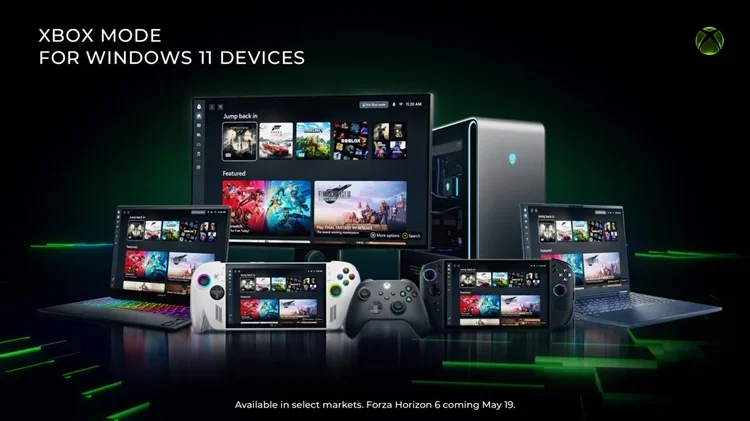
Xbox Mode Begins Rolling Out to Players on Windows 11 PCs
Xbox Wire: Beginning today, we’re excited to share that Xbox mode will begin rolling out in select markets to Windows 11 PCs, including laptops, desktops, and tablets, bringing a console-inspired Xbox experience to more players than ever. Whether you’re playing on a high-performance desktop, a...
 www.elevenforum.com
Contents
- Option One: Enable or Disable Xbox Mode Prompts from Prompts
- Option Two: Enable or Disable Xbox Mode Prompts using REG file
1 When you enter or exit the Xbox mode, check the Don't remind me again box in the Switching to Xbox mode (enter) and/or Switching to Windows desktop (exit) prompts, and click/tap on Continue. (see screenshots below)
1 Do step 2 (enable) or step 3 (disable) below for what you want.
2 Enable "Switching to Xbox mode" (enter) and/or Switching to Windows desktop" (exit) prompt(s)
This is the default setting.
A) Click/tap on the Download button below to download the file below, and go to step 4 below.
Enable_Enter_Xbox_full_screen_experience_prompt.reg
Download
(Contents of REG file for reference)
Code:
Windows Registry Editor Version 5.00

[HKEY_CURRENT_USER\Software\Microsoft\Windows\CurrentVersion\GamingConfiguration\SystemDialogResults]
"EnterGamingPostureConfirmation_NoReboot"=dword:00000000
AND/OR
Enable_Exit_Xbox_full_screen_experience_prompt.reg
Download
(Contents of REG file for reference)
Code:
Windows Registry Editor Version 5.00

[HKEY_CURRENT_USER\Software\Microsoft\Windows\CurrentVersion\GamingConfiguration\SystemDialogResults]
"ExitGamingPostureConfirmation_Minimal"=dword:00000000
3 Disable "Switching to Xbox mode" (enter) and/or Switching to Windows desktop" (exit) prompt(s)
A) Click/tap on the Download button below to download the file below, and go to step 4 below.
Disable_Enter_Xbox_full_screen_experience_prompt.reg
Download
(Contents of REG file for reference)
Code:
Windows Registry Editor Version 5.00

[HKEY_CURRENT_USER\Software\Microsoft\Windows\CurrentVersion\GamingConfiguration\SystemDialogResults]
"EnterGamingPostureConfirmation_NoReboot"=dword:00000001
AND/OR
Disable_Exit_Xbox_full_screen_experience_prompt.reg
Download
(Contents of REG file for reference)
Code:
Windows Registry Editor Version 5.00

[HKEY_CURRENT_USER\Software\Microsoft\Windows\CurrentVersion\GamingConfiguration\SystemDialogResults]
"ExitGamingPostureConfirmation_Minimal"=dword:00000001
4 Save the .reg file to your desktop.
5 If you have Smart App Control turned on, you will need to unblock the downloaded REG file.
6 Double click/tap on the downloaded .reg file to merge it.
7 When prompted, click/tap on Run, Yes (UAC), Yes, and OK to approve the merge.
8 You can now delete the downloaded .reg file if you like.
That's it,
Shawn Brink
Attachments
Last edited: