This tutorial will show you how to enter and exit Xbox mode for full screen gaming for your account on Windows 11.
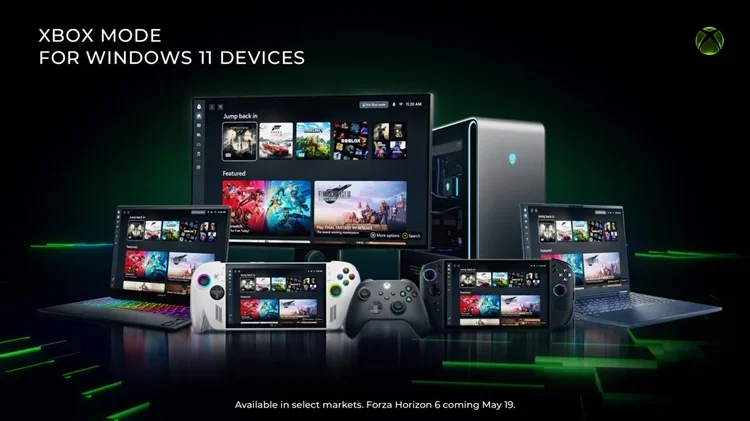
Starting with Windows 11 build 26100.8328 (24H2), build 26200.8328 (25H2), and build 28000.2179 (26H1), Xbox mode is now available on Windows 11 PCs, including laptops, desktops, and tablets.
Xbox mode is a console inspired, dedicated gaming experience that gives players a controller-optimized way to navigate and play on Windows. When using Xbox mode, Windows will start your gaming home app to use as a launcher for your games and apps and games will be run full screen.
Once you’ve entered Xbox mode, you’ll see the Xbox home screen and can access your games, including Xbox, Game Pass, Xbox Play Anywhere, and your installed games from other popular storefronts. It’s easy to switch between your open apps and games with just a long press on the Xbox button on your controller or on your keyboard.
Starting with the Xbox app version 2604.1000.30.0 on Windows 11 build 26220.8148 (Beta 25H2), build 26300.8155 (Dev 25H2), and build 28020.1873 (Experimental 26H1), Xbox Full Screen Experience has been renamed to Xbox mode. Microsoft has also added an improved first run experience when entering Xbox mode.
References:
Windows Gaming: Full screen experience | Microsoft Support
Windows Gaming: Full screen experience
 support.microsoft.com
Xbox Mode Begins Rolling Out to Players on Windows 11 PCs
Xbox Wire: Beginning today, we’re excited to share that Xbox mode will begin rolling out in select markets to Windows 11 PCs, including laptops, desktops, and tablets, bringing a console-inspired Xbox experience to more players than ever. Whether you’re playing on a high-performance desktop, a...
 www.elevenforum.com
Contents
- Option One: Enter and Exit Xbox Mode using Keyboard Shortcut
- Option Two: Enter and Exit Xbox Mode from Task View
- Option Three: Enter and Exit Xbox Mode from Game Bar
- Option Four: Enter and Exit Xbox Mode from Xbox app
1 Perform an action below:
- Press the
 + F11 keys to toggle Xbox Mode.
 - While in FSE, press the key to exit Xbox Mode.
- While in FSE, press and hold the Xbox button on your controller to exit Xbox Mode.
1 Open Task View (
+Tab).2 Perform an action below: (see screenshots below)
- Click/tap on Xbox mode to enter.
- Click/tap on Windows desktop to exit.
3 Click/tap on Enter Xbox mode or Continue if prompted to confirm Switching to Xbox mode or Switching to Windows desktop. (see screenshots below)
1 Open the Game Bar (
+G).2 Click/tap on the Settings (gear) button on the game bar. (see screenshots below step 3)
3 In Settings, perform an action below: (see screenshots below)
- Click/tap on Enter Xbox mode to enter.
- Click/tap on Exit Xbox mode to exit.
4 Click/tap on Enter Xbox mode or Continue if prompted to confirm Switching to Xbox mode or Switching to Windows desktop. (see screenshots below)
1 Open the Xbox app.
2 Click/tap on the Home button in the left pane. (see screenshots below step 3)
3 Click/tap on the Xbox mode or Exit Xbox mode button to the right of the search bar. (see screenshots below)
4 Click/tap on Enter Xbox mode or Continue if prompted to confirm Switching to Xbox mode or Switching to Windows desktop. (see screenshots below)
That's it,
Shawn Brink
Related Tutorials
- Enable or Disable Xbox Mode on Windows 11
- Enable or Disable Xbox Mode Prompts on Windows 11
- Add or Remove Xbox Mode in Task View on Windows 11
- Enable or Disable Task View Hints for Xbox Mode on Windows 11
- Enter and Exit Full Screen Mode for Apps in Windows 11
- Enable or Disable Show Battery Percentage on Xbox Mode in Windows 11
- Enable or Disable Fullscreen Optimizations for Games in Windows 11
- Turn On or Off Game Mode in Windows 11
Last edited: