Solved Erratic network connection


Polonut

Active member
Member
Local time
11:27 AM
Posts
18
OS
Windows 11 Pro
Hi everyone
My equipment has not been altered or changed for a very long time.
At start up, or a return from sleep, connection to the net has been instant - until about three months ago.
When PC returns from sleep - most times it will not re connect. When looking at the 'network available' and clicking on connect, it says unable to connect to this network.
When I restart the PC, it does connect without any issues.
I have been a TalkTalk customer for 10 years, and never had any issues (guess I am one of the few lucky ones!) I am on fibre 150 with eero router. I use a TP link AC1300 usb wireless adapter. I have other adapters, which do not alter this issue. I have checked my DNS settings which are set at auto.
When the connection is made - performance is exemplary.
Advice/guidance would be most appreciated. THANKS
C
 

My Computer

System One

  • OS
    Windows 11 Pro
    Computer type
    PC/Desktop
    Manufacturer/Model
    Self built
    CPU
    Intel i5-3346
    Motherboard
    gigabyte H61-s2pv rev2.2
    Memory
    8Gb
    Graphics Card(s)
    internal
    Sound Card
    internal
    Monitor(s) Displays
    philips 226e9q
    Screen Resolution
    1920 x 1080
    Hard Drives
    Samsung evo 860 - WD 500Gb - seagate 2 TB
    PSU
    500watt
    Case
    ANTEC
    Cooling
    standard
    Keyboard
    standard querty ps2
    Mouse
    GX Trust REDEX 11
    Internet Speed
    150 full fibre
    Browser
    Google
    Antivirus
    Webroot secureanywhere
Hi,

Before looking into anything else, I have to let you know that running Win 11 Pro with only 8 Gigs of RAM seems somewhat challenging.
When did you build this rig? IMHO, I would recommend a minimum RAM of 16 Gig for the OS used.

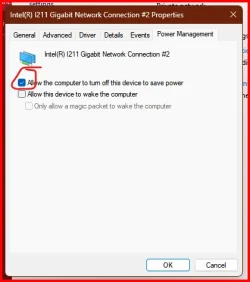
Also, be sure to go into the network adapter settings and make certain that you have Un-checked the box shown in the attached screen snip. You can get there with-->Control Panel>Network and Sharing>select your Ethernet adapter shown>Properties>Configure>Power Management.

Hope this helps.
 

Attachments

  • Network Adapter Settings.webp
    Network Adapter Settings.webp
    15.9 KB · Views: 3

My Computer

System One

  • OS
    Windows 11 Pro 26200.8457
    Computer type
    PC/Desktop
    Manufacturer/Model
    Home Built
    CPU
    Ryzen 5 5600G
    Motherboard
    ASUS X470 Prime Pro
    Memory
    24GB
    Monitor(s) Displays
    Alienware 2518HF
    Screen Resolution
    1920 x 1080
    Hard Drives
    Boot: NVME WDC WDS500G; ASUS M.2 Riser card with 3 additional NVME drives
    Various Internal SDD (Samsung and WDC) and HDD drives mostly Western Digital
    PSU
    Seasonic Focus Gold 650W
    Case
    Corsair 200R
    Cooling
    Noctua PWM fans x 3
    Keyboard
    Corsair K60 SE Pro
    Mouse
    Corsair Dark Core RGB Pro SE
    Internet Speed
    500/500
    Browser
    MS Edge
    Antivirus
    Malwarebytes Premium
I run Win 11 with 4GB, so I don't think this is the problem.

Whenever I have network issues, I see if my phone has good internet. If it does, I know it's a Windows issue, not a router or ISP one.
 

My Computers

System One System Two

  • OS
    Windows 11 Pro 25H2 26200.8524
    Computer type
    Laptop
    Manufacturer/Model
    Acemagic LX15PRO
    CPU
    AMD Ryzen 7 5825U with Radeon Graphics
    Memory
    16GB
    Screen Resolution
    1920 x 1080
    Hard Drives
    SSD 2TB
    Internet Speed
    30 Mbps
    Browser
    Brave
    Antivirus
    Webroot Secure Anywhere
    Other Info
    System 3

    Acer Swift SF114-34 laptop
    OS Windows 11 Pro 26200.8524
    CPU Pentium Silver N6000
    RAM 4GB
    SSD Samsung 970 EVO Plus SSD 2TB (an upgrade)
  • Operating System
    Windows 11 Pro 23H2 22631.2506
    Computer type
    Laptop
    Manufacturer/Model
    HP Mini 210-1090NR PC (bought in late 2009!)
    CPU
    Atom N450 1.66GHz
    Memory
    2GB
    Browser
    Brave
    Antivirus
    Webroot
Personally, I find it very complicated and quite annoying to troubleshoot internet connections. So I am running this whenever I have connection problems. In the contrary to what they say, I am ticking all the boxes and run the program. I had no bad experience with this approach so far and I have used the program often. But please read every line before running the program and untick if necessary: perhaps you have specific firewall rules or added some lines to the host file, etc. After running, if some lines throw out errors you may ignore them. This being said, I would however respect their further advice and create a system restore point first.
 

My Computer

System One

  • OS
    Windows 11
    Computer type
    PC/Desktop
    Manufacturer/Model
    Gigabyte H610M H V2 DDR4 (Rev. 1.0)
    CPU
    Intel Core i3 12 100 12th generation
    Motherboard
    American Megatrend F34
    Memory
    Kingston DDR4-3200 16 GBytes
    Graphics Card(s)
    Intel UHD 730
It may be this Windows 11 setting that is trying to conserve power when your laptop is idle.


My Computer

System One

  • OS
    Windows 11 & Zorin Pro
    Computer type
    Laptop
    Manufacturer/Model
    Asus Rog Strix G16
    CPU
    Intel® Core™ Ultra 9 Processor 275HX 2.7 GHz
    Motherboard
    AsusteK Computer
    Memory
    32 gb
    Graphics Card(s)
    NVIDIA® GeForce RTX™ 5060 Laptop GPU
    Sound Card
    Realtek High Definition Audio
    Monitor(s) Displays
    Laptop 16 inch
    Screen Resolution
    2560 X 1600
    Hard Drives
    Boot: Samsung 9100 NVME 2 TB Microsoft Storage Controller: Standard NVM Express Driver: Microsoft 6/21/2006. No SATA/AHCI on my motherboard or in bios
    Mouse
    Pad
    Browser
    Google Chrome
    Antivirus
    Microsoft
    Other Info
    Printer: HP Color LaserJet MFP M477dw
Rizone Complete Internet Repair (v11.1.3.6518) was last updated on 10 December 2024.
 

My Computers

System One System Two

  • OS
    Windows 11 Pro 25H2 26200.8524
    Computer type
    Laptop
    Manufacturer/Model
    Acemagic LX15PRO
    CPU
    AMD Ryzen 7 5825U with Radeon Graphics
    Memory
    16GB
    Screen Resolution
    1920 x 1080
    Hard Drives
    SSD 2TB
    Internet Speed
    30 Mbps
    Browser
    Brave
    Antivirus
    Webroot Secure Anywhere
    Other Info
    System 3

    Acer Swift SF114-34 laptop
    OS Windows 11 Pro 26200.8524
    CPU Pentium Silver N6000
    RAM 4GB
    SSD Samsung 970 EVO Plus SSD 2TB (an upgrade)
  • Operating System
    Windows 11 Pro 23H2 22631.2506
    Computer type
    Laptop
    Manufacturer/Model
    HP Mini 210-1090NR PC (bought in late 2009!)
    CPU
    Atom N450 1.66GHz
    Memory
    2GB
    Browser
    Brave
    Antivirus
    Webroot
best software / firmware is the files from the company that sold and or made your laptop and parts. if it is dell get the files from dell, etc.. motherboard files, network files, etc.. they should make it run it's best.. in your case TP link. But you may also consider making sure your other computer hardware firmware is not corrupt. Also, not sure if you are wireless, if so try wired connection and see if it work better. Or the other way around. Just as a test.
 

My Computer

System One

  • OS
    Win11
    Computer type
    PC/Desktop
    Manufacturer/Model
    Asus Home built
    CPU
    i9-13900
    Motherboard
    ASUS Strix Z790-H
    Memory
    64 GB
    Graphics Card(s)
    Nvidia RTX 5070 TI OC
    Monitor(s) Displays
    Sony 55"
    Hard Drives
    SSD
    PSU
    850 watt EVGA
    Case
    Cooler Master Haf 932
    Cooling
    CoolerMaster
    Keyboard
    RedDragon
    Mouse
    CoolerMaster
    Internet Speed
    300/300
    Antivirus
    Defender
    Other Info
    VR, Virtual Reality
Hi Guys
many thanks for your responses. Firstly some further comments etc.
1 - Re Ram - I have three PC's with 8Gb ram + 2 laptops, all on windows 11 with no problems as far as I can judge, all fast with no other issues. Its just one of the three PC's with this irritation non connect problem
2 - Yes I am connected by wireless USB, and because of the eero router / distance from the offending PC, I cannot use the ethernet option.
3 - I have made sure the relevant properties icon tick is not 'on'
4 - I did try the fix all app (thanks for the recommendation) this had no effect AND it did alter some other settings as I found out.
5 - in regard to the enable/disable selective suspend - I am in a quandary on this one - there is an element of ambiguity here (and I am thick possibly)
It shows disabled - is that the case? or do I have to push/click to reach disabled??
6 - it is this one PC that has issues, and the use of USB cards is current - I have switched my USB card to another (spare that I had.)
7 - Yes, good idea retired at 44 - I will go to the TP website and get the 'Real' driver and see what happens.
Thanks everyone, will keep you posted. All further comments welcomed.
C
 

My Computer

System One

  • OS
    Windows 11 Pro
    Computer type
    PC/Desktop
    Manufacturer/Model
    Self built
    CPU
    Intel i5-3346
    Motherboard
    gigabyte H61-s2pv rev2.2
    Memory
    8Gb
    Graphics Card(s)
    internal
    Sound Card
    internal
    Monitor(s) Displays
    philips 226e9q
    Screen Resolution
    1920 x 1080
    Hard Drives
    Samsung evo 860 - WD 500Gb - seagate 2 TB
    PSU
    500watt
    Case
    ANTEC
    Cooling
    standard
    Keyboard
    standard querty ps2
    Mouse
    GX Trust REDEX 11
    Internet Speed
    150 full fibre
    Browser
    Google
    Antivirus
    Webroot secureanywhere

Some progress made - all seems to be well at the moment.
Not sure what made the difference however
Was it the change of my pci/usb card?
OR Retired at 44's suggestion to check the drivers? I remembered that some time ago, I did update the TP-link drivers to latest available.
I looked out the original dvd, and installed the original drivers (very dated ) and all has worked ok since. !!!!!
Fluke (?) possibly, but I will leave for several days and report back. Happy days
C
 

My Computer

System One

  • OS
    Windows 11 Pro
    Computer type
    PC/Desktop
    Manufacturer/Model
    Self built
    CPU
    Intel i5-3346
    Motherboard
    gigabyte H61-s2pv rev2.2
    Memory
    8Gb
    Graphics Card(s)
    internal
    Sound Card
    internal
    Monitor(s) Displays
    philips 226e9q
    Screen Resolution
    1920 x 1080
    Hard Drives
    Samsung evo 860 - WD 500Gb - seagate 2 TB
    PSU
    500watt
    Case
    ANTEC
    Cooling
    standard
    Keyboard
    standard querty ps2
    Mouse
    GX Trust REDEX 11
    Internet Speed
    150 full fibre
    Browser
    Google
    Antivirus
    Webroot secureanywhere

My Computer

System One

  • OS
    W11 Pro x64 ongoing Canary 29500 latest builds
    Computer type
    Laptop
    Manufacturer/Model
    Dell 7760 Mobile Precision 17"
    CPU
    Intel i5
    Motherboard
    Unknown
    Memory
    8Gb
    Graphics Card(s)
    Intel HD Graphics
    Sound Card
    Realtek
    Monitor(s) Displays
    Internal
    Hard Drives
    2 x 256Gb SSD
    PSU
    Dell 240 watt
    Mouse
    Dell Premier Bluetooth
    Internet Speed
    50Mbps
    Browser
    Edge
    Antivirus
    Default Microsoft Security
Pleased to report, that after several days, all is working as it should
Different pci/usb card OR earlier TP link drivers (?) who knows !!!
Thanks everyone for your input
C
 

My Computer

System One

  • OS
    Windows 11 Pro
    Computer type
    PC/Desktop
    Manufacturer/Model
    Self built
    CPU
    Intel i5-3346
    Motherboard
    gigabyte H61-s2pv rev2.2
    Memory
    8Gb
    Graphics Card(s)
    internal
    Sound Card
    internal
    Monitor(s) Displays
    philips 226e9q
    Screen Resolution
    1920 x 1080
    Hard Drives
    Samsung evo 860 - WD 500Gb - seagate 2 TB
    PSU
    500watt
    Case
    ANTEC
    Cooling
    standard
    Keyboard
    standard querty ps2
    Mouse
    GX Trust REDEX 11
    Internet Speed
    150 full fibre
    Browser
    Google
    Antivirus
    Webroot secureanywhere
Back
Top Bottom