Solved File Explorer Hanging and Crashing When Dragging and Dropping Files.


jmartin9624

New member
Local time
9:37 PM
Posts
4
OS
Windows 11
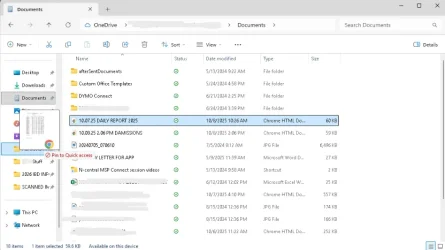
Hello. I've got an issue with file explorer intermittently hanging when dragging files to other folders. When I try and close File Explorer it becomes unresponsive and then crashes.

I could not replicate the issue on a different Windows account that is an Admin.

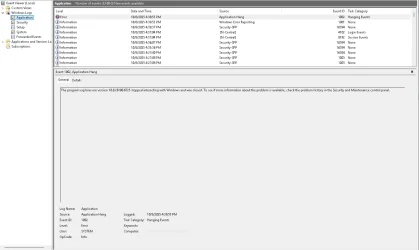
So far I have tried "sfc /scannow, Dism /Online /Cleanup-image /RestoreHealth, sfc /scannow." and clearing the File explore cache. I also checked the Event Viewer and it just says there was an Application Hang.
 
Windows Build/Version
Windows 24H2

Attachments

  • Screenshot 2025-10-08 163812.webp
    Screenshot 2025-10-08 163812.webp
    37.7 KB · Views: 1
  • Screenshot 2025-10-08 163823.webp
    Screenshot 2025-10-08 163823.webp
    37.6 KB · Views: 1
  • Screenshot 2025-10-08 163920.webp
    Screenshot 2025-10-08 163920.webp
    41.2 KB · Views: 1

My Computer

System One

  • OS
    Windows 11
    Computer type
    PC/Desktop
what is the default you have set for drag and drop?


My Computer

System One

  • OS
    Windows 11 Pro
what is the default you have set for drag and drop?

It's moving the file from the original location to another location. It's not making a copy.
 

My Computer

System One

  • OS
    Windows 11
    Computer type
    PC/Desktop
and it only freezes when you try to drop files into Quick Access pinned shortcuts?
 

My Computer

System One

  • OS
    Windows 11 Pro
and it only freezes when you try to drop files into Quick Access pinned shortcuts?
That's the only way I've seen the issue occur. I have tried removing the Quick Access shortcut and adding it back with no change.

I did try and replicate it on a different admin account on the computer but everything worked fine.
 

My Computer

System One

  • OS
    Windows 11
    Computer type
    PC/Desktop
That's the only way I've seen the issue occur. I have tried removing the Quick Access shortcut and adding it back with no change.

I did try and replicate it on a different admin account on the computer but everything worked fine.
annotate whats pinned to your quick access, go to

%AppData%\Microsoft\Windows\Recent\AutomaticDestinations

delete f01b4d95cf55d32a.automaticDestinations-ms

reboot, then repin and try again
 

My Computer

System One

  • OS
    Windows 11 Pro
Just revert to classic Explorer. The tabbed browsing feature ain't worth the slow down in speed and waiting forever for it to draw windows.
 

My Computers

System One System Two

  • OS
    Windows 11 Education For 25H2
    Computer type
    Laptop
    Manufacturer/Model
    HP ZBook G2
    CPU
    Intel® Core i7 5500u
    Motherboard
    HP
    Memory
    8 GB
    Graphics Card(s)
    Intel HD Family Graphics 5500 AMD Firepro 4150M
    Sound Card
    Realtek High Audio
    Hard Drives
    1 TB SSD
    Mouse
    HP USB Mouse
    Antivirus
    Windows Defender
  • Operating System
    Windows 11 Pro For Workstations 25H2
    Computer type
    Laptop
    Manufacturer/Model
    HP Zbook G4
    CPU
    Xeon 1535m v6
    Motherboard
    HP
    Memory
    32 GB
    Graphics card(s)
    AMD Quadro Pro 4100
    Sound Card
    Bang and Olufson Audio
    Hard Drives
    1TB SSD
    Mouse
    HP USB Mouse
    Antivirus
    Windows Defender
Just revert to classic Explorer. The tabbed browsing feature ain't worth the slow down in speed and waiting forever for it to draw windows.
that doesnt pertain to OPs post.... at all
 

My Computer

System One

  • OS
    Windows 11 Pro
annotate whats pinned to your quick access, go to

%AppData%\Microsoft\Windows\Recent\AutomaticDestinations

delete f01b4d95cf55d32a.automaticDestinations-ms

reboot, then repin and try again
I think that solved my issue. It hasn't occurred again since Friday. Thank you!
 

My Computer

System One

  • OS
    Windows 11
    Computer type
    PC/Desktop
Back
Top Bottom