

Hello!
In some other thread we were discussing how to make Windows 11 look like XP and I promised to try that in a virtual machine running Windows 11 26H2 and report. However, I cannot find that thread to reply there, so here it is. Because it is a long process for advanced users, I will try to explain the main idea without giving too many details and creating a very lengthy and boring post.
How to transform Windows 11 to look like Windows XP:
Copy the default Windows XP wallpaper (Windows XP.bmp) and other wallpapers from
Copy the default system font, Microsoft Sans Serif from
Copy the following system files to extract the icons:
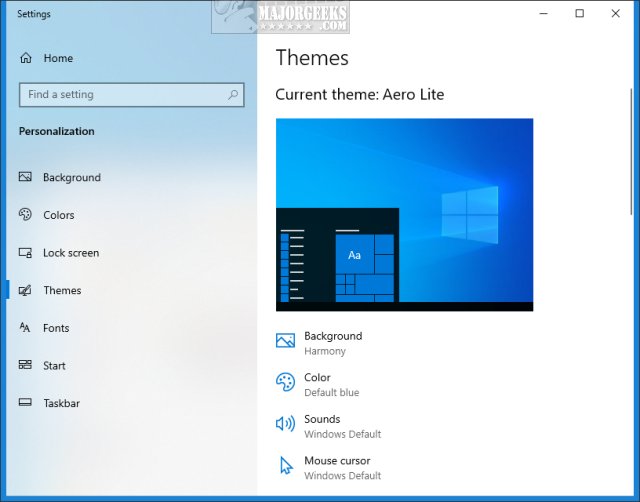
Download the Windows Aero Lite theme from Major Geeks:
Use Customizer God to open the XP system files and extract all icons on a separate folder.
Copy all files in Windows 11 and change the default theme from Windows Light to Aero Lite.
Change the wallpaper to the default Windows XP wallpaper
I first replaced the default Windows 11 system icons with the respective icons from Windows 7 because there are no Windows XP icons for every Windows 11 icon. Then, since XP icons are not in the same order as Windows 11 icons, I could not just replace them automatically. I had patiently replace the most common icons one by one.
I also installed Explorer Patcher to get the full right-click Taskbar menu and access to the network icon.
The respective Windows 11 system files are:
With the exception of
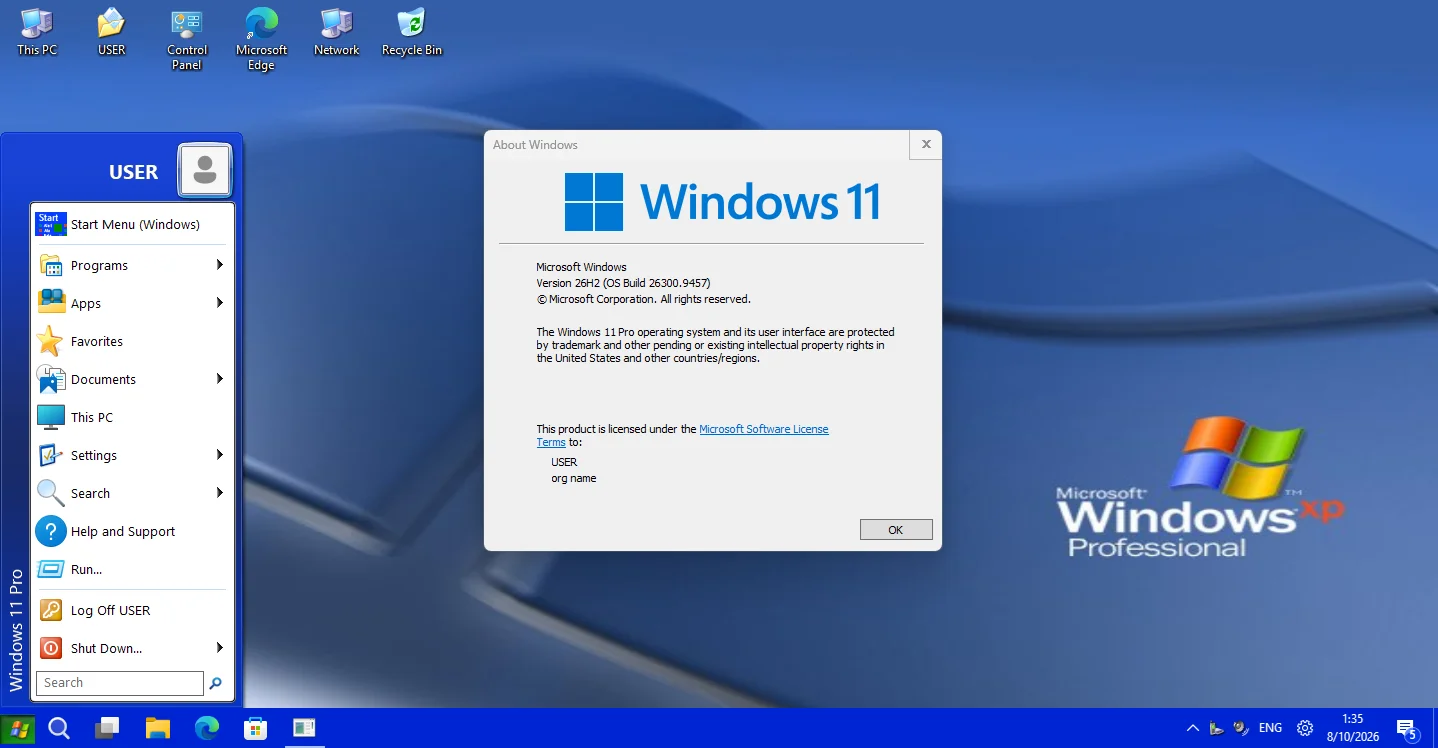
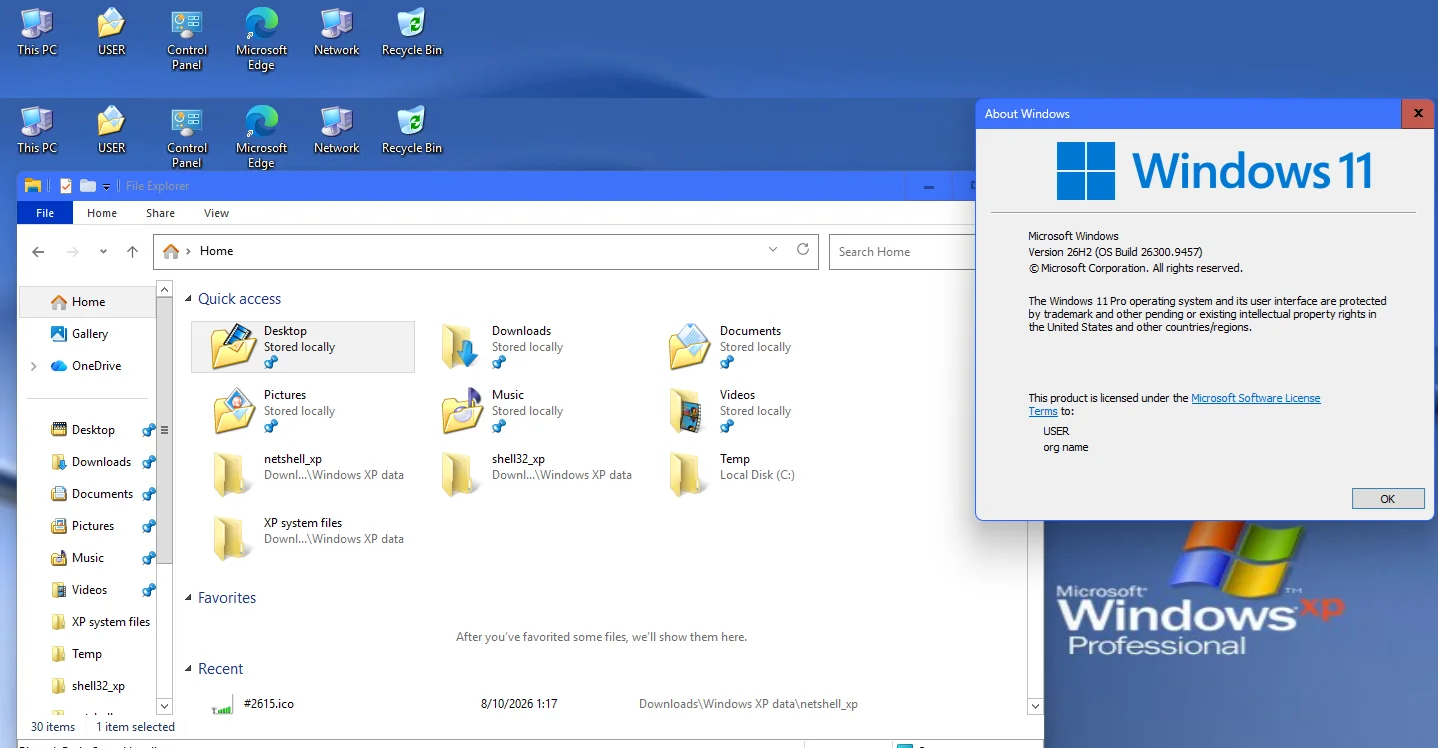
For the start button, I took two screenshots of a virtual machine running Windows XP. One with the key normal and one with the key pressed. I then cropped the images in Microsoft Paint to get only the start button and combined the two images on a new .png image with the normal button on top and the pressed button twice at the bottom. I then imported that image as custom start button in Open Shell. However, the full Windows XP start button with the "start" text was to wide hiding the search icon. So I created a second .PNG file with only the Windows logo and the text "start" cropped. This one worked fine. For your convenience I have uploaded at the bottom of the post. See screenshots below.

In some other thread we were discussing how to make Windows 11 look like XP and I promised to try that in a virtual machine running Windows 11 26H2 and report. However, I cannot find that thread to reply there, so here it is. Because it is a long process for advanced users, I will try to explain the main idea without giving too many details and creating a very lengthy and boring post.
How to transform Windows 11 to look like Windows XP:
Copy the default Windows XP wallpaper (Windows XP.bmp) and other wallpapers from
C:\Windows\Web\Wallpaper.Copy the default system font, Microsoft Sans Serif from
C:\Windows\Fonts (in case you also want to replace the default system fonts with Winaero Tweaker).Copy the following system files to extract the icons:
C:\Windows\System32\batmeter.dll (battery and power icons)C:\Windows\System32\shell32.dll (folder types, drives, and almost every other icon)C:\Windows\System32\netshell.dll (network icons)C:\Windows\System32\SndVolSSO.exe (sound icons)C:\Windows\System32\Stobject.dll (USB safe eject icon)Download the Windows Aero Lite theme from Major Geeks:
Download Aero Lite Theme in Windows 10 & 11 - MajorGeeks
Aero Lite Theme in Windows 10 contains the Theme files for the classic Aero Lite Theme.
www.majorgeeks.com
Use Customizer God to open the XP system files and extract all icons on a separate folder.
Copy all files in Windows 11 and change the default theme from Windows Light to Aero Lite.
Change the wallpaper to the default Windows XP wallpaper
I first replaced the default Windows 11 system icons with the respective icons from Windows 7 because there are no Windows XP icons for every Windows 11 icon. Then, since XP icons are not in the same order as Windows 11 icons, I could not just replace them automatically. I had patiently replace the most common icons one by one.
I also installed Explorer Patcher to get the full right-click Taskbar menu and access to the network icon.
The respective Windows 11 system files are:
C:\Windows\SystemResources\batmeter.dll.mun (battery and power icons)C:\Windows\SystemResources\imageres.dll.mun (folder types, drives, and almost every other icon)C:\Program Files\Explorer Patcher\pnidui.dll (network icons)C:\Windows\SystemResources\SndVolSSO.dll.mun (sound icons)C:\Windows\SystemResources\Stobject.dll (USB safe eject icon)With the exception of
pnidui.dll in Explorer Patcher folder, none of the others can be modified directly. You have to copy on another folder, modify them, take ownnership of the target folder and individual files, grant full access and then kill the explorer process before you can replace them.For the start button, I took two screenshots of a virtual machine running Windows XP. One with the key normal and one with the key pressed. I then cropped the images in Microsoft Paint to get only the start button and combined the two images on a new .png image with the normal button on top and the pressed button twice at the bottom. I then imported that image as custom start button in Open Shell. However, the full Windows XP start button with the "start" text was to wide hiding the search icon. So I created a second .PNG file with only the Windows logo and the text "start" cropped. This one worked fine. For your convenience I have uploaded at the bottom of the post. See screenshots below.
My Computers
-
At a glance
Windows 11 Pro 23H2 (7584), 26H2 (9550)Mobile DualCore Intel Core 2 Duo T7250, 2000 MHz4GBMobile Intel(R) GMA 4500M (Mobile 4 series)- OS
- Windows 11 Pro 23H2 (7584), 26H2 (9550)
- Computer type
- Laptop
- Manufacturer/Model
- Acer Extensa 5630EZ
- CPU
- Mobile DualCore Intel Core 2 Duo T7250, 2000 MHz
- Motherboard
- Acer Extensa 5630
- Memory
- 4GB
- Graphics Card(s)
- Mobile Intel(R) GMA 4500M (Mobile 4 series)
- Sound Card
- Realtek ALC268 @ Intel 82801IB ICH9 - High Definition Audio Controller
- Monitor(s) Displays
- 1
- Screen Resolution
- 1280x800
- Hard Drives
- Samsung SSD 850 EVO 250GB SATA Device (250 GB, SATA-III)
- Internet Speed
- 802.11g wireless 54 Mbps
- Browser
- MICROSOFT EDGE
- Antivirus
- WINDOWS DEFENDER
- Other Info
- Legacy MBR installation, no TPM, no Secure Boot, no WDDM 2.0 graphics drivers, no SSE4.2, cannot get more unsupported ;) This is only my test laptop. I had installed Windows 11 here before upgrading my main PC. For my main PC I use everyday see my 2nd system specs.
-
At a glance
Windows 11 Pro 26H2 (build 26300.9550)Intel Core-i7 3770 3.40GHz s1155 (3rd generat...2x Kingston Hyper-X Blu 8GB DDR3-1600GIGABYTE GeForce RTX 3050 WINDFORCE OC V2 6GB...- Operating System
- Windows 11 Pro 26H2 (build 26300.9550)
- Computer type
- PC/Desktop
- Manufacturer/Model
- Custom-built PC
- CPU
- Intel Core-i7 3770 3.40GHz s1155 (3rd generation)
- Motherboard
- Asus P8H61 s1155 ATX
- Memory
- 2x Kingston Hyper-X Blu 8GB DDR3-1600
- Graphics card(s)
- GIGABYTE GeForce RTX 3050 WINDFORCE OC V2 6GB (GV-N3050WF2OCV2-6GD)
- Sound Card
- Realtek HD audio (ALC887)
- Monitor(s) Displays
- Sony Bravia KDL-19L4000 19" LCD TV via VGA
- Screen Resolution
- 1440x900 32-bit 60Hz
- Hard Drives
- WD Blue SA510 2.5 1000GB SSD as system disk, Western Digital Caviar Purple 4TB SATA III (WD40PURZ) as second
- PSU
- Thermaltake Litepower RGB 550W Full Wired
- Case
- SUPERCASE MIDI-TOWER
- Cooling
- Deepcool Gamma Archer CPU cooler, 1x 8cm fan at the back
- Keyboard
- Mitsumi 101-key PS/2
- Mouse
- Microsoft Compact Optical Mouse
- Internet Speed
- 802.11ac 5GHz wireless 260Mpbs
- Browser
- Microsoft Edge, Mozilla Firefox
- Antivirus
- Microsoft Windows Defender
- Other Info
- Legacy BIOS (MBR) installation, no TPM, no Secure Boot, WDDM 3.0 graphics drivers, WEI score 7.4






