Install Windows 11 using WinPE usb on any partition by typing setup at command prompt.

  • Thread starter Thread starter e4rr0o
  • Start date Start date

E

e4rr0o

Guest
1) Install ADK and PE add on for windows 11.
2) Make bootable WinPE by using copype and MakeWinPEMedia commands with powershell(run as administrator) as below:
C:\program files (x86) \Windows Kits\10\Assessment and Deployment Kit\Deployment Tools>copype amd64 c:\WinPE_amd64_PS
C:\program files (x86) \Windows Kits\10\Assessment and Deployment Kit\Deployment Tools>MakeWinPEMedia /UFD C:\WinPE_amd64_PS T:
T: is usb drive used to make WinPE bootable.
3) Create 10 GB partition on your pc hard disk. (NTFS). Copy all contents of mounted iso of Windows 11 to this drive. Suppose letter is O: for 10 GB partition.
4) Create a new folder (Empty) name it as you like , I call it My Mounted Drive, location is C: drive.
5) Now boot from WinPE usb bootable drive just created.
6) You get
X:\Windows\System32>Diskpart (Press Enter)
DISKPART> list volume
Here C: partition on hard disk appears to be H: (Volume 5)
and O: partition appears to be G: (Volume 4)
7) DISKPART> select volume 4
volume 4 is the selected volume.
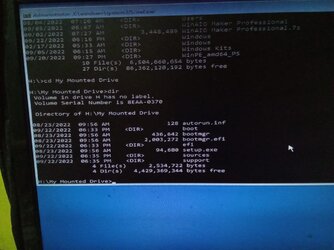
8) DISKPART>assign mount="H:\My Mounted Drive"
Diskpart successfully assigned the drive letter or mount point.
8) DISKPART>exit
9) x:\windows\system32>H:
10) H:\>cd My Mounted Drive
11) H:\My Mounted Drive>setup (Press Enter)
Now setup starts, click Next and install windows 11 on desired partition.
 
Windows Build/Version
Windows 11 21H2 pro os build 22000.918

My Computer

Huh - this is like overkill. There are far easier ways to do this by booting from a usb installation drive


What is the point of going through all these convoluted steps to do what is easy?


Step 1 alone is beyond average user.
 

My Computer

System One

  • OS
    Windows 11 Pro + Win11 Canary VM.
    Computer type
    Laptop
    Manufacturer/Model
    ASUS Zenbook 14
    CPU
    I9 13th gen i9-13900H 2.60 GHZ
    Motherboard
    Yep, Laptop has one.
    Memory
    16 GB soldered
    Graphics Card(s)
    Integrated Intel Iris XE
    Sound Card
    Realtek built in
    Monitor(s) Displays
    laptop OLED screen
    Screen Resolution
    2880x1800 touchscreen
    Hard Drives
    1 TB NVME SSD (only weakness is only one slot)
    PSU
    Internal + 65W thunderbolt USB4 charger
    Case
    Yep, got one
    Cooling
    Stella Artois (UK pint cans - 568 ml) - extra cost.
    Keyboard
    Built in UK keybd
    Mouse
    Bluetooth , wireless dongled, wired
    Internet Speed
    900 mbs (ethernet), wifi 6 typical 350-450 mb/s both up and down
    Browser
    Edge
    Antivirus
    Defender
    Other Info
    TPM 2.0, 2xUSB4 thunderbolt, 1xUsb3 (usb a), 1xUsb-c, hdmi out, 3.5 mm audio out/in combo, ASUS backlit trackpad (inc. switchable number pad)

    Macrium Reflect Home V8
    Office 365 Family (6 users each 1TB onedrive space)
    Hyper-V (a vm runs almost as fast as my older laptop)
1) Install ADK and PE add on for windows 11.
2) Make bootable WinPE by using copype and MakeWinPEMedia commands with powershell(run as administrator) as below:
C:\program files (x86) \Windows Kits\10\Assessment and Deployment Kit\Deployment Tools>copype amd64 c:\WinPE_amd64_PS
C:\program files (x86) \Windows Kits\10\Assessment and Deployment Kit\Deployment Tools>MakeWinPEMedia /UFD C:\WinPE_amd64_PS T:
T: is usb drive used to make WinPE bootable.
3) Create 10 GB partition on your pc hard disk. (NTFS). Copy all contents of mounted iso of Windows 11 to this drive. Suppose letter is O: for 10 GB partition.
4) Create a new folder (Empty) name it as you like , I call it My Mounted Drive, location is C: drive.
5) Now boot from WinPE usb bootable drive just created.
6) You get
X:\Windows\System32>Diskpart (Press Enter)
DISKPART> list volume
Here C: partition on hard disk appears to be H: (Volume 5)
and O: partition appears to be G: (Volume 4)
7) DISKPART> select volume 4
volume 4 is the selected volume.
8) DISKPART>assign mount="H:\My Mounted Drive"
Diskpart successfully assigned the drive letter or mount point.
8) DISKPART>exit
9) x:\windows\system32>H:
10) H:\>cd My Mounted Drive
11) H:\My Mounted Drive>setup (Press Enter)
Now setup starts, click Next and install windows 11 on desired partition.
Please see the images. Thanks.IMG-20220924-WA0000.jpgIMG-20220924-WA0002.jpgIMG-20220924-WA0001.jpg
Huh - this is like overkill. There are far easier ways to do this by booting from a usb installation drive


What is the point of going through all these convoluted steps to do what is easy?


Step 1 alone is beyond average user.
Hello @cereberus , a small partition of 10 GB on hard drive can be reserved for upcoming newer versions of Windows 11 , WinPE bootable usb is also forever.
Thanks for considering my thread.
 

My Computer

Please see the images. Thanks.View attachment 40032View attachment 40030View attachment 40031

Hello @cereberus , a small partition of 10 GB on hard drive can be reserved for upcoming newer versions of Windows 11 , WinPE bootable usb is also forever.
Thanks for considering my thread.
Windows can automatically reserve space for updates.


EDIT: Why feel the need to run setup from another partition? You can just drop the ISO on your C: drive (or any other drive), double-click it, and run setup from there.
 

My Computers

System One System Two

  • OS
    Win11 Pro 25H2 (RTM+)
    Computer type
    PC/Desktop
    Manufacturer/Model
    Acemagic
    CPU
    Intel i7-14650HX
    Memory
    32 GB
    Graphics Card(s)
    No GPU - Built-in Intel Graphics
    Sound Card
    Integrated
    Monitor(s) Displays
    Varies as machine will often be moved to locations with different monitors
    Screen Resolution
    Varies
    Hard Drives
    1 x 1TB Gen 4 NVMe SSD
    PSU
    120W Power Brick
    Keyboard
    Corsair K70 Max RGB Magnetic Keyboard
    Mouse
    Logitech MX Master 3
    Internet Speed
    1Gb Up / 1 Gb Down
    Browser
    Edge
    Antivirus
    Windows Defender
  • Operating System
    Win11 Pro 25H2 (RTM+)
    Computer type
    Laptop
    Manufacturer/Model
    Lenovo ThinkBook 13x Gen 2
    CPU
    Intel i7-1255U
    Memory
    16 GB
    Graphics card(s)
    Intel Iris Xe Graphics
    Sound Card
    Realtek® ALC3306-CG codec
    Monitor(s) Displays
    13.3-inch IPS Display
    Screen Resolution
    WQXGA (2560 x 1600)
    Hard Drives
    2 TB 4 x 4 NVMe SSD
    PSU
    USB-C / Thunderbolt 4 Power / Charging
    Keyboard
    Backlit, spill resistant keyboard
    Mouse
    Buttonless Glass Precision Touchpad
    Internet Speed
    1Gb Up / 1Gb Down
    Browser
    Edge
    Antivirus
    Windows Defender
    Other Info
    WiFi 6e / Bluetooth 5.1 / Facial Recognition / Fingerprint Sensor / ToF (Time of Flight) Human Presence Sensor
I just use the dism /apply-image command.
 

My Computers

System One System Two

  • OS
    Windows 11
    Computer type
    PC/Desktop
    Manufacturer/Model
    Homebuilt
    CPU
    AMD Ryzen 7 3800XT
    Motherboard
    ASUS ROG Crosshair VII Hero (WiFi)
    Memory
    32GB
    Graphics Card(s)
    EVGA GeForce GTX 1080 Ti
  • Operating System
    Windows 11 Education
    Computer type
    Laptop
    Manufacturer/Model
    Dell Inspiron 7773
    CPU
    Intel i7-8550U
    Memory
    32GB
    Graphics card(s)
    Nvidia Geforce MX150
    Sound Card
    Realtek
    Monitor(s) Displays
    17"
    Screen Resolution
    1920 x 1080
    Hard Drives
    Toshiba 512GB NVMe SSD
    SK Hynix 512GB SATA SSD
    Internet Speed
    Fast!
Windows can automatically reserve space for updates.


EDIT: Why feel the need to run setup from another partition? You can just drop the ISO on your C: drive (or any other drive), double-click it, and run setup from there.
We are installing windows 11 from WinPE usb , externally. So any partition can be selected to install windows 11. Double clicking setup file within windows starts updating the running windows.
Thanks.
 

My Computer

An idea is to avoid collecting .iso images and boot from Ventoy. Or to avoid making new bootable usb drive for installation of windows 11.
Delete the contents of 10GB partition and paste into it the contents of latest iso image of Windows 11.
 

My Computer

Been doing it for years on win7. Create a small partition at end of disk e.g. 10gb. Copy contents of install media onto it. It can be accessed via boot menu or by booting any pe , winre.wim, boot.wim etc and then run x:\setup which should find the media on the hard disk, or if it has been set with reagentc then it will feature as an entry in sys recov options, or reach down and run setup.exe on the recov partition, or use the apply method, etc, etc

Fancy variation is to replace recovery partition\sources\install.wim with your own captured custom install.wim which can be appended so there are several images each captured at a different time.

I like wimlib for this purpose, but you could use dism++ which is very easy and automatically does snapshot capture to create or append.

something like this:
wimlib-imagex append c:\ "R:\sources\install.wim"--snapshot --create --compress=fast --config="path-to-wimscript.ini"

That will create install.wim if it doesn't exist yet, or append if it already exists. The wimscript.ini excludes unnecessary stuff.

That is one way of doing backup images in the very useful .wim format.

To work out which image you want, you could add something to the command to give it different descriptions, or you can just have a look at the dates.
 
Last edited:

My Computers

System One System Two

  • OS
    Win7,Win11
    Computer type
    PC/Desktop
    CPU
    i7-9700
    Motherboard
    gigabyte b365m ds3h
    Memory
    2x16gb 3600mhz
    Monitor(s) Displays
    benq gw2480
    PSU
    bequiet pure power 11 400CM
    Cooling
    cryorig m9i
  • Operating System
    win7,win11
    Computer type
    PC/Desktop
    CPU
    i5-8400
    Motherboard
    gigabyte b365m ds3h
    Memory
    2x8gb 3200
    PSU
    xfx pro 450
Yes, we are lucky to read those brilliant tutorials by @Kari , thanks for those excellent tutorials.
Been doing it for years on win7. Create a small partition at end of disk e.g. 10gb. Copy contents of install media onto it. It can be accessed via boot menu or by booting any pe , winre.wim, boot.wim etc and then run x:\setup which should find the media on the hard disk, or if it has been set with reagentc then it will feature as an entry in sys recov options, or reach down and run setup.exe on the recov partition, or use the apply method, etc, etc

Fancy variation is to replace recovery partition\sources\install.wim with your own captured custom install.wim which can be appended so there are several images each captured at a different time.

I like wimlib for this purpose, but you could use dism++ which is very easy and automatically does snapshot capture to create or append.

something like this:
wimlib-imagex append c:\ "R:\sources\install.wim"--snapshot --create --compress=fast --config="path-to-wimscript.ini"
 

My Computer

I didn't know he had done tutorials on it. Then it will be easy because he has probably done screenshots.
 

My Computers

System One System Two

  • OS
    Win7,Win11
    Computer type
    PC/Desktop
    CPU
    i7-9700
    Motherboard
    gigabyte b365m ds3h
    Memory
    2x16gb 3600mhz
    Monitor(s) Displays
    benq gw2480
    PSU
    bequiet pure power 11 400CM
    Cooling
    cryorig m9i
  • Operating System
    win7,win11
    Computer type
    PC/Desktop
    CPU
    i5-8400
    Motherboard
    gigabyte b365m ds3h
    Memory
    2x8gb 3200
    PSU
    xfx pro 450
I find it irritating that GMKTec prides themselves on supplying top level Ai mini PC's yet they do not provide a step by step tutorial for applying the 18GB Winpe image that they supply on their "sUpPoRt" page for the EVO-X2. They should have asked GROK to write one for them.:money:
 

My Computer

System One

  • OS
    Win11 Fedora Ubuntu CachyOs
    Computer type
    PC/Desktop
    Manufacturer/Model
    GMKTec, MSI homebuilt, Lenovo Yoga, ASUS Rog
I find it irritating that you steal some very old thread only to express your opinion about some company producing mini PC's.
Please start your own thread!
 

My Computer

System One

  • OS
    Windows 11 Pro 25H2 26200.8457
    Computer type
    PC/Desktop
    Manufacturer/Model
    Build by vendor to my specs
    CPU
    AMD Ryzen 7 5700G
    Motherboard
    MSI PRO B550M-P Gen3
    Memory
    Kingston FURY Beast 2x16GB DIMM DDR4 2666 CL16
    Graphics Card(s)
    MSI GeForce GT 730 2GB LP V1
    Sound Card
    Creative Sound Blaster Audigy FX
    Monitor(s) Displays
    Samsung S24E450F 24"
    Screen Resolution
    1920 x 1080
    Hard Drives
    1. SSD Crucial P5 Plus 500GB PCIe M.2
    2. SSD-SATA Crucial MX500-2TB
    PSU
    Corsair CV650W
    Case
    Cooler Master Silencio S400
    Cooling
    Cooler Master Hyper H412R with Be Quiet Pure Wings 2 PWM BL038 fan
    Keyboard
    Cherry Stream (wired, scissor keys)
    Mouse
    Asus WT465 (wireless)
    Internet Speed
    70 Mbps down / 80 Mbps up
    Browser
    Firefox 130.0
    Antivirus
    F-Secure (Internetprovider version)
    Other Info
    Router: FRITZBox 7490
    Oracle VirtualBox 7 for testing software on Win 10 or 11
Hey e4rr0o,

Showing gratitude is important in online communities. Use the "like" button to appreciate helpful content. This motivates people to keep sharing knowledge. A "like" gives 1 point, "Helpful" gives 5 points, and "Great support" gives 10 points for exceptional help.

Latest Support Threads

Back
Top Bottom