Since you're using AOMEI Backupper and restoring the same backup image to the same physical disk, we can troubleshoot this without immediately converting or erasing the disk.

Because the same image restored successfully several times before the error appeared, we should first check whether AOMEI's recovery environment can see the disk correctly and whether the disk's partition layout has changed.

Step 1 — Check the disk in AOMEI's recovery environment
Boot from your AOMEI recovery USB and stop when you reach the error. Do not start another restore yet.

Look for Tools, Utilities, or an option to open a command prompt. The exact menu depends on your AOMEI recovery-media version.

If you can open Command Prompt, enter these commands one at a time:

text
diskpart
list disk
3. Look at the Gpt column in the results.

An asterisk (*) under Gpt means the disk uses GPT.

No asterisk means the disk uses MBR.

4. Identify the target disk by its capacity. Do not select or clean any disk.

For example:

text
Disk ###  Status     Size
Disk 0    Online     931 GB
If Disk 0 is your target disk and the Gpt column is blank, it is MBR.

Then enter:

text
list volume
exit
This displays the detected volumes and their drive letters. Recovery environments sometimes assign different drive letters from normal Windows.

To inspect the target disk's partitions, you can also run:

text
diskpart
select disk 0
detail disk
list partition
exit
Replace 0 with the actual disk number if necessary. These commands inspect the disk; they do not intentionally modify it. Do not enter clean, convert, format, or initialize.

Record the disk number, capacity, partition sizes, and partition types. If the disk shows 0 B, the wrong capacity, or no expected partitions, stop and investigate before restoring.

Step 2 — Verify the AOMEI backup image
On a working Windows computer, or from the installed AOMEI application if available:

AOMEI Backupper Screenshots
1. Open AOMEI Backupper

Find the Tools section and look for Check Image. The exact location and wording vary by version.

AOMEI Backupper - 無料・ダウンロード
2. Select the backup image

Browse to the existing backup file, often with an .adi extension.

Aomei backup  - Page 2 - Windows 10 Forums
3. Run the verification

Let the check finish. If AOMEI reports an integrity error, preserve the original image and avoid overwriting it.

If Check Image is unavailable in your recovery environment, use the installed application on a working computer. Do not assume that the image is corrupt just because the restore failed.

Step 3 — Identify exactly when the MBR error occurs
This distinction is particularly important:

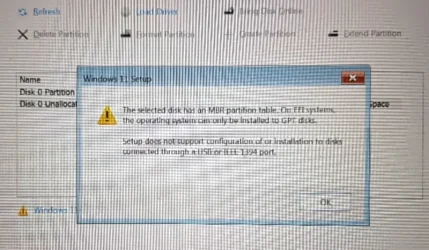
Before restoration begins: likely a destination-disk, partition-style, or restore-mode compatibility issue.

During restoration: possible partition-layout conflict, disk write failure, or image/restoration problem.

After restoration, when Windows boots: more likely a boot-mode mismatch or boot configuration problem.

Step 4 — Check whether the disk or restoration environment changed
If the image verifies successfully and the disk is detected at its expected capacity, check whether anything changed since the last successful restore:

Did you update AOMEI Backupper or recreate its bootable USB?

Did you change a BIOS/UEFI setting?

Did you resize, delete, or create partitions?

Did the computer shut down unexpectedly during a previous restoration?

Does the same disk appear as MBR in the installed Windows environment and in AOMEI's recovery environment?

A disk that repeatedly fails at the same point may have a persistent compatibility or disk problem. If the disk reports I/O errors or disappears intermittently, check its health before further restoration attempts.

Tell me these two things next
1. When do you get the MBR error?


Before the restore starts, when selecting the disk

While the restore is running

After restoration, when trying to boot Windows

At another stage / not sure
2. What does diskpart show under the GPT column?


Blank — no asterisk

An asterisk (*)

I haven't checked yet
AOMEI version (if known)


Not sure

Backupper Standard (free)

Backupper Professional

Another edition