UPDATE 11/11:

 www.elevenforum.com
This non-security update for Windows 11, version 24H2 (KB5067036), improves functionality, performance, and reliability. To learn more about differences between security updates, optional non-security preview updates, Out-of-band (OOB) updates, and continuous innovation, see Windows monthly updates explained. For information on Windows update terminology, see the different types of Windows software updates.
To view the latest updates about this release, visit the Windows release health dashboard or the update history page for Windows 11, version 24H2 and version 25H2.
For more details, see Simplified Windows Update titles or its accompanying blog post.
 www.elevenforum.com
 www.elevenforum.com
Gradual rollout
The following summary outlines features from Copilot experiences and AI-powered Windows 11 PC experiences, along with improvements and fixes. The bold text within the brackets indicates the item or area of the change.
For more info on the different AI experiences, see aka.ms/copilotpluspcs.
2 Feature availability depends on your device and market. This feature isn’t available in the European Economic Area. Learn more about Copilot+ PCs at aka.ms/copilotpluspcs
Improvements and fixes
Normal rollout
This non-security update includes quality improvements. The following summary outlines key issues addressed by the KB update after you install it. Also, included are available new features. The bold text within the brackets indicates the item or area of the change.
Symptoms
After installing this update, you might notice that closing Task Manager with the Close button doesn’t fully terminate the process. When you reopen Task Manager, the previous instance may still be running in the background, even though no window is visible. This can result in multiple instances of taskmgr.exe, which appear as Task Manager in the Processes tab and as taskmgr.exe in the Details tab. These lingering instances consume system resources and may affect device performance. While opening and closing Task Manager a few times has minimal impact, many instances accumulated over time can slow down other applications.
Workaround
This issue is addressed in KB5068861.
Symptoms
After installing the August 2025 non-security preview update (KB5064081) or later updates, you might notice that the password icon is not visible in the sign-in options on the lock screen. If you hover over the space where the icon should appear, you’ll see that the password button is still available. Select this placeholder to open the password text box and enter your password. After entering your password, you can sign in normally.
Individuals using Windows Home or Pro editions on personal devices are very unlikely to experience this issue. This issue primarily affects enterprise or managed IT environments.
Workaround
This issue is mitigated using Known Issue Rollback (KIR).
For enterprise-managed devices managed by IT departments that have installed the affected update and encountered this issue, IT administrators can resolve it by installing and configuring the Group policy listed below. The special Group Policy can be found in Computer Configuration > Administrative Templates > <Group Policy name listed below>.
For information on deploying and configuring these special Group Policy, please see How to use Group Policy to deploy a Known Issue Rollback.
Group Policy downloads with Group Policy name:
We are working on a resolution in a future Windows update and will provide more information when it is available.
Microsoft combines the latest servicing stack update (SSU) for your operating system with the latest cumulative update (LCU). For general information about SSUs, see Servicing stack updates and Servicing Stack Updates (SSU): Frequently Asked Questions.
Install this update
To install this update, use one of the following Windows and Microsoft release channels.
4 This latest cumulative update includes updates for AI components. Even though the AI component updates are included in the update, the AI components are only applicable to Windows Copilot+ PCs and will not install on Windows PC or Windows Server.
If you want to remove the LCU
To remove the LCU after installing the combined SSU and LCU package, use the DISM/Remove-Package command line option with the LCU package name as the argument. You can find the package name by using this command: DISM /online /get-packages.
Running Windows Update Standalone Installer (wusa.exe) with the /uninstall switch on the combined package will not work because the combined package contains the SSU. You cannot remove the SSU from the system after installation.
File information
For a list of the files provided in this update, download the file information for cumulative update 5067036.
For a list of the files provided in the servicing stack update, download the file information for the SSU (KB5067035) - version 26100.7010.
 support.microsoft.com
Check Windows Updates
UUP Dump:
64-bit ISO download:

ARM64 ISO download:
 www.elevenforum.com
KB5068861 Windows 11 Cumulative Update build 26100.7171 (24H2) and 26200.7171 (25H2) - Nov. 11
UPDATE 12/01: https://www.elevenforum.com/t/kb5070311-windows-11-cumulative-update-preview-build-26100-7309-24h2-and-26200-7309-25h2-dec-1.42549/ Microsoft Support: November 11, 2025 - KB5068861 (OS Builds 26200.7171 and 26100.7171) This cumulative update for Windows 11, version 25H2 and 24H2...
www.elevenforum.com
Microsoft Support:
This non-security update for Windows 11, version 24H2 (KB5067036), improves functionality, performance, and reliability. To learn more about differences between security updates, optional non-security preview updates, Out-of-band (OOB) updates, and continuous innovation, see Windows monthly updates explained. For information on Windows update terminology, see the different types of Windows software updates.
To view the latest updates about this release, visit the Windows release health dashboard or the update history page for Windows 11, version 24H2 and version 25H2.
Announcements and messages
This section provides key notifications related to this release, including announcements, change logs, and end-of-support notices.Simplified Windows update titles
A new, standardized title format makes Windows updates easier to read and understand. It improves clarity by removing unnecessary technical elements like platform architecture and date prefixes. Key identifiers such as the KB number and build or version are retained to help you quickly recognize each update.For more details, see Simplified Windows Update titles or its accompanying blog post.
New Simplified Windows Update titles
Windows IT Pro Blog: Editor's note 10.31.2025: We are actively listening to your feedback and planning further improvements. Thank you for helping us create a better user experience. Windows updates play a vital role in keeping devices secure, performant, and up to date. To further enrich the...
www.elevenforum.com
Windows Secure Boot certificate expiration
Important: Secure Boot certificates used by most Windows devices are set to expire starting in June 2026. This might affect the ability of certain personal and business devices to boot securely if not updated in time. To avoid disruption, we recommend reviewing the guidance and taking action to update certificates in advance. For details and preparation steps, see Windows Secure Boot certificate expiration and CA updates.
Updating Microsoft Secure Boot keys before expiration in June 2026
https://support.microsoft.com/en-us/topic/if-you-re-prevented-from-updating-secure-boot-certificates-e01cc486-8721-457f-9bc7-5cb801c1759e UPDATE 4/02: https://support.microsoft.com/en-us/topic/secure-boot-certificate-update-status-in-the-windows-security-app-5ce39986-7dd2-4852-8c21-ef30dd04f046...
www.elevenforum.com
Change log
| Change date | Change description |
|---|---|
| November 25, 2025 | Update: This fix is included in the October 2025 non-security update (KB5067036). [App compatibility (known issue)] Fixed: This update addresses an issue that created unexpected User Account Control (UAC) prompts for some apps, including Autodesk AutoCAD. For more information, see Unexpected UAC prompts when running MSI repair operations after installing the August 2025 Windows security update. |
| November 19, 2025 | Update: This feature is included in the October 2025 non-security update (KB5067036). [Input] New! The new experience to improve the discoverability of the emoji and more panel in Windows 11, with the introduction of a new system tray icon on the taskbar, is now starting to roll out to more users. As part of this, we’ve updated the icon that users will see in the taskbar. In Settings > Personalization > Taskbar, you can choose for this system tray icon to show Always, While Typing, or Never. |
| November 17, 2025 | Update: These features previously listed in the October 2025 non-security update (KB5067036) will roll out in a future date. [Administrator Protection Preview] New! Administrator protection aims to protect free floating admin rights for administrators. It enables users to perform administrative tasks using just-in-time privileges. This feature is turned off by default and can be enabled using OMA-URI in Microsoft Intune or through Group Policy. |
| November 05, 2025 | Update: These features previously listed in the October 2025 non-security update (KB5067036) will roll out in a future date. [File Explorer] New! The Recommended section in File Explorer now makes it easier to access files you frequently use or recently downloaded. To view this section on the homepage, turn on the Show Recommended section setting in File Explorer > Options. This feature is now available to all users, including those signed in with personal Microsoft accounts. 
Enable or Disable Show Recommended Section in File Explorer Home in Windows 11This tutorial will show you how to turn on or off showing the Recommended section instead of Quick access in File Explorer Home for your account in Windows 11. Home in the navigation pane of File Explorer allows you to quickly access and view your pinned locations, frequent folders, and recent...
www.elevenforum.com
New! StorageProvider APIs are now available for cloud providers to integrate with File Explorer Home. Developers can learn to enable the system to query for suggested files |
| November 05, 2025 | Update: This feature is included in the October 2025 non-security update (KB5067036). [Post-Quantum Cryptography] New! Building on post-quantum cryptography (PQC) algorithms in SymCrypt, this update adds API support for NIST post-quantum cryptography algorithms ML-KEM and ML-DSA in accordance with FIPS 203 and FIPS 204 standards. These algorithms can be used for key exchange, signing, and decryption via Cryptography: Next Generation (CNG) and .NET. |
| November 03, 2025 | Correction: The content has been updated to reflect the feature included in October 2025 non-security update (KB5067036). [File Explorer] New! The Recommended section in File Explorer now makes it easier to access files you frequently use or recently downloaded. To view this section on the homepage, turn on the Show Recommended section setting in File Explorer > Options. This feature is now available to all users, including those signed in with personal Microsoft accounts. |
| October 30, 2025 | Update: This feature is included in the October 2025 non-security update (KB5067036). [Drivers] Improved: Made underlying changes to help reduce users seeing drivers fail to install with error 0x80070103. |
Highlights
This update is available through two release phases: gradual rollout and normal rollout. A gradual rollout delivers an update in phases, so features reach devices over time instead of all at once, meaning availability varies by device. A normal rollout is the broad release to all eligible devices at the same time, usually when it reaches general availability (GA).
Gradual rollout
The following summary outlines features from Copilot experiences and AI-powered Windows 11 PC experiences, along with improvements and fixes. The bold text within the brackets indicates the item or area of the change.
For more info on the different AI experiences, see aka.ms/copilotpluspcs.
Copilot+ PCs experiences
This section highlights updates and improvements unique to Copilot+ PCs, focusing on AI-powered features, performance enhancements, and user experience optimizations.- [Click to Do]

Use Click to Do in Windows 11
This tutorial will show you how to use Click to Do to perform AI actions with text and images for your account on a Windows 11 Copilot+ PC. Click to Do (preview) helps you get things done faster by identifying text and images on your screen that you can take actions with. Click to Do analyzes...
www.elevenforum.com
- New! 1 The prompt box in Click to Do streamlines interaction with Copilot, helping you work more efficiently. You can type a custom prompt directly into the text box, which sends your prompt and selected on-screen content to Copilot. Suggested prompts appear below the text box and are powered locally by Phi-Silica. These suggestions are available for text selections in English, Spanish, and French.
- New! 1 You can now translate on-screen text using Microsoft Copilot with the Click to Do feature. When you select text in a different language than your Windows display language or preferred language setting, Copilot suggests a translation. After you choose to translate, the translated text appears in the Copilot app. You can see the supported regions and languages in Microsoft Copilot.
- New! 1 Click to Do helps you convert units like length, area, volume, height, temperature, and speed. Hover over a number and unit pair to see a floating tooltip with the conversion. Select the number and unit to open a context menu with more conversion options. You can also access additional conversions through the Copilot app.
- New! Press and hold two fingers anywhere on your Copilot+ PC touchscreen to open Click to Do. This gesture simultaneously opens Click to Do, selects the item beneath your fingers, and displays relevant actions.
- New! You can now select objects in Click to Do using Freeform Selection, Rectangle Selection, or Ctrl + click. To use Freeform Selection Mode, select the Freeform button on the toolbar, then use your pen or finger to draw freely around the items you want to select. To use Rectangle Selection Mode, select the Rectangle Selection button on the toolbar, then drag a box around the items. Everything inside the rectangle will be selected. You can also use Ctrl + Click to select multiple types of items—such as text and images—by holding down the Ctrl key and selecting each item.
- New! Live Persona Cards from Microsoft 365 now appear in Click to Do. To view a profile card, press Windows key + click on an email address from your organization.
- New! Visual cues now make key items, such as emails, tables, and more, light up on your screen as you open Click to Do.
- Fixed: Click to Do might unexpectedly invoke sometimes when pressing Windows key + P.
- [File Explorer] New! 2 When you hover over a file in File Explorer Home, commands such as “Open file location” and “Ask Copilot” appear as quick actions. This experience is available if you’re signed in with a Microsoft account. Support for work and school account (Entra ID) will be available in a future update.

Add or Remove Recent Files in File Explorer Home in Windows 11
This tutorial will show you how to add or remove showing Recent files in File Explorer Home for your account in Windows 11. Starting with Windows 11 build 22593, Quick access in File Explorer (Win+E) is now called Home. The name Quick access has been repurposed for the pinned/frequent Folders...
www.elevenforum.com

Add and Remove Favorites in File Explorer Home in Windows 11
This tutorial will show you how to add, remove, or clear and reset Favorites in File Explorer Home for your account or all users in Windows 11. Starting with Windows 11 build 22593, Quick access in File Explorer (Win+E) is now called Home. The name Quick access has been repurposed for the...
www.elevenforum.com
- [Voice access]
- New! Fluid Dictation in voice access makes voice-based dictation smoother and smarter. It helps correct grammar, punctuation, and filler words in real time. Powered by on-device small language models (SLMs), it offers fast and private processing. Fluid Dictation is on by default—just open the Voice Access app to start. To turn it on or off, go to Settings or say Turn on Fluid Dictation or Turn off Fluid Dictation. You can use it in most text input apps, but it’s disabled in secure fields like passwords or PINs Fluid Dictation is available in all English locales on Copilot+ PCs.

Enable or Disable Fluid Dictation in Voice Access on Windows 11
This tutorial will show you how to turn on or off the fluid dictation feature in voice access for your account on Windows 11 Copilot+ PCs. Voice access in Windows 11 enables everyone, including people with mobility disabilities, to control their PC and author text using their voice. For...
www.elevenforum.com
- New! You can now configure a delay before a voice command is executed. To set this up, go to Voice access settings > Wait time before acting, and select the option that best matches your preferences.

Change Voice Access "Wait time before acting" in Windows 11
This tutorial will show you how to change the Voice Access "Wait time before acting" on voice command setting for your account in Windows 11. Voice access in Windows 11 enables everyone, including people with mobility disabilities, to control their PC and author text using their voice. For...
www.elevenforum.com
- New! Voice access now supports Japanese, expanding accessibility for more users. You can now navigate, dictate, and interact with Windows using voice commands. With this update, Windows users who speak Japanese can enjoy a hands-free, voice-powered PC experience.
- Fixed: Voice access unexpectedly stops working, showing error code 9001.
- New! Fluid Dictation in voice access makes voice-based dictation smoother and smarter. It helps correct grammar, punctuation, and filler words in real time. Powered by on-device small language models (SLMs), it offers fast and private processing. Fluid Dictation is on by default—just open the Voice Access app to start. To turn it on or off, go to Settings or say Turn on Fluid Dictation or Turn off Fluid Dictation. You can use it in most text input apps, but it’s disabled in secure fields like passwords or PINs Fluid Dictation is available in all English locales on Copilot+ PCs.
- [Agent in Settings] New! The new agent in the Settings experience now supports French.

Find a Setting in Settings app in Windows 11
This tutorial will show you how to search to find a setting within the Settings app in Windows 11. Microsoft designed Settings to be beautiful, easy to use and inclusive of all your Microsoft experiences in Windows 11. Settings has left-handed navigation that persists between pages, and...
www.elevenforum.com
- [Improved Windows Search] New! The Improved Windows Search feature, now available through controlled rollout (CFR), is available on all Copilot+ PCs.
2 Feature availability depends on your device and market. This feature isn’t available in the European Economic Area. Learn more about Copilot+ PCs at aka.ms/copilotpluspcs
Windows 11 PC experiences
This section highlights new features and enhancements for Windows 11 PCs, including AI-powered capabilities, continuous innovation, and performance improvements.Improvements and fixes
- [Start menu] New! The redesigned Start menu, built to help you access your apps more quickly and smoothly. Its redesigned layout makes it easier than ever to find what you need.
- Scrollable ‘All’ section: The main page now includes a scrollable “All” section, making it easier to find apps.
- Category and grid views: Switch between two new views—category view, which groups apps by type and highlights frequently used ones, and grid view, which lists apps alphabetically with more horizontal space for easier scanning. The menu remembers your last selected view.

Change Start Menu All apps View in Windows 11
This tutorial will show you how to change the view layout of the All apps section on the Start menu for your account in Windows 11. The Start menu in Windows 11 is comprised of three sections: Pinned, All apps, and Recommended. The All apps section on the Start menu shows all your installed...
www.elevenforum.com
- Responsive layout: The Start menu adapts to your screen size. Larger displays show more pinned apps, recommendations, and categories by default. Sections like Pinned and Recommended expand or collapse based on content. You can customize these views under Settings > Personalization > Start.
Turn On or Off Show All Pins on Start Menu in Windows 11
This tutorial will show you how to turn on or off show all pins on the Start menu for your account in Windows 11. The Start menu is comprised of three sections: Pinned, All apps, and Recommended. Sections within Start are also responsive so you can see more or less of your Pinned and...
www.elevenforum.com
- Phone Link integration: A new mobile device button next to Search lets you expand or collapse content from your connected phone. This feature supports Android and iOS devices in most markets and will roll out to the European Economic Area (EEA) in 2025.

Add or Remove Phone Link Mobile Device on Start Menu in Windows 11
This tutorial will show you how to turn on or off show your Android or iPhone mobile device from Phone Link in the Start menu for your account in Windows 11. Starting with Windows 11 build 26100.3915 (24H2) and build 22631.5262 (23H2), you can directly access content on your mobile device from...
www.elevenforum.com
- [Input] New! The new experience to improve the discoverability of the emoji and more panel in Windows 11, with the introduction of a new system tray icon on the taskbar, is now starting to roll out to more users. As part of this, we’ve updated the icon that users will see in the taskbar. In Settings > Personalization > Taskbar, you can choose for this system tray icon to show Always, While Typing, or Never.

Show or Hide Emoji and More Icon on Taskbar System Tray in Windows 11
This tutorial will show you how to show or hide the emoji and more panel icon on the taskbar system tray for your account in Windows 11. The Emoji and more panel lets you insert emojis and symbols while you type. Starting with Windows 11 build 26100.3624 (24H2), a new experience to improve the...
www.elevenforum.com
- [Lock screen] New! The new battery icons, which include color indicators and battery percentage, now appear in the lower-right corner of the lock screen. This feature makes it easier to check your device’s charging status and battery level at a glance. To learn more about the battery icon feature, see Taskbar.

Check Battery Status for Estimated Time and Percentage Remaining in Windows 11
This tutorial will show you how to check the battery status for estimated time and percentage remaining in Windows 11. If you have a Windows 11 device that runs on battery power, you can check the battery status to see the estimated time and percentage remaining battery life left to know when...
www.elevenforum.com
- [Microsoft 365 Copilot] New! A new Microsoft 365 Copilot page has been added to the Get Started experience for commercial devices with an active Microsoft 365 subscription. This page helps you learn about Microsoft 365 Copilot features and begin using them more easily.
- [Settings] New! The “Email & accounts” section is now called “Your accounts.” You manage all your accounts under Settings > Accounts.

Add and Remove Microsoft, Work, or School Accounts used to sign in by other apps in Windows 11
This tutorial will show you how to add and remove accounts used by other apps to sign in with for your account in Windows 11. Windows 11 makes it easy to add the Microsoft accounts or Work or school accounts you use for your apps in one place so you can sign in to your favorite apps easier and...
www.elevenforum.com
- [Taskbar]
- New! The battery icons have been updated to make it easier to check your PC’s status at a glance. Color indicators show charging and battery levels: green indicates the PC is charging and in good condition, yellow shows that battery saver mode is on at 20% or below, and red signals a critically low battery. Simplified overlays keep the progress bar visible, and the icons appear in the system tray, Quick Settings, and Settings, with Lock screen support coming soon. To show the battery percentage next to the icon, go to Settings > System > Power & battery, then turn on Battery Percentage. You can still view detailed battery information by hovering over the battery icon or opening the Power & battery settings.

Enable or Disable Show Battery Percentage on Taskbar in Windows 11
This tutorial will show you how to turn on or off displaying the battery percentage on the taskbar for your account in Windows 11. By default, you can always check your PC's battery status and more when you hover over the battery icon in the taskbar system tray. Starting with Windows 11 build...
www.elevenforum.com
- Fixed: If you hover over an app icon on the taskbar, and then select the window preview, the preview might dismiss and not bring the window to the foreground.
- New! The battery icons have been updated to make it easier to check your PC’s status at a glance. Color indicators show charging and battery levels: green indicates the PC is charging and in good condition, yellow shows that battery saver mode is on at 20% or below, and red signals a critically low battery. Simplified overlays keep the progress bar visible, and the icons appear in the system tray, Quick Settings, and Settings, with Lock screen support coming soon. To show the battery percentage next to the icon, go to Settings > System > Power & battery, then turn on Battery Percentage. You can still view detailed battery information by hovering over the battery icon or opening the Power & battery settings.
- [Post-Quantum Cryptography] New! Building on post-quantum cryptography (PQC) algorithms in SymCrypt, this update adds API support for NIST post-quantum cryptography algorithms ML-KEM and ML-DSA in accordance with FIPS 203 and FIPS 204 standards. These algorithms can be used for key exchange, signing, and decryption via Cryptography: Next Generation (CNG) and .NET.
- [Display and Graphics]
- Fixed: Apps and browsers might display partially unresponsive onscreen content when other maximized or full-screen apps are updating in the background. This issue is especially noticeable when scrolling, as only parts of the window content might update.
- Fixed: After you install KB5064081, some videos and games might be unexpectedly red.
- Fixed: If the Connected Devices Platform Service is disabled, Settings might stop responding or close unexpectedly when you try to open Settings > System > Display, including when launched from the desktop context menu.
- [File Explorer]
- Fixed: The File Explorer context menu might unexpectedly switch back and forth between the normal view and Show More Options on each right click.
- Fixed: When opening a folder from another app (for example, opening the Downloads folder from a browser), your custom view — including sorting files by name, changing the icon size, or removing grouping — unexpectedly resets back to default.
- Fixed: The body of the File explorer window might no longer respond to mouse clicks after invoking the context menu.
- Fixed: Extracting very large archive folders (1.5gb+) might fail with a “Catastrophic Error” (error code 0x8000FFFF).
- Fixed: File Explorer might become unresponsive when opening Home.
- [Input] Fixed: An issue with microsoft.ink.dll and related APIs might cause pen and handwriting input to stop responding in apps or lead to apps closing unexpectedly due to thrown exceptions.
- [Narrator] Fixed: Narrator fails when trying to launch it while setting up Windows using an ISO.
- [Open and Save Dialog] Fixed: Certain apps might become unresponsive when launching the Open or Save Dialog.
- [Remote Credential Guard] Fixed: Remote Credential Guard scenarios between the latest Windows 11 builds and Windows Server 2022 or earlier might unexpectedly fail.
- [Sign in to your PC] Improved: Made underlying changes to improve the performance of loading the taskbar after unlocking your PC from sleep. This also helps in cases where the password field and other sign-in screen contents didn’t render when transitioning from the lock screen to the sign-in screen after sleep.
- [Task Manager] Fixed: Some apps might unexpectedly not be grouped with their processes.
- [Drivers] Improved: Made underlying changes to help reduce users seeing drivers fail to install with error 0x80070103.
- [Windows Update]
- Improved: Addressed underlying issue which can cause “Update and shutdown” to not actually shut down your PC after updating.
- Improved: Addressed underlying issue which can cause Windows Update to fail to install with error 0x800f0983.
Normal rollout
This non-security update includes quality improvements. The following summary outlines key issues addressed by the KB update after you install it. Also, included are available new features. The bold text within the brackets indicates the item or area of the change.
- [App compatibility (known issue)] Fixed: This update addresses an issue that created unexpected User Account Control (UAC) prompts for some apps, including Autodesk AutoCAD.
For more information, see Unexpected UAC prompts when running MSI repair operations after installing the August 2025 Windows security update. - [Authentication]
- Fixed: An issue that caused an ACCESS_DENIED error when users attempted to change passwords remotely on member servers or workgroup devices, even when they had the required permissions.
- Fixed: This update addresses an issue that affects the Kerberos Key Distribution Center (KDC) service on server domain controllers. When the KDC service is manually stopped, the server cannot retrieve Kerberos tickets.
- After installing the September 2025 security update for Windows Server 2022 (KB5065432), you might experience repeated reauthentication issues with Active Directory Federation Services (AD FS).
- [Display] Fixed: After the latest updates, text may not render correctly when editing content within a multiline text box in certain apps.
- [Installation (known issue)] Fixed: The Media Creation tool l (version 26100.6584), released on September 29, 2025, might not work as expected on devices with Arm64. Users may encounter an error message such as: “We’re not sure what happened, but we're unable to run this tool on your PC." This is a known issue for Windows 11, version 25H2.
- [Media (known issue)] Fixed: This update addresses an issue where protected content playback fails on some machines after installing KB5064081.
- [Networking (known issue)] Fixed: An issue occurred where web servers using HTTP.sys (such as Internet Information Services [IIS]) rejected incoming HTTP requests with a “NOT_SUPPORTED” error.
- [Screen readers] Fixed: After the latest updates, screen readers may unexpectedly say "legacy window" without reading out the window contents when interacting with certain apps.
AI Components
This release updates the following AI components:| AI Component | Version |
|---|---|
| Image Search | 1.2510.1152.0 |
| Content Extraction | 1.2510.1152.0 |
| Semantic Analysis | 1.2510.1152.0 |
| Settings Model | 1.2510.1152.0 |
Windows 11 servicing stack update (KB5067035)- 26100.7010
This update makes quality improvements to the servicing stack, which is the component that installs Windows updates. Servicing stack updates (SSU) ensure that you have a robust and reliable servicing stack so that your devices can receive and install Microsoft updates. To learn more about SSUs, see Simplifying on-premises deployment of servicing stack updates.Known issues in this update
1 Task Manager might continue running in the background after the app is closed
Symptoms
After installing this update, you might notice that closing Task Manager with the Close button doesn’t fully terminate the process. When you reopen Task Manager, the previous instance may still be running in the background, even though no window is visible. This can result in multiple instances of taskmgr.exe, which appear as Task Manager in the Processes tab and as taskmgr.exe in the Details tab. These lingering instances consume system resources and may affect device performance. While opening and closing Task Manager a few times has minimal impact, many instances accumulated over time can slow down other applications.
Workaround
This issue is addressed in KB5068861.
2 Password icon might be missing or invisible in the lock screen sign-in options
Symptoms
After installing the August 2025 non-security preview update (KB5064081) or later updates, you might notice that the password icon is not visible in the sign-in options on the lock screen. If you hover over the space where the icon should appear, you’ll see that the password button is still available. Select this placeholder to open the password text box and enter your password. After entering your password, you can sign in normally.
Individuals using Windows Home or Pro editions on personal devices are very unlikely to experience this issue. This issue primarily affects enterprise or managed IT environments.
Workaround
This issue is mitigated using Known Issue Rollback (KIR).
For enterprise-managed devices managed by IT departments that have installed the affected update and encountered this issue, IT administrators can resolve it by installing and configuring the Group policy listed below. The special Group Policy can be found in Computer Configuration > Administrative Templates > <Group Policy name listed below>.
For information on deploying and configuring these special Group Policy, please see How to use Group Policy to deploy a Known Issue Rollback.
Group Policy downloads with Group Policy name:
- Download for Windows 11 version 24H2, Windows 11 version 25H2: Windows 11 24H2, Windows 11 25H2 and Windows Server 2025 KB5072033 251202_18051 Known Issue Rollback
We are working on a resolution in a future Windows update and will provide more information when it is available.
How to get this update
Before you install this updateMicrosoft combines the latest servicing stack update (SSU) for your operating system with the latest cumulative update (LCU). For general information about SSUs, see Servicing stack updates and Servicing Stack Updates (SSU): Frequently Asked Questions.
Install this update
To install this update, use one of the following Windows and Microsoft release channels.
| Available | Next Step |
|---|---|

| Open Start > Settings Update & Security > Windows Update. In the Optional updates available area, you will find the link to download and install available updates. Check for optional updates |
| Yes 4 | Before you install this update To get the standalone package(s) for this update, go to the Microsoft Update Catalog website. This KB contains one or more MSU files that require installation in a specific order. Install this update Method 1: Install all MSU files together Download all MSU files for KB5067036 from Microsoft Update Catalog and place them in the same folder (for example, C:/Packages). Use Deployment Image Servicing and Management (DISM.exe) to install the target update. DISM will use the folder specified in PackagePath to discover and install one or more prerequisite MSU files as needed. Updating Windows PC To apply this update to a running Windows PC, run the following command from an elevated Command Prompt: DISM /Online /Add-Package /PackagePath:c:\packages\Windows11.0-KB5067036-x64.msuOr, run the following command from an elevated Windows PowerShell prompt: Add-WindowsPackage -Online -PackagePath "c:\packages\Windows11.0-KB5067036-x64.msu"Or use Windows Update Standalone Installer to install the target update. Updating Windows Installation media To apply this update to Windows Installation media, see Update Windows installation media with Dynamic Update. Note: When downloading other Dynamic Update packages, ensure they match the same month as this KB. If the SafeOS Dynamic Update or Setup Dynamic Update is not available for the same month as this KB, use the most recently published version of each. To add this update to a mounted image, run the following command from an elevated Command Prompt: DISM /Image:mountdir /Add-Package /PackagePath:Windows11.0-KB5067036-x64.msuOr, run the following command from an elevated Windows PowerShell prompt: Add-WindowsPackage -Path "c:\offline" -PackagePath "Windows11.0-KB5067036-x64.msu" -PreventPendingMethod 2: Install each MSU file individually, in order Download and install each MSU file individually either using DISM or Windows Update Standalone Installer in the following order:
|
4 This latest cumulative update includes updates for AI components. Even though the AI component updates are included in the update, the AI components are only applicable to Windows Copilot+ PCs and will not install on Windows PC or Windows Server.
If you want to remove the LCU
To remove the LCU after installing the combined SSU and LCU package, use the DISM/Remove-Package command line option with the LCU package name as the argument. You can find the package name by using this command: DISM /online /get-packages.
Running Windows Update Standalone Installer (wusa.exe) with the /uninstall switch on the combined package will not work because the combined package contains the SSU. You cannot remove the SSU from the system after installation.
File information
For a list of the files provided in this update, download the file information for cumulative update 5067036.
For a list of the files provided in the servicing stack update, download the file information for the SSU (KB5067035) - version 26100.7010.
Source:
October 28, 2025—KB5067036 (OS Builds 26200.7019 and 26100.7019) Preview | Microsoft Support
October 28, 2025—KB5067036 (OS Builds 26200.7019 and 26100.7019) Preview
support.microsoft.com
Check Windows Updates
UUP Dump:
64-bit ISO download:
Select language for Windows 11, version 24H2 (26100.7019) amd64
Select language for Windows 11, version 24H2 (26100.7019) amd64 on UUP dump. UUP dump lets you download Unified Update Platform files, like Windows Insider updates, directly from Windows Update.
uupdump.net
Select language for Windows 11, version 25H2 (26200.7019) amd64
Select language for Windows 11, version 25H2 (26200.7019) amd64 on UUP dump. UUP dump lets you download Unified Update Platform files, like Windows Insider updates, directly from Windows Update.
uupdump.net
ARM64 ISO download:
Select language for Windows 11, version 24H2 (26100.7019) arm64
Select language for Windows 11, version 24H2 (26100.7019) arm64 on UUP dump. UUP dump lets you download Unified Update Platform files, like Windows Insider updates, directly from Windows Update.
uupdump.net
Select language for Windows 11, version 25H2 (26200.7019) arm64
Select language for Windows 11, version 25H2 (26200.7019) arm64 on UUP dump. UUP dump lets you download Unified Update Platform files, like Windows Insider updates, directly from Windows Update.
uupdump.net
UUP Dump - Download Windows Insider ISO
UUP Dump is the most practical and easy way to get ISO images of any Insider Windows 10 or Windows 11 version, as soon as Microsoft has released a new build. UUP Dump creates a download configuration file according to your choices, downloads necessary files directly from Microsoft servers, and...
www.elevenforum.com
Last edited:

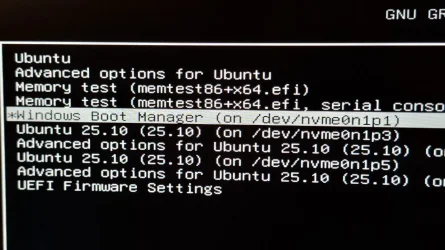


 (that was mine solution to my Sandbox issue) ".......

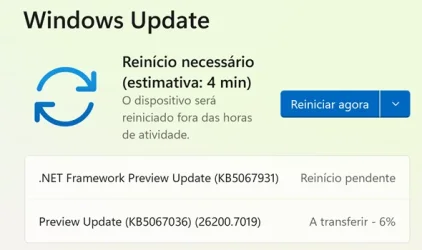
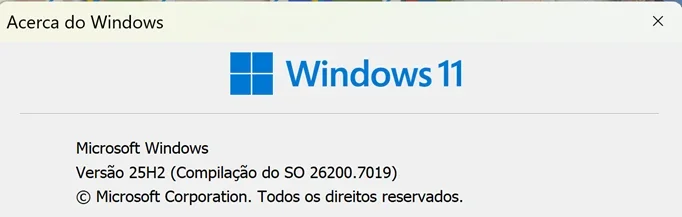

 not seeing it here, seems to be working fine