Windows Insider Blog:
Hello Windows Insiders,
I want to speak to you directly, as an engineer who has spent his career building technology that people depend on every day. Windows touches more people’s lives than almost any technology on Earth. Every day, we hear from the community about how you experience Windows. And over the past several months, the team and I have spent a great deal of time analyzing your feedback. What came through was the voice of people who care deeply about Windows and want it to be better.
Today, I’m sharing what we are doing in response. Here are some of the initial changes we will preview in builds with Windows Insiders this month and throughout April.
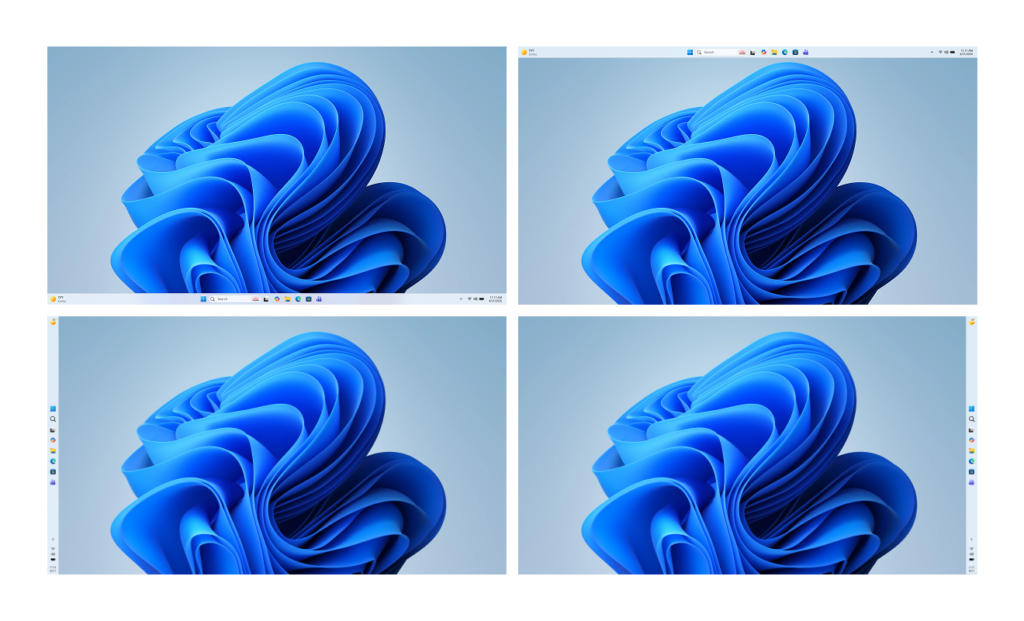
Desktops showing the taskbar positioned on the bottom, top, left and right side of the screen
- More taskbar customization, including vertical and top positions: Repositioning the taskbar is one of the top asks we’ve heard from you. We are introducing the ability to reposition it to the top or sides of your screen, making it easier to personalize your workspace.
Change Taskbar Position on Screen in Windows 11
This tutorial will show you how to change the taskbar position to any edge of the screen for your account in Windows 11. Starting with Windows 11 build 26100.9278 (24H2), build 26200.9278 (25H2), and build 2800.3086 (26H1), you can now change the position of taskbar on your screen. You can... www.elevenforum.com
- Integrating AI where it’s most meaningful, with craft and focus: You will see us be more intentional about how and where Copilot integrates across Windows, focusing on experiences that are genuinely useful and well‑crafted. As part of this, we are reducing unnecessary Copilot entry points, starting with apps like Snipping Tool, Photos, Widgets and Notepad.
- Reducing disruption from Windows Updates: Receiving updates should be predictable and easy to plan around, so we’re giving you more control. This includes the ability to skip updates during device setup to get to the desktop faster, restart or shut down without installing updates and pause updates for longer when needed, all while reducing update noise with fewer automatic restarts and notifications.
Pause and Resume Updates for Windows 11
This tutorial will show you how to pause and resume updates for Windows 11. Windows Update keeps Windows 11 updated by automatically downloading and installing the latest updates, drivers, and hotfixes released by Microsoft. If you have a Windows Insider build of Windows 11 installed, you can...
www.elevenforum.com
- Faster and more dependable File Explorer: File Explorer is one of the most used surfaces in Windows. Our first round of improvements will focus on a quicker launch experience, reduced flicker, smoother navigation and more reliable performance for everyday file tasks.
- More control over widgets and feed experiences: Widgets should feel helpful and relevant, not distracting or overwhelming. We’re introducing quieter defaults, more control over when and how widgets appear, and improved personalization for the Discover feed.
- A simpler, more transparent Windows Insider Program: The Windows Insider Program is how you help shape the future of Windows, and it should be easy to understand what to expect and how to participate. We are implementing changes to make it easier for you to navigate with clearer channel definitions, easier access to new features, higher quality builds, better visibility into how your feedback shapes Windows, and more opportunities to engage directly with us.
- Improved Feedback Hub, available starting today: Your feedback is essential to improving Windows, and it should be easy to share and see what others are saying. Today, we’re rolling out the largest update to Feedback Hub yet to our Insiders, with a redesigned experience that makes it faster and easier to submit feedback and engage with the community.
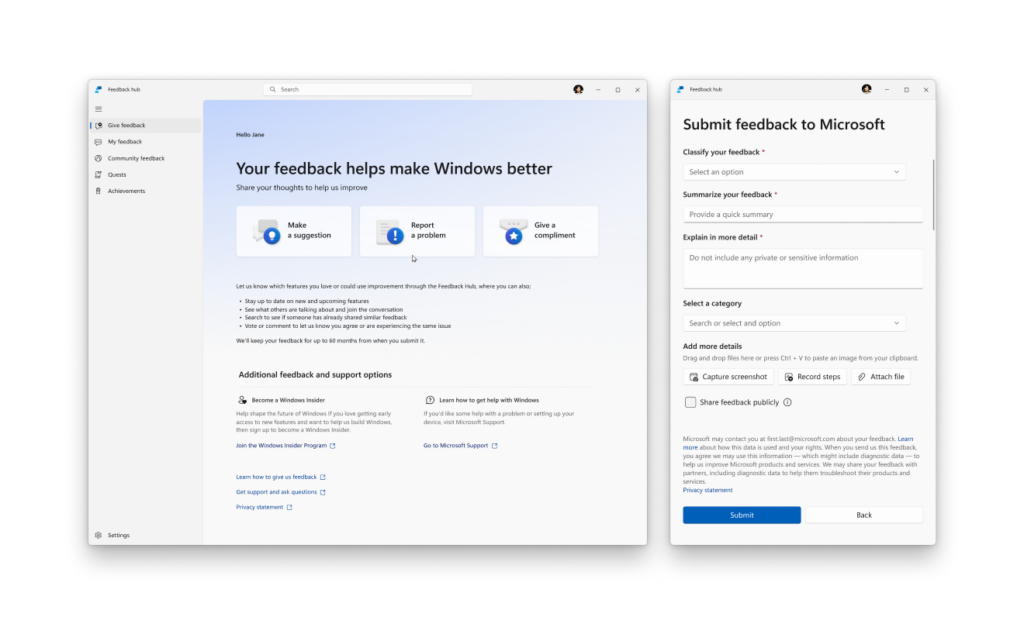
The new Feedback Hub app showing the redesigned home screen and feedback form
Building on these changes, what follows below is our broader plan and areas of focus for the year to raise the bar on Windows 11 quality. The work is underway. You can expect to see tangible progress that you’ll be able to feel as you preview builds from us throughout the rest of the year.
Last night I had the chance to sit down with a small group of Windows Insiders here in Seattle to listen, to answer questions, and to share more about where we’re headed. The Seattle meetup was the first of several stops our team will be making to engage in person, in more cities around the world, to connect with the Windows community.
Thank you for holding us to a high standard. Windows is as much yours as it is ours. We’re committed to strengthening its foundation and delivering innovation where it matters, for you.
Please keep the feedback coming, to help us shape the future of Windows together.
Best,

Pavan
EVP, Windows + Devices
_______
Delivering on Performance, Reliability and Craft
What follows is our plan to raise the bar on Windows 11 quality this year, with a focus on performance, reliability and well-crafted experiences. These areas have meaningful impact on how you experience Windows: how fast it starts and responds, how stable it is under real workloads, and how consistent and thoughtful the experience feels.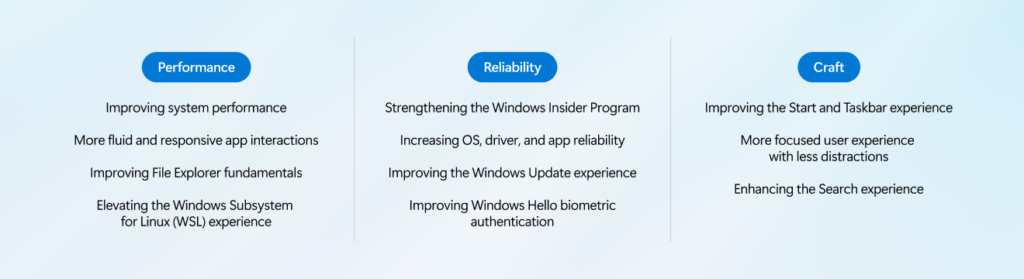
[Performance]
We are focusing on making Windows 11 more responsive and consistent, so performance feels smooth and reliable.Over the course of the year, we’re improving system performance, app responsiveness, File Explorer, and the Windows Subsystem for Linux, helping Windows stay fast as you move between apps and workloads.
Improving system performance: Reducing resource usage by Windows to free up more performance for what you’re doing.
- Faster and more responsive Windows experiences, with early improvements already delivering launch time reductions in apps like File Explorer
- Improved memory efficiency, lowering the baseline memory footprint for Windows, freeing up more capacity for the apps you run
- More consistent performance, even under load, so apps stay responsive throughout the day
- Improving the shared UI infrastructure that Windows experiences rely on, reducing interaction latency and overhead at the platform level
- Faster responsiveness in core Windows experiences like the Start menu, by moving more experiences to WinUI3
- Substantially lower latency for search, navigation and context menus
- Copying and moving large files will be faster and more reliable
- Faster launch and responsiveness for common file tasks
- Faster file performance between Linux and Windows
- Improved network compatibility and throughput
- More streamlined first-time setup and onboarding experience
- Better enterprise management with stronger policy control, security and governance
[Reliability]
Reliability is the bedrock of trust. You should trust that your PC is going to be there and function when you need it most.Across the operating system, we will focus on improving the baseline reliability of areas such as the Windows Insider Program, drivers and apps, updates and Windows Hello.
Strengthening reliability and quality of the Windows Insider Program: Making it clearer what to expect from each Insider channel, raising the quality bar for builds and strengthening feedback signals to improve build quality before broad release.
- Clearer visibility into what features are included in each Insider build, so you know what to expect
- More control over which new features you try, with easier switching between Insider channels to match your desired level of stability or early access
- Higher quality builds entering each channel, with more rigorous validation and feedback signals before release
- Stronger feedback loops across Windows so issues are identified, prioritized and addressed faster
- Strengthening the Windows foundation by reducing OS level crashes, improving driver quality and app stability across our ecosystem so PCs run smoothly and reliably every day
- Creating easier, faster and stable connections with Bluetooth accessories, fewer USB related crashes and connection loss, and improved printer discoverability and connections
- More reliable camera and audio connections to increase your productivity at work and play
- More consistent device wake (including further wake consistency improvements for docking scenarios) so you can get back to your work faster
- Less disruption from Windows Update, moving devices to a single monthly reboot, while organizations and users who wish to get new features and fixes faster remain able to do so
- More direct control over updates, including the ability to pause updates for as long as you need and restart or shut down without being forced to install them
- Faster, more reliable update experiences, with clearer progress during updates and built‑in recovery to help keep devices stable if something goes wrong
- More reliable facial recognition, so you can trust sign‑in to work when you need it
- Faster and more dependable fingerprint sign‑in, with fewer retries
- Easier secure sign‑in on gaming handhelds like the ROG Xbox Ally X, with full gamepad support for creating a PIN during setup and in Settings.
[Craft]
To us, craft is the discipline that turns functional products into loved ones through usability, polish, coherence and refinement.This year, you will see us invest in raising the bar on the overall usability of the experience, with more opportunities for personalization, less noise, less distraction and more control across the OS. That includes being thoughtful about how and where we bring AI into Windows, leading with transparency, choice and control, so that new capabilities enhance the experience rather than complicate it.
Improving the Start and Taskbar experience: Making these core Windows surfaces more reliable, flexible and personalized so you can navigate your PC in the way that works best for you.
- Start and Taskbar deliver even more consistent, dependable access to apps and files, so moving between your content feels fluid throughout the day
- Expanded taskbar personalization options, including alternate taskbar positions and a smaller taskbar, giving you greater control over how this core surface fits your workflow
- A more relevant Recommended section in Start will surface apps and content you care about most, with clear controls to customize the experience or turn it off
- Device setup on new Windows PCs is quieter and more streamlined, with fewer pages and reboots so getting started is simpler
- Widgets surface information more intentionally by default, keeping content glanceable and reducing unnecessary interruptions
- Simpler settings make it easier to personalize, opt into or turn off Widgets and feed content based on your preferences
- Reduced notifications so you can stay focused throughout the day
- Find what matters faster, with search that surfaces apps, files and settings clearly so you can get to the right result quickly
- Clearer and more trustworthy results, with results from content on your device easy to understand and clearly distinct from web results
- A more consistent search experience across the Taskbar, Start, File Explorer and Settings
This includes deeper validation and broader testing across real-world hardware and usage scenarios before new experiences reach Windows Insiders, and a more intentional approach to where and how new capabilities are introduced. The result will be higher quality builds, more meaningful innovation and greater flexibility in choosing what you want to try. This is how we will continue to build and ship Windows 11, so we can deliver better experiences with greater confidence, month after month.
In line with Microsoft’s Secure Future Initiative, we will continue to make Windows more secure with every release, building in new capabilities and strengthening security by default to help protect users, devices and data.
As we improve and innovate, we look forward to your continued feedback on where we can keep making Windows better.
Source:

Our commitment to Windows quality
Hello Windows Insiders, I want to speak to you directly, as an engineer who has spent his career building technology that people depend on every day. Windows touches more people's lives than almost any technology on Earth. Every day, we hear from th
 blogs.windows.com
Last edited: