For the difficulties getting media to boot properly, try this method. If this does not work I can just about guarantee that there is a problem with your system or your boot configuration in the BIOS or UEFI FW. This is literally the only method I use. I don't bother with RUFUS or the MCT or anything else except by automations which do this automatically.
Bootable Flash Drive Using Only Native MS Tools
This method creates a bootable Windows installation USB Flash Drive (UFD) that works in every possible scenario. It works with BIOS based systems or UEFI based systems, it works on systems that don't like to boot from NTFS formatted UFDs, and it has no size limit on files as an only FAT32 boot would.
I've used this method quite literally many, many hundreds of times and have never once had this not work.
Start with the thumb drive that you want to make bootable attached to your PC.
1) Run diskpart.
2) From the diskpart> prompt, run this command:
list disk
3) From the size of the disks, try to determine which disk ID is your thumb drive. If that is not enough information, run these commands to get more detail on the disk. In this example, I want more info on disk 4:
select disk 4
detail disk
Here is some sample output:
DISKPART> list disk
Disk ### Status Size Free Dyn Gpt
-------- ------------- ------- ------- --- ---
Disk 0 Online 476 GB 0 B *
Disk 1 Online 3726 GB 0 B *
Disk 2 Online 465 GB 1024 KB *
Disk 3 Online 7452 GB 0 B *
Disk 4 Online 238 GB 0 B
DISKPART> select disk 4
Disk 4 is now the selected disk.
DISKPART> detail disk
SanDisk Extreme Pro USB Device
Disk ID: DC727760
Type : USB
Status : Online
Path : 0
Target : 0
LUN ID : 0
Location Path : UNAVAILABLE
Current Read-only State : No
Read-only : No
Boot Disk : No
Pagefile Disk : No
Hibernation File Disk : No
Crashdump Disk : No
Clustered Disk : No
Volume ### Ltr Label Fs Type Size Status Info
---------- --- ----------- ----- ---------- ------- --------- --------
Volume 7 Z My Software NTFS Removable 238 GB Healthy
C:\MountPoints\My Software\
4) When you determine the correct disk, run these commands. I am assuming disk 4 in the following example:
select disk 4
clean (if you get an error running this command, run it again)
convert mbr
create partition primary size=2000
active
format fs=fat32 quick
assign
create partition primary
format fs=ntfs quick
assign
exit
NOTE: The assign commands will assign the next available drive letter. If you want to assign specific drives letters, for example E:, use the command assign letter=E.
5) NOTE: This step is optional. Read the remainder of step and decide whether or not you want to implement this. If not, just skip to step 6.
Start by checking to see if your original source has a file called ei.cfg in \sources folder. If that file is already present, skip to step 6.
Create a text file called ei.cfg. We will use that below. Place the following 2 lines into that file:
[Channel]
Retail
Notes about ei.cfg: Let's say that you have a computer that shipped with Windows 10 Home, but you upgraded to Pro. You may find that when you try to perform a clean install, Windows simply starts installing Home and doesn't even show you the menu from which you can select other editions. By placing this file in the sources folder, we prevent that from happening. This happens because Windows setup reads a signature in the UEFI FW that tells setup which edition of Windows the system was shipped with.
Note that when performing an unattended installation, this file is not needed because the autounattend.xml specifies the edition of Windows to install, but you can leave the ei.cfg in place as it won't hurt anything. I always include this file.
6) We will now copy files from the source to the two partitions on the thumb drive. To be clear, all the files and folders that you are being asked to copy come from your source folder such as a folder on your hard disk that contains all the Windows files, or from a mounted Windows ISO image.
Follow these steps to copy files to your thumb drive:
- Copy all files and folders EXCEPT the \sources folder to the FAT32 partition.
- If you are planning to use an autounattend.xml answer file, place it in the root of the first (FAT32) partition. You can do this later if you prefer.
- Create a folder called sources on the FAT32 partition.
- Copy the file \sources\boot.wim to the FAT32 partition \sources folder.
- Create a folder called sources on the NTFS partition.
- Copy all files and folders from the \sources folder EXCEPT boot.wim to the \sources folder on the NTFS partition.
- If you created an ei.cfg file, copy it to the \sources folder of the NTFS partition.
- Copy the folders boot, efi, and support from the source to the root of the NTFS partition. Note that these three folders will now exist on both the first and second partitions. These are VERY small folders, so the duplication of data is very minor.
NOTE: The last bullet above becomes necessary with Windows 11 24H2+.
At this point, you should have a bootable thumb drive.
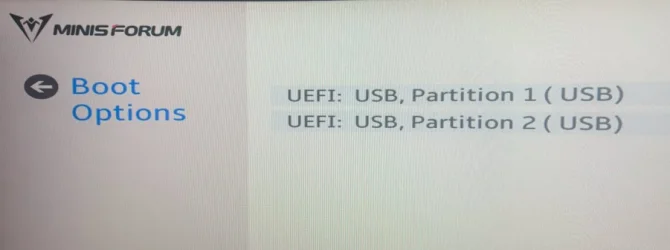
NOTE: When booting you may be presented with an option to boot either the FAT32 or the NTFS partition. Choose the FAT32 partition. If it is not clear which one the FAT32 partition is, simply try either. If it doesn't work, reboot and try the other.