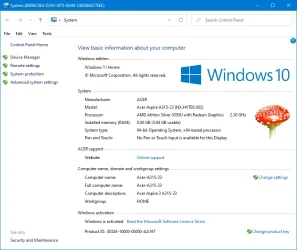
To change the OEM logo one easy way it to use Winaero Tweaker which also provides many other tweaks without having to manually modify the Registry. In latest Windows 11 versions the Windows logo no longer appears, only the OEM logo. If you want to replace the Windows logo in "traditional" System Properties (valid for earlier versions that it appears) and for the About Windows window (winver), you have to modify these two system files with Resource Hacker:
C:\Windows\Branding\Basebrd\basebrd.dll
C:\Windows\Branding\shellbrd\shellbrd.dll
These cannot be modified directly, you have to copy the files in another folder, then take ownership of the folders and the files, End Task File Explorer (because it uses the files), replace them from Command Prompt or PowerShell and then load File Explorer for the changes to take effect.
The ultimate all-in-one tweaker for Windows 11, Windows 10, Windows 8, and Windows 7.

winaerotweaker.com
This is how my About Window looks like after replacing the wrong "Windows 10" text with "Windows 11" and the Windows 7 start button (orb). I use the Aero Lite theme in order to het the good old red "close" buttons.
View attachment 140385
Here is how my System Properties (classic) looks like:
View attachment 140386
Yes, since it is a custom-build PC, I am the "Manufacturer".




 Personalization Change Category for App in Start Menu All Apps on Windows 11
 Accessibility Enable or Disable Auto Zoom Out for Narrator Math Reading Navigation in Windows 11
 Accessibility Change Narrator Math Reading Navigation Verbosity in Windows 11
 Accessibility Change Narrator Math Reading Navigation Mode in Windows 11
 Accessibility Change Narrator Math Reading Pause Factor in Windows 11