Windows Insider Blog:
UPDATE 9/24: The following updates and features for Paint, Snipping Tool, and Notepad are now rolling out to Windows Insiders in the Beta and Release Preview Channels.
Hello Windows Insiders, today we are beginning to roll out updates to Snipping Tool to Windows Insiders in the Canary and Dev Channels on Windows 11.
Paint (version 11.2508.361.0)
In this update, we’re excited to introduce two powerful enhancements that bring more flexibility to your creative workflow. First, we’re introducing project files, you can now save your creation as an editable Paint project file and seamlessly pick up where you left off. Once you’re ready to save your artwork, go to the File menu and select Save as project. The File Explorer will open, allowing you to choose a location and save your work as a .paint file. When you’re ready to return, simply open the file to launch it in Paint, right where you left off.
Save as Project File in Paint app in Windows 11
This tutorial will show you how to save your creation as an editable .paint project file from the Paint app in Windows 11. The Paint app included in Windows 11 is a simple and powerful graphics editor with a range of uses. You can edit images quickly or create masterpieces with the tools in...
 www.elevenforum.com
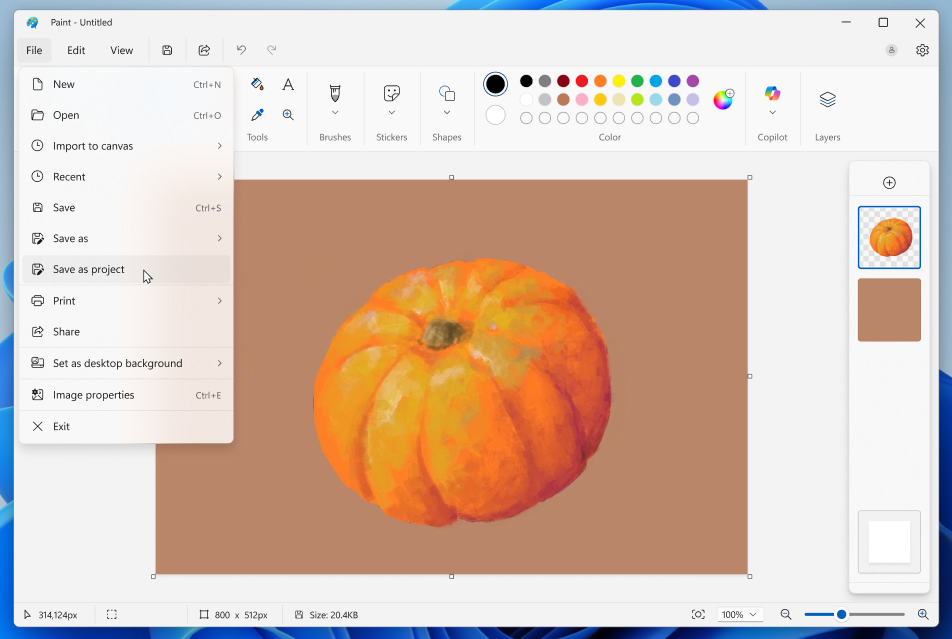
Paint app screenshot of pumpkin and saving as a project file.
We’re also adding an opacity slider, giving you control over the transparency of your strokes with the Pencil and Brush tools. To get started, select either tool and use the slider on the left side of the canvas to adjust the opacity to your desired level. Try experimenting with both the size and opacity sliders to create smooth blends and layered effects that bring your artwork to life.

Change Opacity of Pencil and Brush tools in Paint app in Windows 11
This tutorial will show you how to adjust the opacity level of your strokes with the Pencil and Brush tools in the Paint app in Windows 11. The Paint app included in Windows 11 is a simple and powerful graphics editor with a range of uses. You can edit images quickly or create masterpieces with...
www.elevenforum.com
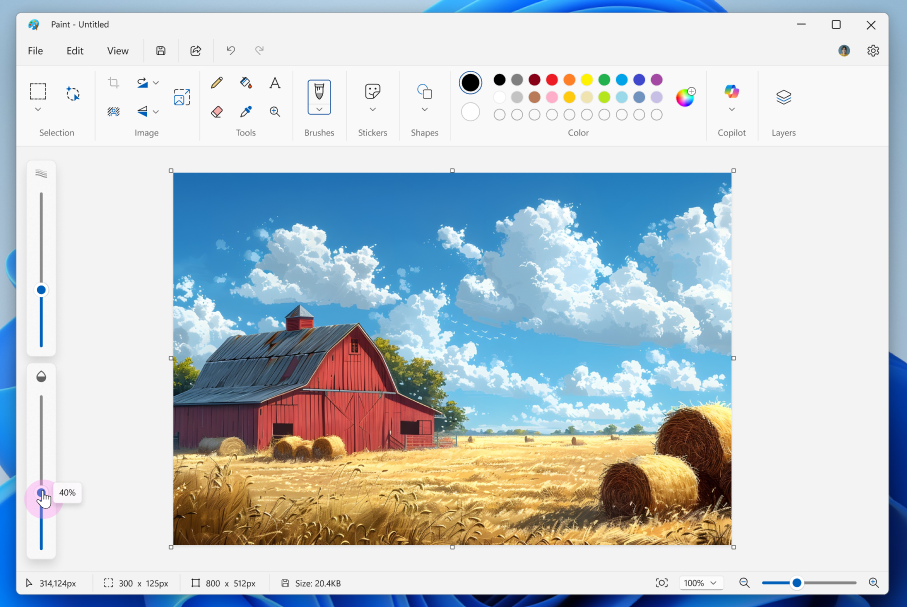
Paint app screenshot of barn with opacity adjusting to 40%.
FEEDBACK: Please file feedback in Feedback Hub (WIN + F) under Apps > Paint.
Snipping Tool (version 11.2508.24.0)
In this update, we’re introducing Quick markup – a faster way to annotate your screenshots and streamline your workflow!
Snipping Tool Capture Toolbar with the cursor hovering over the new Quick markup tool.
Use Quick Markup in Snipping Tool app in Windows 11
This tutorial will show you how use the Quick Markup tool in the Snipping Tool app to annotate live on your screen in Windows 11. The Snipping Tool app includes a built-in screen recorder and allows you to quickly take and annotate screenshots, photos and other images with your pen, touch, or...
www.elevenforum.com
To get started, open Snipping Tool via Win + Shift + S or launch the app directly. Before capturing your selection area, you’ll now see a Quick markup button in the top toolbar. Click on this button to toggle the feature on, or use the keyboard shortcut Ctrl + E. Once the button is on, go ahead and select your selection region. You’ll notice after this, you’ll be able to markup and make edits to your image right in Snipping Tool’s selection area before finalizing your screenshot!
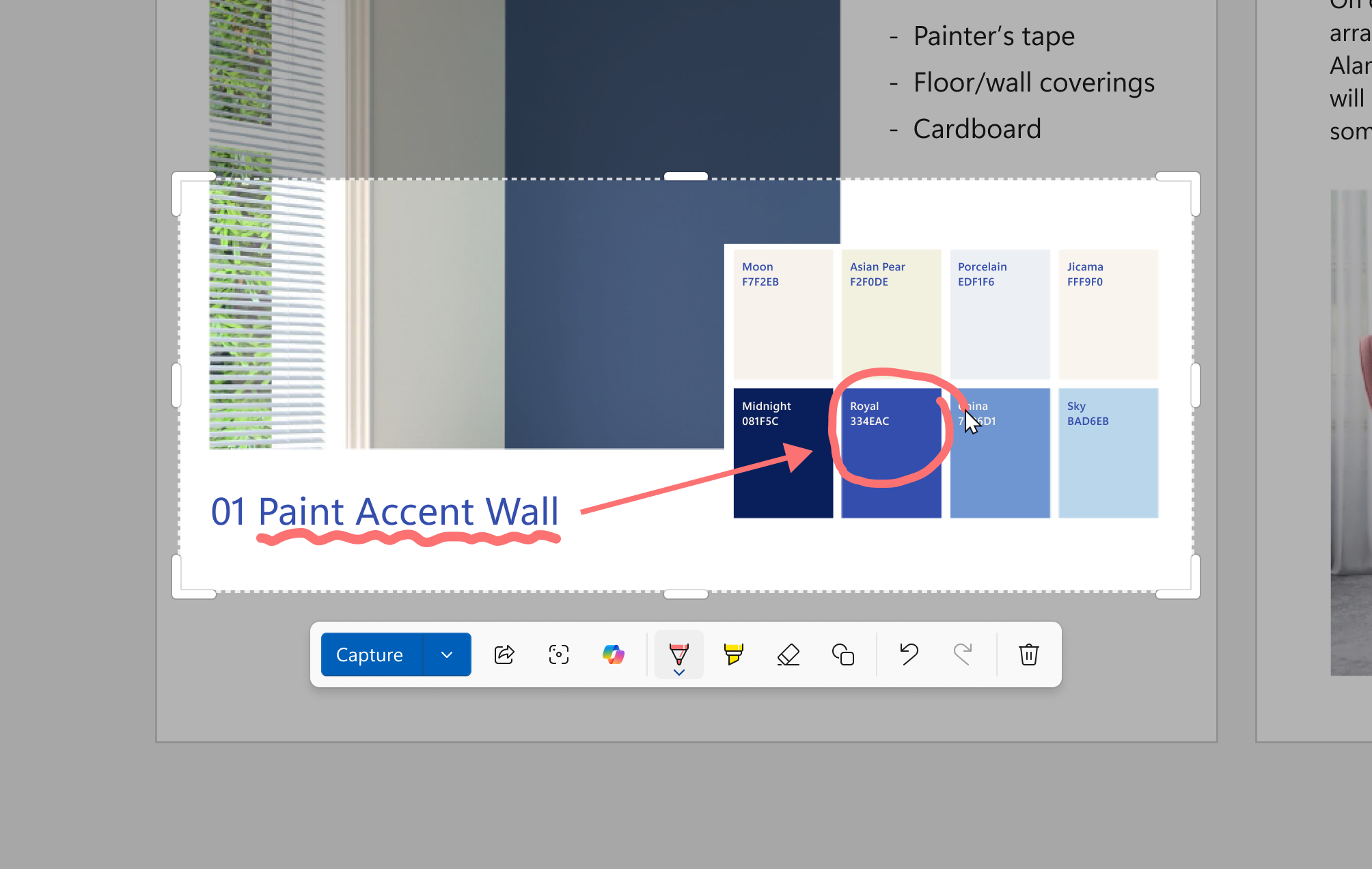
Snipping Tool Quick markup toolbar with a screenshot of color swatches. A single color is circled with the pen tool using Quick markup to bring attention to it.
In the Quick markup toolbar, you’ll find the classic pen, highlighter, and eraser tools, along with shapes and emojis to make quick edits to your image. Re-cropping the selection area can be done with the grabbers around the perimeter.
You’ll also be able to streamline your workflows by clicking on the Share, Visual Search with Bing, or Ask Copilot buttons. Please note that for these options, the image will not be copied to your clipboard or autosaved.
FEEDBACK: Please file feedback in Feedback Hub (WIN + F) under Apps > Snipping Tool.
Notepad (version 11.2508.28.0)
Notepad now supports AI features like Summarize, Write, and Rewrite on Copilot+ PCs, with no subscription required. If you have a subscription, you can seamlessly switch between local and cloud models based on your needs. If you’re not signed in or don’t have a subscription, you can use the local model to accomplish your tasks. For now, these features support English only, making premium AI more accessible and flexible for everyone.
Use Summarize in Notepad app to Enhance Writing with AI in Windows 11
This tutorial will show you how to use the Summarize feature in the Notepad app to enhance your writing with AI in Windows 11. Notepad is a fast and simple text editor that can be used to view, edit, and search through plain text documents instantly. Notepad in Windows includes Rewrite...
www.elevenforum.com

Use Write in Notepad app to Enhance Writing with AI in Windows 11
This tutorial will show you how to use the Write feature in Notepad to write new content using generative AI in Windows 11. Notepad is a fast and simple text editor that can be used to view, edit, and search through plain text documents instantly. Notepad in Windows includes Rewrite...
www.elevenforum.com
Use Rewrite in Notepad app to Enhance Writing with AI in Windows 11
This tutorial will show you how to use the Rewrite feature in the Notepad app to enhance your writing with AI in Windows 11. Notepad is a fast and simple text editor that can be used to view, edit, and search through plain text documents instantly. Notepad in Windows includes Rewrite...
www.elevenforum.com
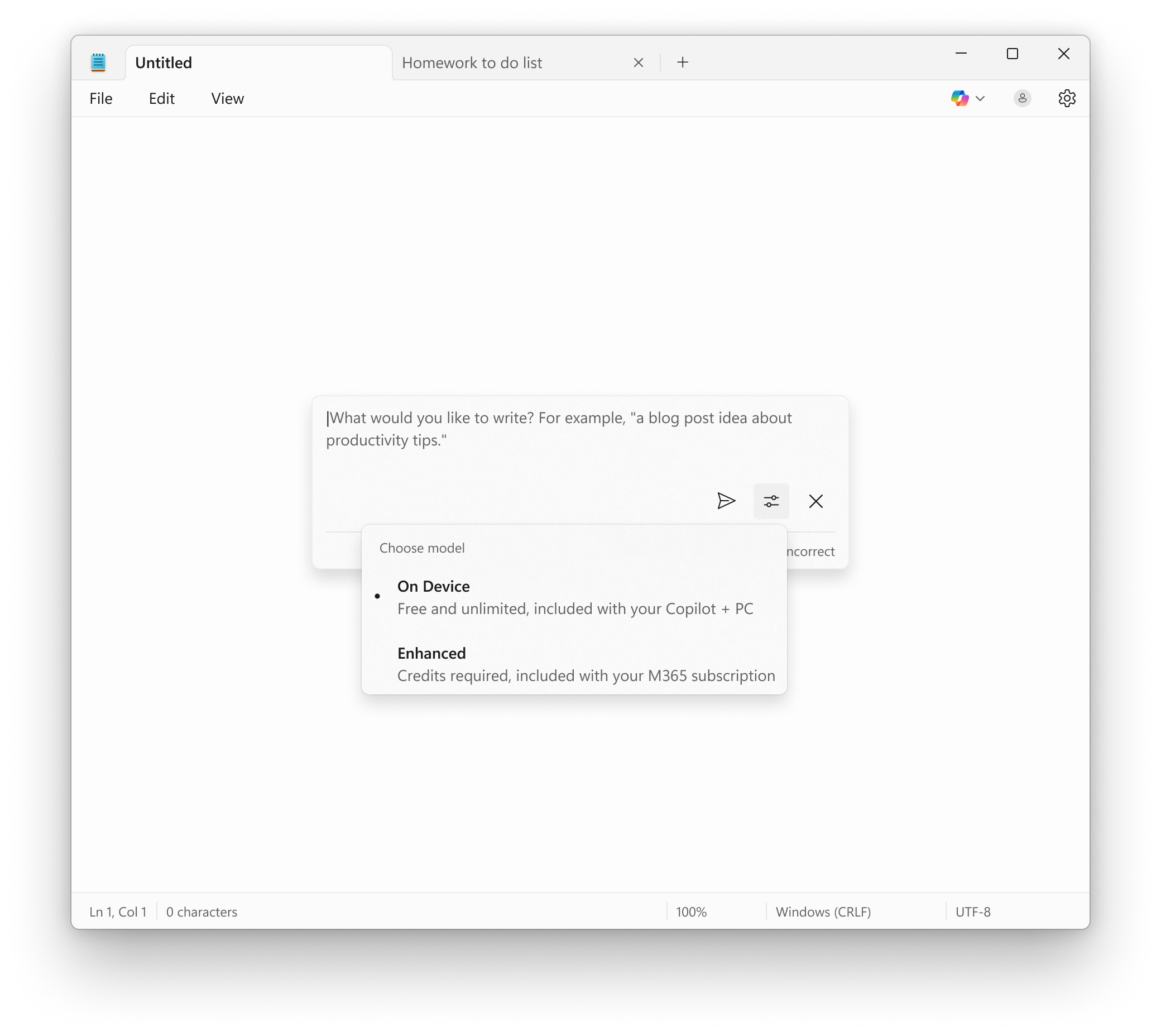
Notepad showing Write prompt with the ability to use the local model on your Copilot+ PC without a subscription.
FEEDBACK: Please share your feedback in Feedback Hub (WIN + F) under Apps > Notepad.
As always, we love getting feedback from the community and we will be looking out for your thoughts and suggestions on these updates!
Thanks,
Dave Grochocki, Principal Group Product Manager – Windows Inbox Apps
Source:

Paint, Snipping Tool, and Notepad app updates begin rolling out to Windows Insiders
UPDATE 9/24: The following updates and features for Paint, Snipping Tool, and Notepad are now rolling out to Windows Insiders in the Beta and Release Preview Channels. Hello Windows Insiders, today we are beginning to roll out updat
 blogs.windows.com
Last edited: