Personalization Reset and Re-register Windows Spotlight in Windows 11


Windows_Spotlight-new_header.webp

This tutorial will show you how to reset and re-register Windows Spotlight for your account in Windows 11.

In Windows 11, you can have Windows Spotlight as a theme and display different background images on your desktop and lock screen, and occasionally offers suggestions on the lock screen.

If Windows Spotlights stops working and/or stops changing the background image, you can reset and re-register Windows Spotlight to fix it.


Windows Spotlight will not work while connected to a metered network (ethernet or wireless), or in Battery Saver mode.

Windows Spotlight requires Background Apps to be turned on.

Country or region and Device setup region must be the same for Spotlight to work.
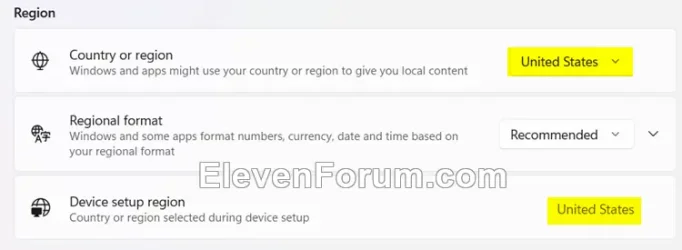
Region.webp


Sometimes it may take 24 to 48 hours after resetting for Windows Spotlight to sync again.


Another option is to use the Windows spotlight, dynamic images theme.

OR:


EXAMPLE: Windows Spotlight on Desktop and Lock screen

Windows_Spotlight_desktop_background.jpg
Windows_Spotlight_lock_screen.jpg


Here's How:

1 Change your desktop background to something other than Windows Spotlight. (see screenshot below)


Windows_Spotlight_desktop_background-1.png

2 Change your lock screen background to something other than Windows Spotlight. (see screenshot below)


Windows_Spotlight_lock_screen_background-1.png

3 Click/tap on the download button below to download the file below.

Reset_and_re-register_Windows_Spotlight.zip


(Contents of BAT file for reference)
Code:
:: Turn on background apps
reg delete "HKEY_CURRENT_USER\Software\Microsoft\Windows\CurrentVersion\BackgroundAccessApplications" /v GlobalUserDisabled /f
reg delete "HKEY_CURRENT_USER\Software\Microsoft\Windows\CurrentVersion\Search" /v BackgroundAppGlobalToggle /f

:: Reset Windows Spotlight
DEL /F /S /Q /A "%USERPROFILE%/AppData\Local\Packages\MicrosoftWindows.Client.CBS_cw5n1h2txyewy\LocalCache\Microsoft\IrisService"
DEL /F /S /Q /A "%USERPROFILE%/AppData\Local\Packages\Microsoft.Windows.ContentDeliveryManager_cw5n1h2txyewy\LocalCache\Microsoft\IrisService"
DEL /F /S /Q /A "%USERPROFILE%/AppData\Local\Packages\Microsoft.Windows.ContentDeliveryManager_cw5n1h2txyewy\LocalState\Assets"
DEL /F /S /Q /A "%USERPROFILE%/AppData\Local\Packages\Microsoft.Windows.ContentDeliveryManager_cw5n1h2txyewy\Settings"

:: Re-register Windows Spotlight
PowerShell -ExecutionPolicy Unrestricted -Command "& {$manifest = (Get-AppxPackage *ContentDeliveryManager*).InstallLocation + '\AppxManifest.xml' ; Add-AppxPackage -DisableDevelopmentMode -Register $manifest}"
PowerShell -ExecutionPolicy Unrestricted -Command "& {$manifest = (Get-AppxPackage *MicrosoftWindows.Client.CBS*).InstallLocation + '\AppxManifest.xml' ; Add-AppxPackage -DisableDevelopmentMode -Register $manifest}"

4 Save the ZIP file to your desktop.

5 Unblock the ZIP file.

6 Extract the BAT file from the ZIP file.

7 Run the BAT file.

8 Restart the computer to apply.

9 After you sign in, you can change your desktop background back to Windows Spotlight if wanted. (see screenshot below)


Windows_Spotlight_desktop_background-2.png

10 Change your lock screen background back to Windows Spotlight if wanted. (see screenshot below)


Windows_Spotlight_lock_screen_background-2.png


That's it,
Shawn Brink


Attachments

Last edited:

I've followed guides across various websites, as usual for Eleven Forums has the best guides and do know whilst this is the folder the Lock screen images. It isn't for the Wallpaper images.

My current Wallpaper images remain when I run the batch file, so know they're being stored elsewhere, but have never been able to find out which folder. The lock screen images get deleted from the folder/from the lockscreen and return in minutes.

For me it cycles through about 5 images but never downloads further ones. Lock screen images cycle fine. I've followed the instructions exactly as written three times.

Any thoughts? Thanks.

p.s. Windows 11 25H2: Build 26200.8246

Hello, :alien:

You might consider using the Windows spotlight, dynamic images theme or this below for more reliable Spotlight images.


My Computers My Computers

  • At a glance

    Windows 11 Pro for WorkstationsIntel i7-8700K 5 GHz64 GB (4x16GB) G.SKILL TridentZ RGB DDR4 3600...ASUS ROG-STRIX-GTX1080TI-O11G-GAMING (11GB GD...
    OS
    Windows 11 Pro for Workstations
    Computer type
    PC/Desktop
    Manufacturer/Model
    Custom self build
    CPU
    Intel i7-8700K 5 GHz
    Motherboard
    ASUS ROG Maximus XI Formula Z390
    Memory
    64 GB (4x16GB) G.SKILL TridentZ RGB DDR4 3600 MHz (F4-3600C18D-32GTZR)
    Graphics Card(s)
    ASUS ROG-STRIX-GTX1080TI-O11G-GAMING (11GB GDDR5X)
    Sound Card
    Integrated Digital Audio (S/PDIF)
    Monitor(s) Displays
    2 x Samsung Odyssey G75 27"
    Screen Resolution
    2560x1440
    Hard Drives
    1TB Samsung 990 PRO M.2,
    4TB Samsung 990 PRO M.2,
    TerraMaster F8 SSD Plus NAS
    PSU
    Seasonic Prime Titanium 850W
    Case
    Thermaltake Core P3 wall mounted
    Cooling
    Corsair Hydro H115i
    Keyboard
    Amazon Basics Wired Full Keyboard MD005
    Mouse
    Logitech MX Master 4
    Internet Speed
    2 Gbps Download and 100 Mbps Upload
    Browser
    Chrome and Edge
    Antivirus
    Microsoft Defender
    Other Info
    Logitech Z625 speaker system,
    Logitech BRIO 4K Pro webcam,
    HP Color LaserJet Pro MFP M477fdn,
    CyberPower CP1500PFCLCD
    Galaxy S23 Plus phone
  • At a glance

    Windows 11 ProSnapdragon X Elite (12 core) 3.42 GHz16 GB LPDDR5x-7467 MHz
    Operating System
    Windows 11 Pro
    Computer type
    Laptop
    Manufacturer/Model
    Surface Laptop 7 Copilot+ PC
    CPU
    Snapdragon X Elite (12 core) 3.42 GHz
    Memory
    16 GB LPDDR5x-7467 MHz
    Monitor(s) Displays
    15" HDR
    Screen Resolution
    2496 x 1664
    Hard Drives
    1 TB SSD
    Internet Speed
    Wi-Fi 7 and Bluetooth 5.4
    Browser
    Chrome and Edge
    Antivirus
    Microsoft Defender
Hi Brink,

Thanks. This seems to do the same really, just enable Spotlight via a theme instead of manually turning it on.

or this below for more reliable Spotlight images.

Dynamic Theme is great. Thanks. I've not replied for a day or so to see if it's working.

It's fixed my issue perfectly. I like how much you can customise it. I'm not using it for the Lockscreen as this isn't broken.

I'm unsure how it runs in the background when it's not visibly in Task Manager/Services. It's in TM when the App is open, not when closed I can see. I suspect it's in TM when closed but isn't an obvious name.
 

My Computer My Computer

At a glance

Windows 11 Pro16GB
OS
Windows 11 Pro
Computer type
Laptop
Manufacturer/Model
Microsoft Surface Laptop 7
Memory
16GB
Hard Drives
512GB
Hi Brink,

Thanks. This seems to do the same really, just enable Spotlight via a theme instead of manually turning it on.

Dynamic Theme is great. Thanks. I've not replied for a day or so to see if it's working.

It's fixed my issue perfectly. I like how much you can customise it. I'm not using it for the Lockscreen as this isn't broken.

I'm unsure how it runs in the background when it's not visibly in Task Manager/Services. It's in TM when the App is open, not when closed I can see. I suspect it's in TM when closed but isn't an obvious name.

Great news.
 

My Computers My Computers

  • At a glance

    Windows 11 Pro for WorkstationsIntel i7-8700K 5 GHz64 GB (4x16GB) G.SKILL TridentZ RGB DDR4 3600...ASUS ROG-STRIX-GTX1080TI-O11G-GAMING (11GB GD...
    OS
    Windows 11 Pro for Workstations
    Computer type
    PC/Desktop
    Manufacturer/Model
    Custom self build
    CPU
    Intel i7-8700K 5 GHz
    Motherboard
    ASUS ROG Maximus XI Formula Z390
    Memory
    64 GB (4x16GB) G.SKILL TridentZ RGB DDR4 3600 MHz (F4-3600C18D-32GTZR)
    Graphics Card(s)
    ASUS ROG-STRIX-GTX1080TI-O11G-GAMING (11GB GDDR5X)
    Sound Card
    Integrated Digital Audio (S/PDIF)
    Monitor(s) Displays
    2 x Samsung Odyssey G75 27"
    Screen Resolution
    2560x1440
    Hard Drives
    1TB Samsung 990 PRO M.2,
    4TB Samsung 990 PRO M.2,
    TerraMaster F8 SSD Plus NAS
    PSU
    Seasonic Prime Titanium 850W
    Case
    Thermaltake Core P3 wall mounted
    Cooling
    Corsair Hydro H115i
    Keyboard
    Amazon Basics Wired Full Keyboard MD005
    Mouse
    Logitech MX Master 4
    Internet Speed
    2 Gbps Download and 100 Mbps Upload
    Browser
    Chrome and Edge
    Antivirus
    Microsoft Defender
    Other Info
    Logitech Z625 speaker system,
    Logitech BRIO 4K Pro webcam,
    HP Color LaserJet Pro MFP M477fdn,
    CyberPower CP1500PFCLCD
    Galaxy S23 Plus phone
  • At a glance

    Windows 11 ProSnapdragon X Elite (12 core) 3.42 GHz16 GB LPDDR5x-7467 MHz
    Operating System
    Windows 11 Pro
    Computer type
    Laptop
    Manufacturer/Model
    Surface Laptop 7 Copilot+ PC
    CPU
    Snapdragon X Elite (12 core) 3.42 GHz
    Memory
    16 GB LPDDR5x-7467 MHz
    Monitor(s) Displays
    15" HDR
    Screen Resolution
    2496 x 1664
    Hard Drives
    1 TB SSD
    Internet Speed
    Wi-Fi 7 and Bluetooth 5.4
    Browser
    Chrome and Edge
    Antivirus
    Microsoft Defender
For me spotlight was not working because the device region (the one you setup in oobe) was different from the "country or region" you have in windows settings.
 

My Computer My Computer

At a glance

Windows 10Ultra Core Ultra 9 185H32GBIntel Arc
OS
Windows 10
Computer type
Laptop
Manufacturer/Model
Lenovo Yoga 7 Pro
CPU
Ultra Core Ultra 9 185H
Motherboard
Lenovo
Memory
32GB
Graphics Card(s)
Intel Arc
I just had to reset Spotlight for Desktop as it got stuck for a couple days.
Did the reset command, followed by reregister after reboot:
Powershell:
Get-AppxPackage -allusers *MicrosoftWindows.Client.CBS* | Reset-AppxPackage
Get-AppxPackage -allusers *MicrosoftWindows.Client.CBS* | Add-AppxPackage -Register -DisableDevelopmentMode
And waited something like a day and a half before I got a new, non-stock image. Sometimes you just have to wait.

I do have another (minor) annoyance, though: Spotlight for Lock Screen works with no issue, as images have been unerringly updated every single day, but for some reason, I only see one widget (Weather) out of four. Daily Wonder, Daily Discovery and This Day in History are missing in action. Any suggestions as to how to bring them back? These options do not even show up in the Personalization > Lock Screen window; I only have the option to use Weather or nothing at all.


Also, for those interested, I made a small .bat file to retrieve Lock screen pictures, as I like to collect them.
Inside a new folder on your desktop, create a SpotlightRetriever.bat file and fill it with the following instructions:
Batch:
xcopy "%LOCALAPPDATA%\Packages\Microsoft.Windows.ContentDeliveryManager_cw5n1h2txyewy\LocalState\Assets\*" "%~dp0" /E /H /K /Y
powershell.exe -NoProfile -ExecutionPolicy Bypass -Command "Get-ChildItem -File '%~dp0' | Where-Object { $_.Extension -eq '' } | Rename-Item -NewName { $_.Name + '.jpg' }"
It'll fetch the pictures and rename them to .jpg.
 

My Computer My Computer

At a glance

Windows 11 25H2 ProAMD Ryzen 7 9700X32GB Crucial Pro DDR5-6000-CL36 UDIMM OC Gami...ASUS Prime GeForce RTX 4070 Super OC
OS
Windows 11 25H2 Pro
Computer type
PC/Desktop
Manufacturer/Model
Custom
CPU
AMD Ryzen 7 9700X
Motherboard
Gigabyte X870 AORUS Elite Wifi 7 Rev.1.1
Memory
32GB Crucial Pro DDR5-6000-CL36 UDIMM OC Gaming Memory (2 x CP16G60C36U5B), CL36-38-38-80
Graphics Card(s)
ASUS Prime GeForce RTX 4070 Super OC
Monitor(s) Displays
LG UltraGear 27GS85Q-B/EU 27'' Fast IPS
Screen Resolution
2560x1440
Hard Drives
1 Kingston Fury Renegade (gen4) 1TB + 1 Kingston Fury Renegade G5 2TB + 1 Samsung 870 EVO 1TB + 3 x Western Digital Green 2TB
PSU
Be Quiet! Pure Power 12M 850W
Case
Lian Li Lancool III Black
Cooling
Thermalright Phantom Spirit 120 SE ARGB
Keyboard
Logitech Deluxe 250
Mouse
Logitech G502X Black
Also, for those interested, I made a small .bat file to retrieve Lock screen pictures, as I like to collect them.
Inside a new folder on your desktop, create a SpotlightRetriever.bat file and fill it with the following instructions:
Batch:
xcopy "%LOCALAPPDATA%\Packages\Microsoft.Windows.ContentDeliveryManager_cw5n1h2txyewy\LocalState\Assets\*" "%~dp0" /E /H /K /Y
powershell.exe -NoProfile -ExecutionPolicy Bypass -Command "Get-ChildItem -File '%~dp0' | Where-Object { $_.Extension -eq '' } | Rename-Item -NewName { $_.Name + '.jpg' }"
It'll fetch the pictures and rename them to .jpg.
Thanks for the .bat file.
 

My Computer My Computer

At a glance

Windows 11 Pro 25H2Intel i5-1450016 GBIntel
OS
Windows 11 Pro 25H2
Computer type
PC/Desktop
Manufacturer/Model
ASRock B760M Pro RS/D4 motherboard
CPU
Intel i5-14500
Motherboard
ASRock
Memory
16 GB
Graphics Card(s)
Intel
Hard Drives
1 TB Samsung M.2 SSD
1 TB WD HDD
Back
Top Bottom