This tutorial will show you how to reset and re-register Windows Spotlight for your account in Windows 11.
In Windows 11, you can have Windows Spotlight as a theme and display different background images on your desktop and lock screen, and occasionally offers suggestions on the lock screen.
If Windows Spotlights stops working and/or stops changing the background image, you can reset and re-register Windows Spotlight to fix it.
Windows Spotlight will not work while connected to a metered network (ethernet or wireless), or in Battery Saver mode.
Windows Spotlight requires Background Apps to be turned on.
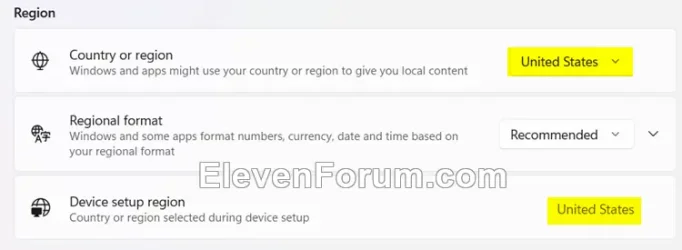
Country or region and Device setup region must be the same for Spotlight to work.
Sometimes it may take 24 to 48 hours after resetting for Windows Spotlight to sync again.
Another option is to use the Windows spotlight, dynamic images theme.
OR:
Dynamic Theme - Free download and install on Windows | Microsoft Store
This application is your ideal companion to personalize your experience with a new beautiful picture for your wallpaper and/or your lock screen each day. The pictures are coming from the Bing and Windows Spotlight sources. You can also incrust the description of each picture directly into the...
apps.microsoft.com
EXAMPLE: Windows Spotlight on Desktop and Lock screen
Here's How:
1 Change your desktop background to something other than Windows Spotlight. (see screenshot below)

Change Desktop Background to Spotlight, Picture, Solid Color, or Slideshow in Windows 11
This tutorial will show you different ways to change the desktop background to a picture, solid color, slideshow, or Windows Spotlight image for your account in Windows 11. You can change your desktop background in Windows 11 to be a picture, solid color, a slideshow, or Windows Spotlight...
 www.elevenforum.com
2 Change your lock screen background to something other than Windows Spotlight. (see screenshot below)

Change Lock Screen Background to Spotlight, Picture, or Slideshow in Windows 11
This tutorial will show you different ways to change the lock screen background to Windows Spotlight, a picture, or slideshow for your account in Windows 11. The lock screen (aka: welcome screen) is the screen you see at startup and when you lock (Win+L) the PC. You will need to dismiss the...
www.elevenforum.com
3 Click/tap on the download button below to download the file below.
Reset_and_re-register_Windows_Spotlight.zip
Download
(Contents of BAT file for reference)
Code:
:: Turn on background apps
reg delete "HKEY_CURRENT_USER\Software\Microsoft\Windows\CurrentVersion\BackgroundAccessApplications" /v GlobalUserDisabled /f
reg delete "HKEY_CURRENT_USER\Software\Microsoft\Windows\CurrentVersion\Search" /v BackgroundAppGlobalToggle /f

:: Reset Windows Spotlight
DEL /F /S /Q /A "%USERPROFILE%/AppData\Local\Packages\MicrosoftWindows.Client.CBS_cw5n1h2txyewy\LocalCache\Microsoft\IrisService"
DEL /F /S /Q /A "%USERPROFILE%/AppData\Local\Packages\Microsoft.Windows.ContentDeliveryManager_cw5n1h2txyewy\LocalCache\Microsoft\IrisService"
DEL /F /S /Q /A "%USERPROFILE%/AppData\Local\Packages\Microsoft.Windows.ContentDeliveryManager_cw5n1h2txyewy\LocalState\Assets"
DEL /F /S /Q /A "%USERPROFILE%/AppData\Local\Packages\Microsoft.Windows.ContentDeliveryManager_cw5n1h2txyewy\Settings"

:: Re-register Windows Spotlight
PowerShell -Command "Get-AppxPackage -AllUsers *Microsoft.Windows.ContentDeliveryManager* | Reset-AppxPackage"
PowerShell -Command "Get-AppxPackage -AllUsers *MicrosoftWindows.Client.CBS* | Reset-AppxPackage"

PowerShell -ExecutionPolicy Unrestricted -Command "& {$manifest = (Get-AppxPackage *ContentDeliveryManager*).InstallLocation + '\AppxManifest.xml' ; Add-AppxPackage -DisableDevelopmentMode -Register $manifest}"
PowerShell -ExecutionPolicy Unrestricted -Command "& {$manifest = (Get-AppxPackage *MicrosoftWindows.Client.CBS*).InstallLocation + '\AppxManifest.xml' ; Add-AppxPackage -DisableDevelopmentMode -Register $manifest}"
4 Save the ZIP file to your desktop.
5 Unblock the ZIP file.
6 Extract the BAT file from the ZIP file.
7 Run the BAT file.
8 Restart the computer to apply.
9 After you sign in, you can change your desktop background back to Windows Spotlight if wanted. (see screenshot below)
Change Desktop Background to Spotlight, Picture, Solid Color, or Slideshow in Windows 11
This tutorial will show you different ways to change the desktop background to a picture, solid color, slideshow, or Windows Spotlight image for your account in Windows 11. You can change your desktop background in Windows 11 to be a picture, solid color, a slideshow, or Windows Spotlight...
www.elevenforum.com
10 Change your lock screen background back to Windows Spotlight if wanted. (see screenshot below)
Change Lock Screen Background to Spotlight, Picture, or Slideshow in Windows 11
This tutorial will show you different ways to change the lock screen background to Windows Spotlight, a picture, or slideshow for your account in Windows 11. The lock screen (aka: welcome screen) is the screen you see at startup and when you lock (Win+L) the PC. You will need to dismiss the...
www.elevenforum.com
That's it,
Shawn Brink
Related Tutorials
- Change Lock Screen Background to Windows Spotlight, Picture, or Slideshow in Windows 11
- Change Desktop Background to Spotlight, Picture, Solid Color, or Slideshow in Windows 11
- Enable or Disable Windows Spotlight on Desktop Background in Windows 11
- Find and Save Windows Spotlight Images in Windows 11
- Switch to Next Windows Spotlight Picture in Windows 11
Attachments
Last edited: