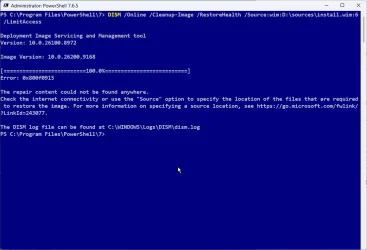
I am sending a screenshot of the error mentioned in the title of this post.
1. Is this a serious problem (as in, could Windows become unstable, for example)?
2. Is there a way to fix it? I have attempted to resolve this using ChatGPT without success.
Thanks for any help you can provide.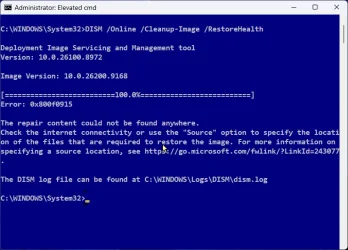
1. Is this a serious problem (as in, could Windows become unstable, for example)?
2. Is there a way to fix it? I have attempted to resolve this using ChatGPT without success.
Thanks for any help you can provide.
My Computer
At a glance
Windows 11 ProfessionalIntel Core i5-940032GBIntegrated Intel UHD Graphics 630
- OS
- Windows 11 Professional
- Computer type
- PC/Desktop
- Manufacturer/Model
- Microcenter B677
- CPU
- Intel Core i5-9400
- Motherboard
- ASRock H310CM-HDV/M.2
- Memory
- 32GB
- Graphics Card(s)
- Integrated Intel UHD Graphics 630
- Sound Card
- Intel Kaby Lake - High Definition Audio / cAVS (Audio, Voice, Speech) [A0]
- Monitor(s) Displays
- LG Model: GSM59F1
- Screen Resolution
- 2560x1080
- Case
- Lian Li 205M
- Antivirus
- Kaspersky AV