This tutorial will show you how to share a local computer's devices and resources with a Hyper-V virtual machine in Enhanced Session mode on Windows 10 and Window 11.
Hyper-V enables running virtualized computer systems on top of a physical host. These virtualized systems can be used and managed just as if they were physical computer systems, however they exist in virtualized and isolated environment. Special software called a hypervisor manages access between the virtual systems and the physical hardware resources. Virtualization enables quick deployment of computer systems, a way to quickly restore systems to a previously known good state, and the ability to migrate systems between physical hosts.
Enhanced Session Mode lets Hyper-V connect to virtual machines using RDP (remote desktop protocol). Not only does this improve your general virtual machine viewing experience, connecting with RDP also allows the virtual machine to share resources with your computer when you're running Virtual Machine Connection (VMConnect).
If your Hyper-V host (physical PC) runs Windows 10 or Windows 11, the enhanced session mode feature is enabled by default.
RDP/Enhanced Session mode includes:
- Makes virtual machines resizable and high DPI aware.
- Improves virtual machine integration
- Shared clipboard
- File sharing via drag drop and copy paste
- Allows device sharing
- Microphone/Speakers
- USB devices
- Data disks (including C:)
- Printers
- Troubleshoot a virtual machine without a network connection to the virtual machine.
- Copy and paste files to and from the virtual machine in the same way you copy and paste using a Remote Desktop Connection (RDP).
- Sign in to the virtual machine by using a smart card.
- Print from a virtual machine to a local printer.
- Test and troubleshoot developer applications that require USB and sound redirection without using RDP.
Understanding device redirection changes in Hyper-V Virtual Machine Connection enhanced session mode
 www.elevenforum.com

Share devices with Hyper-V Windows virtual machines
Use local resources on Hyper-V with VMConnect
Hyper-V Virtual Machine Connection
You must be signed in as an administrator to use a Hyper-V virtual machine.
Enhanced Session Mode must be turned on for the Hyper-V host to share it's devices and resources with a Hyper-V virtual machine you connect to with Virtual Machine Connection (VMConnect).
If this is for a Windows 10 or Windows 11 VM, you will need to turn off For improved security, only allow Windows Hello sign-in for Microsoft accounts on this device in the VM to be able to sign in to RDP with a password.
Here's How:
1 Open Hyper-V Manager (virtmgmt.msc).
2 Select the virtual machine (ex: "Windows 11 Dev") in the middle pane you want to use local resources with, and click/tap on Connect in the right "Actions" pane. (see screenshot below)
3 Click/tap on Start on the "Virtual Machine Connection" window. (see screenshot below)
4 Click/tap on Show Options in the Connect dialog. (see screenshot below)
If you don't see the Connect dialog and the virtual machine is currently not running in enhanced session mode (unchecked), then click/tap on View on the menu bar of the virtual machine, and click/tap on the unchecked Enhanced session to open the Connect dialog.

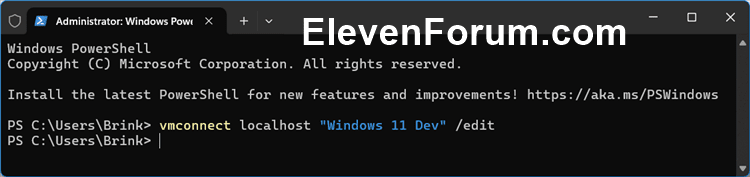
If you don't see the Connect dialog and the virtual machine is currently running in enhanced session mode (checked), then open an Windows Terminal (Admin), type the command below, and press Enter to open a new connection instance for the virtual machine with the Connect dialog. Close Windows Terminal (Admin) and the other virtual machine connection without the Connect dialog. This will also allow you to make changes to your connection settings.
vmconnect localhost "<VM name>" /edit
NOTE: Substitute VM name in the command above with the actual name (ex: "Non Insider W10") of the virtual machine.
For example: vmconnect localhost "Windows 11 Dev" /edit
5 Click/tap on the Local Resources tab. (see screenshot below)
6 If you want to to make changes for Remote audio, click/tap on the Settings button. (see screenshot above)
By default, virtual machines using enhanced session mode pass audio through so you can hear audio from the virtual machine. The virtual machine will use the audio device currently selected on the host machine.
You can change these settings or add microphone passthrough (so you can record audio in a virtual machine).
Since your virtual machine is probably running locally, the "play on this computer" and "play on remote computer" options will yield the same results.
7 If you want to to make changes for Local devices and resources, click/tap on the More button. (see screenshot below)
8 Select (check) any local drives and devices you want to share with the virtual machine, and click/tap on OK. (see screenshot below)
By default, virtual machines using enhanced session mode share printers, the clipboard, pass smartcard and other security devices through to the virtual machine so you can use more secure login tools from your virtual machine.
9 Click/tap on the Display tab. (see screenshot below step 11)
10 Check or uncheck (default) Save my settings for future connections to this virtual machine for what you want. (see screenshot below step 11)
If you check Save my settings for future connections to this virtual machine, this virtual machine will always automatically start in enhanced session mode using the Connect settings you set in the steps above.
If you want to uncheck this box later or make changes to your connection settings, you can open an Windows Terminal (Admin), type the command below, and press Enter to open a new connection instance for the virtual machine with the Connect dialog. Close Windows Terminal (Admin) and the other virtual machine connection without the Connect dialog. This will also allow you to make changes to your connection settings.
vmconnect localhost "<VM name>" /edit
NOTE: Substitute VM name in the command above with the actual name (ex: "Non Insider W10") of the virtual machine.
For example: vmconnect localhost "Windows 11 Dev" /edit
11 Click/tap on Connect to start the virtual machine in enhanced session mode. (see screenshot below)
That's it,
Shawn Brink