- Local time
- 2:50 PM
- Posts
- 63
- OS
- Windows 11
Something is keeping those files from being deleted, here is how to find out!
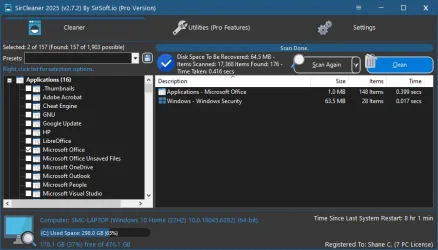
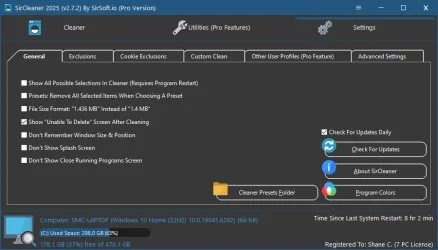
In settings. on the general tab, put a check on "Show Unable To Delete Screen after cleaning" this will show you the files it couldn't delete and why. Pro feature of it on that screen is that you can have the files delete at the next reboot.
Right now when the program says how much it deleted it is just reading the total amount of selected files, Since the program can tell which ones it didn't delete perhaps I should have it update the totals at the end of cleaning so it shows the proper amount that was actually deleted.
The unable to delete screen was added way after the core of the cleaning was done, So didn't think about having the total updated.
Also the program uses the windows API to pull file size. I think it is just the actual size of the file and not the space it is taking. So lets say it finds 100 2kb files, it would say 200kb total, but if your cluster size is 4k it would actually be 800kb of space being used. But depending on your cluster size the size on disk shouldn't be too different. But compressed files on the file system are using less space than what is report for the file size as well.
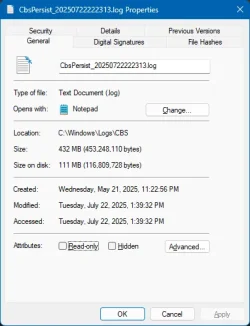
Although something odd, on my Windows 11 machine files less than 1kb are showing "Size On Disk" as 0, that doesn't see, right.
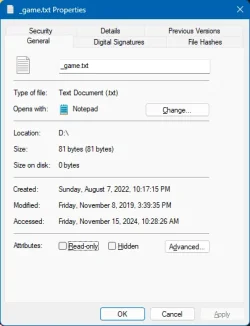
Yet on files larger than 1kb it does show the size on disk.
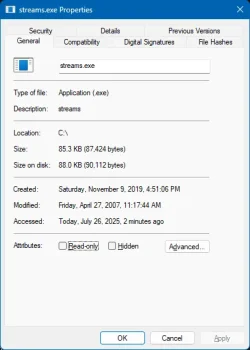
Edit:
"This happens if the file is so small that its contents and the filesystem bookkeeping fit in 1KB. To save disk space, NTFS keeps small files "resident", storing their contents right in the file record, so no cluster has to be allocated for it. Therefore, the size on disk is zero because there's nothing beyond the file record. Once the file gets sufficiently large, NTFS makes it "nonresident", allocates one or more clusters for it (creating a nonzero "size on disk"), and creates a "mapping pair" in the file record in the place of the data to point to the cluster."
I learn something new every day!
In settings. on the general tab, put a check on "Show Unable To Delete Screen after cleaning" this will show you the files it couldn't delete and why. Pro feature of it on that screen is that you can have the files delete at the next reboot.
Right now when the program says how much it deleted it is just reading the total amount of selected files, Since the program can tell which ones it didn't delete perhaps I should have it update the totals at the end of cleaning so it shows the proper amount that was actually deleted.
The unable to delete screen was added way after the core of the cleaning was done, So didn't think about having the total updated.
Also the program uses the windows API to pull file size. I think it is just the actual size of the file and not the space it is taking. So lets say it finds 100 2kb files, it would say 200kb total, but if your cluster size is 4k it would actually be 800kb of space being used. But depending on your cluster size the size on disk shouldn't be too different. But compressed files on the file system are using less space than what is report for the file size as well.
Although something odd, on my Windows 11 machine files less than 1kb are showing "Size On Disk" as 0, that doesn't see, right.
Yet on files larger than 1kb it does show the size on disk.
Edit:
"This happens if the file is so small that its contents and the filesystem bookkeeping fit in 1KB. To save disk space, NTFS keeps small files "resident", storing their contents right in the file record, so no cluster has to be allocated for it. Therefore, the size on disk is zero because there's nothing beyond the file record. Once the file gets sufficiently large, NTFS makes it "nonresident", allocates one or more clusters for it (creating a nonzero "size on disk"), and creates a "mapping pair" in the file record in the place of the data to point to the cluster."
I learn something new every day!
Last edited:
My Computer
System One
-
- OS
- Windows 11
- Computer type
- PC/Desktop


 DIY Photoshop/Audio/Game/tinker
 96GB (2x48) G.skill Ripjaws 6800 MT/s
 Bowers & Wilkins 606 S3 speakers; Audiolabs 7000a integrated amp; RSL 10S Mk2 sub; Creative Pebble Pro Minimilist
 WDC SN850X 4TB nvme, SN850 1TB nvme, SK-Hynix 2 TB P41 nvme,. Sabrent USB-C DS-SC5B 5-bay docking station: 6TB WDC Black, 6TB Ironwolf Pro; 2x 2TB WDC Black HDD
 ️ 850W Seasonic Vertex PX-850 ATX 3.0/PCI-E 5.0
 EK Nucleus black 360 AIO w/Phanteks T30-120 fans, 2 Noctua NF-A14 Chromax case fan, 1 T30-120 fan cooling memory
 Keychron Q3 Max TKL with custom GMK Redsuns Red Samuri keycaps, TX Stabs
 Logitech G305 wireless gaming
 500 Mb/s
  12 Mb/s
 Firefox
 Defender, Macrium Reflect X
 Apple 13" Macbook Pro 2020 (m1)