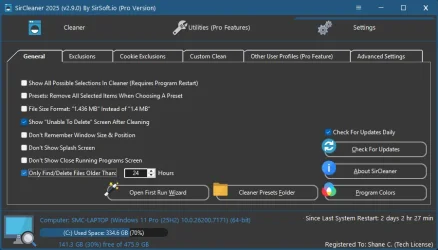
V2.9.0
Fixed bug of Other user profiles unselected not saving.
Updated cleaner for PowerDirector
Added new command line options. Allowing the program to be ran from the task scheduler or batch files and so on. Allowing users to schedule auto cleanups. Future updates will include a built in tool making scheduling automatic cleanups easier.
Help and more information on the new command line options is located at
Command Line Options
Added new option under Advanced settings "Always Load Default Cleaning Preset At Startup" Since the program detects any new programs it can clean at startup this option will insure that it gets selected automatically.
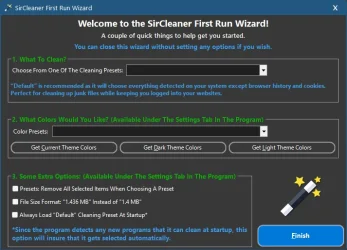
Added a First Run Wizard window, some quick steps to help get new users running. Such as choosing a cleaning preset, what colors to use and a few other options. This will only run once, if a user wants to open it again they can under the settings tab.
Updated help file both online and local to show the new changes and to give details on the new command line options.
| Command (Only Forward Slash "/" Supported) | Options (Note: There are no spaces between the commands and their options) |
| /Clean |
With this command after the program is done cleaning it will close itself.
Auto -Auto scan and clean while showing the program window.
Example: /Clean=Auto
Silent - Auto scan and clean while hiding the window.
Example: /Clean=Silent |
| /CloseBrowsers |
True - Auto close browsers when scanning. This will close any running browsers so they can be properly scanned and clean. This is useful with most browsers running in the background even though you don't have them open.
Example: /CloseBrowsers=True
False - Will not close any running browsers. This is useful if you have the program set to auto clean via the Windows task scheduler using these commands and don't want them being closed while you use them.
Example: /CloseBrowsers=False |
| /LoadPreset | This allows you to load a cleaning preset. Either the default ones or ones you create. If the preset name doesn't exist then the currently selected cleaning options will be ran.
Please note quotations only need to be used if there is spaces in the name.
Example: /LoadPreset="Default"
or
Example: /LoadPreset="Recycle Bin & Temporary Folders" |
| /LoadPresetClear | True - Clear current cleaning choices when loading preset. This makes sure only the items in the preset are cleaned.
Example: /LoadPresetClear=True
False - This tells the program to not remove any previous selected items marked to be cleaned. When loading a preset the items in the preset will simply be included with the current ones.
Example: /LoadPresetClear=False |
| /SaveCleaningChoices | True - This is the default value if this command isn't used. When the program closes it will save and remember the cleaning options chosen.
Example: /SaveCleaningChoices=True
False - The program will not save any changes made to the cleaning options in the list. This is useful if you want to run a preset without undoing your selections you already have. Also allows you to open the program with this switch, make any changes you want for a one time run and have your original choices be chosen on the next program startup.
Example: /SaveCleaningChoices=False |
| /SelectEverything | This command only has one option and can be used instead of /LoadPreset
True - Instead of loading a preset choose everything in the list to clean.
Example: /SelectEverything=True |
Here are a number of examples on using these commands.
Note: When using the /Clean command the program will close when finished. Using any of the other commands without /Clean the program will remain open.
Example 1:
SirCleaner.exe /Clean=Silent /CloseBrowsers=True /LoadPreset="Default" /LoadPresetClear=True
Loading the "Default" preset, removing any selected items in case something excluded from the default preset is chosen, closing browsers and cleaning the system and doing so hidden. The program will remember the cleaning choices after this.
We use the default preset which selects everything in the list except browser history, cookies and site data. The program checks for any supported programs at startup, so if new ones show up this makes sure they get selected for cleaning.
Example 2:
SirCleaner.exe /Clean=Silent /CloseBrowsers=True /LoadPreset="Default" /LoadPresetClear=True /SaveCleaningChoices=False
Same as Example 1, but this time we don't want the program to remember the cleaning choices, that way any choices from before remain.
Example 3:
SirCleaner.exe /Clean=Auto /CloseBrowsers=True /LoadPreset="Default" /LoadPresetClear=True /SaveCleaningChoices=False
Same as Example 1 and 2 but instead of being hidden the program window and progress is shown.
Example 4:
SirCleaner.exe /LoadPreset="Default"
or
SirCleaner.exe /LoadPreset="Recycle Bin & Temporary Folders" /LoadPresetClear=True
or
SirCleaner.exe /LoadPreset="Default" /SaveCleaningChoices=False
or
SirCleaner.exe /LoadPreset="Recycle Bin & Temporary Folders" /LoadPresetClear=True /SaveCleaningChoices=False
We can use the other commands without the clean command to open the program and have presets selected. You can uses any of the other commands along with it.



 .
.