StartAllBack


StartAllBack: Windows 11 from better timeline​

Get the latest version here Download

Embrace, enhance, unsweep classic UI from under the rug​

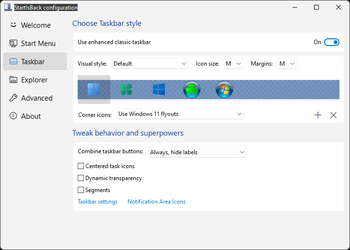
Restore and improve taskbar​

  • Show labels on task icons
  • Adjust icon size and margins
  • Move taskbar to top, left or right edges
  • Drag and drop stuff onto taskbar
  • Center task icons but keep Start button on the left
  • Split into segments, use dynamic translucency
  • Separate corner icons with Windows 7/10 UI
  • Auto-hide when covered by maximized window

Restore and improve File Explorer and Control Panel​

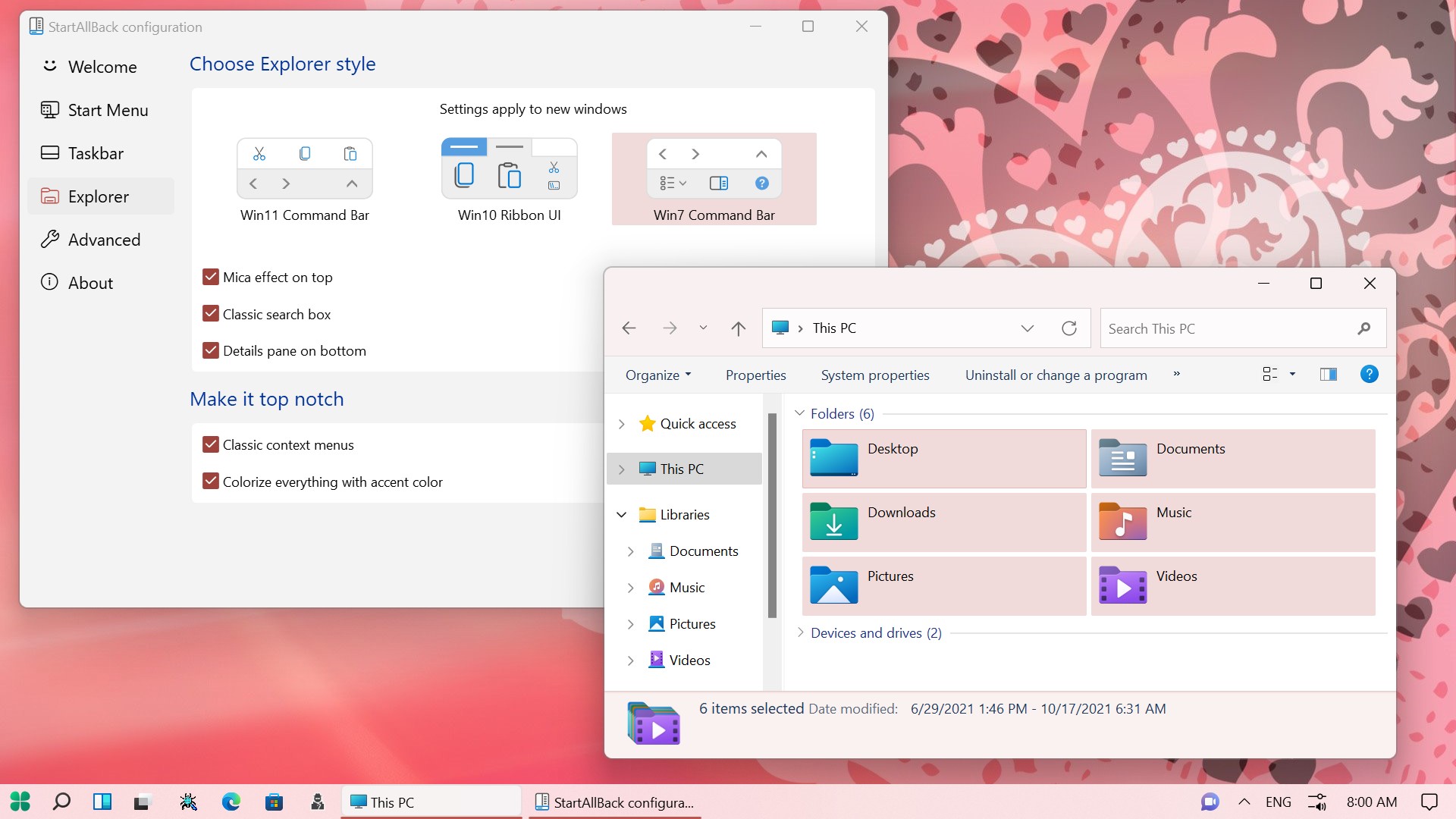
  • Ribbon and Command Bar revamped with translucent effects
  • Details pane on bottom
  • Old search box (the one which works)
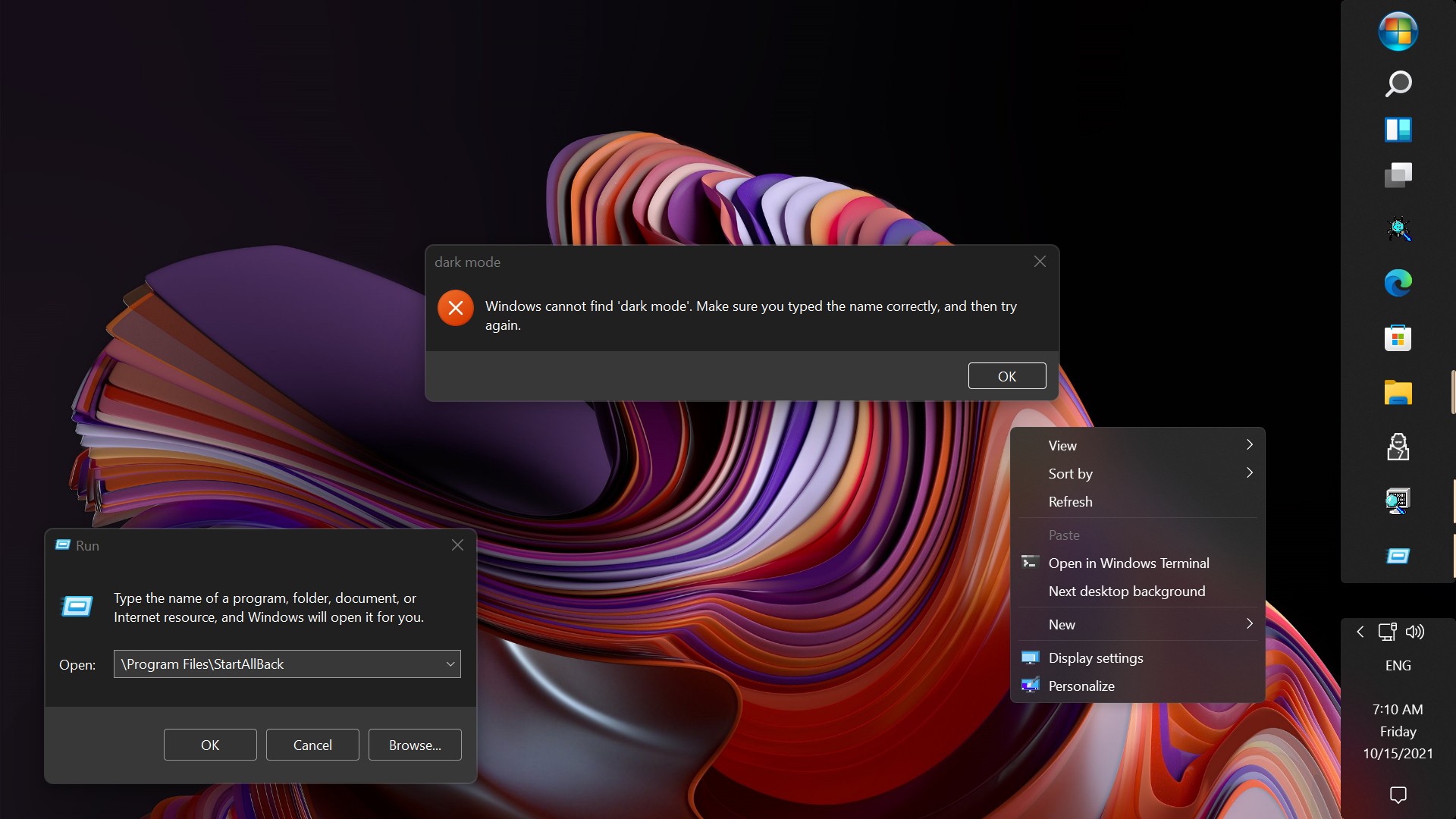
  • Dark mode support for more dialogs

Restore and improve context menus​

  • All new look with rounded acrylic menus
  • Fast and responsive taskbar menus
  • New fonts, better touch support

Restore and improve start menu​

  • Launch apps and go to system places in one click
  • Navigate dropdown menus like a boss
  • Enjoy fast and reliable search

Finally, lightweight styling and UI consistency​

  • Enjoy Windows 7, Windows 8 and third-party taskbar and start menu styles
  • Fix UI inconsistencies in Win32 apps
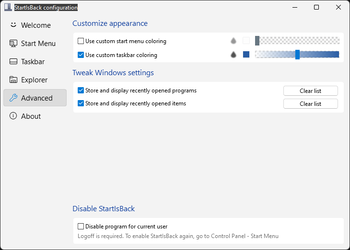
  • Don't be blue: recolor UI in all windows apps
  • Negative resource usage: fewer RAM used, fewer processes started, faster startup
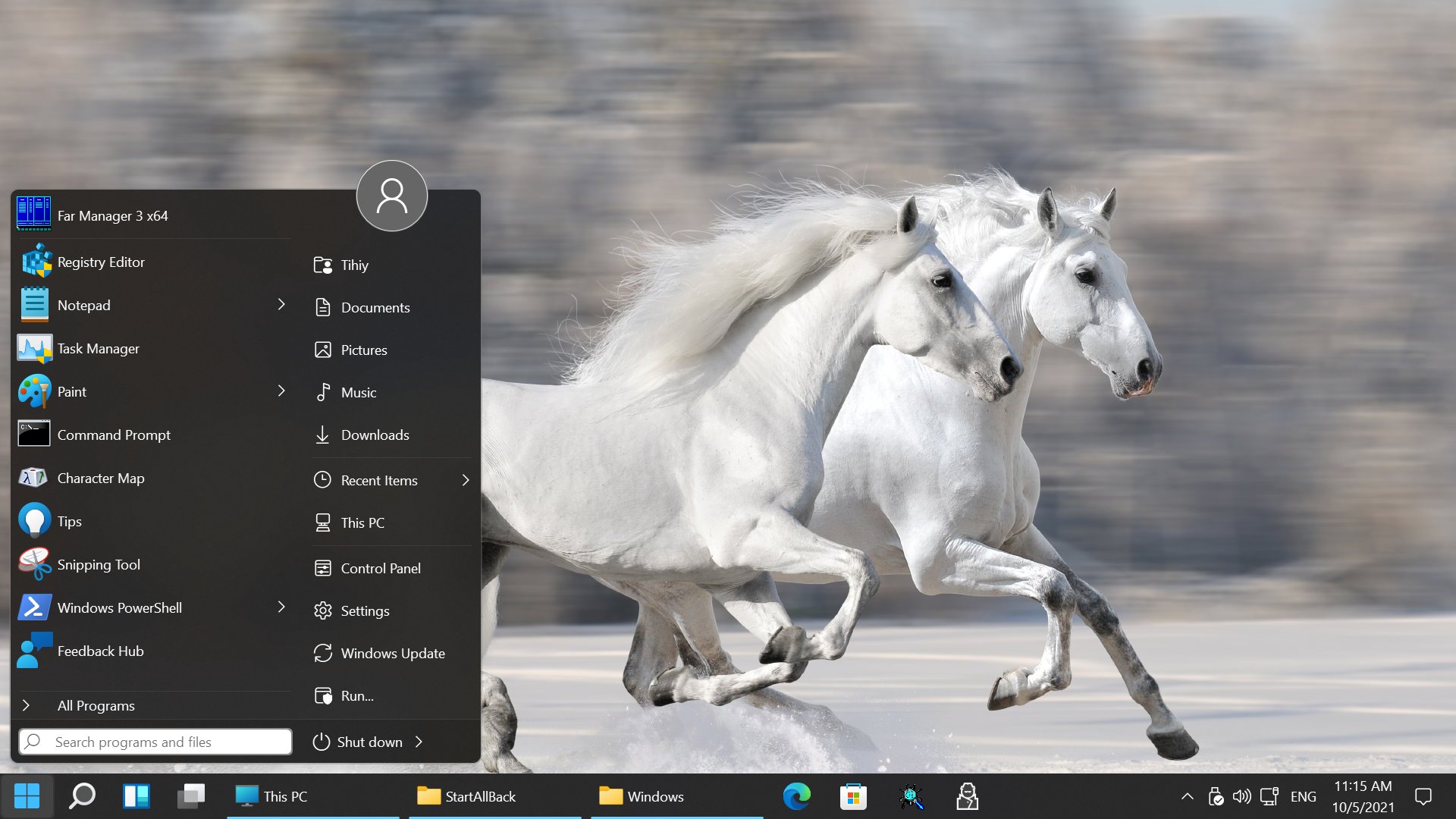


StartAllBack For Windows 11 has been released.
It's an RC release. I haven't tested it yet as I have Start11 installed.

Edit: I have now tested it. It's working quite well.
Apart from a great start menu, you can also have the Enhanced Classic Taskbar back.
This means (for example) that you can have an uncombined and unlocked Taskbar.
You will now also be able to enhance the Taskbar clock using T-Clock Redux or similar.

T-Clock Redux Tray Clock_.png

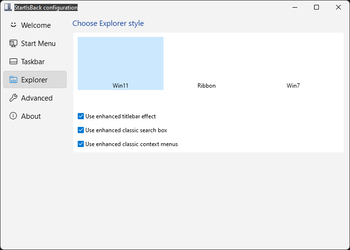
You can also change Windows Explorer to Ribbon UI or Simple UI.

You can get it Download


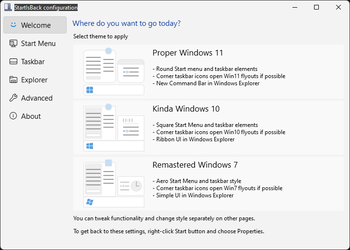
01 - Welcome.png
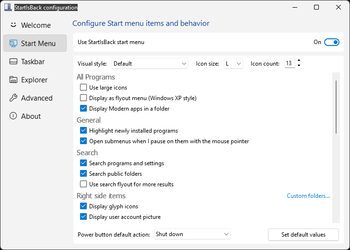
02 - Start Menu.png
04 - Taskbar.png
05 - Explorer.png
06 - Advanced.png
Get
 
StartAllBack 3.9.24.5378 29 July 2026 (beta)

I'm not sure what's been updated sorry
 

My Computer My Computer

At a glance

Windows 11 ProIntel Core i9 12900KFCorsair 64GB DDR5 Vengeance C40 5200MhzASUS GeForce RTX 3090 ROG Strix OC 24GB
OS
Windows 11 Pro
Computer type
PC/Desktop
Manufacturer/Model
Custom Build
CPU
Intel Core i9 12900KF
Motherboard
ASUS ROG Maximus Z690 Hero
Memory
Corsair 64GB DDR5 Vengeance C40 5200Mhz
Graphics Card(s)
ASUS GeForce RTX 3090 ROG Strix OC 24GB
Sound Card
OnBoard
Monitor(s) Displays
Acer Predator XB323UGP 32" QHD G-SYNC-C 144Hz 1MS IPS LED
Screen Resolution
2560 x 1440
Hard Drives
1x Samsung 980 Pro Series Gen4 250GB M.2 NVMe
1x Samsung 980 Pro Series Gen4 500GB M.2 NVMe
2x Samsung 980 Pro Series Gen4 2TB M.2 NVMe
PSU
Corsair AX1200i 1200W 80PLUS Titanium Modular
Case
Corsair 4000D Black Case w/ Tempered Glass Side Panel
Cooling
Noctua NH-U12A Chromax Black CPU Cooler, 4x Noctua 120mm Fans
Keyboard
Logitech MK545
Mouse
Logitech MX Master 3
Internet Speed
Fixed Wireless 150mbps/75mbps
Browser
Firefox
Antivirus
Kaspersky
Other Info
Thrustmaster TS-PC RACER
Fanatec CSL Elite Pedals with the Load Cell Kit
Yamaha Amp with Bose Speakers
Hi. I've searched this thread but did not find an answer. I am using a Default visual style for Taskbar. The selected/active taskbar item has a background color very similar to other ones and it is hard to find where is actually my active program is. Is there a way to edit background color or taskbar items? I can also load png bmp svg or orb file but I don't know what is the template for that. Please help. Thank you!
 

My Computer My Computer

At a glance

Win11
OS
Win11
Computer type
PC/Desktop
Manufacturer/Model
Dell
Hi. I've searched this thread but did not find an answer. I am using a Default visual style for Taskbar. The selected/active taskbar item has a background color very similar to other ones and it is hard to find where is actually my active program is. Is there a way to edit background color or taskbar items? I can also load png bmp svg or orb file but I don't know what is the template for that. Please help. Thank you!
Have a look here it might help


My Computer My Computer

At a glance

Windows 11 ProIntel Core i9 12900KFCorsair 64GB DDR5 Vengeance C40 5200MhzASUS GeForce RTX 3090 ROG Strix OC 24GB
OS
Windows 11 Pro
Computer type
PC/Desktop
Manufacturer/Model
Custom Build
CPU
Intel Core i9 12900KF
Motherboard
ASUS ROG Maximus Z690 Hero
Memory
Corsair 64GB DDR5 Vengeance C40 5200Mhz
Graphics Card(s)
ASUS GeForce RTX 3090 ROG Strix OC 24GB
Sound Card
OnBoard
Monitor(s) Displays
Acer Predator XB323UGP 32" QHD G-SYNC-C 144Hz 1MS IPS LED
Screen Resolution
2560 x 1440
Hard Drives
1x Samsung 980 Pro Series Gen4 250GB M.2 NVMe
1x Samsung 980 Pro Series Gen4 500GB M.2 NVMe
2x Samsung 980 Pro Series Gen4 2TB M.2 NVMe
PSU
Corsair AX1200i 1200W 80PLUS Titanium Modular
Case
Corsair 4000D Black Case w/ Tempered Glass Side Panel
Cooling
Noctua NH-U12A Chromax Black CPU Cooler, 4x Noctua 120mm Fans
Keyboard
Logitech MK545
Mouse
Logitech MX Master 3
Internet Speed
Fixed Wireless 150mbps/75mbps
Browser
Firefox
Antivirus
Kaspersky
Other Info
Thrustmaster TS-PC RACER
Fanatec CSL Elite Pedals with the Load Cell Kit
Yamaha Amp with Bose Speakers
Have a look here it might help

Thanks for very fast answer. The link does not work. Tried it directly and through VPN. :( But it is a well-known forum, will monitor it in the future. Thanks!!!
 

My Computer My Computer

At a glance

Win11
OS
Win11
Computer type
PC/Desktop
Manufacturer/Model
Dell
It looks like I can select style for taskbar, they are located in folder C:\Users\USERNAME\AppData\Local\StartAllBack\Styles and there are styles Plain8.msstyles and Windows 7.msstyles you can select in the StartAllBack program itself. But I am currently using the default style, which is probably built-in inside and app and cannot be edited... I probably need this file as a separate Windows Visual Style File (.msstyles) document.
 

My Computer My Computer

At a glance

Win11
OS
Win11
Computer type
PC/Desktop
Manufacturer/Model
Dell
In the WinX menu, there are two PowerShell shortcuts (Admin and non-Admin) or the Command Prompt, if using a tweak
Is it possible to remove one of the shortcuts ?

Thanks
 

My Computers My Computers

  • At a glance

    Windows 11 Pro 25h2Intel 10980XEG.Skill TridentZ RoyaleEVGA RTX 2080Ti Hydro Copper
    OS
    Windows 11 Pro 25h2
    Computer type
    PC/Desktop
    CPU
    Intel 10980XE
    Motherboard
    Asus Rampage VI Extreme Encore
    Memory
    G.Skill TridentZ Royale
    Graphics Card(s)
    EVGA RTX 2080Ti Hydro Copper
    Sound Card
    Asus
    Monitor(s) Displays
    Dell 27"
    Hard Drives
    Intel Optane P5801X
    Samsung 9100 Pro
    PSU
    Seasonic Prime TX 1000W
    Case
    Lian Li A77F
    Cooling
    Watercooling
    Keyboard
    Logitech MX keys
    Mouse
    Logitech MX Master 3S
    Browser
    Edge Canary
    Antivirus
    Kaspersky
  • At a glance

    Windows 11 Pro 24h2
    Operating System
    Windows 11 Pro 24h2
    Computer type
    Laptop
    Manufacturer/Model
    Asus Pro

Latest Support Threads

Back
Top Bottom