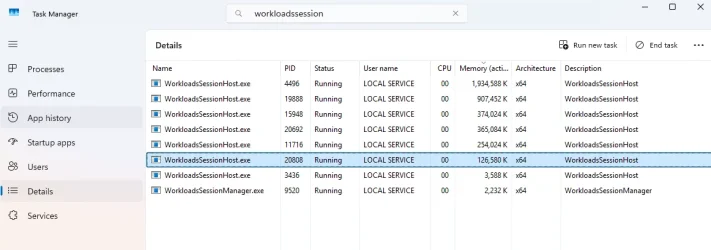
Task Manager: WorkloadsSessionHost consuming CPU/Memory usage / Recall?


Mark K

Well-known member
Member
Local time
10:37 AM
Posts
457
OS
Windows 11 Pro
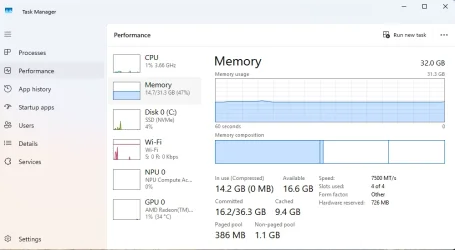
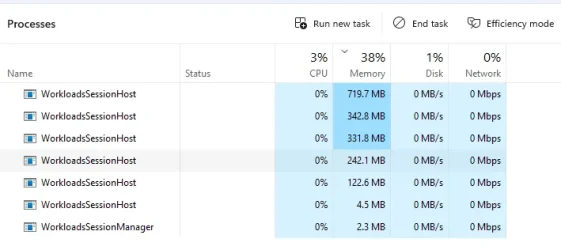
I have noticed lately that the Dell 16 Plus DB16255 laptop has been running slower lately. Memory usage after a restart shows around ~16GB of out 32GB, with no programs/apps running at the time. I found the WorkloadsSessionHost processes causing these problems. Here is the Task Manager after restarting Windows 11 Pro on the laptop:
1774785416011.webp

Note that I use a local account in Windows 11 Pro. A Microsoft account is logged in to Microsoft 365 (activation/apps), Microsoft Edge (sync data), and in Outlook Classic (email).

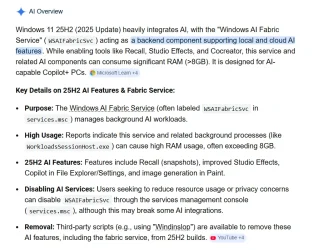
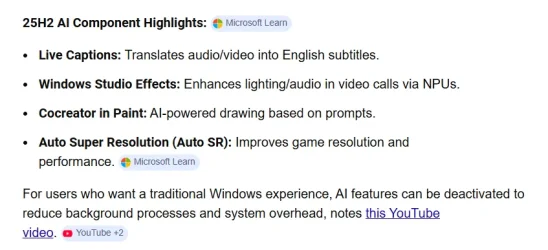
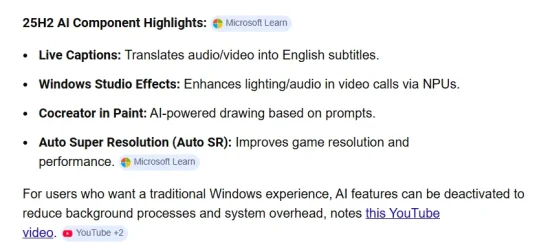
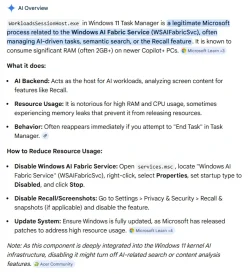
I used Google's to find out about the WorkloadsSessionHost processes:
1774785608982.webp

Windows Recall is not enabled in Windows 11 Pro. Recall would not be abled because the requirements are not met on the system.
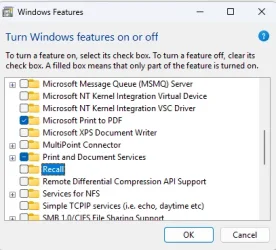
1774785803964.webp

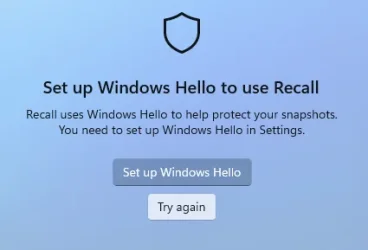
I was curious about the Recall app, so when I ran it to make sure it is not saving anything, it shows that is is not setup:
1774785889268.webp

There are many WorkloadsSessionHost processes at times running with Recall showing CPU being used and much more memory in use at times, but it is not enable in Windows 11 Pro.

I am trying to figure out why this laptop keeps having high memory usage on a 32GB system; meaning in Task Manager - Performance - Memory is always over 22GB in use. Makes me wonder how these other laptops that have 16GB memory handle running many programs/apps. I just have Google Chrome running when memory is high, no other apps. I just reinstalled Windows 11 Pro on the laptop. Microsoft 365 apps and Google Chrome is it on this system.

Note: when I look in the %LocalAppData%\CoreAIPlatform.00\UKP folder location for Recall, the ImageStore and ukg.db file exists with current date-time on these files. Now I am puzzled on how Recall data exists.

Anyone else seeing this in Windows 11 Pro?
 
Windows Build/Version
Windows 11 Pro 26200.8039

My Computer

System One

  • OS
    Windows 11 Pro
    Computer type
    Laptop
    Manufacturer/Model
    Dell 16 Plus DB16255
    CPU
    AMD Ryzen AI 7 350 w/ Radeon 860M 50 TOPS
    Motherboard
    Dell 0PKMHG
    Memory
    32GB LPDDR5X 7500 MT/s
    Graphics Card(s)
    AMD Radeon 860M integrated (shared memory)
    Sound Card
    Stereo speakers (2.5 W x 2 = 5 W total peak)/Realtek SounzReal/Dolby Atmos
    Monitor(s) Displays
    Displays: 16" 1920 x 1200 (Full HD+/WUXGA) 300 nits 60Hz *** Samsung - 27” Odyssey FHD IPS 240Hz G-Sync Gaming Monitor
    Screen Resolution
    1920x1080 @ 60Hz
    Hard Drives
    EG6 KIOXIA 1TB NVME
    Case
    Ice Blue
    Cooling
    "dual-fan" or "enhanced" air-cooling system
    Mouse
    Logitech M650 Wireless/Bluetooth
    Internet Speed
    800/600 Fiber
Update:

After researching Google and Bing (MS Edge) to compare the differences, which usually they differ some except for this time, I did what is suggested.

I disabled the Windows AI Fabric (WSAIFabricSvc) services in Windows 11 Pro

1774788864824.webp

After reading the Google search results, I do not use the 25H2 AI features.

When I disabled this service and restarted Windows 11 Pro, all data in the %LocalAppData%\CoreAIPlatform.00\UKP folder got removed.

1774788729913.webp
1774788772906.webp
 

Attachments

  • 1774788835250.webp
    1774788835250.webp
    43.3 KB · Views: 1

My Computer

System One

  • OS
    Windows 11 Pro
    Computer type
    Laptop
    Manufacturer/Model
    Dell 16 Plus DB16255
    CPU
    AMD Ryzen AI 7 350 w/ Radeon 860M 50 TOPS
    Motherboard
    Dell 0PKMHG
    Memory
    32GB LPDDR5X 7500 MT/s
    Graphics Card(s)
    AMD Radeon 860M integrated (shared memory)
    Sound Card
    Stereo speakers (2.5 W x 2 = 5 W total peak)/Realtek SounzReal/Dolby Atmos
    Monitor(s) Displays
    Displays: 16" 1920 x 1200 (Full HD+/WUXGA) 300 nits 60Hz *** Samsung - 27” Odyssey FHD IPS 240Hz G-Sync Gaming Monitor
    Screen Resolution
    1920x1080 @ 60Hz
    Hard Drives
    EG6 KIOXIA 1TB NVME
    Case
    Ice Blue
    Cooling
    "dual-fan" or "enhanced" air-cooling system
    Mouse
    Logitech M650 Wireless/Bluetooth
    Internet Speed
    800/600 Fiber
Update - to make things better in Windows 11, also disable:

Remove Microsoft Bing:
Get-AppPackage *bing* | Remove-AppPackage

Remove Phone Link:
Get-AppxPackage Microsoft.YourPhone -AllUsers | Remove-AppxPackage

Disable Recall:
Disable-WindowsOptionalFeature -Online -FeatureName "Recall" -Remove

Turn Off Click To Do:

Along with disabled these AI features:

How I disabled 13 AI features in Windows 11 safely, no third-party apps needed
 

My Computer

System One

  • OS
    Windows 11 Pro
    Computer type
    Laptop
    Manufacturer/Model
    Dell 16 Plus DB16255
    CPU
    AMD Ryzen AI 7 350 w/ Radeon 860M 50 TOPS
    Motherboard
    Dell 0PKMHG
    Memory
    32GB LPDDR5X 7500 MT/s
    Graphics Card(s)
    AMD Radeon 860M integrated (shared memory)
    Sound Card
    Stereo speakers (2.5 W x 2 = 5 W total peak)/Realtek SounzReal/Dolby Atmos
    Monitor(s) Displays
    Displays: 16" 1920 x 1200 (Full HD+/WUXGA) 300 nits 60Hz *** Samsung - 27” Odyssey FHD IPS 240Hz G-Sync Gaming Monitor
    Screen Resolution
    1920x1080 @ 60Hz
    Hard Drives
    EG6 KIOXIA 1TB NVME
    Case
    Ice Blue
    Cooling
    "dual-fan" or "enhanced" air-cooling system
    Mouse
    Logitech M650 Wireless/Bluetooth
    Internet Speed
    800/600 Fiber
I have the WSAIFabricservice running. However, I have zero workloadsessionhosts running. Probably because I don't have an NPU.
Task manager shows the WASAIFabricservice using 2.1 megabytes. For me personally removing Phonelink wouldn't make things better.
 

My Computer

System One

  • OS
    Windows 11 25H2
    Computer type
    PC/Desktop
    Manufacturer/Model
    EVGA home brew
    CPU
    Broadwell-e 6850K 4.5ghz @1.36v
    Motherboard
    EVGA X99 FTW K
    Memory
    32GB Corsair LPM 3600 C16
    Graphics Card(s)
    EVGA RTX 3080Ti FTW
    Sound Card
    Asus Centurion true 7.1 headset. (5 speakers in each earpeice)
    Monitor(s) Displays
    LG C4 55"
    Screen Resolution
    4K 144hz
    Hard Drives
    Various models of SSDs ~10TB No HDDs installed.
    PSU
    be quiet! BN516 Straight Power 12-1000w 80 Plus Platinum
    Case
    Corsair 780T modified to dual 200mm intake fans
    Cooling
    Corsair H110i
    Keyboard
    Corsair K95 Platinum
    Mouse
    Corsair M65 RGB Elite
    Internet Speed
    50Mbs
I have the WSAIFabricservice running. However, I have zero workloadsessionhosts running. Probably because I don't have an NPU.
Task manager shows the WASAIFabricservice using 2.1 megabytes. For me personally removing Phonelink wouldn't make things better.

The WSAIFabricSvc does not require a NPU. When I look on another Windows 11 Pro system that is a non-Copilot computer and no NPU, the service is running with no active processes.
 

My Computer

System One

  • OS
    Windows 11 Pro
    Computer type
    Laptop
    Manufacturer/Model
    Dell 16 Plus DB16255
    CPU
    AMD Ryzen AI 7 350 w/ Radeon 860M 50 TOPS
    Motherboard
    Dell 0PKMHG
    Memory
    32GB LPDDR5X 7500 MT/s
    Graphics Card(s)
    AMD Radeon 860M integrated (shared memory)
    Sound Card
    Stereo speakers (2.5 W x 2 = 5 W total peak)/Realtek SounzReal/Dolby Atmos
    Monitor(s) Displays
    Displays: 16" 1920 x 1200 (Full HD+/WUXGA) 300 nits 60Hz *** Samsung - 27” Odyssey FHD IPS 240Hz G-Sync Gaming Monitor
    Screen Resolution
    1920x1080 @ 60Hz
    Hard Drives
    EG6 KIOXIA 1TB NVME
    Case
    Ice Blue
    Cooling
    "dual-fan" or "enhanced" air-cooling system
    Mouse
    Logitech M650 Wireless/Bluetooth
    Internet Speed
    800/600 Fiber
The WSAIFabricSvc and all of the components that depend on it can be safely stopped and deleted from the registry without any negative consequences.
 

My Computer

System One

  • OS
    Windows 11 22H2 Pro (X-lite Micro 11 version)
    Computer type
    Laptop
    Manufacturer/Model
    Dell/ Precision 7680
    CPU
    i7 13850HX (20 cores, 28 threads)
    Motherboard
    Dell
    Memory
    32GB DDR5
    Graphics Card(s)
    Intel UHD/ RTX 1000 ADA
    Sound Card
    Realtek
    Monitor(s) Displays
    4K UHD Touchscreen
    Screen Resolution
    3840 x 2400
    Hard Drives
    Samsung 512GB system drive
    WD Blue 1TB game drive
    PSU
    240W AC adapter, 1800W when docked
    Internet Speed
    1 gigabit symmetrical
    Browser
    Firefox, Librewolf
    Antivirus
    None. Manully configured so nobody except me can change any critical system files. (Don't ask how, it's probably against some rule somewhere)
Update -

There is an AMD NPU bug in Windows 11 with the WSAIFabricSvc causing this problem. After finding many other posts about the same problem and all those users are using AMD CPU's (mostly the AMD AI CPU's), I found this problem on GitHub.

Temporary workaround is to either disable the WSAIFabricSvc or disable the NPU in Device Manager:
1774804538330.webp

GitHub, see::

and here in the Framework Community:
 

My Computer

System One

  • OS
    Windows 11 Pro
    Computer type
    Laptop
    Manufacturer/Model
    Dell 16 Plus DB16255
    CPU
    AMD Ryzen AI 7 350 w/ Radeon 860M 50 TOPS
    Motherboard
    Dell 0PKMHG
    Memory
    32GB LPDDR5X 7500 MT/s
    Graphics Card(s)
    AMD Radeon 860M integrated (shared memory)
    Sound Card
    Stereo speakers (2.5 W x 2 = 5 W total peak)/Realtek SounzReal/Dolby Atmos
    Monitor(s) Displays
    Displays: 16" 1920 x 1200 (Full HD+/WUXGA) 300 nits 60Hz *** Samsung - 27” Odyssey FHD IPS 240Hz G-Sync Gaming Monitor
    Screen Resolution
    1920x1080 @ 60Hz
    Hard Drives
    EG6 KIOXIA 1TB NVME
    Case
    Ice Blue
    Cooling
    "dual-fan" or "enhanced" air-cooling system
    Mouse
    Logitech M650 Wireless/Bluetooth
    Internet Speed
    800/600 Fiber
More info on the AMD NPU problem:

The NPU consumes RAM unreasonably.

[Bug]: NPU not getting used in AMD Ryzen AI 7 350

Framework 13 (Ryzen AI 7 350) freezing & BSOD during AMD Adrenalin iGPU update (Radeon M600)
 

My Computer

System One

  • OS
    Windows 11 Pro
    Computer type
    Laptop
    Manufacturer/Model
    Dell 16 Plus DB16255
    CPU
    AMD Ryzen AI 7 350 w/ Radeon 860M 50 TOPS
    Motherboard
    Dell 0PKMHG
    Memory
    32GB LPDDR5X 7500 MT/s
    Graphics Card(s)
    AMD Radeon 860M integrated (shared memory)
    Sound Card
    Stereo speakers (2.5 W x 2 = 5 W total peak)/Realtek SounzReal/Dolby Atmos
    Monitor(s) Displays
    Displays: 16" 1920 x 1200 (Full HD+/WUXGA) 300 nits 60Hz *** Samsung - 27” Odyssey FHD IPS 240Hz G-Sync Gaming Monitor
    Screen Resolution
    1920x1080 @ 60Hz
    Hard Drives
    EG6 KIOXIA 1TB NVME
    Case
    Ice Blue
    Cooling
    "dual-fan" or "enhanced" air-cooling system
    Mouse
    Logitech M650 Wireless/Bluetooth
    Internet Speed
    800/600 Fiber
Update:

I found the latest AMD Ryzen AI 350 drivers on AMD's web site.:

AMD Ryzen AI 7 350 Drivers and Downloads - Latest Version:

I re-enabled the NPU in Device Manager to make sure the drivers updates and re-enabled the WSAIFabricSvc in Windows 11.

I downloaded and installed the latest version:

AMD Software: Adrenalin Edition
Adrenalin 26.3.1 (WHQL Recommended)
File Size: 908MB
Release Date: 2026-03-19

Windows 11 restarted. Right when the Windows 11 Desktop appeared, I ran Task Manager - Performance - Memory and found memory at 6GB used. However, Windows 11 will still starting up. The Memory used went to at little of 8GB used. I let Windows 11 remain at idle with Task Manager open on Performance watching the Memory. When I came back to the computer later, Memory was at 14.2GB used:

Screenshot 2026-03-29 141843.webp

Based on what I had been reading, with the WSAIFabricSvc disabled, Windows 11 Task Manager showed around 8GB used.

The WSAIFabricSvc service uses around 5GB to 8GB of memory. The 6GB memory difference is this service.

The updated AMD driver should correct the background conflicts with the NPU and WSAIFabricSvc service (and probably something else). Just good enough way for me to explain it.

There are WSAIFabricSvc service processes running in Windows 11:

Screenshot 2026-03-29 142000.webp

For now, I am going to leave the WSAIFabricSvc service active and just disable it soon as I don't need it enabled on the system.
 

My Computer

System One

  • OS
    Windows 11 Pro
    Computer type
    Laptop
    Manufacturer/Model
    Dell 16 Plus DB16255
    CPU
    AMD Ryzen AI 7 350 w/ Radeon 860M 50 TOPS
    Motherboard
    Dell 0PKMHG
    Memory
    32GB LPDDR5X 7500 MT/s
    Graphics Card(s)
    AMD Radeon 860M integrated (shared memory)
    Sound Card
    Stereo speakers (2.5 W x 2 = 5 W total peak)/Realtek SounzReal/Dolby Atmos
    Monitor(s) Displays
    Displays: 16" 1920 x 1200 (Full HD+/WUXGA) 300 nits 60Hz *** Samsung - 27” Odyssey FHD IPS 240Hz G-Sync Gaming Monitor
    Screen Resolution
    1920x1080 @ 60Hz
    Hard Drives
    EG6 KIOXIA 1TB NVME
    Case
    Ice Blue
    Cooling
    "dual-fan" or "enhanced" air-cooling system
    Mouse
    Logitech M650 Wireless/Bluetooth
    Internet Speed
    800/600 Fiber
The WSAIFabricSvc does not require a NPU. When I look on another Windows 11 Pro system that is a non-Copilot computer and no NPU, the service is running with no active processes.
Indeed, as obviously on my 2016 system I do not have an NPU. ;-) Your system does which is why it is enabling those features and using more resources.

 

My Computer

System One

  • OS
    Windows 11 25H2
    Computer type
    PC/Desktop
    Manufacturer/Model
    EVGA home brew
    CPU
    Broadwell-e 6850K 4.5ghz @1.36v
    Motherboard
    EVGA X99 FTW K
    Memory
    32GB Corsair LPM 3600 C16
    Graphics Card(s)
    EVGA RTX 3080Ti FTW
    Sound Card
    Asus Centurion true 7.1 headset. (5 speakers in each earpeice)
    Monitor(s) Displays
    LG C4 55"
    Screen Resolution
    4K 144hz
    Hard Drives
    Various models of SSDs ~10TB No HDDs installed.
    PSU
    be quiet! BN516 Straight Power 12-1000w 80 Plus Platinum
    Case
    Corsair 780T modified to dual 200mm intake fans
    Cooling
    Corsair H110i
    Keyboard
    Corsair K95 Platinum
    Mouse
    Corsair M65 RGB Elite
    Internet Speed
    50Mbs
Based on this problem I posted on this thread, this brings up another question.

I noticed all the Copilot+ laptops are now coming with 16GB memory and not 32GB memory. I looked at several laptops (Dell and HP) that I would be interested in buying, but the memory is at 16GB on those laptops.

The Dell laptop that I have now is an AMD processor with 32GB memory. If I buy another Copilot+ laptop with 16GB memory, seems like 16GB memory would not be enough to run all the other programs/apps in Windows 11.

Just trying to understand why it takes around 16GB to 18GB of memory to run Windows 11 without anything disabled, as I have it now on this current laptop, where 16GB memory is enough on other or new Copilot+ laptops.

Thanks.
 

My Computer

System One

  • OS
    Windows 11 Pro
    Computer type
    Laptop
    Manufacturer/Model
    Dell 16 Plus DB16255
    CPU
    AMD Ryzen AI 7 350 w/ Radeon 860M 50 TOPS
    Motherboard
    Dell 0PKMHG
    Memory
    32GB LPDDR5X 7500 MT/s
    Graphics Card(s)
    AMD Radeon 860M integrated (shared memory)
    Sound Card
    Stereo speakers (2.5 W x 2 = 5 W total peak)/Realtek SounzReal/Dolby Atmos
    Monitor(s) Displays
    Displays: 16" 1920 x 1200 (Full HD+/WUXGA) 300 nits 60Hz *** Samsung - 27” Odyssey FHD IPS 240Hz G-Sync Gaming Monitor
    Screen Resolution
    1920x1080 @ 60Hz
    Hard Drives
    EG6 KIOXIA 1TB NVME
    Case
    Ice Blue
    Cooling
    "dual-fan" or "enhanced" air-cooling system
    Mouse
    Logitech M650 Wireless/Bluetooth
    Internet Speed
    800/600 Fiber
I found in my notes that I had been researching the memory concern before with 16GB vs 32GB of memory with Copilot+ laptops. I have updated my notes and found that Microsoft updated the Copilot+ requirements a little compared the last time I researched this information.

Microsoft Windows 11 requirements:

If you read the "minimum system requirements for installing Windows 11," you know those minimum system requirements will not work for anyone. For one, Windows 11 requires much higher overall computer specs.

Copilot+ PCs are a class of Windows 11 AI PCs that are powered by a turbocharged neural processing unit (NPU)—a specialized computer chip for AI-intensive processes like real-time translations and image generation— that can perform more than 40 trillion operations per second (TOPS).

In addition to the minimum system requirements for Windows 11, Copilot+ PCs must include the following:

Minimum system requirements for Copilot+ PCs:

Processor: A compatible processor or System on a Chip (SoC) with an NPU capable of performing 40+ TOPS. This currently includes:

AMD Ryzen AI 300 and 400 series
Intel Core Ultra 200V and 300V series
Snapdragon X series
RAM: 16 GB DDR5/LPDDR5
Storage: 256 GB SSD/UFS

Specific features, plus apps and hardware that you add to your Copilot+ PC may have additional hardware, software, or other requirements, and these requirements may change over time.

In this PCMag article:

How Much RAM Do You Need for Workstation and AI Tasks?
Some workstations might skate by with 16GB, but avoid it.

* 32GB is the suggested baseline for workstations, particularly laptops.
* 64GB is a more common baseline for desktop workstations.

End of article sums it up:
"In short, don’t settle for less than 16GB of RAM in a system that costs $800 or more. Having more (say, 32GB) would never hurt performance, but that amount is generally only in PCs north of $1,200, and it exceeds what you need in these scenarios. "

Here is another article enforcing that 16GB memory is "minimal" (aka baseline) to run Windows 11 subpar performance where it is barely usable. The recommended memory is 32GB and more, such as 64GB, just to have a decent running Windows 11 system:

What is a Copilot+ PC? Everything to know about these AI laptops.

If you are not spending more than $1100 on a Copilot+ laptop with 32GB memory, you should not expect to have decent performance with running multiple programs/apps.

When you start comparing prices on these Copilot+ laptops to what you really need to use, the cost of the laptops would easily exceed $1100. As I have heard from many Windows users, you need to spend about $1500 or more to get a fast running Copilot+ laptop with all the AI features enabled. That way with all the other programs/apps you need to use for yourself, there is enough power, performance, and memory to handle all the additional software.

Since it is very hard to find a non-Copilot+ laptop, or computer in general, that the Windows 11 requirements of recommended should be used. Buying or using a Copilot+ laptop with 8GB memory is not usable, much less at 16GB memory unless you are barely doing anything on the laptop/computer.
 

My Computer

System One

  • OS
    Windows 11 Pro
    Computer type
    Laptop
    Manufacturer/Model
    Dell 16 Plus DB16255
    CPU
    AMD Ryzen AI 7 350 w/ Radeon 860M 50 TOPS
    Motherboard
    Dell 0PKMHG
    Memory
    32GB LPDDR5X 7500 MT/s
    Graphics Card(s)
    AMD Radeon 860M integrated (shared memory)
    Sound Card
    Stereo speakers (2.5 W x 2 = 5 W total peak)/Realtek SounzReal/Dolby Atmos
    Monitor(s) Displays
    Displays: 16" 1920 x 1200 (Full HD+/WUXGA) 300 nits 60Hz *** Samsung - 27” Odyssey FHD IPS 240Hz G-Sync Gaming Monitor
    Screen Resolution
    1920x1080 @ 60Hz
    Hard Drives
    EG6 KIOXIA 1TB NVME
    Case
    Ice Blue
    Cooling
    "dual-fan" or "enhanced" air-cooling system
    Mouse
    Logitech M650 Wireless/Bluetooth
    Internet Speed
    800/600 Fiber
Were you able to get WorkloadsSessionHost to stop? when I disable it, Windows re-enables it after reboot. Dell 14 Plus (Home) w/AMD and 16gb is 77% memory at boot, with WSAIFabricSvc taking 1700mb.

Hard to believe no way to turn off Recall in Windows.

Trying to help a friend get this setup.

Edit:

Found this and fixed it (for now) sc config WSAIFabricSvc start= disabled
 
Last edited:

My Computer

System One

  • OS
    Windows 11 Pro
    Computer type
    Laptop
    Manufacturer/Model
    Samsung Galaxy Book3 Pro NP960NFG-KC1US 16"
    CPU
    i7-1360p
    Memory
    16g
    Monitor(s) Displays
    Samsung 4K 27"
    Hard Drives
    WD 1tb SSD C: in Samsung laptop LOL
    WDSN740-SDDPNQD-1T00-1004

    24H2 had some issues with WD SSDs, do not think mine was affected, firmware up to date. maybe that is why 24H2 never installed, until I installed with in-place accidently.

    Samsung 970 EVO Plus 2tb SSD second slot
    Internet Speed
    fiber 500/500
    Browser
    Firefox
    Antivirus
    no
    Other Info
    Old 9th gen desktop still running in US, updated to 24H2 and working well.
Were you able to get WorkloadsSessionHost to stop? when I disable it, Windows re-enables it after reboot. Dell 14 Plus (Home) w/AMD and 16gb is 77% memory at boot, with WSAIFabricSvc taking 1700mb.

I gave up and the service(s) kept re-starting/re-enabling back to their default settings.

Hard to believe no way to turn off Recall in Windows.

I keep running this command to disable it:
dism /Online /Disable-Feature /FeatureName:"Recall"


Found this and fixed it (for now) sc config WSAIFabricSvc start= disabled
This will eventually re-enable itself as I found out. Each time there is a Windows Update installing, it seems to re-enable.
 

My Computer

System One

  • OS
    Windows 11 Pro
    Computer type
    Laptop
    Manufacturer/Model
    Dell 16 Plus DB16255
    CPU
    AMD Ryzen AI 7 350 w/ Radeon 860M 50 TOPS
    Motherboard
    Dell 0PKMHG
    Memory
    32GB LPDDR5X 7500 MT/s
    Graphics Card(s)
    AMD Radeon 860M integrated (shared memory)
    Sound Card
    Stereo speakers (2.5 W x 2 = 5 W total peak)/Realtek SounzReal/Dolby Atmos
    Monitor(s) Displays
    Displays: 16" 1920 x 1200 (Full HD+/WUXGA) 300 nits 60Hz *** Samsung - 27” Odyssey FHD IPS 240Hz G-Sync Gaming Monitor
    Screen Resolution
    1920x1080 @ 60Hz
    Hard Drives
    EG6 KIOXIA 1TB NVME
    Case
    Ice Blue
    Cooling
    "dual-fan" or "enhanced" air-cooling system
    Mouse
    Logitech M650 Wireless/Bluetooth
    Internet Speed
    800/600 Fiber
Code:
reg add "HKLM\Software\Policies\Microsoft\Windows\WindowsAI" /v "AllowRecallEnablement" /t REG_DWORD /d "0" /f
reg add "HKLM\Software\Policies\Microsoft\Windows\WindowsAI" /v "DisableAIDataAnalysis" /t REG_DWORD /d "1" /f
 

My Computer

System One

  • OS
    Home26H2Can
    Computer type
    PC/Desktop
    CPU
    AMD Ryzen 5 8600G (07/24)
    Motherboard
    ASROCK B650M-HDV/M.2 (07/24) BIOS 4.21 AGESA ComboAM5 1.3.0.1 (04/26)
    Memory
    2x32GB Kingston FURY DDR5 5600 MHz CL36 @5200 CL36 (07/24)
    Graphics Card(s)
    ASROCK Radeon RX 6600 Challenger D 8G @48FPS (08/24)
    Sound Card
    Creative Sound BlasterX AE-5 Plus (05/24)
    Monitor(s) Displays
    24" Philips 24M1N3200ZS/00 (05/24)
    Screen Resolution
    1920×1080@165Hz via DP1.4
    Hard Drives
    Kingston KC3000 NVMe 2TB (05/24)
    ADATA XPG GAMMIX S11 Pro 512GB (07/19)
    PSU
    Seasonic Core GM 550 Gold (04/24)
    Case
    Fractal Design Define 7 Mini with 3x Noctua NF-P14s/12@555rpm (04/24)
    Cooling
    Noctua NH-U12S with Noctua NF-P12 (04/24)
    Keyboard
    HP Pavilion Wired Keyboard 300 (07/24) + Rabalux 76017 Parker (01/24)
    Mouse
    Logitech M330 Silent Plus (01/26)
    Internet Speed
    500/100 Mbps via RouterOS (05/21) & TCP Optimizer
    Browser
    Edge, Brave for YouTube, LibreWolf for FB
    Antivirus
    NextDNS blocking 1/3 Traffic
    Other Info
    Phone: Motorola Moto G86 (02/26)
    Backup: Hasleo Backup Suite (PreOS)
    Headphones: Sennheiser RS170 (09/10)
    Chair: Huzaro Force 4.4 Grey Mesh (05/24)
    Notifier: Xiaomi Mi Band 9 Milanese (10/24)
    FlexCore USB-C 3.2 Gen 1 (M) to LAN (F) (08/25)
Here is my DisableRecall.ps1 script that I built through everything I gathered on disabling this features:


Code:
##########################
# DISABLE Windows Recall #
##########################

# Remove Recall Appx
Get-AppxProvisionedPackage -Online |
    Where-Object { $_.DisplayName -like "MicrosoftWindows.Recall*" } |
    Remove-AppxProvisionedPackage -Online

# Get-AppxPackage -Name "MicrosoftWindows.Recall*" | Remove-AppxPackage

# Disable Recall - registry
# User cannot turn Recall on
reg add "HKLM\Software\Policies\Microsoft\Windows\WindowsAI" /v "AllowRecallEnablement" /t REG_DWORD /d "0" /f | Out-Null
# Recall is disabled
reg add "HKLM\Software\Policies\Microsoft\Windows\WindowsAI" /v "DisableAIDataAnalysis" /t REG_DWORD /d "1" /f | Out-Null

# Disable the Recall background service
Stop-Service -Name WindowsAITaskScheduler -Force -ErrorAction SilentlyContinue
Set-Service -Name WindowsAITaskScheduler -StartupType Disabled -ErrorAction SilentlyContinue
 
# Disable the Recall scheduled tasks
Get-ScheduledTask | Where-Object { $_.TaskName -like "*Recall*" } | Disable-ScheduledTask -ErrorAction SilentlyContinue

# Remove Recall Snapshots
Remove-Item -Path "$env:LOCALAPPDATA\Microsoft\Windows\Recall" -Recurse -Force -ErrorAction SilentlyContinue
 

My Computer

System One

  • OS
    Windows 11 Pro
    Computer type
    Laptop
    Manufacturer/Model
    Dell 16 Plus DB16255
    CPU
    AMD Ryzen AI 7 350 w/ Radeon 860M 50 TOPS
    Motherboard
    Dell 0PKMHG
    Memory
    32GB LPDDR5X 7500 MT/s
    Graphics Card(s)
    AMD Radeon 860M integrated (shared memory)
    Sound Card
    Stereo speakers (2.5 W x 2 = 5 W total peak)/Realtek SounzReal/Dolby Atmos
    Monitor(s) Displays
    Displays: 16" 1920 x 1200 (Full HD+/WUXGA) 300 nits 60Hz *** Samsung - 27” Odyssey FHD IPS 240Hz G-Sync Gaming Monitor
    Screen Resolution
    1920x1080 @ 60Hz
    Hard Drives
    EG6 KIOXIA 1TB NVME
    Case
    Ice Blue
    Cooling
    "dual-fan" or "enhanced" air-cooling system
    Mouse
    Logitech M650 Wireless/Bluetooth
    Internet Speed
    800/600 Fiber
Here is my DisableRecall.ps1 script that I built through everything I gathered on disabling this features:

Microsoft is scanning local computers with something that is finding this script and my other scripts and automatically removing them. I get a quick pop-up notification that Defender has removed the file(s). I noticed I lost about 32 scripts that I need. Luckily I have the majority of them backed up. As soon as I copy them to Windows 11, they get automatically removed. I had these script files in Windows 11 for years, as some of them were back in Windows 10 days.

Microsoft is also removing my encrypted password file, which has been that way for many years now. Suddenly I cannot have encrypted files in Windows 11 now? This may make me move everything over to Linux.
 

My Computer

System One

  • OS
    Windows 11 Pro
    Computer type
    Laptop
    Manufacturer/Model
    Dell 16 Plus DB16255
    CPU
    AMD Ryzen AI 7 350 w/ Radeon 860M 50 TOPS
    Motherboard
    Dell 0PKMHG
    Memory
    32GB LPDDR5X 7500 MT/s
    Graphics Card(s)
    AMD Radeon 860M integrated (shared memory)
    Sound Card
    Stereo speakers (2.5 W x 2 = 5 W total peak)/Realtek SounzReal/Dolby Atmos
    Monitor(s) Displays
    Displays: 16" 1920 x 1200 (Full HD+/WUXGA) 300 nits 60Hz *** Samsung - 27” Odyssey FHD IPS 240Hz G-Sync Gaming Monitor
    Screen Resolution
    1920x1080 @ 60Hz
    Hard Drives
    EG6 KIOXIA 1TB NVME
    Case
    Ice Blue
    Cooling
    "dual-fan" or "enhanced" air-cooling system
    Mouse
    Logitech M650 Wireless/Bluetooth
    Internet Speed
    800/600 Fiber
Wow. This is deeply disturbing. Indeed Copilot confirms that recent changes to Cloud Delivered Protection (ruleset update), Potentially Unwanted Applicatgions (PUA) Logic, and Attack Surface Reduction (ASR) rules can all decide to delete script files unless they're in protected directories or otherwise explicitly excluded from that coverage. It built me a PowerShell script to check for related events that would show such action, and -- to my great relief -- I was able to confirm this is NOT happening on my systems.

Here's the Copilot prompt I used to elicit some very helpful output (you'll notice it's based on your original post in large part):

What has changed in Windows Defender to explain this reported behavior at ElevenForum.com "Microsoft is scanning local computers with something that is finding this script and my other scripts and automatically removing them. I get a quick pop-up notification that Defender has removed the file(s). I noticed I lost about 32 scripts that I need."

You might want to give this a try and see if you find it useful yourself.
HTH,
--Ed--
 

My Computers

System One System Two

  • OS
    Windows 11
    Computer type
    Laptop
    Manufacturer/Model
    Lenovo X380 Yoga
    CPU
    i7-8650U (8th Gen/Kaby Lake)
    Motherboard
    20LH000MUS (U3E1)
    Memory
    16 GB
    Graphics Card(s)
    Intel UHD Graphics 620
    Sound Card
    Integrated Conexant SmartAudio HD
    Monitor(s) Displays
    FlexView Display
    Screen Resolution
    1920x1080
    Hard Drives
    Toshiba 1 TB PCIe x3 NVMe SSD
    external 5TB Seagate USB-C attached HDD
    PSU
    Lenovo integrated 65W power brick
    Case
    Laptop
    Cooling
    Laptop
    Keyboard
    Integrated Lenovo ThinkPad keyboard
    Mouse
    touchscreen, touchpad
    Internet Speed
    GbE (Spectrum/Charter)
    Browser
    all of em
    Antivirus
    Defender
    Other Info
    Purchased early 2019 as Windows Insider test PC
  • Operating System
    Windows 11
    Computer type
    PC/Desktop
    Manufacturer/Model
    DIY
    CPU
    Ryzen 5800X
    Motherboard
    Asrock B550 Extreme4
    Memory
    128 GB (4x32 DDR5-5600)
    Graphics card(s)
    NVIDIA 3070Ti
    Sound Card
    built-in
    Monitor(s) Displays
    2xDell 2707
    Screen Resolution
    1980x1200
    Hard Drives
    2XNVMe, multiple HDDs from 3 to 12 TB
    PSU
    Seasonic 650
    Case
    NZXT Flo 6
    Cooling
    dual-fan air cooler
    Keyboard
    Logitech Wave
    Mouse
    Logitech Logi
    Internet Speed
    GbE
    Browser
    all of 'em
    Antivirus
    Defender
    Other Info
    temperamental UEFI
Wow. This is deeply disturbing. Indeed Copilot confirms that recent changes to Cloud Delivered Protection (ruleset update), Potentially Unwanted Applicatgions (PUA) Logic, and Attack Surface Reduction (ASR) rules can all decide to delete script files unless they're in protected directories or otherwise explicitly excluded from that coverage. It built me a PowerShell script to check for related events that would show such action, and -- to my great relief -- I was able to confirm this is NOT happening on my systems.

Here's the Copilot prompt I used to elicit some very helpful output (you'll notice it's based on your original post in large part):

What has changed in Windows Defender to explain this reported behavior at ElevenForum.com "Microsoft is scanning local computers with something that is finding this script and my other scripts and automatically removing them. I get a quick pop-up notification that Defender has removed the file(s). I noticed I lost about 32 scripts that I need."

You might want to give this a try and see if you find it useful yourself.
HTH,
--Ed--

Found the same answer in this Google search.

All those scripts that were removed were not found in Protection history to restore. They were just removed.

I'm trying to find where these were logged at in Event Viewer so I can determine which scripts to restore back. I haven't found the location yet.
 
Last edited:

My Computer

System One

  • OS
    Windows 11 Pro
    Computer type
    Laptop
    Manufacturer/Model
    Dell 16 Plus DB16255
    CPU
    AMD Ryzen AI 7 350 w/ Radeon 860M 50 TOPS
    Motherboard
    Dell 0PKMHG
    Memory
    32GB LPDDR5X 7500 MT/s
    Graphics Card(s)
    AMD Radeon 860M integrated (shared memory)
    Sound Card
    Stereo speakers (2.5 W x 2 = 5 W total peak)/Realtek SounzReal/Dolby Atmos
    Monitor(s) Displays
    Displays: 16" 1920 x 1200 (Full HD+/WUXGA) 300 nits 60Hz *** Samsung - 27” Odyssey FHD IPS 240Hz G-Sync Gaming Monitor
    Screen Resolution
    1920x1080 @ 60Hz
    Hard Drives
    EG6 KIOXIA 1TB NVME
    Case
    Ice Blue
    Cooling
    "dual-fan" or "enhanced" air-cooling system
    Mouse
    Logitech M650 Wireless/Bluetooth
    Internet Speed
    800/600 Fiber
Update:

I plugged in an old USB drive that I use for archiving data, which I have two of these drives, and Windows 11 removed nearly 324GB of data from the drive. There were too many pop-up notifications to read any of them. I was able to copy the deleted data back over using a different system.

Large part of the data is pics over the past 30 years, lots of DOC/DOCX/PDF/TXT and so on data files. All were removed.

I need to figure out how to DISABLE this behavior because I have some data that is not recoverable that I need to keep.
 

My Computer

System One

  • OS
    Windows 11 Pro
    Computer type
    Laptop
    Manufacturer/Model
    Dell 16 Plus DB16255
    CPU
    AMD Ryzen AI 7 350 w/ Radeon 860M 50 TOPS
    Motherboard
    Dell 0PKMHG
    Memory
    32GB LPDDR5X 7500 MT/s
    Graphics Card(s)
    AMD Radeon 860M integrated (shared memory)
    Sound Card
    Stereo speakers (2.5 W x 2 = 5 W total peak)/Realtek SounzReal/Dolby Atmos
    Monitor(s) Displays
    Displays: 16" 1920 x 1200 (Full HD+/WUXGA) 300 nits 60Hz *** Samsung - 27” Odyssey FHD IPS 240Hz G-Sync Gaming Monitor
    Screen Resolution
    1920x1080 @ 60Hz
    Hard Drives
    EG6 KIOXIA 1TB NVME
    Case
    Ice Blue
    Cooling
    "dual-fan" or "enhanced" air-cooling system
    Mouse
    Logitech M650 Wireless/Bluetooth
    Internet Speed
    800/600 Fiber

Latest Support Threads

Back
Top Bottom