Text Quality Display Issues on New PCs w/Windows 11 25H2


packetdog

New member
Local time
12:03 AM
Posts
3
OS
Windows 11
Good day,

I'm an IT Consultant, and I've been running into an issue as of late that I'm not able to solve myself, and my normal channels aren't helping. We've been deploying new Dell Pro Slim and Dell Pro Laptops to clients as part of the hardware refresh required by Windows 11. We've noticed an issue where text displayed in multiple applications appears to have some characters bolded, and some not, within the same word or sentence. It creates a look of pixelation or blurryness, although I'd lean away from calling it blurry. Up until yesterday this seemed to be affecting the Dell Pro Slim Desktops only. We deployed our first laptop that seems to have the issue yesterday, and I spent some time with this one specifically trying to resolve it to no avail.

Notes and Troubleshooting:
- All of these have 15th Gen Intel CPUs. (Dell Pro Slim Desktops have Intel(R) Core(TM) Ultra 5 235 CPUs, the Dell Pro Plus Laptop has a Intel(R) Core(TM) Ultra 7 266V CPU)
- All of these have a clean image of Windows 11 25H2 from Microsoft on them, fully updated. We delete the partitions and clean install.
- Video Drivers: We've tried allowing automatic installation from Windows Update, Downloading the latest driver installer directly from Intel, Downloading the latest drive directly from Dell, Downloading and Running Dell Command Update. For the manual downloaded drivers from Intel/Dell, we've tried both the regular install, or the Clean Install (which you can see deletes the drivers and knocks you down to 1280x1024 or so before installing the new driver.
- During the Intel Driver clean installation when the drivers are scrubbed, the issue resolves. There's something that looks like normal resolution (I suspect the default Microsoft Display Driver) which looks fine. It also looks normal in the low resolution state I described above.
- We've tried enabling/disabling ClearType, and going through the calibration steps.
- We've tried DisplayPort-to-HDMI cables and DisplayPort-to-DisplayPort cables.
- The issue presents itself, even when logged in to an affected workstation via Remote Desktop.

All of these seem to work fine in every other way. While this seems to be a driver issue, I was hoping some of the gurus here could suggest a workaround to resolve this issue once the driver is installed. I've tried to find others experiencing this issue using my experience advanced google searching and I've come up empty. In fact, I haven't been able to find anyone else that's reporting this issue. Does anyone have any suggestions? Here's some samples of what it looks like:

1763570485991.webp

1763570532062.webp

Thanks,
-pd
 
Windows Build/Version
Windows 11 25H2 10.0.26200

My Computer

System One

  • OS
    Windows 11
    Computer type
    Laptop
    Manufacturer/Model
    Dell
specific letters like I,L,M,R and numbers seem to be bold. Could it be just font issue? WinAeroTweaker to change change all font back to Windows 10's Segoe UI? On my play machine I use Cascadia Code for fun.ksnip_20251119-224643.webp
 

My Computer

System One

  • OS
    Windows 11 21H2
    Computer type
    Laptop
    Manufacturer/Model
    Acer Nitro 5 AN515-58 (2022)
    CPU
    12500H (12c16t)
    Motherboard
    (BIOS v2.05) ADL Jimny_ADH
    Memory
    2x8 GB DDR4
    Graphics Card(s)
    NVidia RTX 3050 Mobile 4GB
    Sound Card
    Realtek configured by DTS:X
    Monitor(s) Displays
    72hz Dell SE2719H external, 144hz internal
    Screen Resolution
    1920x1080
    Hard Drives
    Internal: Raid Config 1TB (Samsung MZVL2_512 + Micron 3400_512) NVME SSD
    Portables: WD Elements 4tb, WD Elements SE 2TB, Seagate 3.5inch HDD 1TB, WD Blue 3.5inch 512gb, Hitachi 2.5 inch HDD 512gb
    Keyboard
    Redragon Kitava - Red Switches
    Mouse
    Meetion GM80 Transformers
    Internet Speed
    250mbps
    Browser
    Waterfox (Windows), Kiwi (Android)
    Antivirus
    MalwareBytes
    Other Info
    Speaker: Mingo 5.1 Home Theatre System (used everyday since Early 2000 without repair)
    Headphone: Ugreen HiTune Max 5C
    Earphone: Mi In-Ear Headphones Pro HD Dual Driver (Neutral sound profile)
Reset default fonts usage by Windows 11 using the batch script attached to my post.
 

Attachments

My Computer

System One

  • OS
    Windows 11
    Computer type
    PC/Desktop
    Manufacturer/Model
    HP Pavilion
    CPU
    AMD Ryzen 7 5700G
    Motherboard
    Erica6
    Memory
    Micron Technology DDR4-3200 16GB
    Graphics Card(s)
    NVIDIA GeForce RTX 3060
    Sound Card
    Realtek ALC671
    Monitor(s) Displays
    Samsung SyncMaster U28E590
    Screen Resolution
    3840 x 2160
    Hard Drives
    SAMSUNG MZVLQ1T0HALB-000H1
Could it be just font issue?
Anything is possible. It doesn't feel like it should be because this same issue deploys fine on 14th gen Dell Micros, and lots of other machines without this issue. Seems related to the on-chip CPU graphics in (some?) 15th Gen Intel CPUs and/or the drivers for them.

Reset default fonts usage by Windows 11 using the batch script attached to my post.
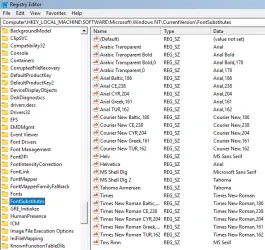
I ran this, restarted, and the issue remains unchanged. For what it's worth, I took at look and all of the SergoeUI fonts were already in that key before running the script. It's not as easy to see in the Windows UI as it is in some of the browsers, but you can still see it (attached).
 

Attachments

  • Untitled.webp
    Untitled.webp
    86.6 KB · Views: 5

My Computer

System One

  • OS
    Windows 11
    Computer type
    Laptop
    Manufacturer/Model
    Dell
I had all kinds of font rendering issues when I first moved to 11. I worked on it for days until I finally managed to get to something acceptable.
I installed Google's Roboto font and made Roboto Medium my system font. Made all the difference in the world.
If Roboto Medium is too dark for you try the Roboto Regular


example of mine
 

Attachments

  • Screenshot 2025-11-19 212858.webp
    Screenshot 2025-11-19 212858.webp
    78.1 KB · Views: 5

My Computers

System One System Two

  • OS
    Windows 11 Pro 25H2 26200.8655
    Computer type
    PC/Desktop
    Manufacturer/Model
    Dell Optiplex 7080
    CPU
    i9-10900 10 core 20 threads
    Motherboard
    DELL 0J37VM
    Memory
    32 gb
    Graphics Card(s)
    none-Intel UHD Graphics 630
    Sound Card
    Integrated Realtek
    Monitor(s) Displays
    Benq 27
    Screen Resolution
    2560x1440
    Hard Drives
    2x1tb Solidigm m.2 nvme /External drives 512gb Samsung m.2 sata+2tb Kingston m2.nvme
    PSU
    500w
    Case
    MT
    Cooling
    Dell Premium
    Keyboard
    Logitech wired
    Mouse
    Logitech wireless
    Internet Speed
    so slow I'm too embarrassed to tell
    Browser
    #1 Edge #2 Firefox
    Antivirus
    Defender+MWB Premium
  • Operating System
    Windows 11 Pro 24H2 26200.8457
    Computer type
    PC/Desktop
    Manufacturer/Model
    Beelink Mini PC SER5
    CPU
    AMD Ryzen 7 6800U
    Memory
    32 gb
    Graphics card(s)
    integrated
    Sound Card
    integrated
    Monitor(s) Displays
    Benq 27
    Screen Resolution
    2560x1440
    Hard Drives
    1TB Crucial nvme
    Keyboard
    Logitech wired
    Mouse
    Logitech wireless
    Internet Speed
    still too embarrassed to tell
    Browser
    Firefox
    Antivirus
    Defender
    Other Info
    System 3 is non compliant Dell 9020 i7-4770/24gb ram Win11 PRO 26200.8457
So it definitely sounds like a graphics driver issue....I'd rather check the driver version change logs in Techpowerup website for intel arc graphics and manually search the term "15th gen" or something like that and go to the 1st driver ever that intel released its 15th gen support for. The first few versions are always lighter even though they may or may not perform the best.

For ref. my 12gen iris xe is at v31.0.101.4502 from 2023/06/15 and not updating anymore because drivers are lot heavier these days and don't care for any new benefits as long as it runs smoothly.

First I'd use DDU to uninstall graphics driver completely and disable auto-update from Windows Update.

I'd also install direct-x and update visual C from techpowerup.
 

My Computer

System One

  • OS
    Windows 11 21H2
    Computer type
    Laptop
    Manufacturer/Model
    Acer Nitro 5 AN515-58 (2022)
    CPU
    12500H (12c16t)
    Motherboard
    (BIOS v2.05) ADL Jimny_ADH
    Memory
    2x8 GB DDR4
    Graphics Card(s)
    NVidia RTX 3050 Mobile 4GB
    Sound Card
    Realtek configured by DTS:X
    Monitor(s) Displays
    72hz Dell SE2719H external, 144hz internal
    Screen Resolution
    1920x1080
    Hard Drives
    Internal: Raid Config 1TB (Samsung MZVL2_512 + Micron 3400_512) NVME SSD
    Portables: WD Elements 4tb, WD Elements SE 2TB, Seagate 3.5inch HDD 1TB, WD Blue 3.5inch 512gb, Hitachi 2.5 inch HDD 512gb
    Keyboard
    Redragon Kitava - Red Switches
    Mouse
    Meetion GM80 Transformers
    Internet Speed
    250mbps
    Browser
    Waterfox (Windows), Kiwi (Android)
    Antivirus
    MalwareBytes
    Other Info
    Speaker: Mingo 5.1 Home Theatre System (used everyday since Early 2000 without repair)
    Headphone: Ugreen HiTune Max 5C
    Earphone: Mi In-Ear Headphones Pro HD Dual Driver (Neutral sound profile)
In the Search box,type in ---dxdiag --- and ---run as administrator ----
In the System page,check the WHQL box is ticked and the correctness of details supplied,in particular the version of DirectX,which should be 12.
In the Display page,check the driver in use and the other pages for any comments.
To use a non Microsoft approved driver,the WHQL box must be unticked and thus be prepared for problems.
 

My Computer

System One

  • OS
    win 10
    Computer type
    PC/Desktop
    Manufacturer/Model
    home built
    CPU
    amd ryzen 5-2600
    Motherboard
    gigabyte b450m-ds3h
    Memory
    ng skill sniper x 16gb
    Graphics Card(s)
    nvidea gtx 1050
    Monitor(s) Displays
    benq fp 92
    Hard Drives
    samsung 860 evo 500gb m2 ssd
    PSU
    antec ea550g
    Case
    nzxt noctis 450
    Browser
    edge
Hello,

I wanted to update everyone that this issue is unresolved. I tried the system font changes, uninstalling (with DDU) and reinstalling the latest graphics driver from both the computer manufacturer as well as from the on-chip GPU vendor (Intel) and they both have the same display issue. The issue is resolved only when uninstalling all of the drivers and the Microsoft Basic Display Driver kicks in, but this updates automatically back to Intel's driver. dxdiag shows all the drivers are WHQL and are signed.

I still can't find anything else online about this, or others having issues with this, which is also frustrating. It seems that some part of wiping these machines and installing direct-from-MS Windows 11 25H2, then installing the drivers from the Manufacturer or Windows Update is causing the issue, but I can't see how. All I can guess is that there is some other device in Device Manager that installs a driver from Windows Update that causes the issue for the graphics driver.
 

My Computer

System One

  • OS
    Windows 11
    Computer type
    Laptop
    Manufacturer/Model
    Dell
I have just bought an Acer Nitro N20 with a RTX 5060 gpu. I am having problems with fonts ghosting/shadows. I have installed Mac type and managed to get the fonts looking decent. I have had to run Clear type too as my Firefox browser was displaying crap looking fonts. I think it is Windows 11 25H2 that has caused the problem.
 

My Computer

System One

  • OS
    Windows 11 Pro
    Computer type
    PC/Desktop
    Manufacturer/Model
    Acer Nitro N20
    CPU
    Inteli5 13th gen.
    Memory
    16gb
    Graphics Card(s)
    RTX 5060
    Monitor(s) Displays
    BenQ
    Screen Resolution
    1920x1080
    Hard Drives
    7
    Browser
    Firefox. Edge removed.
    Antivirus
    None. Windows Defender removed.
    Other Info
    All bloatware removed.
Good day,

I'm an IT Consultant, and I've been running into an issue as of late that I'm not able to solve myself, and my normal channels aren't helping. We've been deploying new Dell Pro Slim and Dell Pro Laptops to clients as part of the hardware refresh required by Windows 11. We've noticed an issue where text displayed in multiple applications appears to have some characters bolded, and some not, within the same word or sentence. It creates a look of pixelation or blurryness, although I'd lean away from calling it blurry. Up until yesterday this seemed to be affecting the Dell Pro Slim Desktops only. We deployed our first laptop that seems to have the issue yesterday, and I spent some time with this one specifically trying to resolve it to no avail.

Notes and Troubleshooting:
- All of these have 15th Gen Intel CPUs. (Dell Pro Slim Desktops have Intel(R) Core(TM) Ultra 5 235 CPUs, the Dell Pro Plus Laptop has a Intel(R) Core(TM) Ultra 7 266V CPU)
- All of these have a clean image of Windows 11 25H2 from Microsoft on them, fully updated. We delete the partitions and clean install.
- Video Drivers: We've tried allowing automatic installation from Windows Update, Downloading the latest driver installer directly from Intel, Downloading the latest drive directly from Dell, Downloading and Running Dell Command Update. For the manual downloaded drivers from Intel/Dell, we've tried both the regular install, or the Clean Install (which you can see deletes the drivers and knocks you down to 1280x1024 or so before installing the new driver.
- During the Intel Driver clean installation when the drivers are scrubbed, the issue resolves. There's something that looks like normal resolution (I suspect the default Microsoft Display Driver) which looks fine. It also looks normal in the low resolution state I described above.
- We've tried enabling/disabling ClearType, and going through the calibration steps.
- We've tried DisplayPort-to-HDMI cables and DisplayPort-to-DisplayPort cables.
- The issue presents itself, even when logged in to an affected workstation via Remote Desktop.

All of these seem to work fine in every other way. While this seems to be a driver issue, I was hoping some of the gurus here could suggest a workaround to resolve this issue once the driver is installed. I've tried to find others experiencing this issue using my experience advanced google searching and I've come up empty. In fact, I haven't been able to find anyone else that's reporting this issue. Does anyone have any suggestions? Here's some samples of what it looks like:

View attachment 153565

View attachment 153566

Thanks,
-pd
I looks to me that the monitor has some weird resolution not available in the driver, so it doesn't render the text (and other minor details) properly. Think like 1366x768 vs 1360x768 or similar case. The difference seems negligible, but is enough to cause nuisance. I would use Aida64 or Speccy to see exactly which one is the native resolution of the monitor and manually switch to that. If this is not available, there is an Intel utility (I think is called CustomMode) in your C:\Windows\System32 folder which allows you to define custom resolutions. Just type the width and height in pixels in the respective fields, select 60Hz refresh rate, GTF timing and you should be OK. This assumes you have also installed Intel Graphics Properties or whatever is called from Microsoft Store. After you manage to get a proper image, don't forget to calibrate ClearType for best results.

PS: The way Windows draws the screen also can affects quality. Go in Intel Graphics Properties, monitor section and try switching from "no scaling" to "aspect ratio" or "full screen" (whatever are available). GPU scaling vs monitor scaling can also make a difference.
 
Last edited:

My Computers

System One System Two

  • OS
    Windows 11 Pro 23H2 (5699), 25H2 (8655)
    Computer type
    Laptop
    Manufacturer/Model
    Acer Extensa 5630EZ
    CPU
    Mobile DualCore Intel Core 2 Duo T7250, 2000 MHz
    Motherboard
    Acer Extensa 5630
    Memory
    4GB
    Graphics Card(s)
    Mobile Intel(R) GMA 4500M (Mobile 4 series)
    Sound Card
    Realtek ALC268 @ Intel 82801IB ICH9 - High Definition Audio Controller
    Monitor(s) Displays
    1
    Screen Resolution
    1280x800
    Hard Drives
    Samsung SSD 850 EVO 250GB SATA Device (250 GB, SATA-III)
    Internet Speed
    VDSL 50 Mbps
    Browser
    MICROSOFT EDGE
    Antivirus
    WINDOWS DEFENDER
    Other Info
    Legacy MBR installation, no TPM, no Secure Boot, no WDDM 2.0 graphics drivers, no SSE4.2, cannot get more unsupported ;) This is only my test laptop. I had installed Windows 11 here before upgrading my main PC. For my main PC I use everyday see my 2nd system specs.
  • Operating System
    Windows 11 Pro v25H2 (build 26200.8655)
    Computer type
    PC/Desktop
    Manufacturer/Model
    Custom-built PC
    CPU
    Intel Core-i7 3770 3.40GHz s1155 (3rd generation)
    Motherboard
    Asus P8H61 s1155 ATX
    Memory
    2x Kingston Hyper-X Blu 8GB DDR3-1600
    Graphics card(s)
    GIGABYTE GeForce RTX 3050 WINDFORCE OC V2 6GB (GV-N3050WF2OCV2-6GD)
    Sound Card
    Realtek HD audio (ALC887)
    Monitor(s) Displays
    Sony Bravia KDL-19L4000 19" LCD TV via VGA
    Screen Resolution
    1440x900 32-bit 60Hz
    Hard Drives
    WD Blue SA510 2.5 1000GB SSD as system disk, Western Digital Caviar Purple 4TB SATA III (WD40PURZ) as second
    PSU
    Thermaltake Litepower RGB 550W Full Wired
    Case
    SUPERCASE MIDI-TOWER
    Cooling
    Deepcool Gamma Archer CPU cooler, 1x 8cm fan at the back
    Keyboard
    Mitsumi 101-key PS/2
    Mouse
    Sunnyline OptiEye PS/2
    Internet Speed
    100Mbps
    Browser
    Microsoft Edge, Mozilla Firefox
    Antivirus
    Microsoft Windows Defender
    Other Info
    Legacy BIOS (MBR) installation, no TPM, no Secure Boot, WDDM 3.0 graphics drivers, WEI score 7.4
The intel core ultra cpu's are supposed to be extremely efficient and not installing proper driver might hurt the laptop performance but This seems as simple as disabling auto-update drivers through MS's crappy windows update and then running DDU to clean install the driver manually....


Edit: Also have you tried CRU to test different display rendering modes?
I use CRU on my 12th gen acer nitro 5 to refresh at 72hz so it matches my external monitor and uses less power than default 144 hz while still being smooth.

Do be careful while editing these modes and ways to revert back to normal if anything goes wrong. I personally didn't face any issue when I tweaked a lot of things.
ksnip_20260117-212339.webp
 

My Computer

System One

  • OS
    Windows 11 21H2
    Computer type
    Laptop
    Manufacturer/Model
    Acer Nitro 5 AN515-58 (2022)
    CPU
    12500H (12c16t)
    Motherboard
    (BIOS v2.05) ADL Jimny_ADH
    Memory
    2x8 GB DDR4
    Graphics Card(s)
    NVidia RTX 3050 Mobile 4GB
    Sound Card
    Realtek configured by DTS:X
    Monitor(s) Displays
    72hz Dell SE2719H external, 144hz internal
    Screen Resolution
    1920x1080
    Hard Drives
    Internal: Raid Config 1TB (Samsung MZVL2_512 + Micron 3400_512) NVME SSD
    Portables: WD Elements 4tb, WD Elements SE 2TB, Seagate 3.5inch HDD 1TB, WD Blue 3.5inch 512gb, Hitachi 2.5 inch HDD 512gb
    Keyboard
    Redragon Kitava - Red Switches
    Mouse
    Meetion GM80 Transformers
    Internet Speed
    250mbps
    Browser
    Waterfox (Windows), Kiwi (Android)
    Antivirus
    MalwareBytes
    Other Info
    Speaker: Mingo 5.1 Home Theatre System (used everyday since Early 2000 without repair)
    Headphone: Ugreen HiTune Max 5C
    Earphone: Mi In-Ear Headphones Pro HD Dual Driver (Neutral sound profile)
CRU allows you to create custom resolutions and tweak the monitor properties, but can cause issues if you don't know what you are doing. If you need to create a custom resolution, I recommend to use Intel's utility first.
 

My Computers

System One System Two

  • OS
    Windows 11 Pro 23H2 (5699), 25H2 (8655)
    Computer type
    Laptop
    Manufacturer/Model
    Acer Extensa 5630EZ
    CPU
    Mobile DualCore Intel Core 2 Duo T7250, 2000 MHz
    Motherboard
    Acer Extensa 5630
    Memory
    4GB
    Graphics Card(s)
    Mobile Intel(R) GMA 4500M (Mobile 4 series)
    Sound Card
    Realtek ALC268 @ Intel 82801IB ICH9 - High Definition Audio Controller
    Monitor(s) Displays
    1
    Screen Resolution
    1280x800
    Hard Drives
    Samsung SSD 850 EVO 250GB SATA Device (250 GB, SATA-III)
    Internet Speed
    VDSL 50 Mbps
    Browser
    MICROSOFT EDGE
    Antivirus
    WINDOWS DEFENDER
    Other Info
    Legacy MBR installation, no TPM, no Secure Boot, no WDDM 2.0 graphics drivers, no SSE4.2, cannot get more unsupported ;) This is only my test laptop. I had installed Windows 11 here before upgrading my main PC. For my main PC I use everyday see my 2nd system specs.
  • Operating System
    Windows 11 Pro v25H2 (build 26200.8655)
    Computer type
    PC/Desktop
    Manufacturer/Model
    Custom-built PC
    CPU
    Intel Core-i7 3770 3.40GHz s1155 (3rd generation)
    Motherboard
    Asus P8H61 s1155 ATX
    Memory
    2x Kingston Hyper-X Blu 8GB DDR3-1600
    Graphics card(s)
    GIGABYTE GeForce RTX 3050 WINDFORCE OC V2 6GB (GV-N3050WF2OCV2-6GD)
    Sound Card
    Realtek HD audio (ALC887)
    Monitor(s) Displays
    Sony Bravia KDL-19L4000 19" LCD TV via VGA
    Screen Resolution
    1440x900 32-bit 60Hz
    Hard Drives
    WD Blue SA510 2.5 1000GB SSD as system disk, Western Digital Caviar Purple 4TB SATA III (WD40PURZ) as second
    PSU
    Thermaltake Litepower RGB 550W Full Wired
    Case
    SUPERCASE MIDI-TOWER
    Cooling
    Deepcool Gamma Archer CPU cooler, 1x 8cm fan at the back
    Keyboard
    Mitsumi 101-key PS/2
    Mouse
    Sunnyline OptiEye PS/2
    Internet Speed
    100Mbps
    Browser
    Microsoft Edge, Mozilla Firefox
    Antivirus
    Microsoft Windows Defender
    Other Info
    Legacy BIOS (MBR) installation, no TPM, no Secure Boot, WDDM 3.0 graphics drivers, WEI score 7.4
I have dealt with the font issue on multiple machines, multiple OEMs. I can not begin to say how many hours I have spent on this, both researching and troubleshooting.

I will say that each of the machines I have worked on have used integrated graphics so I can not say that this same issue is present when using discrete graphics. I will also say all the machines I have dealt with have been Intel core machines so I do not know it it exists in AMD integrated graphics machines.

It is not related to a particular CPU. It is not related specifically to driver. It is not related to a particular Windows update. It is a combination of components in the machines, the way windows 11 now renders fonts, and the fact that Microsoft has now geared Windows for dark mode. The issue has existed for some since Windows 11's introduction(specifically me on 3 machines) and the feedback hub attests to that as well as all the reports across the web. From reports, the issue still exists in current insider builds and Microsoft has not released any info about it or addressed it, except to suggest that one use dark mode which will somewhat improve what you see on the screen.

While it SHOULD be a straightforward issue to resolve (usually by running at the correct resolution), it is not. The only way to deal with it is on a machine basis and consider ALL things that contribute to graphics (that include drivers, the monitor or laptop sreen, the font used, and all the settings in that machine that affects what one sees on the screen). For those affected, one can only do what they gotta do with your tweaking to make fonts render acceptably, especially in light mode. You can jack with it til the cows come home but will not get fonts perfect as what we expect.
 

My Computers

System One System Two

  • OS
    Windows 11 Pro 25H2 26200.8655
    Computer type
    PC/Desktop
    Manufacturer/Model
    Dell Optiplex 7080
    CPU
    i9-10900 10 core 20 threads
    Motherboard
    DELL 0J37VM
    Memory
    32 gb
    Graphics Card(s)
    none-Intel UHD Graphics 630
    Sound Card
    Integrated Realtek
    Monitor(s) Displays
    Benq 27
    Screen Resolution
    2560x1440
    Hard Drives
    2x1tb Solidigm m.2 nvme /External drives 512gb Samsung m.2 sata+2tb Kingston m2.nvme
    PSU
    500w
    Case
    MT
    Cooling
    Dell Premium
    Keyboard
    Logitech wired
    Mouse
    Logitech wireless
    Internet Speed
    so slow I'm too embarrassed to tell
    Browser
    #1 Edge #2 Firefox
    Antivirus
    Defender+MWB Premium
  • Operating System
    Windows 11 Pro 24H2 26200.8457
    Computer type
    PC/Desktop
    Manufacturer/Model
    Beelink Mini PC SER5
    CPU
    AMD Ryzen 7 6800U
    Memory
    32 gb
    Graphics card(s)
    integrated
    Sound Card
    integrated
    Monitor(s) Displays
    Benq 27
    Screen Resolution
    2560x1440
    Hard Drives
    1TB Crucial nvme
    Keyboard
    Logitech wired
    Mouse
    Logitech wireless
    Internet Speed
    still too embarrassed to tell
    Browser
    Firefox
    Antivirus
    Defender
    Other Info
    System 3 is non compliant Dell 9020 i7-4770/24gb ram Win11 PRO 26200.8457
Like I said in my previous reply, these symptoms (inconsistent font appearance on screen) are usually because the resolution is set slightly lower than the native display resolution (such as 1360x768 with 1366x768 native) and Windows cannot scale properly to fill the whole screen. Once you switch to the native resolution of the monitor, the issue should fix. In Intel Graphics Properties there is also the option to disable scaling which means to show lower resolutions at 1:1 pixel correspondence centered on the screen and with black borders in place of the extra available pixels. Since I don't like that I prefer to choose the native resolution so the image covers the whole screen without black borders. Use Speccy or Aida64 to see exactly which is the native resolution of the laptop monitor. If it is not available to choose it, you can create it as custom resolution. For example I have seen 1920x1200 monitors (16:10) being reported as full HD (1920x1080, 16:9). If the graphics driver tries to stretch the 1920x1080 image to fill the screen the image will be distorted and weird as monitor scaling is hardly as good as GPU scaling. The 1920x1200 resolution is not available if the monitor doesn't successfully reports it can handle it, but you can add it as a custom resolution. This is just an example, your laptop's native resolution might differ, but you get the idea.


My Computers

System One System Two

  • OS
    Windows 11 Pro 23H2 (5699), 25H2 (8655)
    Computer type
    Laptop
    Manufacturer/Model
    Acer Extensa 5630EZ
    CPU
    Mobile DualCore Intel Core 2 Duo T7250, 2000 MHz
    Motherboard
    Acer Extensa 5630
    Memory
    4GB
    Graphics Card(s)
    Mobile Intel(R) GMA 4500M (Mobile 4 series)
    Sound Card
    Realtek ALC268 @ Intel 82801IB ICH9 - High Definition Audio Controller
    Monitor(s) Displays
    1
    Screen Resolution
    1280x800
    Hard Drives
    Samsung SSD 850 EVO 250GB SATA Device (250 GB, SATA-III)
    Internet Speed
    VDSL 50 Mbps
    Browser
    MICROSOFT EDGE
    Antivirus
    WINDOWS DEFENDER
    Other Info
    Legacy MBR installation, no TPM, no Secure Boot, no WDDM 2.0 graphics drivers, no SSE4.2, cannot get more unsupported ;) This is only my test laptop. I had installed Windows 11 here before upgrading my main PC. For my main PC I use everyday see my 2nd system specs.
  • Operating System
    Windows 11 Pro v25H2 (build 26200.8655)
    Computer type
    PC/Desktop
    Manufacturer/Model
    Custom-built PC
    CPU
    Intel Core-i7 3770 3.40GHz s1155 (3rd generation)
    Motherboard
    Asus P8H61 s1155 ATX
    Memory
    2x Kingston Hyper-X Blu 8GB DDR3-1600
    Graphics card(s)
    GIGABYTE GeForce RTX 3050 WINDFORCE OC V2 6GB (GV-N3050WF2OCV2-6GD)
    Sound Card
    Realtek HD audio (ALC887)
    Monitor(s) Displays
    Sony Bravia KDL-19L4000 19" LCD TV via VGA
    Screen Resolution
    1440x900 32-bit 60Hz
    Hard Drives
    WD Blue SA510 2.5 1000GB SSD as system disk, Western Digital Caviar Purple 4TB SATA III (WD40PURZ) as second
    PSU
    Thermaltake Litepower RGB 550W Full Wired
    Case
    SUPERCASE MIDI-TOWER
    Cooling
    Deepcool Gamma Archer CPU cooler, 1x 8cm fan at the back
    Keyboard
    Mitsumi 101-key PS/2
    Mouse
    Sunnyline OptiEye PS/2
    Internet Speed
    100Mbps
    Browser
    Microsoft Edge, Mozilla Firefox
    Antivirus
    Microsoft Windows Defender
    Other Info
    Legacy BIOS (MBR) installation, no TPM, no Secure Boot, WDDM 3.0 graphics drivers, WEI score 7.4
  1. Disable Font Smoothing, but click on Apply instead of OK. Enable or Disable Font Smoothing in Windows 11
  2. Re-enable Font Smoothing (click on OK instead of Apply)
  3. Reboot
  4. Go to Intel Graphics Command Center (IGCC)
  5. Navigate to Display > General
  6. Make sure that the display in question is selected at the top
  7. Scale: "Maintain Display Scaling", or "Maintain Aspect Ratio"
  8. Text Content, or IT Content: "On"
 

My Computers

System One System Two

  • OS
    11 Home
    Computer type
    Laptop
    Manufacturer/Model
    Asus TUF Gaming F16 (2024)
    CPU
    i7 13650HX
    Memory
    16GB DDR5
    Graphics Card(s)
    GeForce RTX 4060 Mobile
    Sound Card
    Eastern Electric MiniMax DAC Supreme; Emotiva UMC-200; Astell & Kern AK240
    Monitor(s) Displays
    Sony Bravia XR-55X90J
    Screen Resolution
    3840×2160
    Hard Drives
    512GB SSD internal
    37TB external
    PSU
    Li-ion
    Cooling
    2× Arc Flow Fans, 4× exhaust vents, 5× heatpipes
    Keyboard
    Logitech K800
    Mouse
    Logitech G402
    Internet Speed
    30Mbit/s up, 500Mbit/s down
    Browser
    FF
    Antivirus
    What's an antivirus?
  • Operating System
    11 Home
    Computer type
    Laptop
    Manufacturer/Model
    Medion S15450
    CPU
    i5 1135G7
    Memory
    16GB DDR4
    Graphics card(s)
    Intel Iris Xe
    Sound Card
    Eastern Electric MiniMax DAC Supreme; Emotiva UMC-200; Astell & Kern AK240
    Monitor(s) Displays
    Sony Bravia XR-55X90J
    Screen Resolution
    3840×2160
    Hard Drives
    2TB SSD internal
    37TB external
    PSU
    Li-ion
    Keyboard
    Logitech K800
    Mouse
    Logitech G402
    Internet Speed
    30Mbit/s up, 500Mbit/s down
    Browser
    FF
Back
Top Bottom