This tutorial will show you different ways to uninstall or reinstall the Copilot app for your account or all users in Windows 10 and Windows 11.
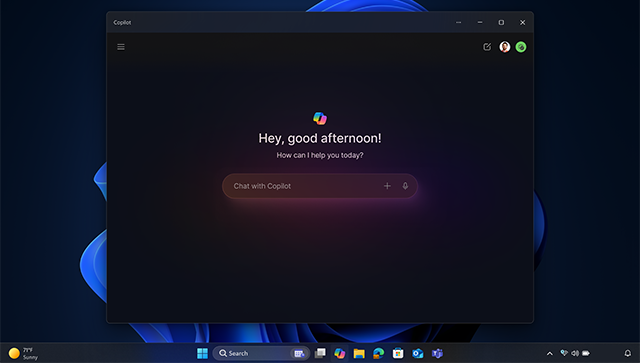
Experience Microsoft Copilot on Windows devices using the Copilot app! Copilot helps you get answers and inspiration from across the web, supports creativity and collaboration, and helps you focus on the task at hand.
The Copilot app will be pinned to the taskbar by default.
When you sign in to Copilot with your Microsoft account Copilot uses your Microsoft account to provide personalized assistance and access by default to a wide range of features. For example, saving and syncing your Copilot chat history on all devices you sign in to Copilot with the same Microsoft account.
Copilot is designed to deliver AI-powered assistance in a convenient manner, enabling you to seamlessly engage with generative AI on Windows.
You can resize, move, and use Snap Assist with Copilot, just like you can with other Windows apps. You can use Alt + Tab to switch focus between Copilot and other open apps. If you need to close Copilot, just select the Close button at the top like you would for any other app. When you reopen Copilot, it opens exactly how you left it with your previous chat content intact. Copilot also respects your Windows theme including high contrast themes.
You can ask Copilot a range of questions, from simple to complex. While you're typing into the chat pane, Microsoft Copilot provides autocomplete assistance to make chatting easier. Just use Tab to accept the suggested text. To start fresh with a new chat thread, use the New topic button to clear your previous chat conversation.
Copilot seamlessly integrates with the clipboard and provides the ability to drag and drop images to provide rich interaction, allowing you to get things done faster.
If you don't want the Copilot app, you can easily uninstall it for only your account or all users on the computer.
Starting with Windows 11 build 26220.7535 (Dev and Beta), Admins can now uninstall Microsoft Copilot for a user in a targeted way by enabling a new policy titled RemoveMicrosoftCopilotApp. It will apply for devices/users that meet the below conditions:
- Microsoft 365 Copilot and Microsoft Copilot are both installed
- The Microsoft Copilot app was not installed by the user
- The Microsoft Copilot app was not launched in the last 28 days
References:

Getting started with Copilot on Windows | Microsoft Support
Discover how Microsoft Copilot, your everyday AI companion, can help you achieve anything you can imagine.
 support.microsoft.com
Evolving Copilot in Windows for your workforce | Windows IT Pro Blog
Introducing Copilot+ PCs and updates to the Copilot experience in Windows.
 techcommunity.microsoft.com

Enjoy an AI Assistant Anywhere with Copilot for PC, Mac, Mobile, and more | Microsoft Copilot
From deep research to voice AI, see what you can do with Microsoft Copilot, your AI assistant. Download for Mac, Windows, and more to save time, work smarter, and improve any task.

An AI companion for everyone - The Official Microsoft Blog
We’re living through a technological paradigm shift. In a few short years, our computers have learned to speak our languages, see what we see and hear what we hear. Yet technology for its own sake counts for nothing. What matters is how it feels to people and what impact it has on societies...
 blogs.microsoft.com
Enjoy an AI Assistant Anywhere with Copilot for PC, Mac, Mobile, and more | Microsoft Copilot
From deep research to voice AI, see what you can do with Microsoft Copilot, your AI assistant. Download for Mac, Windows, and more to save time, work smarter, and improve any task.
Contents
- Option One: Uninstall Copilot app for Current User in Start Menu
- Option Two: Uninstall Copilot app for Current User in Settings
- Option Three: Uninstall Copilot app for Current User in Microsoft Edge
- Option Four: Uninstall Copilot app for Current User using PowerShell Command
- Option Five: Uninstall Copilot app for All Users using PowerShell Command
- Option Six: Reinstall Copilot app for Current User from Microsoft Store
- Option Seven: Reinstall Copilot app for Current User using "Microsoft Copilot Installer.exe" Download
EXAMPLE: Microsoft Copilot
1 Open the Start menu
 , and click/tap on the All apps button. (see screenshot below)
2 Right click or press and hold on the Copilot app, and click/tap on Uninstall. (see screenshot below)
3 Click/tap on Uninstall to confirm. (see screenshot below)
1 Open Settings (Win+I).
2 Click/tap on Apps on the left side, and click/tap on Installed apps on the right side. (see screenshot below)
3 Click/tap on the 3 dots button for the Copilot app, and click/tap on Uninstall. (see screenshot below)
4 Click/tap on Uninstall to confirm. (see screenshot below)
5 You can now close Settings if you like.
1 Open Microsoft Edge.
2 Type edge://apps/ into the address bar of Microsoft Edge, and press Enter to manage your web apps.
3 Click/tap on the More options (3 dots) button for the Copilot app, and click/tap on Uninstall. (see screenshot below)
This will open the "Advanced options" page for the Copilot app in Settings.
4 In Settings, click/tap on Uninstall. (see screenshot below)
5 Click/tap on Uninstall to confirm. (see screenshot below)
6 You can now close Settings and Microsoft Edge if you like.
1 Open Windows Terminal, and select Windows Powershell.
2 Copy and paste the command below into Windows Terminal, and press Enter. (see screenshot below)
Get-AppxPackage | Where-Object {$_.Name -Like '*Microsoft.Copilot*'} | Remove-AppxPackage -ErrorAction Continue3 When finished, you can close Windows Terminal if you like.
You must be signed in as an administrator to use this option.
1 Open Windows Terminal (Admin), and select Windows PowerShell.
2 Copy and paste the command below into Windows Terminal (Admin), and press Enter. (see screenshot below)
Get-AppxPackage -AllUsers | Where-Object {$_.Name -Like '*Microsoft.Copilot*'} | Remove-AppxPackage -AllUsers -ErrorAction Continue3 When finished, you can close Windows Terminal (Admin) if you like.
1 Click/tap on the link below to open the Microsoft Copilot page in the Microsoft Store app.
2 If prompted, click/tap on Open Microsoft Store app to confirm. (see screenshot below)
3 Click/tap Download, Get, or Install button to install the Microsoft Copilot app from the Microsoft Store. (see screenshot below)
4 When the Microsoft Copilot app has finished installing, you can Open the app if wanted. (see screenshot below)
5 You can now close the Microsoft Store app if wanted.
6 You can Pin to taskbar the Copilot app if wanted.
Reinstall Copilot app for Current User using "Microsoft Copilot Installer.exe" Download
1 Go to the Microsoft Copilot app page in the online Microsoft Store.
2 Click/tap on the Download button. (see screenshot below)
3 Browse to and select the folder (ex: "Desktop") you want to save the Microsoft Copilot - AI Companion Installer.exe file to, and click/tap on Save. (see screenshot below)
4 Run the downloaded Microsoft Copilot Installer.exe file when ready to install the Copilot app.
5 The Microsoft Copilot Installer will now download and install the Copilot app. (see screenshot below)
6 You can Pin to taskbar the Copilot app if wanted.
That's it,
Shawn Brink
Related Tutorials
- Uninstall Apps in Windows 11
- Reinstall Built-in Apps in Windows 11
- Find Copilot app Version in Windows 11
- Open Copilot in Windows 11 and Windows 10
- Open Settings for Copilot app in Windows 11
- Open Home Page in Copilot App in Windows 11
- Quit Copilot in Windows 11 and Windows 10
- Switch Between Quick View and Full View for Copilot in Windows 11
- Open and Close Sidebar in Copilot app in Windows 11
- Add or Remove Copilot Button on Taskbar in Windows 11
- Change App Copilot Key on Keyboard or Win+C Opens in Windows 11
- Enable or Disable Auto Start Copilot on Login in Windows 11
- Sign in or Sign out of Copilot
- Start New Conversation with Copilot
- Change Display Language of Copilot
- Add or Remove Copilot Toolbar icon in Microsoft Edge
- Add or Remove Copilot and "Find results in Web" in Windows Search in Windows 11
- Change Theme to Light or Dark for Copilot on Web, Windows 11, and Windows 10
- Enable or Disable Save Chat History in Copilot app in Windows 11
- Enable or Disable Model Training in Copilot on Web, Windows 11, and Windows 10
- Enable or Disable Copilot Personalization and Memory
- Add or Remove "Ask Copilot" Context Menu in Windows 11 and 10
- Enable or Disable Copilot in New Outlook for Windows and Web
Attachments

Last edited: