This tutorial will show you how to enable or disable hidden experimental feature flags in Windows 11.
ViVeTool is an open source tool that can be used to enable hidden features that are part of controlled feature roll-outs or A/B testing in Insider builds of Windows 11.
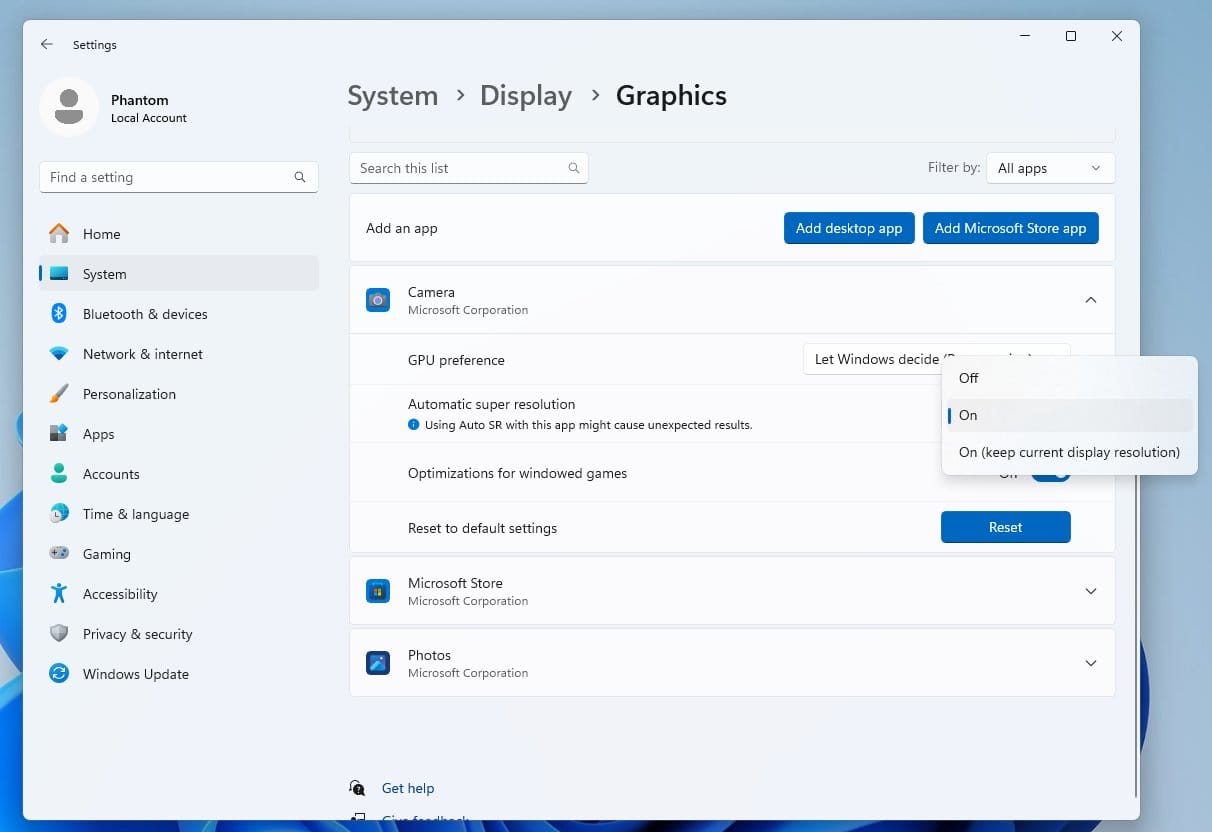
Windows Insider builds now have a Feature Flags page in Settings to make it easier to turn on or off hidden features.
Refernces:

Deeper look at running Windows Insider Preview Builds - Windows Insider Program
Understanding flighting, channels, and updates
learn.microsoft.com

Microsoft improving your Windows Insider experience for Windows 11
Windows Insider Blog: Hello Windows Insiders, Today is the day we’re beginning to move to the new Experimental and Beta channels as announced earlier this month. As a reminder, most Insiders, those who are in the Dev and Beta channels today will transition to the new channels over time as...
 www.elevenforum.com
You must be signed in as administrator to enable or disable hidden feature flags.
Contents
- Option One: Enable or Disable Hidden Feature Flags in Settings
- Option Two: Enable or Disable Hidden Feature Flags using ViVeTool
1 Open Settings (Win+I).
2 Click/tap on Windows Update on the left side, and click/tap on Windows Insider Program on the right side. (see screenshot below)
3 Click/tap on Feature Flags. (see screenshot below)
4 Select No Override, Disabled (default), or Enabled for any available feature flags you want, and click/tap on Apply Changes. (see screenshots below)
5 Click/tap on Restart now to apply. (see screenshot below)
This will immediately restart the computer. Be sure to save and close everything first.
1 Click/tap on ViVeTool-v0.3.4-SnapdragonArm64.zip (ARM64) or ViVeTool-v0.3.4-IntelAmd.zip (64-bit) at the link below to download the latest version of ViveTool for your device's system type. (see screenshot below)
Download
2 Select the location (ex: "Desktop") where you want to save the ZIP file above to, and click/tap on Save. (see screenshot below)
3 Unblock the downloaded ZIP file. (see screenshot below)

Unblock File Downloaded from Internet in Windows 11
This tutorial will show you different ways on how to unblock files downloaded from the Internet depending on how they were blocked in Windows 11. When you download files from the Internet, Windows 11 shows you a security warning every time you try to open it by default. Some file types are...
www.elevenforum.com
4 Extract All the downloaded ZIP file. (see screenshot below step 5)

Unzip (extract) Files from ZIP Folder in Windows 11
This tutorial will show you how to unzip (extract) files from a zipped folder in Windows 11. Zipped (compressed) files take up less storage space and can be transferred to other computers more quickly than uncompressed files. In Windows, you work with zipped files and folders in the same way...
www.elevenforum.com
5 Copy as path the ViveTool.exe file from the extracted ZIP. (see screenshot below)

Copy Path of Drive, File, or Folder in Windows 11
This tutorial will show you how to copy the full path of drives, files, and folders to paste where you like in Windows 11. Copy path or Copy as path will copy the full path of selected items (files and folders) wrapped in quotes to the Clipboard so you can paste (Ctrl+V) the full path(s) of the...
www.elevenforum.com
6 Open Windows Terminal (Admin), and select Command Prompt.
7 Type the command below to enable or disable a hidden feature into the elevated command prompt, and press Enter. (see screenshots below)

Windows 11 ViveTool codes to enable hidden features
Complete list of the ViveTool codes to enable hidden and experimental features on Windows 11 in the Stable and Insider preview builds.
 pureinfotech.com
(Enable hidden feature)
<full path of ViVeTool.exe> /enable /id:<feature ID>OR
(Disable feature)
<full path of ViVeTool.exe> /disable /id:<feature ID>OR
(Undo all custom feature configurations)
<full path of ViVeTool.exe> /fullresetSubstitute <full path of ViVeTool.exe> in the command above by pasting (Ctrl+V) the full path of the ViveTool.exe file from step 5.
Substitute <feature ID> with the actual feature ID number (ex: "41040327") for the feature (ex: "Gallery in File Explorer") you want to enable or disable.
For example:
"C:\Users\Brink\Desktop\ViVeTool-v0.3.3\ViVeTool.exe" /enable /id:41040327
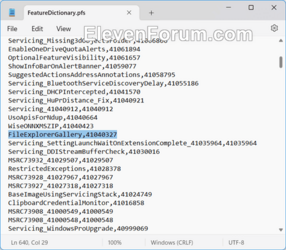
You can use Open with "Just once" the FeatureDictionary.pfs file from the extracted ZIP (step 4) with Notepad to see a list of available feature IDs.

8 If you used the "Removes all custom feature configurations" command, then type Y when prompted to confirm.
9 Restart the computer to apply.
That's it,
Shawn Brink
Last edited: