Microsoft SharePoint Blog:
Your monthly roundup of what's new in Copilot in SharePoint.
Copilot in SharePoint helps you do more with your content — ask questions, run workflows, and create sites, pages, interactive reports, and Office files using natural language. This month, reusable skills can follow you across SharePoint and OneDrive, Copilot can measure and improve those skills with evaluations, and new guidance helps AI agents build live, SharePoint-safe experiences. Here's everything that's new. Build better skills and use them anywhere
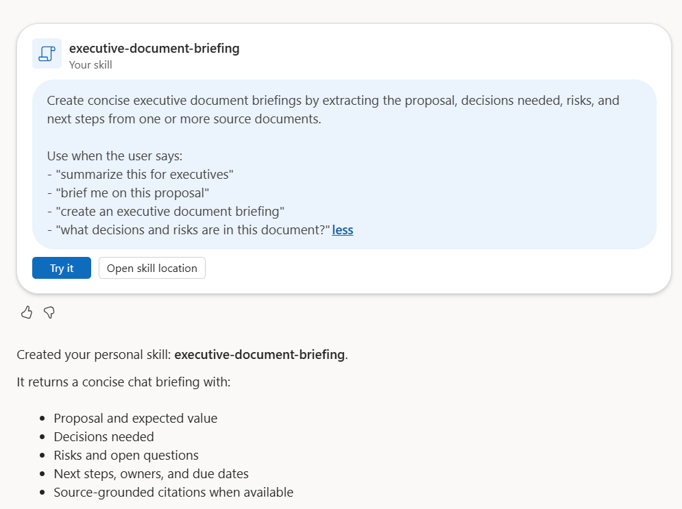
Personal skills that follow you
What's new: Create a personal skill once and use it across all your SharePoint sitesWhy it matters: Your preferred formats, standards, and repeatable ways of working can travel with you instead of being tied to one site.
Sample use cases:
- Save your executive-update structure as a personal skill, then use it with project content wherever it lives.
- An executive can ask Copilot to create a personal document briefing skill that turns lengthy SharePoint documents into concise summaries. The skill highlights proposals, expected value, decisions needed, key risks, open questions, and next steps
- “Create a personal skill for concise weekly leadership updates with progress, decisions, risks, and next steps.”
- “Create a personal skill that turns long SharePoint documents into concise executive briefings highlighting business value, decisions, risks, and next steps, with source citations.”
Improve skills with measured evaluations
What's new: Ask Copilot to improve a skill with tests, evaluations, and measured changes instead of manually rewriting instructions and hoping for a better result.Why it matters: You can see whether a change actually improves quality before you share the skill more broadly.
Sample use case: A Legal Operations team asks Copilot to improve its Marketing Legal review skill. Copilot suggests tests, evaluation criteria, and targeted updates to align external content with legal guidance and identify risks.
Try this prompt: “Improve my marketing legal document review skill. Create representative tests, evaluate the current results, and recommend measured changes.”
Create and refine SharePoint HTML
Review & update generated HTML with commentsWhat’s new: Review AI-generated HTML the same way you review a Word document. Leave a comment on what you want changed, and Copilot handles the underlying HTML, CSS, and layout edits.
Why it matters: Feedback stays anchored to the exact content. Reviewers can focus on the desired outcome while Copilot preserves everything that wasn’t mentioned.
Sample use case: A project lead comments on a generated status dashboard to simplify a chart, rename a section, and clarify an alert—without writing a technical editing prompt.
Try this prompt after leaving comments on an HTML page: “Fix the issues in the comments and show me the updated version.”
Build live, SharePoint-safe pages and reports
What’s new: Every Microsoft 365 customer now has tenant-specific HTML guidance at _html. Point Cowork, Scout, GitHub Copilot, Copilot Studio, or another AI assistant to this page for up-to-date instructions on creating HTML designed to work within SharePoint’s sandbox. The guidance supports capabilities such as live-linked SharePoint lists, helping reports stay connected to their source data.Why it matters: AI assistants typically generate standard web HTML, which may not work as expected in SharePoint. This guidance removes the need to explain SharePoint’s requirements yourself—and updates automatically as new capabilities become available in your tenant. More people can create rich, securely shareable experiences without requiring custom development for every scenario.
Sample use case: In Cowork, turn a SharePoint project-tracking list into an interactive status report with filters, key milestones, risks, and links to the source items.
Try this prompt (in Cowork, Scout, Copilot Studio, or another AI assistant): “Use https://[tenantname].sharepoint.com_html to generate a new HTML project status report about the content in this folder.
Understand content
Understand images with Copilot
What’s new: Ask questions about images across a document library—without selecting and reviewing them individually.Why it matters: Copilot could already explain or extract text from a selected image. Now, it can analyze images across your library to surface relevant details and extract visible text at scale.
Sample use case: A facilities team asks Copilot to review site photos, identify equipment and labels, and flag images that may show maintenance issues.
Try this prompt: “Review the images in this library. Summarize the equipment and labels shown, extract relevant text, and flag anything that may require follow-up.”
Automate simple workflows & notifications
 Post a message in Teams for file updates
What's new: Let your team know when new files are added or key metadata updates occur. Send a simple message in a group chat or channel with the file title, link and your own custom text.Why it matters: Conversations and collaboration happen in Teams. Keep the source file in SharePoint and get feedback from colleagues, notify a partner team a file is ready to review, or send a weekly reminder to look at files with an upcoming due date filtered view.
Sample use cases:
- Send high $ invoices for leadership review — when you receive an invoice over $1M, post an exception notice in your chat with leadership, gather input and review critical details before processing a payment.
- Review new client documents— when a new client document is submitted, post a message in the onboarding channel.
Learn more: Getting started with Workflows | Microsoft Support
 Workflows to route approval requests
What's new: Track approvals in the context of your files and lists, collect required information, and route requests to the right reviewers.Why it matters: Approvals stay connected to the content and status that triggered them, giving requestors and reviewers a clearer record of what was submitted, who needs to act, and what happens next.
Sample use cases:
- Clear new vendor documents — when a file is added to the Vendor Onboarding library, send an approval request to the compliance lead, then move the file into the Approved folder once it clears.
- Review RFP’s — when a new RFP item is created in your pipeline list, request manager approval before the bid goes out, and email the requestor as soon as the status changes to Approved.
Learn more: Approvals in Lists & Document Libraries | Microsoft Support
 A Chat Experience That’s Always Improving
Copilot in SharePoint now delivers more consistent, predictable cards in chat, making information, approvals, and available actions easier to scan so you can verify the context and take the next step with confidence.Try it today
Copilot in SharePoint is available for users with a Microsoft 365 Copilot license. For ready-to-use prompts and step-by-step guidance, explore the Copilot in SharePoint Adoption Hub and the Getting Started Prompt Library .
Bring us your business challenge! If your team has a high-value SharePoint scenario that could benefit from Copilot, nominate it for the Copilot in SharePoint co-build program and work with us to shape the solution.
See you next month for the next round of what's new!
Source:
What's New in Copilot in SharePoint: September 2026 | Microsoft Community Hub
Your monthly roundup of what's new in Copilot in SharePoint. Copilot in SharePoint helps you do more with your content — ask questions, run workflows, and...
 techcommunity.microsoft.com