Windows Blogs:
Every day, your PC helps you get things done, stay connected, capture ideas and make time for what you enjoy. That’s why Windows 11 continues to evolve, starting with a faster, more dependable and refined experience. Throughout the year, we’ve worked with the Windows Insider community on improvements to Windows that are now beginning to roll out broadly, with more to come.
That same care shapes our latest Windows experiences, building on these foundational improvements with new possibilities that make everyday moments on your PC simpler and more intuitive. From new features for gamers, to a modernized Photos experience, to more seamless phone to PC integration, Windows is built to support the way you work, create, play and connect.
A faster, more responsive Windows experience
Responsiveness shapes nearly every experience on your PC. It’s the difference between staying in your flow and waiting for your device to catch up. That’s why we’ve continued to invest across Windows, from the platform and shell to the apps people use every day, to make Windows feel faster, more responsive and more efficient. The result is a Windows experience that’s up to 20% more responsive, with improvements you can feel as soon as you boot into your PC and extending to Start, File Explorer, Search, Snipping Tool, Microsoft 365, Edge and more.A big part of that work is making smarter use of memory and system resources. We’ve improved memory management and efficiency across Windows to help keep more of your PC’s resources focused on what you’re actively doing. That work can make an especially meaningful difference on PCs with 8GB of memory. Windows can now keep up to 2GB more of your active data in memory instead of moving it to slower storage, helping your PC stay responsive as you open more apps or browser tabs. Windows is also making additional memory-saving improvements that reduce background memory use. For example, on PCs with 8GB of memory or less, Widgets load only when you open them, making more than 200 MB of memory available for your apps and other work. It’s one example of the broader work underway to reduce the Windows memory footprint and deliver a fast, responsive experience across the PCs people use every day, an area we’ve made an explicit focus for Windows.
But a great Windows experience isn’t only about speed. It’s also about making your PC feel dependable, less disruptive and more your own. We’re giving you more flexibility to personalize Start and your taskbar, including choosing where it appears on your screen, while making Widgets cleaner and quieter so you have more control over what gets your attention. And we’ve improved Windows Update to give you greater control over when updates happen and better coordinate updates to reduce restarts, while continuing to reduce the time it takes to apply an update.
We’re also improving the everyday interactions you depend on. Bluetooth headphones work more reliably on Windows, with smoother pairing, reconnection, audio and calls, including an AirPods pairing experience that’s up to 15 seconds faster. And we’ve made signing in with Windows Hello easier, faster and more reliable, with improvements to both face and fingerprint recognition. Alongside that work, we’re partnering with our hardware ecosystem through the Driver Quality Initiative to improve driver stability, reliability, security and performance across Windows devices.
The result is a Windows experience that feels faster, more responsive and more thoughtfully designed around you, whether you’re opening an app, finding a file, connecting your headphones, arranging your taskbar the way you want or simply getting back to what you were doing.
From searching to doing, faster
For hundreds of millions of people each day, Windows search on the taskbar is where intent begins. It’s one of the quickest ways to get started, whether finding a file, opening an app, or changing a setting.
This release builds on the search quality improvements we delivered in recent months, with clearer results and more control over suggestions. Now, we are carrying those improvements forward with a new interface and expanding search from a place for finding information into a place for getting things done.
Finding the right result is often only the first step. After finding what you’re looking for, you often need to navigate to another destination to complete the task. Actions allow you to complete common Windows tasks directly from the search results. When searching for a system setting like dark mode or night light, you can now make the relevant change without opening Settings or searching for the right sub-menu. Search can also help with managing your workspace, like minimizing or arranging open windows, and coming soon, the ability to interact with your connected phone. These actions are designed to make common tasks faster and more intuitive: simply search and act directly from the taskbar.
The new Windows Search experience is available to Windows Insiders today and will roll out more broadly later this year. Learn more about the new Windows Search experience.
Microsoft Building a faster, more streamlined Windows 11 Search
Windows Blogs: Hello Windows Insiders, Search is one of the most familiar ways to get around a Windows PC. It is how you may open an app, find a file, change a setting, or simply look for information. As Insiders, you have also been clear about what you expect from it: search should be fast...
 www.elevenforum.com
Move between your phone and PC seamlessly
When you’re in the middle of something on your PC, your phone’s messages, apps and files should be within reach too. Windows 11 brings more of your phone experience to your desktop, so you can reply to a message, answer phone calls, open apps, and keep going without reaching for another device.
Preview messages and notifications from your Android phone or iPhone in Start to see what needs your attention. When a conversation needs a reply, open it in a window focused on your chat, send your response and get back to what you were doing. Quick Settings keeps useful phone controls close, whether you want to silence or ring a misplaced phone.
Enable or Disable Mobile Device Notification Previews on Hover in Start Menu on Windows 11
This tutorial will show you how to enable or disable showing full mobile device (phone) notifications when hovering over them in the Start menu for your account in Windows 11. You can directly access content on your mobile device from the Start menu on your PC. Using this feature, you can view...
www.elevenforum.com
With a supported Android phone, open your phone apps in separate, resizable windows on your desktop, with room to work on the larger screen alongside your other apps. Browse your phone files in File Explorer and open what you need without switching devices. And when you take a photo on your phone, a notification on your PC lets you open it with one click, ready for a closer look. When you do move between devices, Resume helps you pick up supported activities where you left off instead of finding your place again. It’s your phone and PC working together, so you can stay connected from the screen you’re already using.
Enable or Disable Android Phone Access in File Explorer in Windows 11
This tutorial will show you how to turn on or off access to your Android phone mobile device in File Explorer for your account in Windows 11. If you turn on Allow this PC to access your mobile devices, you will be able to link and manage your mobile devices directly from your PC. This link...
www.elevenforum.com
Enable or Disable New Photo Notifications from Mobile Devices in Windows 11
This tutorial will show you how to turn on or off getting new photo notification from Android mobile devices to open and edit in Snipping Tool for your account in Windows 11. Starting with Windows 11 build 22631.3235, you can now use the Snipping Tool on your PC to edit the most recent photos...
www.elevenforum.com

Enable or Disable Resume from Android Mobile Device on Windows 11 PC
This tutorial will show you how to turn on or off the Resume feature for Android mobile devices (phone) linked to your account on a Windows 11 PC. Microsoft rolled out the ability to seamlessly resume using your favorite apps from your Android phone on your Windows 11 PC to Windows Insiders in...
www.elevenforum.com
From capture to creation, faster
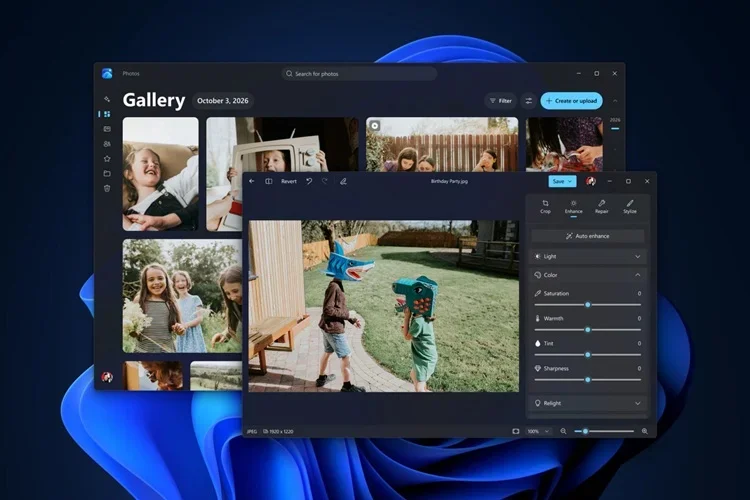
Spend less time searching for your photos and more time enjoying them. The new Microsoft Photos app brings images from your PC and connected libraries into one fast, beautiful Gallery, with more of your collection in view. Whether you’re revisiting a favorite trip or browsing everyday snapshots, it’s easier to see what you have and rediscover moments worth keeping close. Find a favorite by describing it in your own words or bring memories together in albums to share.
Bring out the best in a favorite photo with a new Editor that loads faster and gives you easy-to-use, precise editing tools on your PC’s larger display. From a quick crop to fine-tuning colors, you have room to see the details and make the adjustments you want. Quickly remove a distracting object from the background, or use Relight to correct lighting and explore a different look. The Photos app now launches up to 20% faster and the redesigned Viewer opens photos with less clutter and more room for your pictures to shine. When you find a photo you want to pass along or put on display, everyday actions like sharing and printing are within easy reach. Learn more about the new Photos experience.
Meet the new Photos app on Windows 11
Windows Blogs: Photos hold some of our most meaningful memories: the people we love, the milestones we celebrate, and the everyday moments we want to remember. They connect us to our past and help us share our stories. Finding, editing, and enjoying them on Windows should be simple, wherever...
www.elevenforum.com
The most PC games, and the best place to play
Nobody likes waiting. Advanced Shader Delivery (ASD) is designed to reduce the initial load time of your games by delivering precompiled shaders for supported titles like Forza Horizon 6 and Gears of War: E-Day, so your games load in seconds instead of minutes. To get the most from ASD, install the XBOX PC app before downloading a supported game and make sure your graphics drivers are up to date. Learn more about ASD and supported titles.
There’s never been a better time to start playing games on Windows. And to celebrate 25 years of XBOX, starting this November, eligible Windows 11 PC purchased in the US can claim a collection of 25 fan-favorite games at no additional cost. The collection includes $500+ worth of games, such as The Elder Scrolls V: Skyrim Special Edition, Halo: Combat Evolved Anniversary, Age of Empires II: Definitive Edition, Minecraft Dungeons, Gears of War: Reloaded, and more. Once claimed, the PC versions of the games are linked to your Microsoft account and you can play them on any compatible Windows PC, with select titles also playable on XBOX Series X|S consoles with XBOX Play Anywhere. Note that some devices eligible for the offer cannot play all the games in the collection.
Once you’re playing, press Win+G to open Game Bar, where you can find useful widgets for recording your gameplay, connecting with friends, and managing your audio settings. You can also use Microsoft Edge for Game Bar to pull up guides, videos and websites on top of your game, without switching away. It’s one of the exclusive features that make Microsoft Edge the best browser for gamers on Windows.

Uninstall Microsoft Edge For Game Bar Widget in Windows 11
This tutorial will show you how to uninstall the Microsoft Edge For Game Bar (formerly Microsoft Edge Game Assist) widget for your account in Windows 11. Microsoft Edge is the AI-powered browser. A smarter way to browse. As the only browser built and optimized for Windows, it’s AI-powered tools...
www.elevenforum.com
Bring ideas to life more naturally
Some ideas are easier to draw than describe. With Microsoft Ink Canvas, pen and touch become a more natural way to sketch, annotate and bring thoughts together on a flexible canvas. Select notes, drawings and references and use Copilot to help turn them into visual or written output you can copy and transfer into another document or presentation8. It is a more fluid path from the first rough draft to something ready to share. Ink Canvas is pre-installed on Surface Pro 12-inch (2nd Edition), and users with other supported Windows devices can download it now from the Microsoft Store.
Microsoft Ink Canvas available October 13, 2026 on supported Surface Pro and Windows 11 devices
Microsoft Support: What is Microsoft Ink Canvas? Microsoft Ink Canvas is an AI-powered, pen-first experience designed for the moments before an idea becomes a document, prompt, image, or plan. Built for visual thinkers who use pen and touch as part of how they create, Ink Canvas gives you a...
www.elevenforum.com
Feel the difference in every interaction
Advanced haptics in Windows 11 bring a sense of touch to everyday work and creativity. Whether you’re snapping a window into place, aligning an object in Microsoft PowerPoint or Affinity by Canva, or snapping a clip to a Filmora timeline, subtle tactile cues provide immediate physical confirmation that helps you work with confidence. A library of curated effects connects each cue to the action, making interactions feel more natural and responsive. Supported accessories—including Surface Mouse (2nd Edition) and Logitech MX Master 4—bring these experiences to your fingertips. Learn more about advanced haptics.
Enable or Disable Mouse Haptic Feedback in Windows 11
This tutorial will show you how to turn on or off mouse haptic feedback for your account in Windows 11. Haptic feedback gives you increased control and precision through vibrations on your mouse device when you snap windows, align objects, and more. Starting with Windows 11 build 26100.8328...
www.elevenforum.com
Change Mouse Haptic Feedback Intensity in Windows 11
This tutorial will show you how to change the mouse haptic feedback intensity level for your account in Windows 11. Haptic feedback gives you increased control and precision through vibrations on your mouse device when you snap windows, align objects, and more. Starting with Windows 11 build...
www.elevenforum.com
A more comfortable PC experience, for everybody
A personal computer should feel personal. It should adapt to how you see, read, learn and work, not the other way around. Windows 11 brings accessibility updates shaped by feedback from the people who use them every day, giving you more ways to make your screen comfortable, work with confidence and get started independently.Make your display feel right for you with Screen Tint. Choose a color overlay and adjust its strength to suit your preferences. If you use Magnifier across multiple displays, each screen can now keep its own zoom level. Keep reference material magnified on one screen while you work on another, with a locked view that stays where you need it. Magnifier’s refreshed design also puts contrast themes just a click away, while keeping the true colors in your photos.

Enable or Disable Screen Tint in Windows 11
This tutorial will show you how to turn on or off using Screen Tint for your account in Windows 11. Starting with Windows 11 build 26100.8737 (24H2), build 26200.8737 (25H2), and build 2800.2608 (26H1), Microsoft is introducing screen tint, a new accessibility setting that applies a color...
www.elevenforum.com

Change Screen Tint Color in Windows 11
This tutorial will show you how to change the Screen Tint color for your account in Windows 11. Starting with Windows 11 build 26100.8737 (24H2), build 26200.8737 (25H2), and build 2800.2608 (26H1), Microsoft is introducing screen tint, a new accessibility setting that applies a color overlay...
www.elevenforum.com

Change Screen Tint Color Strength in Windows 11
This tutorial will show you how to change the Screen Tint color strength for your account in Windows 11. Starting with Windows 11 build 26100.8737 (24H2), build 26200.8737 (25H2), and build 2800.2608 (26H1), Microsoft is introducing screen tint, a new accessibility setting that applies a color...
www.elevenforum.com
With Narrator, following an equation is easier. Math is read with its structure intact, so you can explore each part at your own pace. Improvements across everyday apps also help you get more done at work and school. Jump straight to an email’s sender or a meeting’s location in Outlook. Hear row and column headers as you move through numbers in Excel. Create and present your own PowerPoint slides or fill in forms on the web with confidence.

Enable or Disable Math Reading for Narrator in Windows 11
This tutorial will show you how to turn on or off math reading in Narrator for your account in Windows 11. Narrator is a screen reader included with Windows 11 that describes what's on your screen. Narrator lets you use your PC without a mouse to complete common tasks if you’re blind or have...
www.elevenforum.com
Setting up a new PC should be accessible too. Narrator now supports braille displays that use the HID standard. If your display supports HID, simply connect over USB or Bluetooth without extra drivers and use it from the first screen of Windows setup, so you can set up a new PC on your own.

Open Braille Viewer in Narrator in Windows 11
This tutorial will show you how to open and use the Braille viewer in Narrator in Windows 11. Narrator is a screen reader included with Windows 11 that describes what's on your screen. Narrator lets you use your PC without a mouse to complete common tasks if you’re blind or have low vision. It...
www.elevenforum.com
To explore these settings, press Windows logo key + U to open Settings > Accessibility.
Make every day easier, with a new Windows 11 PC
A new PC is a meaningful purchase, and the value should show up in more than a spec sheet. A modern Windows 11 PC brings together responsive everyday performance with more intuitive, connected and personal experiences, all supported by hardware designed for how you interact, create and play, from touch, pen and tactile feedback to immersive gaming experiences. The reason to upgrade is not just one feature; it is how all these experiences work together to make more of your day feel effortless.Explore the holiday Windows PC lineup, offers and buying guidance in our companion holiday blog, then choose the PC that fits how you work, create, play and connect.
Source:
What’s new in Windows 11: Everyday experiences, reimagined
Every day, your PC helps you get things done, stay connected, capture ideas and make time for what you enjoy. That’s why Windows 11 continues to evolve, starting with a faster, more dependable and refined experience. Thro
 blogs.windows.com
Last edited: