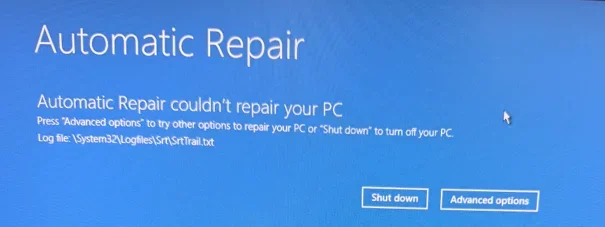
""I have download HP Windows 11 24h2 image from HP cloud recovery client and installed the on the pc.""
What was happening with the prior installation that an image was to be installed?
once after entering into OS if we reboot the pc we are getting error as Automatic repair cannot repair your pc and it goes in t loop.
Please reboot > run the V2 log collector > post a share link
BSOD - Posting Instructions This will show you how to help provide needed information about your system and dump files. It will not contain any personal or sensitive information about you or your data. To get better help with your Windows BSOD issue, please read these instructions and follow...

www.elevenforum.com
Run the V2 log collector in safe mode if unable to normal boot:
This tutorial will show you how to boot Windows 11 into normal mode, Safe Mode, Safe Mode with Networking, or Safe Mode with Command Prompt. Safe mode starts Windows in a basic state, using a limited set of files and drivers. If a problem doesn't happen in safe mode, this means that default...
www.elevenforum.com
If able to find srttrail.txt then post a share link.
If unable to to normal boot, boot into safe mode, or find srttrail.txt, then perform the following steps:
1) Find one or two flash drives that you can format (> or = 8 GB)
2) Find a working Windows computer
3) Create tools that can be used on the problematic computer
4) Create a bootable Sea Tools flash drive
SeaTools - Quick diagnostic tool that checks the health of your drive.
www.seagate.com
5) Create a bootable Windows 11 Media Creation Tool (MCT) (Windows 11 iso)
This tutorial will show you how to download an official Windows Server or Windows 11 64-bit or ARM64 ISO file from Microsoft. Microsoft provides ISO files for Windows Server and Windows 11 to download. You can use these ISO files to clean install or in-place upgrade Windows 11. The Flight Hub...
www.elevenforum.com
6) Run the Sea Tools Long generic test > take pictures > post images or share links
7) If the Long generic test result reports fail then backup files and replace the drive
8) If the Long generic test result report pass then boot to the Windows 11 MCT
Option #7:
This tutorial will show you how to boot to the advanced startup (WinRE) in Windows 11. The Windows Recovery Environment (WinRE) is a companion operating system installed alongside Windows 11, typically in a separate partition, that can help with troubleshooting, recovery, or booting from...
www.elevenforum.com
Open command prompt > type or copy and paste:
notepad
notepad
bcdedit
bcdedit | find "osdevice"
bcdedit /set {default} recoveryenabled No
diskpart
lis dis
lis vol
sel dis 0
det dis
lis par
sel dis 1
det dis
lis par
Save the commands with results to notepad > save to a flash drive > move the flash drive to a working Windows computer
If unable to save to notepad / flash drive then take pictures > post images or share links
Identify the HP computer > post a link
Download the latest drivers, software, firmware, and diagnostics for your HP laptops from the official HP Support website.

support.hp.com