This tutorial will show you how to add (pin) or remove (unpin) widgets on the Widgets board for your account in Windows 11.
Widgets in Windows are interactive elements that display dynamic content and provide quick access to various apps and features. You can view your location's current weather conditions directly on the taskbar and hover over the icon to see concise, scannable information on topics like sports, stocks, local news, and breaking headlines. Widgets are designed to help you staying informed and organized by presenting personalized information at a glance.
Widgets are displayed on the Widgets board, which contains a collection of cards, each representing a widget with relevant information and actions related to an app. On the Widgets board you can discover, pin, unpin, arrange, resize, and customize widgets to reflect your interests.
Starting with Windows 11 build 26220.7523 (Dev and Beta), Microsoft is introducing a new Discover Windows widget on Windows 11. This widget helps you learn about Windows features with short, helpful tips that appear right when you need them. What it shows:
- Quick, actionable tips from the Windows Tips website—covering things like shortcuts, productivity tricks, and security reminders.
- Tips update automatically throughout the day to match common usage moments.
Starting with Windows 11 build 26340.9616 (Experimental 26H2) for Insiders, Microsoft is introducing the Battery Status widget for Insiders on newer builds. This widget provides a unified view of battery levels for your PC and peripheral devices, helping you quickly assess power status without hunting through multiple UI locations.
You can customize your Widgets board by adding and removing Widgets you want.
Reference:
Stay up to date with Widgets in Windows | Microsoft Support
Learn how to use Widgets dashboards to keep track of the things you care about.
 support.microsoft.com
Contents
- Option One: Add (pin) Widget to Widgets Board
- Option Two: Remove (unpin) Widget from Widgets Board
1 Open Widgets (Win+W).
2 Click/tap on Widgets in the left pane, and click/tap on the Add Widgets (+) button at the top right. (see screenshot below)
3 Select a widget (ex: "Weather) you want to add in the left pane, click/tap on the Add widget button. (see screenshot below)
A grayed out Add widget button indicates the widget is already added.
You can click/tap on the Find more widgets link to install more widgets from the Microsoft Store to have available to add.
4 You can now resize, move, or customize the widget on the Widgets board.
1 Open Widgets (Win+W).
2 Click/tap on Widgets in the left pane. (see screenshot below)
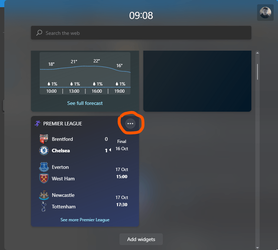
3 Click/tap on the More options (3 dots) button on the upper right corner of the widget you want to remove, and click/tap on Remove. (see screenshot below)
That's it,
Shawn Brink
Related Tutorials
- Add and Remove Widgets on Lock Screen in Windows 11
- Open Widgets in Windows 11
- Sign in or Sign out of Widgets Board in Windows 11
- Add or Remove Widgets Button on Taskbar in Windows 11
- Enable or Disable Widgets Feature in Windows 11
- Resize Widgets on Widgets Board in Windows 11
- Customize Widgets in Windows 11
- Move a Widget on Widgets Board in Windows 11
- Expand and Collapse Widgets Board Full Screen View in Windows 11
- Add or Remove Phone Link on Widgets in Windows 11
- Refresh Widgets in Windows 11
Last edited:


 ).
).