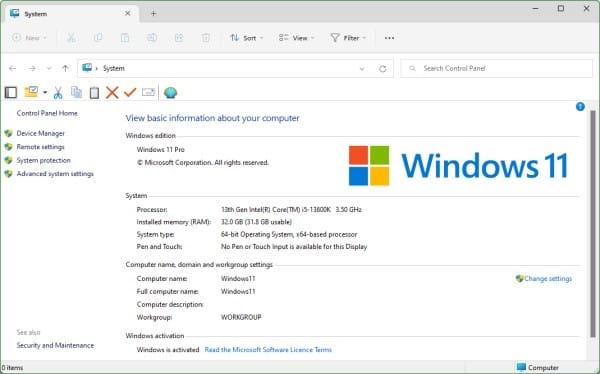
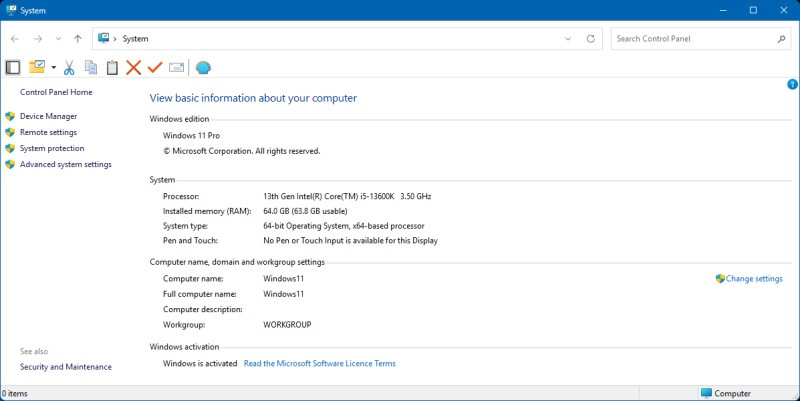
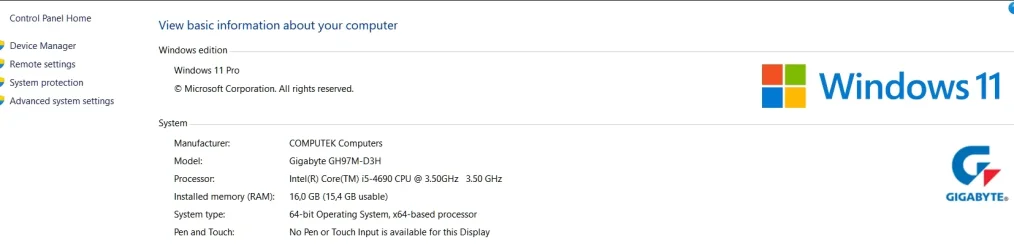
Solved Any way to change this in text/image Windows 11?


Try either of these from the run box ( I don’t have an install of 2022 active so I can’t test)

sysdm.cpl

Or

shell:::{bb06c0e4-d293-4f75-8a90-cb05b6477eee}

First thing I tried.

Doesn't work. :confused:
 

My Computer

System One

  • OS
    Win 10 LTSC + Win 11 Pro + Linux Mint + Debian KDE
    Computer type
    PC/Desktop
    Manufacturer/Model
    Self built
    CPU
    Intel i5-13600K
    Motherboard
    ASRock Z790 PG Riptide
    Memory
    Corsair VENGEANCE 64GB (2 x 32GB) DDR5 6000MHz
    Graphics Card(s)
    Radeon RX 9070 16GB
    Sound Card
    Creative AE-5X
    Monitor(s) Displays
    HP 24" 1080p
    Screen Resolution
    1920 x 1080
    Hard Drives
    • Boot drive (Windows) - Kingston FURY 2TB Renegade PCIe 4.0 NVMe M.2
    • Boot drive (Linux) - WD BLACK 1TB SN770 M.2 2280 Gen4 NVMe
    • Data drive - Crucial BX500 2TB SATA SSD
    • Games drive - Crucial BX500 2TB SATA SSD
    • VMs drive - Crucial MX500 1TB SSD
    • Back-up (internal) - Seagate 4TB HDD
    • Back-up (external) - Seagate 8TB HDD
    PSU
    Corsair RM850 850 Watt 80 Plus Gold Fully Modular ATX PSU
    Case
    Fractal Design Define 7 XL Full-Tower
    Cooling
    • CPU cooler - Scythe FUMA 2 Rev B • 7 x 140mm case fans: 3 x PWM + 4 x non-PWM
    Keyboard
    Microsoft Wired Keyboard 600
    Mouse
    Dell MOCZUL 6-Button 400-1600 DPI
    Browser
    Firefox
Try Settings > System > About > System Info (hyperlink in top right corner)

just dug around on a 2019 install and that worked
 

My Computer

System One

  • OS
    Windows 11 Pro
Made two basic PNG files that fit if anyones interested.

win11-system-text-Image4.jpg


win11-system-text-Image5.jpg

Apologies for bumping an old thread....


But, the most recent update I've installed has broken the nice Windows 11 logo I created for the old System Properties window shown above.. :(

The shellbrd.dll file in C:\Windows\Branding\shellbrd had been replaced - the MS original is 36KB and my edited one is 48KB - so I went through the process of editing this new shellbrd.dll file in Resource Hacker and adding in my colourful Windows 11 .png file exactly as I did before, but no images at all show up in the System Properties window, see below. :confused:

Anyone any ideas, or am I onto plums this time? :cautious:

Windows 11 - 24H2 Build 26100.4061

Win11-system-text2025-01.jpg
 

My Computer

System One

  • OS
    Win 10 LTSC + Win 11 Pro + Linux Mint + Debian KDE
    Computer type
    PC/Desktop
    Manufacturer/Model
    Self built
    CPU
    Intel i5-13600K
    Motherboard
    ASRock Z790 PG Riptide
    Memory
    Corsair VENGEANCE 64GB (2 x 32GB) DDR5 6000MHz
    Graphics Card(s)
    Radeon RX 9070 16GB
    Sound Card
    Creative AE-5X
    Monitor(s) Displays
    HP 24" 1080p
    Screen Resolution
    1920 x 1080
    Hard Drives
    • Boot drive (Windows) - Kingston FURY 2TB Renegade PCIe 4.0 NVMe M.2
    • Boot drive (Linux) - WD BLACK 1TB SN770 M.2 2280 Gen4 NVMe
    • Data drive - Crucial BX500 2TB SATA SSD
    • Games drive - Crucial BX500 2TB SATA SSD
    • VMs drive - Crucial MX500 1TB SSD
    • Back-up (internal) - Seagate 4TB HDD
    • Back-up (external) - Seagate 8TB HDD
    PSU
    Corsair RM850 850 Watt 80 Plus Gold Fully Modular ATX PSU
    Case
    Fractal Design Define 7 XL Full-Tower
    Cooling
    • CPU cooler - Scythe FUMA 2 Rev B • 7 x 140mm case fans: 3 x PWM + 4 x non-PWM
    Keyboard
    Microsoft Wired Keyboard 600
    Mouse
    Dell MOCZUL 6-Button 400-1600 DPI
    Browser
    Firefox
Even more change with Build 26100.4351 [since Patch Tuesday].

1750295158661.webp
 

My Computers

System One System Two

  • OS
    Win11 Pro RTM Version 24H2 Build 26100.4202
    Computer type
    Laptop
    Manufacturer/Model
    Dell Vostro 3400
    CPU
    Intel Core i5 11th Gen. 2.40GHz
    Memory
    12GB
    Hard Drives
    256GB SSD NVMe M.2
  • Operating System
    Win11 Pro RTM Version 24H2 Build 26100.4202
    Computer type
    PC/Desktop
    Manufacturer/Model
    Dell Vostro 5890
    CPU
    Intel Core i5 10th Gen. 2.90GHz
    Memory
    16GB
    Graphics card(s)
    Onboard, no VGA, using a DisplayPort-to-VGA adapter
    Monitor(s) Displays
    24" Dell
    Hard Drives
    512GB SSD NVMe, 4TB Seagate HDD
    Browser
    Firefox, Edge
    Antivirus
    Windows Defender/Microsoft Security
Apologies for bumping an old thread....


But, the most recent update I've installed has broken the nice Windows 11 logo I created for the old System Properties window shown above.. :(

The shellbrd.dll file in C:\Windows\Branding\shellbrd had been replaced - the MS original is 36KB and my edited one is 48KB - so I went through the process of editing this new shellbrd.dll file in Resource Hacker and adding in my colourful Windows 11 .png file exactly as I did before, but no images at all show up in the System Properties window, see below. :confused:

Anyone any ideas, or am I onto plums this time? :cautious:

Windows 11 - 24H2 Build 26100.4061

Win11-system-text2025-01.jpg

yes I am interested in png files and how can you do that exactly
 

My Computer

System One

  • OS
    Mac Os Windows
    Computer type
    Laptop
Sorry for the bump, @james73 did you manage to get this sorted ?
 

My Computer

System One

  • OS
    Win11 25H2 26200.7309
    Computer type
    PC/Desktop
    Manufacturer/Model
    Gigabyte
    CPU
    i5
    Memory
    16GB
    Graphics Card(s)
    RX580
Apologies for bumping an old thread....


But, the most recent update I've installed has broken the nice Windows 11 logo I created for the old System Properties window shown above.. :(

The shellbrd.dll file in C:\Windows\Branding\shellbrd had been replaced - the MS original is 36KB and my edited one is 48KB - so I went through the process of editing this new shellbrd.dll file in Resource Hacker and adding in my colourful Windows 11 .png file exactly as I did before, but no images at all show up in the System Properties window, see below. :confused:

Anyone any ideas, or am I onto plums this time? :cautious:

Windows 11 - 24H2 Build 26100.4061

Create a folder named

Code:
System.{BB06C0E4-D293-4f75-8A90-CB05B6477EEE}

What does it show when launched?
 

My Computer

System One

  • OS
    Windows 11 Pro
LOL, Focus

PS: @james73

Mine worked ...
Screenshot_2.webp

Used the image that you shared (y)
 

My Computer

System One

  • OS
    Win11 25H2 26200.7309
    Computer type
    PC/Desktop
    Manufacturer/Model
    Gigabyte
    CPU
    i5
    Memory
    16GB
    Graphics Card(s)
    RX580
Create a new folder on your desktop, name it System.{BB06C0E4-D293-4f75-8A90-CB05B6477EEE} then open it.
I know this is an old thread, but has anyone found a way to get the Classic System Properties window in Server 2022? Or is it not possible in 2022?
LOL, Focus
I’m pretty well focused. He stated back then that the folder method didn’t work. Not sure which method was being used to open that window. Just created that folder on 25H2 and server 2022 (no mods on either os). Works as expected. It’s more likely to be Open Shell causing whatever issue.
 
Last edited:

My Computer

System One

  • OS
    Windows 11 Pro
A quick question for you modders: can you hide or rename the build version in Windows 11?
 

My Computers

System One System Two

  • OS
    Windows 11 Education For 25H2
    Computer type
    Laptop
    Manufacturer/Model
    HP ZBook G2
    CPU
    Intel® Core i7 5500u
    Motherboard
    HP
    Memory
    8 GB
    Graphics Card(s)
    Intel HD Family Graphics 5500 AMD Firepro 4150M
    Sound Card
    Realtek High Audio
    Hard Drives
    1 TB SSD
    Mouse
    HP USB Mouse
    Antivirus
    Windows Defender
  • Operating System
    Windows 11 Pro For Workstations 25H2
    Computer type
    Laptop
    Manufacturer/Model
    HP Zbook G4
    CPU
    Xeon 1535m v6
    Motherboard
    HP
    Memory
    32 GB
    Graphics card(s)
    AMD Quadro Pro 4100
    Sound Card
    Bang and Olufson Audio
    Hard Drives
    1TB SSD
    Mouse
    HP USB Mouse
    Antivirus
    Windows Defender
lol
 

My Computer

System One

  • OS
    Win11 25H2 26200.7309
    Computer type
    PC/Desktop
    Manufacturer/Model
    Gigabyte
    CPU
    i5
    Memory
    16GB
    Graphics Card(s)
    RX580
A quick question for you modders: can you hide or rename the build version in Windows 11?
If you’re referring to the Edition that shows on the classic system properties window, I’m pretty sure it used to be in basebrd.dll.mui

Winver’s build number may be a different location
 
Last edited:

My Computer

System One

  • OS
    Windows 11 Pro
Sorry for the bump, @james73 did you manage to get this sorted ?
It seemed to sort itself IIRC after another update. The colour logo just appeared again after a while.
 

My Computer

System One

  • OS
    Win 10 LTSC + Win 11 Pro + Linux Mint + Debian KDE
    Computer type
    PC/Desktop
    Manufacturer/Model
    Self built
    CPU
    Intel i5-13600K
    Motherboard
    ASRock Z790 PG Riptide
    Memory
    Corsair VENGEANCE 64GB (2 x 32GB) DDR5 6000MHz
    Graphics Card(s)
    Radeon RX 9070 16GB
    Sound Card
    Creative AE-5X
    Monitor(s) Displays
    HP 24" 1080p
    Screen Resolution
    1920 x 1080
    Hard Drives
    • Boot drive (Windows) - Kingston FURY 2TB Renegade PCIe 4.0 NVMe M.2
    • Boot drive (Linux) - WD BLACK 1TB SN770 M.2 2280 Gen4 NVMe
    • Data drive - Crucial BX500 2TB SATA SSD
    • Games drive - Crucial BX500 2TB SATA SSD
    • VMs drive - Crucial MX500 1TB SSD
    • Back-up (internal) - Seagate 4TB HDD
    • Back-up (external) - Seagate 8TB HDD
    PSU
    Corsair RM850 850 Watt 80 Plus Gold Fully Modular ATX PSU
    Case
    Fractal Design Define 7 XL Full-Tower
    Cooling
    • CPU cooler - Scythe FUMA 2 Rev B • 7 x 140mm case fans: 3 x PWM + 4 x non-PWM
    Keyboard
    Microsoft Wired Keyboard 600
    Mouse
    Dell MOCZUL 6-Button 400-1600 DPI
    Browser
    Firefox
Back
Top Bottom