This tutorial will show you how to allow or deny apps access to the microphone for your account or all users in Windows 11.
Many apps and services request and use the microphone, and Windows settings give you control over which apps can use your microphone.
You can choose which apps can access the microphone.
When your microphone is in use, a microphone icon will be displayed in the notification area of the taskbar system tray.
Starting with Windows 11 build 26340.9233 (Experimental 26H2), build 28120.3302 (Experimental 26H1), build 29698.1000 (Experimental Future Platforms), and build 26220.9836 (Beta 25H2), Windows Insiders can now manage camera, microphone, and location permissions for individual desktop apps. Previously, access for traditional desktop applications was managed through a single device-wide setting. With this update, you can review and control access on an app-by-app basis, giving you greater visibility into which apps are requesting access to sensitive resources and more control over your privacy choices. Our goal is to make privacy permissions easier to understand and manage across the wide range of desktop apps people use every day.
- Allow or deny access for each desktop app individually.
- Go to Settings > Privacy & security > Camera, Microphone, or Location to review and manage permissions.
- Apps that haven't yet accessed a resource prompt for permission the first time access is requested.
- Existing app permission decisions are preserved.
- Apps previously granted access continue to have access.
- Apps previously denied access remain denied.
- No action is required, and no settings are reset.
- Existing enterprise policies continue to function as designed. We're exploring additional management capabilities.
- Most desktop apps appear with clear app attribution. However, some apps that rely on shared system components, browser-hosted experiences, or similar technologies might appear under a different name than expected.
- Some desktop apps might appear as Unsigned if Windows can't verify publisher information. Only grant access to apps you recognize and trust.
Windows camera, microphone, and privacy | Microsoft Support
 support.microsoft.com
App permissions | Microsoft Support
support.microsoft.com
Giving you more control over camera, microphone, and location - Windows IT Pro Blog
 techcommunity.microsoft.com
- Option One: Turn On or Off Microphone Access for All Users in Settings
- Option Two: Turn On or Off Microphone Access for All Users using Command
- Option Three: Turn On or Off Apps Access to Microphone for Current User in Settings
- Option Four:
Turn On or Off Apps Access to Microphone for Current User using REG file - Option Five: Turn On or Off Desktop Apps Access to Microphone for Current User in Settings
- Option Six:
Turn On or Off Desktop Apps Access to Microphone for Current User using REG file - Option Seven: Turn On or Off Specific Apps Access to Microphone for Current User in Settings
- Option Eight: Turn On or Off Unsigned Win32 Apps Access to Microphone for Current User in Settings
- Option Nine: Turn On or Off Unsigned Win32 Apps Access to Microphone for Current User using REG file
- Option Ten: Enable or Disable Apps Access to Microphone for All Users in Local Group Policy Editor
- Option Eleven: Enable or Disable Apps Access to Microphone for All Users using REG file
You must be signed in as an administrator to use this option.
1 Open Settings (Win+I).
2 Click/tap on Privacy & security on the left side, and click/tap on Microphone on the right side. (see screenshot below)
3 Turn On (default) or Off Microphone access for what you want. (see screenshots below)
4 You can now close Settings if you like.
You must be signed in as an administrator to use this option.
This is the same setting as Option One.
1 Open Windows Terminal (Admin), and select either Windows PowerShell or Command Prompt.
2 Copy and paste the command below you want to use into Terminal (Admin), and press Enter to apply. (see screenshot below)
Turn on Microphone access
SystemSettingsAdminFlows.exe SetCamSystemGlobal microphone 1OR
Turn off Microphone access
SystemSettingsAdminFlows.exe SetCamSystemGlobal microphone 01 Open Settings (Win+I).
2 Click/tap on Privacy & security on the left side, and click/tap on Microphone on the right side. (see screenshot below)
3 Turn On (default) or Off Let apps access your microphone for what you want. (see screenshot below)
Turning off Let apps access your microphone, will disable and gray out Option Five, Option Six, Option Seven, Option Eight, and Option Nine.
4 You can now close Settings if you like.
This is the same setting as Option Three.
This option is now ignored by Windows 11, and no longer works.
1 Do step 2 (on) or step 3 (off) below for what you want.
This is the default setting to allow you to use Option Five, Option Six, Option Seven, Option Eight, and Option Nine.
(Contents of REG file for reference)
Windows Registry Editor Version 5.00

[HKEY_CURRENT_USER\Software\Microsoft\Windows\CurrentVersion\CapabilityAccessManager\ConsentStore\microphone]
"Value"="Allow"This will disable and prevent you from using Option Five, Option Six, Option Seven, Option Eight, and Option Nine.
(Contents of REG file for reference)
Windows Registry Editor Version 5.00

[HKEY_CURRENT_USER\Software\Microsoft\Windows\CurrentVersion\CapabilityAccessManager\ConsentStore\microphone]
"Value"="Deny"
4 Save the .reg file to your desktop.
5 If you have Smart App Control turned on, you will need to unblock the downloaded REG file.
6 Double click/tap on the downloaded .reg file to merge it.
7 When prompted, click/tap on Run, Yes (UAC), Yes, and OK to approve the merge.
8 You can now delete the downloaded .reg file if you like.
This option is no longer available starting with Windows 11 build 26340.9233 (Experimental 26H2), build 28120.3302 (Experimental 26H1), build 29698.1000 (Experimental Future Platforms), and build 26220.9836 (Beta 25H2) for Insiders.
1 Open Settings (Win+I).
2 Click/tap on Privacy & security on the left side, and click/tap on Microphone on the right side. (see screenshot below)
3 Click/tap on Let apps access your microphone to expand it open. (see screenshot below step 4)
4 Turn On (default) or Off Let desktop apps access your microphone for what you want. (see screenshot below)
Desktop apps may not always appear in the list of apps available on the Microphone settings pages or might still be able to access your microphone even when these settings are turned off.
Windows desktop apps and privacy | Microsoft Support
support.microsoft.com
5 You can now close Settings if you like.
This is the same setting as Option Five.
This option is now ignored by Windows 11, and no longer works.
1 Do step 2 (on) or step 3 (off) below for what you want.
This is the default setting.
This will also turn on the required Let apps access your microphone setting in Option Three and Option Four.
(Contents of REG file for reference)
Windows Registry Editor Version 5.00

[HKEY_CURRENT_USER\Software\Microsoft\Windows\CurrentVersion\CapabilityAccessManager\ConsentStore\microphone]
"Value"="Allow"

[HKEY_CURRENT_USER\Software\Microsoft\Windows\CurrentVersion\CapabilityAccessManager\ConsentStore\microphone\NonPackaged]
"Value"="Allow"(Contents of REG file for reference)
Windows Registry Editor Version 5.00

[HKEY_CURRENT_USER\Software\Microsoft\Windows\CurrentVersion\CapabilityAccessManager\ConsentStore\microphone\NonPackaged]
"Value"="Deny"
4 Save the .reg file to your desktop.
5 If you have Smart App Control turned on, you will need to unblock the downloaded REG file.
6 Double click/tap on the downloaded .reg file to merge it.
7 When prompted, click/tap on Run, Yes (UAC), Yes, and OK to approve the merge.
8 You can now delete the downloaded .reg file if you like.
1 Open Settings (Win+I).
2 Click/tap on Privacy & security on the left side, and click/tap on Microphone on the right side. (see screenshot below)
3 Click/tap on Let apps access your microphone to expand it open. (see screenshot below step 4)
4 Turn On (default) or Off the apps you want. (see screenshot below)
Desktop apps may not always appear in the list of apps available on the Microphone settings pages or might still be able to access your microphone even when these settings are turned off.
Windows desktop apps and privacy | Microsoft Support
support.microsoft.com
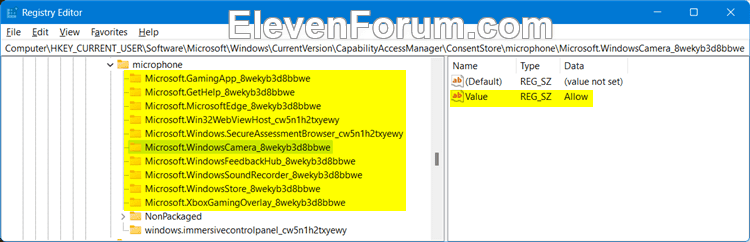
This setting is saved to the Value string value (REG_SZ) as the Prompt (off) or Allow (on) data for each app listed as a subkey in the registry key below.
HKEY_CURRENT_USER\Software\Microsoft\Windows\CurrentVersion\CapabilityAccessManager\ConsentStore\microphone
5 You can now close Settings if you like.
This option is only available starting with Windows 11 build 26340.9233 (Experimental 26H2), build 28120.3302 (Experimental 26H1), build 29698.1000 (Experimental Future Platforms), and build 26220.9836 (Beta 25H2) for Insiders.
1 Open Settings (Win+I).
2 Click/tap on Privacy & security on the left side, and click/tap on Microphone on the right side. (see screenshot below)
3 Turn On (default) or Off Let unsigned apps access your microphone for what you want. (see screenshot below)
4 You can now close Settings if you like.
This option is only available starting with Windows 11 build 26340.9233 (Experimental 26H2), build 28120.3302 (Experimental 26H1), build 29698.1000 (Experimental Future Platforms), and build 26220.9836 (Beta 25H2) for Insiders.
This is the same setting as Option Eight.
1 Do step 2 (on) or step 3 (off) below for what you want.
This is the default setting.
(Contents of REG file for reference)
Windows Registry Editor Version 5.00

[HKEY_CURRENT_USER\Software\Microsoft\Windows\CurrentVersion\CapabilityAccessManager\ConsentStore\microphone\ConsentV2Unverified]
"Value"=dword:00000001(Contents of REG file for reference)
Windows Registry Editor Version 5.00

[HKEY_CURRENT_USER\Software\Microsoft\Windows\CurrentVersion\CapabilityAccessManager\ConsentStore\microphone\ConsentV2Unverified]
"Value"=dword:00000002
4 Save the .reg file to your desktop.
5 If you have Smart App Control turned on, you will need to unblock the downloaded REG file.
6 Double click/tap on the downloaded .reg file to merge it.
7 When prompted, click/tap on Run, Yes (UAC), Yes, and OK to approve the merge.
8 You can now delete the downloaded .reg file if you like.
You must be signed in as an administrator to use this option.
The Local Group Policy Editor is only available in the Windows 11 Pro, Enterprise, and Education editions.
All editions can use Option Eleven to configure the same policy.
1 Open the Local Group Policy Editor (gpedit.msc).
2 Navigate to the policy location below in the left pane of the Local Group Policy Editor. (see screenshot below)
3 In the right pane of App Privacy in the Local Group Policy Editor, double click/tap on the Let Windows apps access the microphone policy to edit it. (see screenshot above)
4 Do step 5 (enable), step 6 (disable), or step 7 (default) below for what you want.
This will turn on and prevent using Option One, Option Two, Option Three, Option Four, Option Five, Option Six, Option Seven, Option Eight, and Option Nine.
This will turn off and prevent using Option One, Option Two, Option Three, Option Four, Option Five, Option Six, Option Seven, Option Eight, and Option Nine.
This is the default setting to allow using Option One, Option Two, Option Three, Option Four, Option Five, Option Six, Option Seven, Option Eight, and Option Nine.
8 You can now close the Local Group Policy Editor if you like.
You must be signed in as an administrator to use this option.
This is the same setting as Option Ten.
1 Do step 2 (enable), step 3 (disable), or step 4 (default) below for what you want.
This will turn on and prevent using Option One, Option Two, Option Three, Option Four, Option Five, Option Six, Option Seven, Option Eight, and Option Nine.
(Contents of REG file for reference)
Windows Registry Editor Version 5.00

[HKEY_LOCAL_MACHINE\SOFTWARE\Policies\Microsoft\Windows\AppPrivacy]
"LetAppsAccessMicrophone"=dword:00000001
"LetAppsAccessMicrophone_UserInControlOfTheseApps"=hex(7):00,00
"LetAppsAccessMicrophone_ForceAllowTheseApps"=hex(7):00,00
"LetAppsAccessMicrophone_ForceDenyTheseApps"=hex(7):00,00This will turn off and prevent using Option One, Option Two, Option Three, Option Four, Option Five, Option Six, Option Seven, Option Eight, and Option Nine.
(Contents of REG file for reference)
Windows Registry Editor Version 5.00

[HKEY_LOCAL_MACHINE\SOFTWARE\Policies\Microsoft\Windows\AppPrivacy]
"LetAppsAccessMicrophone"=dword:00000002
"LetAppsAccessMicrophone_UserInControlOfTheseApps"=hex(7):00,00
"LetAppsAccessMicrophone_ForceAllowTheseApps"=hex(7):00,00
"LetAppsAccessMicrophone_ForceDenyTheseApps"=hex(7):00,00This is the default setting to allow using Option One, Option Two, Option Three, Option Four, Option Five, Option Six, Option Seven, Option Eight, and Option Nine.
(Contents of REG file for reference)
Windows Registry Editor Version 5.00

[HKEY_LOCAL_MACHINE\SOFTWARE\Policies\Microsoft\Windows\AppPrivacy]
"LetAppsAccessMicrophone"=-
"LetAppsAccessMicrophone_UserInControlOfTheseApps"=-
"LetAppsAccessMicrophone_ForceAllowTheseApps"=-
"LetAppsAccessMicrophone_ForceDenyTheseApps"=-
5 Save the .reg file to your desktop.
6 If you have Smart App Control turned on, you will need to unblock the downloaded REG file.
7 Double click/tap on the downloaded .reg file to merge it.
8 When prompted, click/tap on Run, Yes (UAC), Yes, and OK to approve the merge.
9 You can now delete the downloaded .reg file if you like.
That's it,
Shawn Brink
- Enable or Disable Microphone in Windows 11
- Mute and Unmute Microphone in Windows 11
- Rename Microphone in Windows 11
- See which Apps have Accessed your Microphone in Windows 11
- Clear Microphone Last Accessed History in Windows 11
- Turn On or Off Camera and Microphone Access in Application Guard for Microsoft Edge
- Turn On or Off Include Microphone when Recording with Snipping Tool in Windows 11
- Enable or Disable Voice Focus to Reduce Microphone Background Noise in Windows 11
- Enable or Disable Copilot Access to Microphone in Windows 11
Attachments
-
Turn_OFF_microphone_access_for_all_users_on_device.reg674 bytes · Views: 1,200
-
Turn_ON_microphone_access_for_all_users_on_device.reg676 bytes · Views: 4,313
-
Turn_OFF_let_apps_access_microphone_for_current_user.reg668 bytes · Views: 917
-
Turn_ON_let_apps_access_microphone_for_current_user.reg670 bytes · Views: 1,678
-
Turn_OFF_let_desktop_apps_access_microphone_for_current_user.reg690 bytes · Views: 838
-
Turn_ON_let_desktop_apps_access_microphone_for_current_user.reg952 bytes · Views: 1,328
-
Always_enable_microphone_access_for_all_users_on_device.reg1,012 bytes · Views: 1,376
-
Default_user-choice_microphone_access_on_device.reg920 bytes · Views: 998
-
Disable_microphone_access_for_all_users_on_device.reg1,004 bytes · Views: 883
-
Turn_OFF_let_unsigned_apps_access_microphone_for_current_user.reg732 bytes · Views: 86
-
Turn_ON_let_unsigned_apps_access_microphone_for_current_user.reg732 bytes · Views: 96