MikeBooker
New member
- Local time
- 12:13 AM
- Posts
- 2
- OS
- Windows 11
Hello,
I have a Dell Inspiron laptop running Windows 11, version 24H2 (OS build 26100.4652)
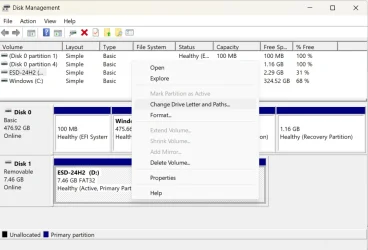
I have 4 Western Digital External Hard Drives. I use 1 for my iTunes Music library files , 1 for my Acronis system image backups files and the others for photos, audio files, graphics and other assorted files and folders. Up until yesterday, I only connected 1 external drive at a time, so each drive was always recognized as the 'D' drive. Yesterday, I connected 2 drives at the same time so I could copy/paste and move files and folders from one drive to another. So they were recognized as 'D' and 'E'. Now when I connect the drive with my iTunes music files it is recognized as the 'E' drive and iTunes is searching for the files on a 'D' drive. Same with the Acronis program and a few others. I know that I can go into the programs and change the destination location to 'E', which should solve the problem, but I would rather have things revert to the way they were before; that is, as each drive, when connected alone, be recognized as the 'D' drive. How can I do that? Or is there a different and better solution?
Thank you for your time and help.
Mike Booker
I have a Dell Inspiron laptop running Windows 11, version 24H2 (OS build 26100.4652)
I have 4 Western Digital External Hard Drives. I use 1 for my iTunes Music library files , 1 for my Acronis system image backups files and the others for photos, audio files, graphics and other assorted files and folders. Up until yesterday, I only connected 1 external drive at a time, so each drive was always recognized as the 'D' drive. Yesterday, I connected 2 drives at the same time so I could copy/paste and move files and folders from one drive to another. So they were recognized as 'D' and 'E'. Now when I connect the drive with my iTunes music files it is recognized as the 'E' drive and iTunes is searching for the files on a 'D' drive. Same with the Acronis program and a few others. I know that I can go into the programs and change the destination location to 'E', which should solve the problem, but I would rather have things revert to the way they were before; that is, as each drive, when connected alone, be recognized as the 'D' drive. How can I do that? Or is there a different and better solution?
Thank you for your time and help.
Mike Booker
My Computer
At a glance
Windows 11
- OS
- Windows 11
- Computer type
- Laptop
- Manufacturer/Model
- Dell Inspiron 15