Extra Recovery Partition - Add or Remove ?


LuckyEleven

New member
Local time
4:14 PM
Posts
21
OS
Windows 11
Hello Everyone,

I have a custom built PC with an Asus Z790 series motherboard. It is a DIY, not from any major manufacturer.
I have in it 5 bootable drives exact same size, mnaufacturer, and model, and each of which can be powered on or off when the system box is powered OFF.
Each of these drives was running Windows 10 Pro.
I am in the process of upgrading to Windows 11 Pro by mounting the 25H2 ISO from the drive and running setup.exe
I update Windows 10 Pro completely and turn off the antivirus before the upgrade to Windows 11.
I do not update Windows 11 during the upgrade, I wait till after Windows 11 is running.

Now here is the question:
I have upgraded 4 of the 5 drives so far.
The first 3 ended up with two recovery partitions. Here is a snapshot of one of them:
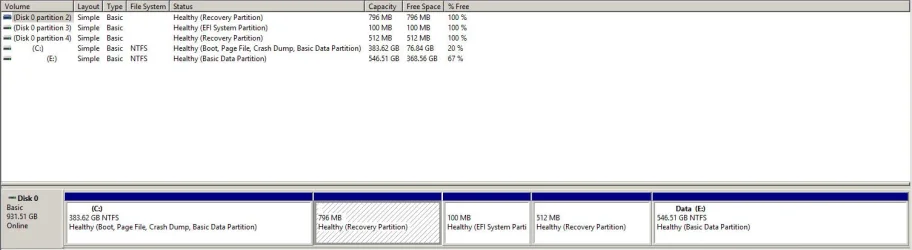
Five_Partition_Disk.webp


But the fourth drive I updated only ended up with one recovery partition. See image below:
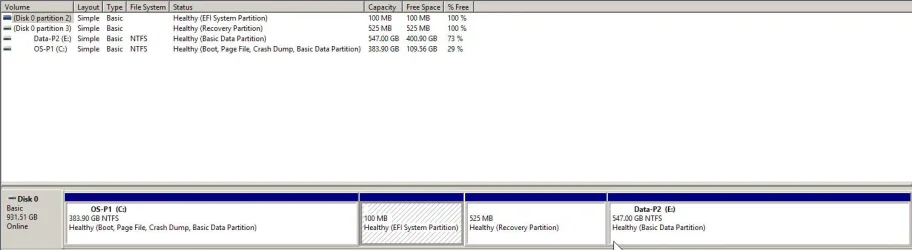
Four_Partition_Disk.webp


There is a different assortment of programs on each drive but the OS and all the hardware are exactly the same.
The only difference is the serial number of the hard drive.

Q1. Anyone have any idea why this happened?
Q2. How do I create the missing Recovery Partition and ensure that it is the same size and in the same order/place?
Q3. Is there anything I can do to prevent this anomaly when upgrading drive number 5?
 
Windows Build/Version
Windows 11 25H2

My Computer

System One

  • OS
    Windows 11
Reasons why 2 recovery:
  • Old Recovery Partition Too Small: If your existing recovery partition doesn’t have enough space for the updated Windows Recovery Environment (WinRE), the upgrade process creates a new one with sufficient size.

  • Partition Layout Constraints: Windows prefers placing the recovery partition after the system partition. If the old one is located elsewhere or blocked by other partitions, a new one is created instead.
  • Preserving System Integrity: Rather than modifying or deleting the old recovery partition (which could risk system recovery), Windows adds a new one to ensure the upgrade completes safely

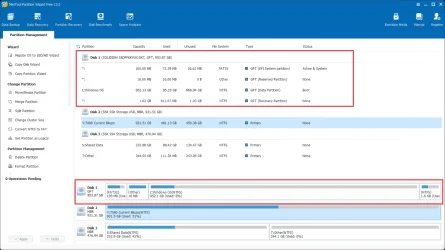
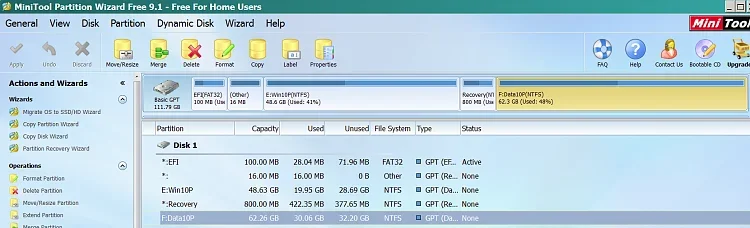
Not everything can be seen using disk management. To get a true look at your partitioning you have to use a 3rd party tool like Minitool Partition Wizard or EaseUS Partition manager.


Gotta say the ordering of your partitioning scheme on either of those drives is not kosher.

Standard UEFI/GPT Partition Layout​

Partition NameSizePurpose
EFI System Partition (ESP)~100 MBStores bootloader files for UEFI. Required for booting.
Microsoft Reserved Partition (MSR)~16 MBReserved for future use by Windows. Not visible in Disk Management.
Windows Partition (C:)VariesMain OS partition where Windows is installed.
Recovery Partition~450 MB–1 GBContains Windows Recovery Environment (WinRE) for troubleshooting and reset.

Here's mine using Minitool. You can see the difference.
 

Attachments

  • Screenshot 2025-10-14 133715.webp
    Screenshot 2025-10-14 133715.webp
    112.1 KB · Views: 4

My Computers

System One System Two

  • OS
    Windows 11 Pro 25H2
    Computer type
    PC/Desktop
    Manufacturer/Model
    Dell Optiplex 7080
    CPU
    i9-10900 10 core 20 threads
    Motherboard
    DELL 0J37VM
    Memory
    32 gb
    Graphics Card(s)
    none-Intel UHD Graphics 630
    Sound Card
    Integrated Realtek
    Monitor(s) Displays
    Benq 27
    Screen Resolution
    2560x1440
    Hard Drives
    2x1tb Solidigm m.2 nvme /External drives 512gb Samsung m.2 sata+2tb Kingston m2.nvme
    PSU
    500w
    Case
    MT
    Cooling
    Dell Premium
    Keyboard
    Logitech wired
    Mouse
    Logitech wireless
    Internet Speed
    so slow I'm too embarrassed to tell
    Browser
    #1 Edge #2 Firefox
    Antivirus
    Defender+MWB Premium
  • Operating System
    Windows 11 Pro 24H2 26200.8457
    Computer type
    PC/Desktop
    Manufacturer/Model
    Beelink Mini PC SER5
    CPU
    AMD Ryzen 7 6800U
    Memory
    32 gb
    Graphics card(s)
    integrated
    Sound Card
    integrated
    Monitor(s) Displays
    Benq 27
    Screen Resolution
    2560x1440
    Hard Drives
    1TB Crucial nvme
    Keyboard
    Logitech wired
    Mouse
    Logitech wireless
    Internet Speed
    still too embarrassed to tell
    Browser
    Firefox
    Antivirus
    Defender
    Other Info
    System 3 is non compliant Dell 9020 i7-4770/24gb ram Win11 PRO 26200.8457
I'm not even going to ask why you need 5 copies of Windows on one machine (*cough cough* use VMs). You don't need multiple recovery partitions. It's only purpose is to repair windows, so you could have 1 recovery partition on one drive and use it to repair any of your windows installs.
 

My Computer

System One

  • OS
    Linux Mint
    Computer type
    Laptop
    Manufacturer/Model
    System76 Lemur Pro
Years ago, the recovery partition used to be the first one, then EFI, MSR and C:
Nowadays it's EFI, MSR, C: and Recovery and the recovery partition should be, at least, 750M.
As your drives are GPT, there is also a MSR partition that MS Disk Manager doesn't show.
A good disk manager like will MiniTool will.

uefi-partitions.webp

I don't know how did you get the layout you have but it's not MS standard.

To find out the active recovery partition, open a CMD window as administrator and type:
reagentc /info

You can delete the other Recovery partition not in use.

If you have a drive image application, like Macrium Reflect, you can create a drive image of your drive, clean the drive and then drag and drop the partitions on the correct order making the data partition the last one.

1760476096368.webp
 
Last edited:

My Computers

System One System Two

  • OS
    Windows 11 Pro - Windows 7 HP 64 - Lubuntu
    Computer type
    PC/Desktop
    Manufacturer/Model
    custom build
    CPU
    i5 6600K - 800MHz to 4400MHz
    Motherboard
    GA-Z170-HD3P
    Memory
    4+4G GSkill DDR4 3000
    Graphics Card(s)
    IG - Intel 530
    Monitor(s) Displays
    Samsung 226BW
    Screen Resolution
    1680x1050
    Hard Drives
    (1) -1 SM951 – 128GB M.2 AHCI PCIe SSD drive for Win 11
    (2) -1 WD SATA 3 - 1T for Data
    (3) -1 WD SATA 3 - 1T for backup
    (4) -1 BX500 SSD - 256G for Windows 7 and Lubuntu
    PSU
    Thermaltake 450W TR2 gold
    Keyboard
    Old and good Chicony mechanical keyboard
    Mouse
    Logitech mX performance - 9 buttons (had to disable some)
    Internet Speed
    500 Mb/s
    Browser
    Firefox 64
  • Operating System
    Windows 11 Pro
    Computer type
    Laptop
    Manufacturer/Model
    Asus Q550LF
    CPU
    i7-4500U 800- 3000MHz
    Motherboard
    Asus Q550LF
    Memory
    (4+4)G DDR3 1600
    Graphics card(s)
    IG intel 4400 + NVIDIA GeForce GT 745M
    Sound Card
    Realtek
    Monitor(s) Displays
    LG Display LP156WF4-SPH1
    Screen Resolution
    1920 x 1080
    Hard Drives
    BX500 120G SSD for Windows and programs
    & 1T HDD for data
    Internet Speed
    500 Mb/s
    Browser
    Firefox 64
Hello Everyone,


I have in it 5 bootable drives exact same size, mnaufacturer, and model, and each of which can be powered on or off when the system box is powered OFF.

All have non-default partition architecture (at sometime they were modified as Windows never has this partition sequence before or after updates / upgrades)

Each of these drives was running Windows 10 Pro.
I am in the process of upgrading to Windows 11 Pro by mounting the 25H2 ISO from the drive and running setup.exe
I update Windows 10 Pro completely and turn off the antivirus before the upgrade to Windows 11.
I do not update Windows 11 during the upgrade, I wait till after Windows 11 is running.

Now here is the question:
I have upgraded 4 of the 5 drives so far.
The first 3 ended up with two recovery partitions. Here is a snapshot of one of them:

View attachment 148892


But the fourth drive I updated only ended up with one recovery partition. See image below:

View attachment 148893


There is a different assortment of programs on each drive but the OS and all the hardware are exactly the same.
The only difference is the serial number of the hard drive.

Q1. Anyone have any idea why this happened?
Q2. How do I create the missing Recovery Partition and ensure that it is the same size and in the same order/place?
Q3. Is there anything I can do to prevent this anomaly when upgrading drive number 5?


Q1:

Best guess:


It's likely that during the upgrades Windows found 512 MB insufficient and created a new 796 recovery partition immediately to the right of C:

The 512 MB is labeled a recovery partition but it is no longer a functioning recovery partition.

The loss of less than 1 GB free space in almost all cases is inconsequential.


There is always a Windows update / upgrade that may need more free space within the recovery partition.

Microsoft modified partition architecture by placing the recovery partition to be immediately to the right of C:


None of the drives have the recovery partition immediately to the right of C: except OS-P1.

The other drives have architecture that did not support automatic failover.

Only OS-P1 supported automatic failover.


Automatic failover allows Windows to temporarily alter the size of the adjoining partitions during updates/upgrades.

(the recovery partition may increase in size while the C: partition decreases in size (and vice versa))


From a Microsoft link:

Code:
The recovery tools should be in a separate partition than the Windows partition to support automatic failover
and to support booting partitions encrypted with Windows BitLocker Drive Encryption.

We recommend that you place this partition immediately after the Windows partition.
This allows Windows to modify and recreate the partition later if future updates require a larger recovery image.
 

My Computer

System One

  • OS
    Windows 10
    Computer type
    Laptop
    Manufacturer/Model
    HP
    CPU
    Intel(R) Core(TM) i7-4800MQ CPU @ 2.70GHz
    Motherboard
    Product : 190A Version : KBC Version 94.56
    Memory
    16 GB Total: Manufacturer : Samsung MemoryType : DDR3 FormFactor : SODIMM Capacity : 8GB Speed : 1600
    Graphics Card(s)
    NVIDIA Quadro K3100M; Intel(R) HD Graphics 4600
    Sound Card
    IDT High Definition Audio CODEC; PNP Device ID HDAUDIO\FUNC_01&VEN_111D&DEV_76E0
    Hard Drives
    Model Hitachi HTS727575A9E364
    Antivirus
    Microsoft Defender
    Other Info
    Mobile Workstation
Hello Everyone,

Thank you for the replies and information. Please excuse my delay in replying. I was helping an ill friend.

I have Macrium Reflect Workstation and Minitool Partition Wizard, so I will try using them to re-order the partitions. These drives have had their OS upgraded over and over since Windows 3.1 and DOS 5.0, so the structure you see is whatever crazy curveball the process came up with and got modified each upgrade that I did.

For the drive with the "missing" recovery partition, should I use the reagent /c command to create a recovery partition, or is just pasting in one from one of the other drives using Macrium Reflect suitable. Each drive has its own serial number/drive id number, so I do not know if that is a problem?

Thank you.
 

My Computer

System One

  • OS
    Windows 11
drives have had their OS upgraded over and over since Windows 3.1 and DOS 5.0, s
Do you mean to tell me you are using drives from 1992. They would have to be ide drives. Just how old is this computer?
 

My Computers

System One System Two

  • OS
    Windows 11 Pro 25H2
    Computer type
    PC/Desktop
    Manufacturer/Model
    Dell Optiplex 7080
    CPU
    i9-10900 10 core 20 threads
    Motherboard
    DELL 0J37VM
    Memory
    32 gb
    Graphics Card(s)
    none-Intel UHD Graphics 630
    Sound Card
    Integrated Realtek
    Monitor(s) Displays
    Benq 27
    Screen Resolution
    2560x1440
    Hard Drives
    2x1tb Solidigm m.2 nvme /External drives 512gb Samsung m.2 sata+2tb Kingston m2.nvme
    PSU
    500w
    Case
    MT
    Cooling
    Dell Premium
    Keyboard
    Logitech wired
    Mouse
    Logitech wireless
    Internet Speed
    so slow I'm too embarrassed to tell
    Browser
    #1 Edge #2 Firefox
    Antivirus
    Defender+MWB Premium
  • Operating System
    Windows 11 Pro 24H2 26200.8457
    Computer type
    PC/Desktop
    Manufacturer/Model
    Beelink Mini PC SER5
    CPU
    AMD Ryzen 7 6800U
    Memory
    32 gb
    Graphics card(s)
    integrated
    Sound Card
    integrated
    Monitor(s) Displays
    Benq 27
    Screen Resolution
    2560x1440
    Hard Drives
    1TB Crucial nvme
    Keyboard
    Logitech wired
    Mouse
    Logitech wireless
    Internet Speed
    still too embarrassed to tell
    Browser
    Firefox
    Antivirus
    Defender
    Other Info
    System 3 is non compliant Dell 9020 i7-4770/24gb ram Win11 PRO 26200.8457
Hi glasskuter,

The physical drives themselves are Crucial MX500 SSD's 1TB size and are about 3 years old.
The data on the drives dates back to the early 1990's.
The OS's and programs have been updated / upgraded so many times I have lost count.
The only OS I did not have was Windows ME. LOL !!

I keep the drives separate for various reasons, such as keeping one drive as clean as possible to do banking, and also so that if one drive gets virus infected the others are still clean. And of course, if a drive hardware fails, the others are still usable.

Thanks.
 

My Computer

System One

  • OS
    Windows 11
I just want to summarize how this all wraps up.

Using the suggestions of Megahertz, I

Backed up each of the drives with Macrium Reflect Workstation onto a backup drive.

Deleted all of the partitions on the bootable drives with Minitools Partition Wizard run from USB Flash.

Used Reflect running on USB Flash to restore by select, drag and drop the partitions from the backup image into the empty drives.
I placed the EFI partition at the far left.
Then the OS partition next to it.
Then the larger Recovery partition next to the OS partition.
Then my second primary, (data partition), next to the Recovery partition.
Then I floated right the data partition.
Then I floated right the largest Recovery partition.
Then I floated right the OS partition.
So, I am not restoring the smaller Recovery partition and I am leaving an unallocated gap between EFI and OS partitions.
I also took this as an opportunity to shrink the data partition and enlarge the OS partition because I was finding the if Windows 11 only has 100 GB free on the OS drive, it runs very slowly.

After restore is completed, I boot the drives.

To create the MS Reserved Partition:
I Open a Command Prompt with Administrator privileges.
Issued the following commands -
diskpart
list disk
select disk 0
create partition msr size=16
exit

I Rebooted.

Then I Run Partition Wizard again and expand OS to fill up unallocated area.

Then I Rebooted.

This took care of four of my five bootable drives.

Now for the drive that only had one Recovery partition, I examined it in Partition Wizard and discovered that it only had 10MB of data in it. So it clearly did not have the recovery environment that the other four drives had (about 700 MB).

Rather than just trying to copy one of them over, I instead decided to refresh the Recovery partition.

First I used Partition Wizard running from USB to enlarge it to about 800 MB. Note that every time you change size of a partition with Partition Wizard it adds between 7 and 16 MB to the partition size.

Then I opened a Command window with Administrator privileges.

I disabled the recovery environment with command:
reagentc /disable

Here is where it gets funky.

You have to get at some files from the Windows ISO, and what I did not realize is that when I did the upgrade, Windows unchecked the box in File Explorer that allows Operating System files to be visible. There are two places where this is to be set and for whatever reason it UN checked one of them. So I tried numerous methods to get at the files and do not know which ones were successful because after about 5 tries, I finally realized the problem was that the files were not visible.

Here are the methods I used:
I mounted the Windows 11 ISO file using File Explorer after setting it to be the default app for ISO files.
I extracted the files from the Windows 11 ISO.
I created a Windows 11 install USB Flash drive using Media Creation Tool.
Which of these actually worked I do not know.

I managed to get to the \Sources folder to find install.wim
It is 6.39 GB in size and is itself also compressed.
Once I was able to get at this file, I then extracted winre.wim
That file is 597 MB for Windows 11 Pro.
There are multiple folders under \Windows\System32\Recovery within install.wim that have this file and I chose folder 6 because Windows 11 Pro is considered Index 6.
Just FYI, Windows 11 Home is Index 1.

I used 7Zip to extract these files, but be warned, 7Zip is a fussy program.

I copied winre.wim to C:\Recovery on the drive I was trying to refresh the Recovery Partition.

I ran a Command window with Administrator privileges.
I issued the following commands:

reagentc /setosimage /path C:\Recovery /index 6
reagentc /enable
reagentc /info

I rebooted.

It seemed to work. Partition Wizard now shows about 670 MB of data in the Recovery Partition.
I did a Full Backup with Reflect.

YMMV.
Cheers !
 

My Computer

System One

  • OS
    Windows 11
All of this to recover a little more than 1% of the boot drive capacity? Was it really worth it?
 

My Computers

System One System Two

  • OS
    Win 11 Pro 25H2, Build 26200.8524
    Computer type
    PC/Desktop
    Manufacturer/Model
    Home Brew
    CPU
    Intel Core i5 14500
    Motherboard
    Gigabyte B760M G P WIFI
    Memory
    64GB DDR4
    Graphics Card(s)
    GeForce RTX 4060
    Sound Card
    Chipset Realtek
    Monitor(s) Displays
    LG 45" Ultragear, Acer 24" 1080p
    Screen Resolution
    5120x1440, 1920x1080
    Hard Drives
    Crucial P310 2TB 2280 PCIe Gen4 3D NAND NVMe M.2 SSD (O/S)
    Silicon Power 2TB US75 NVMe PCIe Gen4 M.2 2280 SSD (backup)
    Crucial BX500 2TB 3D NAND (2nd backup)
    Seagate 4TB Ironwolf, rotating HDD archive files
    External off-line backup Drives: 2 NVMe 4TB drives in external enclosures
    PSU
    Thermaltake Toughpower GF3 750W
    Case
    LIAN LI LANCOOL 216 E-ATX PC Case
    Cooling
    Lots of fans!
    Keyboard
    Microsoft Comfort Curve 2000
    Mouse
    Logitech G305
    Internet Speed
    Verizon FiOS 1GB
    Browser
    Firefox
    Antivirus
    Malware Bytes & Windows Defender Security
  • Operating System
    Win 11 Pro 25H2, Build 26200.8524
    Computer type
    PC/Desktop
    Manufacturer/Model
    Home Brew
    CPU
    Intel Core i5 14400
    Motherboard
    Gigabyte B760M DS3H AX
    Memory
    32GB DDR5
    Graphics card(s)
    Intel 700 Embedded GPU
    Sound Card
    Realtek Embedded
    Monitor(s) Displays
    27" HP 1080p
    Screen Resolution
    1920x1080
    Hard Drives
    Crucial P310 2TB 2280 PCIe Gen4 eD NAND PCIe SSD
    Samsung EVO 990 2TB NVMe Gen4 SSD
    Samsung 2TB SATA SSD
    PSU
    Thermaltake Smart BM3 650W
    Case
    Okinos Micro ATX Case
    Cooling
    Fans
    Keyboard
    Microsoft Comfort Curve 2000
    Mouse
    Logitech G305
    Internet Speed
    Verizon FiOS 1GB
    Browser
    Firefox
    Antivirus
    Malware Bytes & Windows Defender Security
What folks don't realize is you do not need the recovery partition at all. One can get into recovery using a windows install usb drive.
 

My Computers

System One System Two

  • OS
    Windows 11 Pro 25H2
    Computer type
    PC/Desktop
    Manufacturer/Model
    Dell Optiplex 7080
    CPU
    i9-10900 10 core 20 threads
    Motherboard
    DELL 0J37VM
    Memory
    32 gb
    Graphics Card(s)
    none-Intel UHD Graphics 630
    Sound Card
    Integrated Realtek
    Monitor(s) Displays
    Benq 27
    Screen Resolution
    2560x1440
    Hard Drives
    2x1tb Solidigm m.2 nvme /External drives 512gb Samsung m.2 sata+2tb Kingston m2.nvme
    PSU
    500w
    Case
    MT
    Cooling
    Dell Premium
    Keyboard
    Logitech wired
    Mouse
    Logitech wireless
    Internet Speed
    so slow I'm too embarrassed to tell
    Browser
    #1 Edge #2 Firefox
    Antivirus
    Defender+MWB Premium
  • Operating System
    Windows 11 Pro 24H2 26200.8457
    Computer type
    PC/Desktop
    Manufacturer/Model
    Beelink Mini PC SER5
    CPU
    AMD Ryzen 7 6800U
    Memory
    32 gb
    Graphics card(s)
    integrated
    Sound Card
    integrated
    Monitor(s) Displays
    Benq 27
    Screen Resolution
    2560x1440
    Hard Drives
    1TB Crucial nvme
    Keyboard
    Logitech wired
    Mouse
    Logitech wireless
    Internet Speed
    still too embarrassed to tell
    Browser
    Firefox
    Antivirus
    Defender
    Other Info
    System 3 is non compliant Dell 9020 i7-4770/24gb ram Win11 PRO 26200.8457
What folks don't realize is you do not need the recovery partition at all. One can get into recovery using a windows install usb drive.
True, but without the recovery partition, you have to boot from the USB drive, you can't use the recovery options in Settings.
 

My Computers

System One System Two

  • OS
    Win 11 Pro 25H2, Build 26200.8524
    Computer type
    PC/Desktop
    Manufacturer/Model
    Home Brew
    CPU
    Intel Core i5 14500
    Motherboard
    Gigabyte B760M G P WIFI
    Memory
    64GB DDR4
    Graphics Card(s)
    GeForce RTX 4060
    Sound Card
    Chipset Realtek
    Monitor(s) Displays
    LG 45" Ultragear, Acer 24" 1080p
    Screen Resolution
    5120x1440, 1920x1080
    Hard Drives
    Crucial P310 2TB 2280 PCIe Gen4 3D NAND NVMe M.2 SSD (O/S)
    Silicon Power 2TB US75 NVMe PCIe Gen4 M.2 2280 SSD (backup)
    Crucial BX500 2TB 3D NAND (2nd backup)
    Seagate 4TB Ironwolf, rotating HDD archive files
    External off-line backup Drives: 2 NVMe 4TB drives in external enclosures
    PSU
    Thermaltake Toughpower GF3 750W
    Case
    LIAN LI LANCOOL 216 E-ATX PC Case
    Cooling
    Lots of fans!
    Keyboard
    Microsoft Comfort Curve 2000
    Mouse
    Logitech G305
    Internet Speed
    Verizon FiOS 1GB
    Browser
    Firefox
    Antivirus
    Malware Bytes & Windows Defender Security
  • Operating System
    Win 11 Pro 25H2, Build 26200.8524
    Computer type
    PC/Desktop
    Manufacturer/Model
    Home Brew
    CPU
    Intel Core i5 14400
    Motherboard
    Gigabyte B760M DS3H AX
    Memory
    32GB DDR5
    Graphics card(s)
    Intel 700 Embedded GPU
    Sound Card
    Realtek Embedded
    Monitor(s) Displays
    27" HP 1080p
    Screen Resolution
    1920x1080
    Hard Drives
    Crucial P310 2TB 2280 PCIe Gen4 eD NAND PCIe SSD
    Samsung EVO 990 2TB NVMe Gen4 SSD
    Samsung 2TB SATA SSD
    PSU
    Thermaltake Smart BM3 650W
    Case
    Okinos Micro ATX Case
    Cooling
    Fans
    Keyboard
    Microsoft Comfort Curve 2000
    Mouse
    Logitech G305
    Internet Speed
    Verizon FiOS 1GB
    Browser
    Firefox
    Antivirus
    Malware Bytes & Windows Defender Security
you can't use the recovery options in Settings.
True, but how often does one need to. I have never once used recovery and I have screwed things up royally more than once. Restore an image in 4 minutes and I'm back in business.
 

My Computers

System One System Two

  • OS
    Windows 11 Pro 25H2
    Computer type
    PC/Desktop
    Manufacturer/Model
    Dell Optiplex 7080
    CPU
    i9-10900 10 core 20 threads
    Motherboard
    DELL 0J37VM
    Memory
    32 gb
    Graphics Card(s)
    none-Intel UHD Graphics 630
    Sound Card
    Integrated Realtek
    Monitor(s) Displays
    Benq 27
    Screen Resolution
    2560x1440
    Hard Drives
    2x1tb Solidigm m.2 nvme /External drives 512gb Samsung m.2 sata+2tb Kingston m2.nvme
    PSU
    500w
    Case
    MT
    Cooling
    Dell Premium
    Keyboard
    Logitech wired
    Mouse
    Logitech wireless
    Internet Speed
    so slow I'm too embarrassed to tell
    Browser
    #1 Edge #2 Firefox
    Antivirus
    Defender+MWB Premium
  • Operating System
    Windows 11 Pro 24H2 26200.8457
    Computer type
    PC/Desktop
    Manufacturer/Model
    Beelink Mini PC SER5
    CPU
    AMD Ryzen 7 6800U
    Memory
    32 gb
    Graphics card(s)
    integrated
    Sound Card
    integrated
    Monitor(s) Displays
    Benq 27
    Screen Resolution
    2560x1440
    Hard Drives
    1TB Crucial nvme
    Keyboard
    Logitech wired
    Mouse
    Logitech wireless
    Internet Speed
    still too embarrassed to tell
    Browser
    Firefox
    Antivirus
    Defender
    Other Info
    System 3 is non compliant Dell 9020 i7-4770/24gb ram Win11 PRO 26200.8457
True, but how often does one need to. I have never once used recovery and I have screwed things up royally more than once. Restore an image in 4 minutes and I'm back in business.
I've used it for stubborn updates several times recently, so I'll keep it working. It's not like the recovery partition is taking up a lot of space...
 

My Computers

System One System Two

  • OS
    Win 11 Pro 25H2, Build 26200.8524
    Computer type
    PC/Desktop
    Manufacturer/Model
    Home Brew
    CPU
    Intel Core i5 14500
    Motherboard
    Gigabyte B760M G P WIFI
    Memory
    64GB DDR4
    Graphics Card(s)
    GeForce RTX 4060
    Sound Card
    Chipset Realtek
    Monitor(s) Displays
    LG 45" Ultragear, Acer 24" 1080p
    Screen Resolution
    5120x1440, 1920x1080
    Hard Drives
    Crucial P310 2TB 2280 PCIe Gen4 3D NAND NVMe M.2 SSD (O/S)
    Silicon Power 2TB US75 NVMe PCIe Gen4 M.2 2280 SSD (backup)
    Crucial BX500 2TB 3D NAND (2nd backup)
    Seagate 4TB Ironwolf, rotating HDD archive files
    External off-line backup Drives: 2 NVMe 4TB drives in external enclosures
    PSU
    Thermaltake Toughpower GF3 750W
    Case
    LIAN LI LANCOOL 216 E-ATX PC Case
    Cooling
    Lots of fans!
    Keyboard
    Microsoft Comfort Curve 2000
    Mouse
    Logitech G305
    Internet Speed
    Verizon FiOS 1GB
    Browser
    Firefox
    Antivirus
    Malware Bytes & Windows Defender Security
  • Operating System
    Win 11 Pro 25H2, Build 26200.8524
    Computer type
    PC/Desktop
    Manufacturer/Model
    Home Brew
    CPU
    Intel Core i5 14400
    Motherboard
    Gigabyte B760M DS3H AX
    Memory
    32GB DDR5
    Graphics card(s)
    Intel 700 Embedded GPU
    Sound Card
    Realtek Embedded
    Monitor(s) Displays
    27" HP 1080p
    Screen Resolution
    1920x1080
    Hard Drives
    Crucial P310 2TB 2280 PCIe Gen4 eD NAND PCIe SSD
    Samsung EVO 990 2TB NVMe Gen4 SSD
    Samsung 2TB SATA SSD
    PSU
    Thermaltake Smart BM3 650W
    Case
    Okinos Micro ATX Case
    Cooling
    Fans
    Keyboard
    Microsoft Comfort Curve 2000
    Mouse
    Logitech G305
    Internet Speed
    Verizon FiOS 1GB
    Browser
    Firefox
    Antivirus
    Malware Bytes & Windows Defender Security
t's not like the recovery partition is taking up a lot of space...
No, of course not. But for users with no understanding of partitions that might come across this thread to even attempt to go to the lengths this user did, IMO would not only be dangerous but unadvisable. I understand partitions and I would not have. Entirely too much risk and trouble for too little reward.

It's so much easier to image. Then clean install making sure all partitions are deleted. Windows will create all the necessary partitions in the unallocated space in the proper order.. Then restore only C from the image. But hey, that's just me. I'm a simple gal. We all do things in our own way.

Also, I can't imagine having 4 extra drives installed in my system with the same OS on them either, each with it's own data partition.. That what VMs are for. It's just too easy for BCD on any one of the OS drives to get screwed up. Upgrades do rewrite the BCD so anything can happen. We've seen too many times here where BCD was written to the wrong drive because a user clean installed or upgraded without first disconnecting all other drives.

KISS is a real thing. Don't believe me? Just ask Gene Simmons.
 

My Computers

System One System Two

  • OS
    Windows 11 Pro 25H2
    Computer type
    PC/Desktop
    Manufacturer/Model
    Dell Optiplex 7080
    CPU
    i9-10900 10 core 20 threads
    Motherboard
    DELL 0J37VM
    Memory
    32 gb
    Graphics Card(s)
    none-Intel UHD Graphics 630
    Sound Card
    Integrated Realtek
    Monitor(s) Displays
    Benq 27
    Screen Resolution
    2560x1440
    Hard Drives
    2x1tb Solidigm m.2 nvme /External drives 512gb Samsung m.2 sata+2tb Kingston m2.nvme
    PSU
    500w
    Case
    MT
    Cooling
    Dell Premium
    Keyboard
    Logitech wired
    Mouse
    Logitech wireless
    Internet Speed
    so slow I'm too embarrassed to tell
    Browser
    #1 Edge #2 Firefox
    Antivirus
    Defender+MWB Premium
  • Operating System
    Windows 11 Pro 24H2 26200.8457
    Computer type
    PC/Desktop
    Manufacturer/Model
    Beelink Mini PC SER5
    CPU
    AMD Ryzen 7 6800U
    Memory
    32 gb
    Graphics card(s)
    integrated
    Sound Card
    integrated
    Monitor(s) Displays
    Benq 27
    Screen Resolution
    2560x1440
    Hard Drives
    1TB Crucial nvme
    Keyboard
    Logitech wired
    Mouse
    Logitech wireless
    Internet Speed
    still too embarrassed to tell
    Browser
    Firefox
    Antivirus
    Defender
    Other Info
    System 3 is non compliant Dell 9020 i7-4770/24gb ram Win11 PRO 26200.8457
Also, I can't imagine having 4 extra drives installed in my system with the same OS on them either, each with it's own data partition.. That what VMs are for. It's just too easy for BCD on any one of the OS drives to get screwed up. Upgrades do rewrite the BCD so anything can happen. We've seen too many times here where BCD was written to the wrong drive because a user clean installed or upgraded without first disconnecting all other drives.
Never entered my head to do that! :giggle: I have one boot partition, and it boots one O/S version. I have several machines if I want to experiment, I just don't do it on my main work machine.
 

My Computers

System One System Two

  • OS
    Win 11 Pro 25H2, Build 26200.8524
    Computer type
    PC/Desktop
    Manufacturer/Model
    Home Brew
    CPU
    Intel Core i5 14500
    Motherboard
    Gigabyte B760M G P WIFI
    Memory
    64GB DDR4
    Graphics Card(s)
    GeForce RTX 4060
    Sound Card
    Chipset Realtek
    Monitor(s) Displays
    LG 45" Ultragear, Acer 24" 1080p
    Screen Resolution
    5120x1440, 1920x1080
    Hard Drives
    Crucial P310 2TB 2280 PCIe Gen4 3D NAND NVMe M.2 SSD (O/S)
    Silicon Power 2TB US75 NVMe PCIe Gen4 M.2 2280 SSD (backup)
    Crucial BX500 2TB 3D NAND (2nd backup)
    Seagate 4TB Ironwolf, rotating HDD archive files
    External off-line backup Drives: 2 NVMe 4TB drives in external enclosures
    PSU
    Thermaltake Toughpower GF3 750W
    Case
    LIAN LI LANCOOL 216 E-ATX PC Case
    Cooling
    Lots of fans!
    Keyboard
    Microsoft Comfort Curve 2000
    Mouse
    Logitech G305
    Internet Speed
    Verizon FiOS 1GB
    Browser
    Firefox
    Antivirus
    Malware Bytes & Windows Defender Security
  • Operating System
    Win 11 Pro 25H2, Build 26200.8524
    Computer type
    PC/Desktop
    Manufacturer/Model
    Home Brew
    CPU
    Intel Core i5 14400
    Motherboard
    Gigabyte B760M DS3H AX
    Memory
    32GB DDR5
    Graphics card(s)
    Intel 700 Embedded GPU
    Sound Card
    Realtek Embedded
    Monitor(s) Displays
    27" HP 1080p
    Screen Resolution
    1920x1080
    Hard Drives
    Crucial P310 2TB 2280 PCIe Gen4 eD NAND PCIe SSD
    Samsung EVO 990 2TB NVMe Gen4 SSD
    Samsung 2TB SATA SSD
    PSU
    Thermaltake Smart BM3 650W
    Case
    Okinos Micro ATX Case
    Cooling
    Fans
    Keyboard
    Microsoft Comfort Curve 2000
    Mouse
    Logitech G305
    Internet Speed
    Verizon FiOS 1GB
    Browser
    Firefox
    Antivirus
    Malware Bytes & Windows Defender Security

Latest Support Threads

Back
Top Bottom