Solved garlin's PowerShell scripts for updating Secure Boot CA 2023


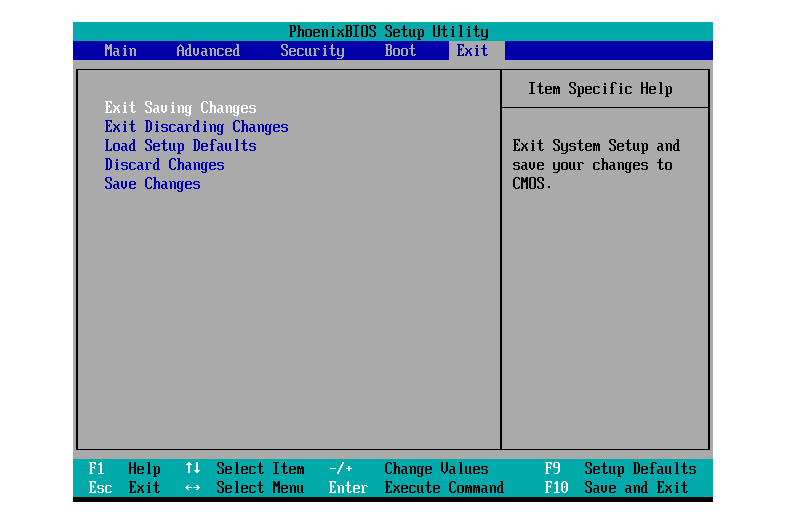
I did a search and the answer was use the F10 key.
To create a bootable USB Drive download Rufus from Rufus - Create bootable USB drives the easy way
For now, temporarily disable Secure Boot in BIOS and start Windows. Run the check script, and post the output.

If you're in a boot loop, it's nearly impossible to debug it. Turning off Secure Boot will disable the security checks, and allow Windows to boot normally. From there, we can determine the next steps. Some older HP PC's appear to have a finicky BIOS that don't update correctly.
 

My Computer

System One

  • OS
    Windows 7
For now, temporarily disable Secure Boot in BIOS and start Windows. Run the check script, and post the output.

If you're in a boot loop, it's nearly impossible to debug it. Turning off Secure Boot will disable the security checks, and allow Windows to boot normally. From there, we can determine the next steps. Some older HP PC's appear to have a finicky BIOS that don't update correctly.
I guess this reply was for me.
There's no way of getting into the BIOS, it's bricked. I've tried all the F keys and esc. Finally managed to format a usb with Fat32 and get the HP BIOS flash installed onto it but that doesn't work either. Also tried some other UEFI repair thing from HP and that did actually respond, telling me some files were corrupt and had been replaced but ultimately nothing changed. Finally tried Rufus with Win10 on it but that doesn't work either.
Just ordered a new mobo.
 

My Computer

System One

  • OS
    Windows 10 pro
    Computer type
    PC/Desktop
    Manufacturer/Model
    HP EliteDesk 800 G5 SFF
    CPU
    Intel i7
I guess this reply was for me.
There's no way of getting into the BIOS, it's bricked. I've tried all the F keys and esc. Finally managed to format a usb with Fat32 and get the HP BIOS flash installed onto it but that doesn't work either. Also tried some other UEFI repair thing from HP and that did actually respond, telling me some files were corrupt and had been replaced but ultimately nothing changed. Finally tried Rufus with Win10 on it but that doesn't work either.
Just ordered a new mobo.
Can you try one last trick? Power off the system. Locate the motherboard battery, and remove it. Wait 10 min. and reinsert it. Power on.

The script can only apply changes to the UEFI Secure Boot variables. It cannot alter the BIOS firmware, or change other settings (for security reasons, BIOS changes other than firmware updates have to be done in person). I don't know why you can't at least enter the BIOS screen unless the HP BIOS tool had some problems.
 

My Computer

System One

  • OS
    Windows 7
Can you try one last trick? Power off the system. Locate the motherboard battery, and remove it. Wait 10 min. and reinsert it. Power on.

The script can only apply changes to the UEFI Secure Boot variables. It cannot alter the BIOS firmware, or change other settings (for security reasons, BIOS changes other than firmware updates have to be done in person). I don't know why you can't at least enter the BIOS screen unless the HP BIOS tool had some problems.
Already tried the CMOS battery. When I start it I get the HP logo and in the bottom left of the screen it says 'entering set up menu' but then the pc just shuts down.
 

My Computer

System One

  • OS
    Windows 10 pro
    Computer type
    PC/Desktop
    Manufacturer/Model
    HP EliteDesk 800 G5 SFF
    CPU
    Intel i7
If removing the battery and then shorting it's terminals for 20-30 minutes doesn't do the trick, it sounds like you're truly bricked.
 

My Computers

System One System Two

  • OS
    Win 11 Pro 25H2, Build 26200.8524
    Computer type
    PC/Desktop
    Manufacturer/Model
    Home Brew
    CPU
    Intel Core i5 14500
    Motherboard
    Gigabyte B760M G P WIFI
    Memory
    64GB DDR4
    Graphics Card(s)
    GeForce RTX 4060
    Sound Card
    Chipset Realtek
    Monitor(s) Displays
    LG 45" Ultragear, Acer 24" 1080p
    Screen Resolution
    5120x1440, 1920x1080
    Hard Drives
    Crucial P310 2TB 2280 PCIe Gen4 3D NAND NVMe M.2 SSD (O/S)
    Silicon Power 2TB US75 NVMe PCIe Gen4 M.2 2280 SSD (backup)
    Crucial BX500 2TB 3D NAND (2nd backup)
    Seagate 4TB Ironwolf, rotating HDD archive files
    External off-line backup Drives: 2 NVMe 4TB drives in external enclosures
    PSU
    Thermaltake Toughpower GF3 750W
    Case
    LIAN LI LANCOOL 216 E-ATX PC Case
    Cooling
    Lots of fans!
    Keyboard
    Microsoft Comfort Curve 2000
    Mouse
    Logitech G305
    Internet Speed
    Verizon FiOS 1GB
    Browser
    Firefox
    Antivirus
    Malware Bytes & Windows Defender Security
  • Operating System
    Win 11 Pro 25H2, Build 26200.8524
    Computer type
    PC/Desktop
    Manufacturer/Model
    Home Brew
    CPU
    Intel Core i5 14400
    Motherboard
    Gigabyte B760M DS3H AX
    Memory
    32GB DDR5
    Graphics card(s)
    Intel 700 Embedded GPU
    Sound Card
    Realtek Embedded
    Monitor(s) Displays
    27" HP 1080p
    Screen Resolution
    1920x1080
    Hard Drives
    Crucial P310 2TB 2280 PCIe Gen4 eD NAND PCIe SSD
    Samsung EVO 990 2TB NVMe Gen4 SSD
    Samsung 2TB SATA SSD
    PSU
    Thermaltake Smart BM3 650W
    Case
    Okinos Micro ATX Case
    Cooling
    Fans
    Keyboard
    Microsoft Comfort Curve 2000
    Mouse
    Logitech G305
    Internet Speed
    Verizon FiOS 1GB
    Browser
    Firefox
    Antivirus
    Malware Bytes & Windows Defender Security
If removing the battery and then shorting it's terminals for 20-30 minutes doesn't do the trick, it sounds like you're truly bricked.
Have to admit I've never heard of shorting the terminals, I just drained the power and took the battery out for 5-10 minutes then replaced it. I'll give that a try now. Thanks.
 

My Computer

System One

  • OS
    Windows 10 pro
    Computer type
    PC/Desktop
    Manufacturer/Model
    HP EliteDesk 800 G5 SFF
    CPU
    Intel i7
@HerefordBull


3 Ways to Reset Your BIOS - wikiHow:

3 Easy Ways to Clear CMOS (Reset BIOS)


BIOS recovery options for PCs with HP Sure Start
 
Last edited:

My Computer

System One

  • OS
    Windows 10
    Computer type
    Laptop
    Manufacturer/Model
    HP
    CPU
    Intel(R) Core(TM) i7-4800MQ CPU @ 2.70GHz
    Motherboard
    Product : 190A Version : KBC Version 94.56
    Memory
    16 GB Total: Manufacturer : Samsung MemoryType : DDR3 FormFactor : SODIMM Capacity : 8GB Speed : 1600
    Graphics Card(s)
    NVIDIA Quadro K3100M; Intel(R) HD Graphics 4600
    Sound Card
    IDT High Definition Audio CODEC; PNP Device ID HDAUDIO\FUNC_01&VEN_111D&DEV_76E0
    Hard Drives
    Model Hitachi HTS727575A9E364
    Antivirus
    Microsoft Defender
    Other Info
    Mobile Workstation
Well I did the 30 minutes short circuit for the CMOS and used the CMOS reset button. That did yield a result of sorts but I was too slow to take a photo of the message, it was something along the lines of 'time error... factory default settings applied' so that seemed to work as far as a CMOS reset, unfortunately it didn't actually change the PC's behaviour.

Tried the F10 and also the esc buttons but nothing doing there.
Tried the recovery drive, same result.

Next used the BIOS flash drive and the key combination, that yielded the same result as yesterday. A message that I did capture:
'HP sure start detected an unauthorised change to the secure boot keys.
The keys were restored automatically and there is no further action required.
The repeated occurence of this problem indicates a security problem that should not be ignored'

End result of this is that when I switch on the PC it now starts as before but instead of showing the HP logo before shutting down it goes to the HP Sure Start Recovery screen with the above message displayed. When I click 'OK' it goes to the HP logo screen with the message @entering set up menu' displayed in the bottom left corner then shuts down.

Think it's safe to say that it is bricked.

Many thanks to all who responded and tried to help.
 

My Computer

System One

  • OS
    Windows 10 pro
    Computer type
    PC/Desktop
    Manufacturer/Model
    HP EliteDesk 800 G5 SFF
    CPU
    Intel i7
@HerefordBull

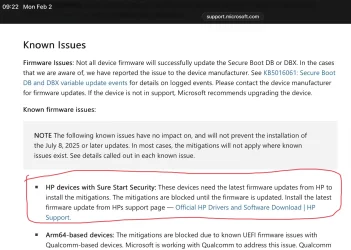
This is from Microsoft

IMG_2079.webp


If you have HP Sure Start, you cannot change or add new certificates because Sure Start does not let you do it. There is a BIOS setting that protects certificates. You can disable this setting and than try to install new certificates but neither Microsoft nor HP recommends it.

If your HP PC is 2018 model year or later, HP will release BIOS updates. You should wait for it.

Hope this helps.
 

My Computers

System One System Two

  • OS
    Windows 11 Pro build 26200.8524
    Computer type
    PC/Desktop
    Manufacturer/Model
    Home Built
    CPU
    Intel i7-4790
    Motherboard
    Asus H97 Pro Gamer with add-on TPM1.2 module
    Memory
    Teams DDR3-1600 4x4 GB
    Graphics Card(s)
    MSI Nvidia GeForce GTX 1050Ti
    Sound Card
    Realtek ALC1150
    Monitor(s) Displays
    Dell P2425D
    Screen Resolution
    2560 by 1440 pixels
    Hard Drives
    Corsair NVMe M.2 Core XT 1000 GB (Windows 11 v.25H2); Samsung SATA Evo 870 500 GB (Windows 11 v.25H2);
    PSU
    Corsair HX850
    Case
    Gigabyte Solo 210
    Cooling
    Zalman CNPS7X Tower
    Keyboard
    Microsoft AIO Wireless (includes touchpad)
    Mouse
    HP S1000 Plus Wireless
    Internet Speed
    500 Mb fiber optic
    Browser
    Chrome; MS Edge
    Antivirus
    Windows Defender
  • Operating System
    MacOS 12 Monterey
    Computer type
    Laptop
    Manufacturer/Model
    Apple Macbook Air
    CPU
    Intel Core i5
    Memory
    8 GB
    Graphics card(s)
    Intel integrated
    Screen Resolution
    1440 by 900 pixels
    Hard Drives
    128 GB
    Keyboard
    Built-in
    Mouse
    Microsoft Wireless
    Internet Speed
    802.11 ac
    Browser
    Chrome; Safari
    Antivirus
    N/A

My Computers

System One System Two

  • OS
    Windows 11 Pro build 26200.8524
    Computer type
    PC/Desktop
    Manufacturer/Model
    Home Built
    CPU
    Intel i7-4790
    Motherboard
    Asus H97 Pro Gamer with add-on TPM1.2 module
    Memory
    Teams DDR3-1600 4x4 GB
    Graphics Card(s)
    MSI Nvidia GeForce GTX 1050Ti
    Sound Card
    Realtek ALC1150
    Monitor(s) Displays
    Dell P2425D
    Screen Resolution
    2560 by 1440 pixels
    Hard Drives
    Corsair NVMe M.2 Core XT 1000 GB (Windows 11 v.25H2); Samsung SATA Evo 870 500 GB (Windows 11 v.25H2);
    PSU
    Corsair HX850
    Case
    Gigabyte Solo 210
    Cooling
    Zalman CNPS7X Tower
    Keyboard
    Microsoft AIO Wireless (includes touchpad)
    Mouse
    HP S1000 Plus Wireless
    Internet Speed
    500 Mb fiber optic
    Browser
    Chrome; MS Edge
    Antivirus
    Windows Defender
  • Operating System
    MacOS 12 Monterey
    Computer type
    Laptop
    Manufacturer/Model
    Apple Macbook Air
    CPU
    Intel Core i5
    Memory
    8 GB
    Graphics card(s)
    Intel integrated
    Screen Resolution
    1440 by 900 pixels
    Hard Drives
    128 GB
    Keyboard
    Built-in
    Mouse
    Microsoft Wireless
    Internet Speed
    802.11 ac
    Browser
    Chrome; Safari
    Antivirus
    N/A
@HerefordBull

This is from Microsoft

View attachment 161942


If you have HP Sure Start, you cannot change or add new certificates because Sure Start does not let you do it. There is a BIOS setting that protects certificates. You can disable this setting and than try to install new certificates but neither Microsoft nor HP recommends it.

If your HP PC is 2018 model year or later, HP will release BIOS updates. You should wait for it.

Hope this helps.
Thanks. My PC is up to date with Microsoft updates and the BIOS I used for the repair drive from HP is dated December 2025. As for firmware updates, I have no way of entering the BIOS or any setting/recovery as previously explained. I really don't see how I can repair this mobo.

Edit: Seems I might not have updated the firmware from HP when updating Windows. My bad.
 

My Computer

System One

  • OS
    Windows 10 pro
    Computer type
    PC/Desktop
    Manufacturer/Model
    HP EliteDesk 800 G5 SFF
    CPU
    Intel i7

My Computers

System One System Two

  • OS
    Windows 11 Pro build 26200.8524
    Computer type
    PC/Desktop
    Manufacturer/Model
    Home Built
    CPU
    Intel i7-4790
    Motherboard
    Asus H97 Pro Gamer with add-on TPM1.2 module
    Memory
    Teams DDR3-1600 4x4 GB
    Graphics Card(s)
    MSI Nvidia GeForce GTX 1050Ti
    Sound Card
    Realtek ALC1150
    Monitor(s) Displays
    Dell P2425D
    Screen Resolution
    2560 by 1440 pixels
    Hard Drives
    Corsair NVMe M.2 Core XT 1000 GB (Windows 11 v.25H2); Samsung SATA Evo 870 500 GB (Windows 11 v.25H2);
    PSU
    Corsair HX850
    Case
    Gigabyte Solo 210
    Cooling
    Zalman CNPS7X Tower
    Keyboard
    Microsoft AIO Wireless (includes touchpad)
    Mouse
    HP S1000 Plus Wireless
    Internet Speed
    500 Mb fiber optic
    Browser
    Chrome; MS Edge
    Antivirus
    Windows Defender
  • Operating System
    MacOS 12 Monterey
    Computer type
    Laptop
    Manufacturer/Model
    Apple Macbook Air
    CPU
    Intel Core i5
    Memory
    8 GB
    Graphics card(s)
    Intel integrated
    Screen Resolution
    1440 by 900 pixels
    Hard Drives
    128 GB
    Keyboard
    Built-in
    Mouse
    Microsoft Wireless
    Internet Speed
    802.11 ac
    Browser
    Chrome; Safari
    Antivirus
    N/A

My Computer

System One

  • OS
    Windows 10 pro
    Computer type
    PC/Desktop
    Manufacturer/Model
    HP EliteDesk 800 G5 SFF
    CPU
    Intel i7
Carried out the PWSD jumper reset and that gave me a new message:

The HP Endpoint Security Controller settings have been recovered to their default state

But alas, it's still in perpetual boot
 

My Computer

System One

  • OS
    Windows 10 pro
    Computer type
    PC/Desktop
    Manufacturer/Model
    HP EliteDesk 800 G5 SFF
    CPU
    Intel i7
@HerefordBull

Have you tried detaching the disk? I'd try w/o disk at all (not bootable USB either) and if you succeed entering the BIOS and maybe correcting anything that you could see wrong (or even if you don't see anything), my following test would be with a Windows 10 install USB (if you know that was the OS, else 11), and if it boots I'd use a spare disk (even an old slow HDD you might have or borrow, preferably empty) and install the OS there as a proof.

My theory: on purpose or in error, the BIOS might be detecting a Secure Boot violation in your Windows disk and acting too expeditiously (when trying pendrives in my Secure Boot adventure, the most serious "reaction" I got was a red message and shut down on its own after some seconds, but every system's different), or either your Windows is trying something something incorrect/not allowed/etc with the UEFI BIOS,... even a disk hw failure would be covered by this proof.

In general, your Windows is/may be in the middle of an update that also involves changes to the motherboard's Secure Boot, and your mobo seems reset to factory defaults what Windows may not be expecting.
 

My Computer

System One

  • OS
    Windows 11
    Manufacturer/Model
    MeLE Quieter 2Q (fanless miniPC)
    CPU
    Celeron J4125 (10th gen)
    Memory
    8GB DDR4
    Monitor(s) Displays
    Samsung SyncMaster T260
    Screen Resolution
    1920x1200
    Hard Drives
    256GB eMMC (Windows)
    2TB USB3 HDD Toshiba (Data)
Have to admit I've never heard of shorting the terminals, I just drained the power and took the battery out for 5-10 minutes then replaced it. I'll give that a try now. Thanks.
I know some motherboards in the past would hold up the chip for quite a while just on the stored charge after disconnecting, and shorting the battery contacts was recommended. It's been years since I've had to reset my BIOS, so I don't know if that advice still holds. OTOH, shorting the terminals can't possibly hurt with the battery out and the system disconnected from any power, so it safe to do.
 

My Computers

System One System Two

  • OS
    Win 11 Pro 25H2, Build 26200.8524
    Computer type
    PC/Desktop
    Manufacturer/Model
    Home Brew
    CPU
    Intel Core i5 14500
    Motherboard
    Gigabyte B760M G P WIFI
    Memory
    64GB DDR4
    Graphics Card(s)
    GeForce RTX 4060
    Sound Card
    Chipset Realtek
    Monitor(s) Displays
    LG 45" Ultragear, Acer 24" 1080p
    Screen Resolution
    5120x1440, 1920x1080
    Hard Drives
    Crucial P310 2TB 2280 PCIe Gen4 3D NAND NVMe M.2 SSD (O/S)
    Silicon Power 2TB US75 NVMe PCIe Gen4 M.2 2280 SSD (backup)
    Crucial BX500 2TB 3D NAND (2nd backup)
    Seagate 4TB Ironwolf, rotating HDD archive files
    External off-line backup Drives: 2 NVMe 4TB drives in external enclosures
    PSU
    Thermaltake Toughpower GF3 750W
    Case
    LIAN LI LANCOOL 216 E-ATX PC Case
    Cooling
    Lots of fans!
    Keyboard
    Microsoft Comfort Curve 2000
    Mouse
    Logitech G305
    Internet Speed
    Verizon FiOS 1GB
    Browser
    Firefox
    Antivirus
    Malware Bytes & Windows Defender Security
  • Operating System
    Win 11 Pro 25H2, Build 26200.8524
    Computer type
    PC/Desktop
    Manufacturer/Model
    Home Brew
    CPU
    Intel Core i5 14400
    Motherboard
    Gigabyte B760M DS3H AX
    Memory
    32GB DDR5
    Graphics card(s)
    Intel 700 Embedded GPU
    Sound Card
    Realtek Embedded
    Monitor(s) Displays
    27" HP 1080p
    Screen Resolution
    1920x1080
    Hard Drives
    Crucial P310 2TB 2280 PCIe Gen4 eD NAND PCIe SSD
    Samsung EVO 990 2TB NVMe Gen4 SSD
    Samsung 2TB SATA SSD
    PSU
    Thermaltake Smart BM3 650W
    Case
    Okinos Micro ATX Case
    Cooling
    Fans
    Keyboard
    Microsoft Comfort Curve 2000
    Mouse
    Logitech G305
    Internet Speed
    Verizon FiOS 1GB
    Browser
    Firefox
    Antivirus
    Malware Bytes & Windows Defender Security
For the last two months, I've been working on new PowerShell scripts to automate the Secure Boot CA 2023 update process.
Thank you for creating this tool!

I'm trying to migrate to CA 2023 on an "ancient" Dell Latitude 3380, but I get this error when running the update script:
Code:
Downloading "KEKUpdate_Dell_PK4.bin" from GitHub.
ERROR: Failed to append "KEKUpdate_Dell_PK4.bin" to UEFI KEK.
Unexpected Result, status error: 0xC000000D

This is the output of the check script:
Code:
Secure Boot: ON
Virtualization Based Security: ON
BitLocker on (C:) OFF

UEFI KEK Certs
--------------
    Microsoft Corporation KEK CA 2011

UEFI DB Certs
-------------
    Microsoft Corporation UEFI CA 2011
    Microsoft Windows Production PCA 2011
    Microsoft Option ROM UEFI CA 2023
    Microsoft UEFI CA 2023
    Windows UEFI CA 2023

UEFI DBX Certs
--------------
    Microsoft Windows PCA 2010

EFI Files
---------
    Disk 0: Windows Boot Manager [Production PCA 2011] is ALLOWED.

    Registry: WindowsUEFICA2023Capable = 1
        [Windows UEFI CA 2023] in UEFI DB.

    Disk 0: SkuSiPolicy.p7b (for VBS) is NOT PRESENT.


REQUIRED ACTION
===============

Run the command:
    Update_UEFI-CA2023.ps1 -Revoke

Finish the UEFI steps to manually add the [KEK CA 2023] cert, if the script provided instructions.

What should be my next action?

(I don't dare to revoke 2011 until the 2023 KEK is in)

EDIT: The laptop still booted Windows 11 once or twice with Secure Boot on, but after I experimented with the BIOS settings (enabled & disabled Custom Mode in Expert Key Management under Secure Boot settings) it refuses that because of a Secure Boot validation failure loading bootmgfw.efi (Windows still boots with Secure Boot off and Ubuntu still boots with Secure Mode on). It looks like some 2023 certificates disappeared?
 
Last edited:

My Computer

System One

  • OS
    Windows 11
    Computer type
    Laptop
    Manufacturer/Model
    Dell Latitude 3380
    CPU
    Intel Core i3-6006U @ 2.00 GHz
    Motherboard
    Dell 0WM4F
    Memory
    16,0 GB
    Graphics Card(s)
    Intel HD Graphics 520
    Sound Card
    Realtek Audio
    Monitor(s) Displays
    Built-in
    Screen Resolution
    1366 x 768 @ 59 Hz
    Hard Drives
    SK Hynix SC311 SATA 128 GB SSD
    Other Info
    Multi-boot Windows/Ubuntu using rEFInd
PS: Maybe the fact that I'm using rEFInd to boot either Windows 11 or Ubuntu complicates things?
 

My Computer

System One

  • OS
    Windows 11
    Computer type
    Laptop
    Manufacturer/Model
    Dell Latitude 3380
    CPU
    Intel Core i3-6006U @ 2.00 GHz
    Motherboard
    Dell 0WM4F
    Memory
    16,0 GB
    Graphics Card(s)
    Intel HD Graphics 520
    Sound Card
    Realtek Audio
    Monitor(s) Displays
    Built-in
    Screen Resolution
    1366 x 768 @ 59 Hz
    Hard Drives
    SK Hynix SC311 SATA 128 GB SSD
    Other Info
    Multi-boot Windows/Ubuntu using rEFInd
PS: Maybe the fact that I'm using rEFInd to boot either Windows 11 or Ubuntu complicates things?
Maybe. The script assumes you're in a Windows-only environment. Not that it's unfriendly to Linux, but it only does things from a Windows perspective.

Code:
Downloading "KEKUpdate_Dell_PK4.bin" from GitHub.
ERROR: Failed to append "KEKUpdate_Dell_PK4.bin" to UEFI KEK.
Unexpected Result, status error: 0xC000000D
The update script has determined your Dell's current Platform Key (PK) is supported by MS, because they submitted a signed KEK to the GitHub. But there's an unexpected error when trying to append the KEK CA 2023.

Since you're playing around with Linux, I presume you know if this Dell BIOS supports manual UEFI key enrollment. If that's possible, you can try copying the KEK CA 2023 cert manually to the EFI partition, and enrolling it thru the UEFI menu. Let me know if your UEFI supports it.
 

My Computer

System One

  • OS
    Windows 7

My Computer

System One

  • OS
    Windows 11
    Computer type
    Laptop
    Manufacturer/Model
    Dell Latitude 3380
    CPU
    Intel Core i3-6006U @ 2.00 GHz
    Motherboard
    Dell 0WM4F
    Memory
    16,0 GB
    Graphics Card(s)
    Intel HD Graphics 520
    Sound Card
    Realtek Audio
    Monitor(s) Displays
    Built-in
    Screen Resolution
    1366 x 768 @ 59 Hz
    Hard Drives
    SK Hynix SC311 SATA 128 GB SSD
    Other Info
    Multi-boot Windows/Ubuntu using rEFInd

Latest Support Threads

Back
Top Bottom