ChatGPT > Does the Gigabyte GA-970A-UD3 motherboard support UEFI booting from a Windows 11 USB stick?
The
Gigabyte GA-970A-UD3 is an older AM3+ socket motherboard (AMD 970 chipset, released around 2011–2012). Here’s how it relates to UEFI and Windows 11 booting:
- UEFI Support:
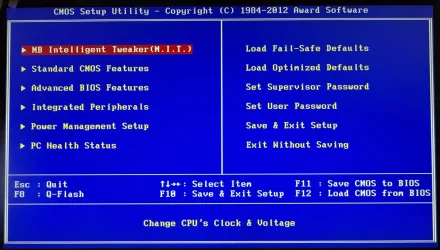
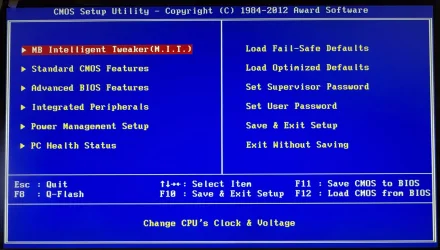
The GA-970A-UD3 does not have a full modern UEFI firmware. It ships with an Award BIOS (legacy BIOS). Some later BIOS revisions added a "Hybrid EFI" module mainly for recognizing large hard drives (>2 TB), but this is not a full UEFI implementation with Secure Boot.
- Windows 11 Requirements:
Windows 11 requires UEFI boot with Secure Boot and TPM 2.0 (unless bypassed). The GA-970A-UD3 has no TPM 2.0 module header (only optional TPM 1.2 support, if at all) and no Secure Boot support.
- Booting a Windows 11 USB Stick:
- You cannot do a pure UEFI boot from this board since it doesn’t implement full UEFI boot services.
- You can boot a Windows 11 USB stick in legacy/CSM mode, provided the installer is created to allow legacy boot. Windows 11 itself can install and run this way, but you’ll need to bypass the checks for TPM 2.0, Secure Boot, and possibly CPU requirements.
In short:
The GA-970A-UD3 does
not support true UEFI booting. You can still install and boot Windows 11 in legacy BIOS mode (with registry or media creation hacks to skip TPM/Secure Boot checks), but it won’t meet Microsoft’s official requirements.
Note: You have to choose Option 2, not Option 1.
How to bypass Windows 11 system requirements to perform a clean install?
Download Windows 11 ISO file, select the option "Download Windows 11 Disk Image (ISO) for x64 devices."
Insert your USB flash drive. In
Rufus, select the ISO file you downloaded. Under
Partition scheme, select the
GPT or
MBR option. The
Target system and
File system options will change automatically.
Option 1.
Rufus settings to create UEFI bootable USB flash drive.
"UEFI" means the system boots to Extensible Firmware, required for Secure Boot, GPT, etc.
- Partition scheme:
GPT
"GPT" means installing Windows on a GPT disk (UEFI/GPT installation).
- Check the "
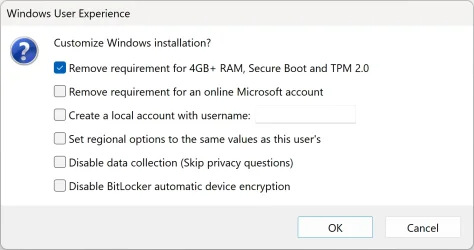
Remove requirement for 4GB+ RAM, Secure Boot and TPM 2.0" option.
Boot the USB flash drive using UEFI mode (in the boot menu, select your USB with the UEFI prefix). If you try to boot the USB in BIOS mode, you get an error message created by Rufus: "ERROR: BIOS/LEGACY BOOT OF UEFI-ONLY MEDIA."
Option 2.
Rufus settings to create BIOS bootable USB flash drive.
"BIOS" means legacy BIOS or CSM (Compatibility Support Module).
- Partition scheme:
MBR
"MBR" means installing Windows on an MBR disk (BIOS/MBR installation).
- Check the "
Remove requirement for 4GB+ RAM, Secure Boot and TPM 2.0" option.
Boot the USB flash drive using BIOS mode (in the boot menu, select your USB without the UEFI prefix).
Windows Setup automatically determines the correct partition style (GPT or MBR) based on the boot mode of the USB flash drive (UEFI or BIOS).